Hermes Agent Quick‑Start Guide
App Introduction
Hermes Agent is an open‑source self‑learning AI Agent developed by Nous Research. It can run persistently locally or on a server, process files, execute tasks, and manage sessions and memory. It interacts with users via browser console or messaging platforms.
-
Security Notice: This application has file‑access and command‑execution capabilities. Do not place sensitive files inside its working directory. Official safeguards include secure models, command approval, container isolation, and user authorization.
-
System Requirements: Minimum available memory: 1 GB; recommended: 2‑4 GB. At least 2 GB is advised when enabling browser automation. Installation takes roughly 10 minutes, subject to network conditions and image pull progress.
-
Default Login Account: admin
Application Installation Steps
-
Find Hermes Agent under All in the App Center and click Install.
-
Select an installation location and click Next.

Notes:
-
Do not mount folders containing private or highly sensitive data.
-
File Access Path and App Data Path must not point to the same directory, nor may they share a parent‑child sub‑directory relationship.
-
Deleting, modifying or moving these mounted folders externally will cause malfunctions.
Accessing the Hermes Agent Application
You can access Hermes Agent using either of the following methods:
Method 1: Access via App Center
Within the local area network (LAN), an administrator clicks the Hermes Agent app icon. The system redirects to the login page.
Method 2: LAN‑based Access
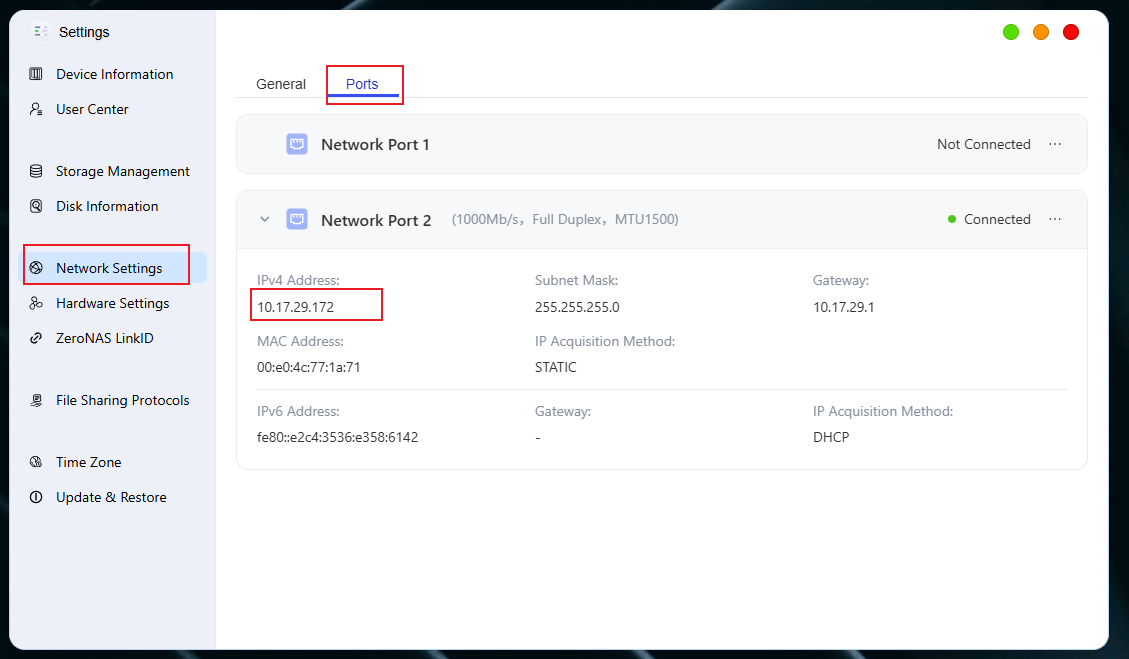
Access via http://NAS_IP:9119 within your LAN. Example: If your NAS IP is 192.168.10.146, enter http://192.168.10.146:9119 in your browser.
Note:
● You can look up your NAS IP address in System Settings → Network Settings → Network Port.
Web Management Interface
Logging In
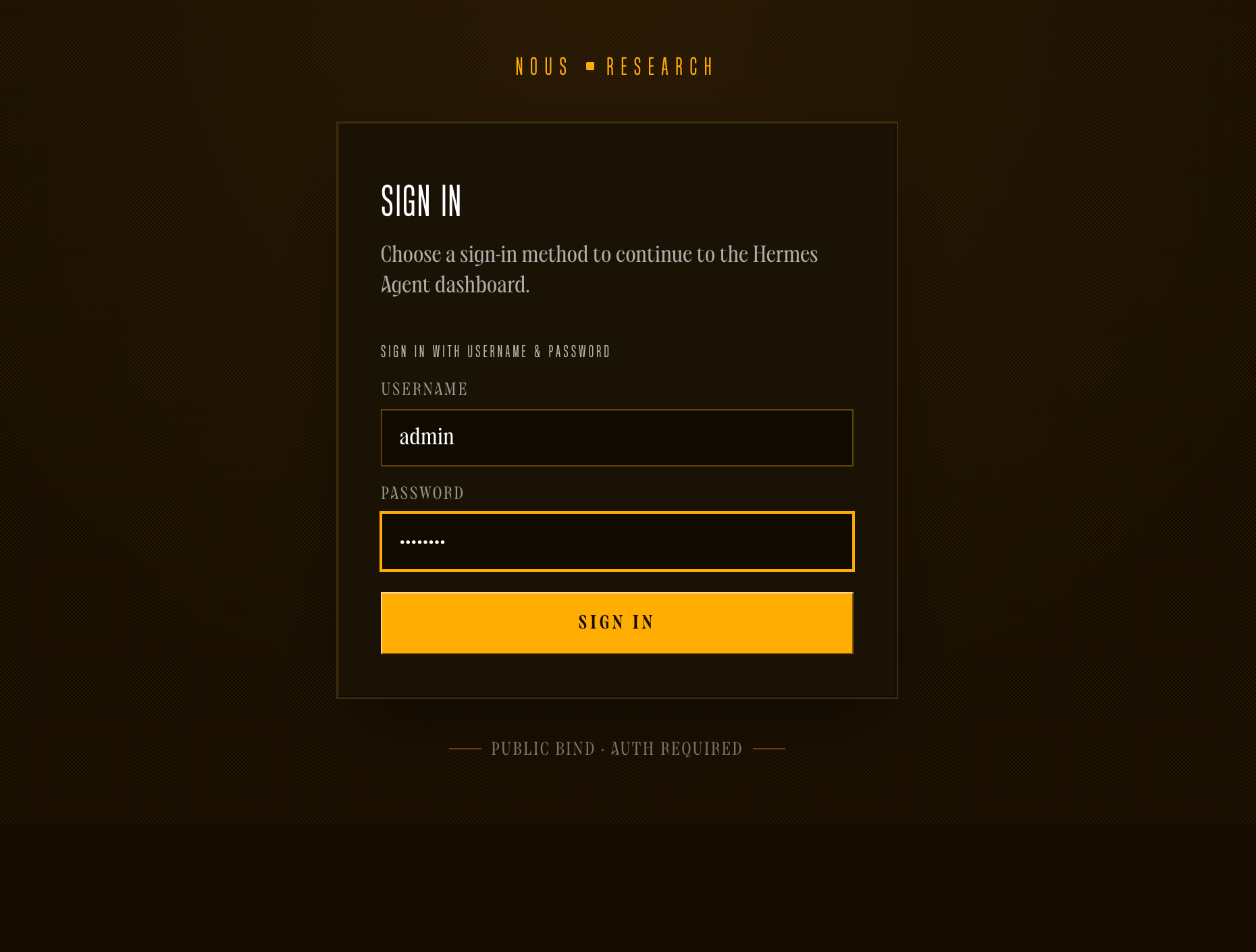
Click the desktop shortcut to launch your browser. Log in using the default username admin and the password you set during installation.
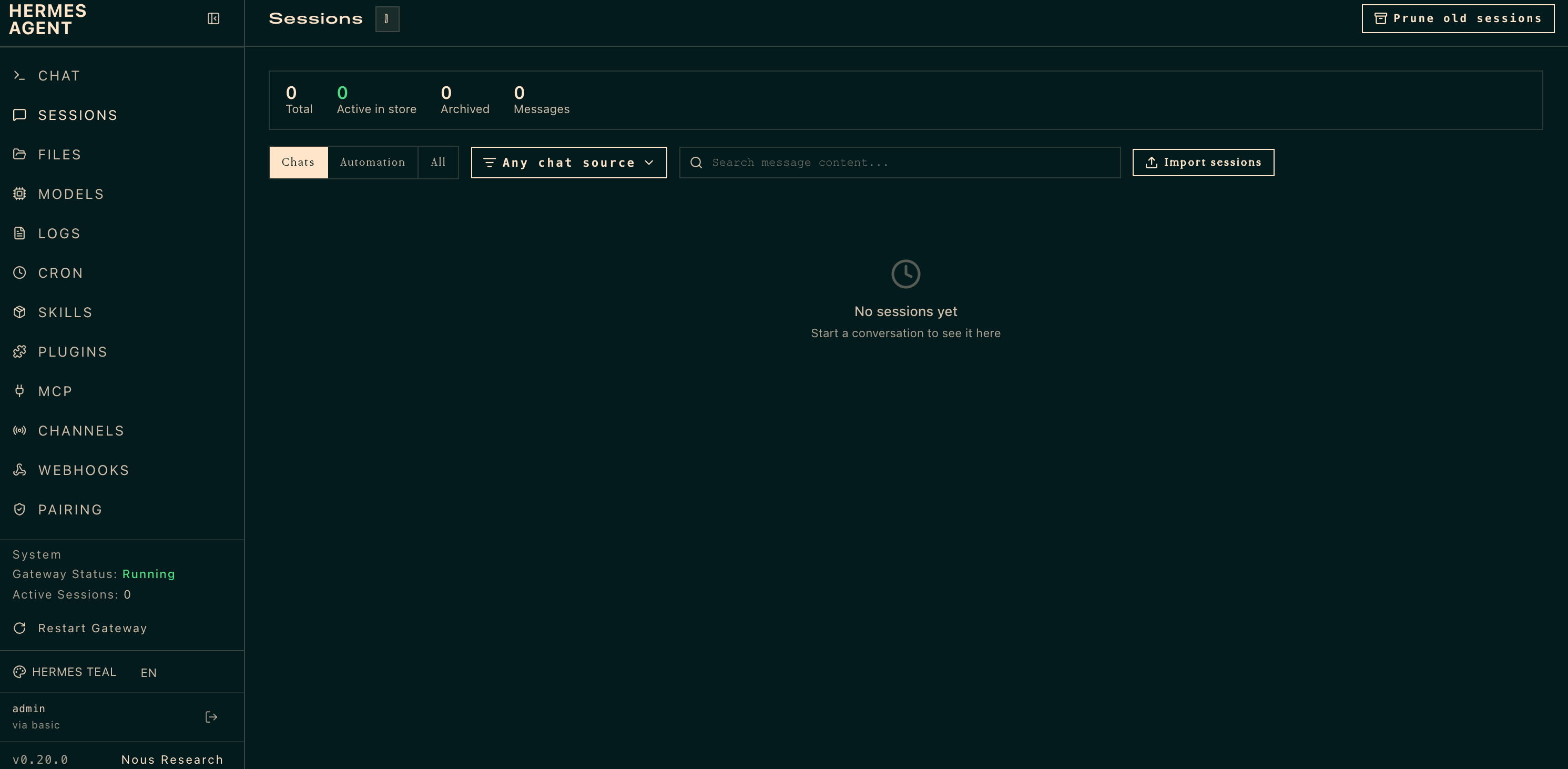
After successful login, the main page appears.
Switch Language
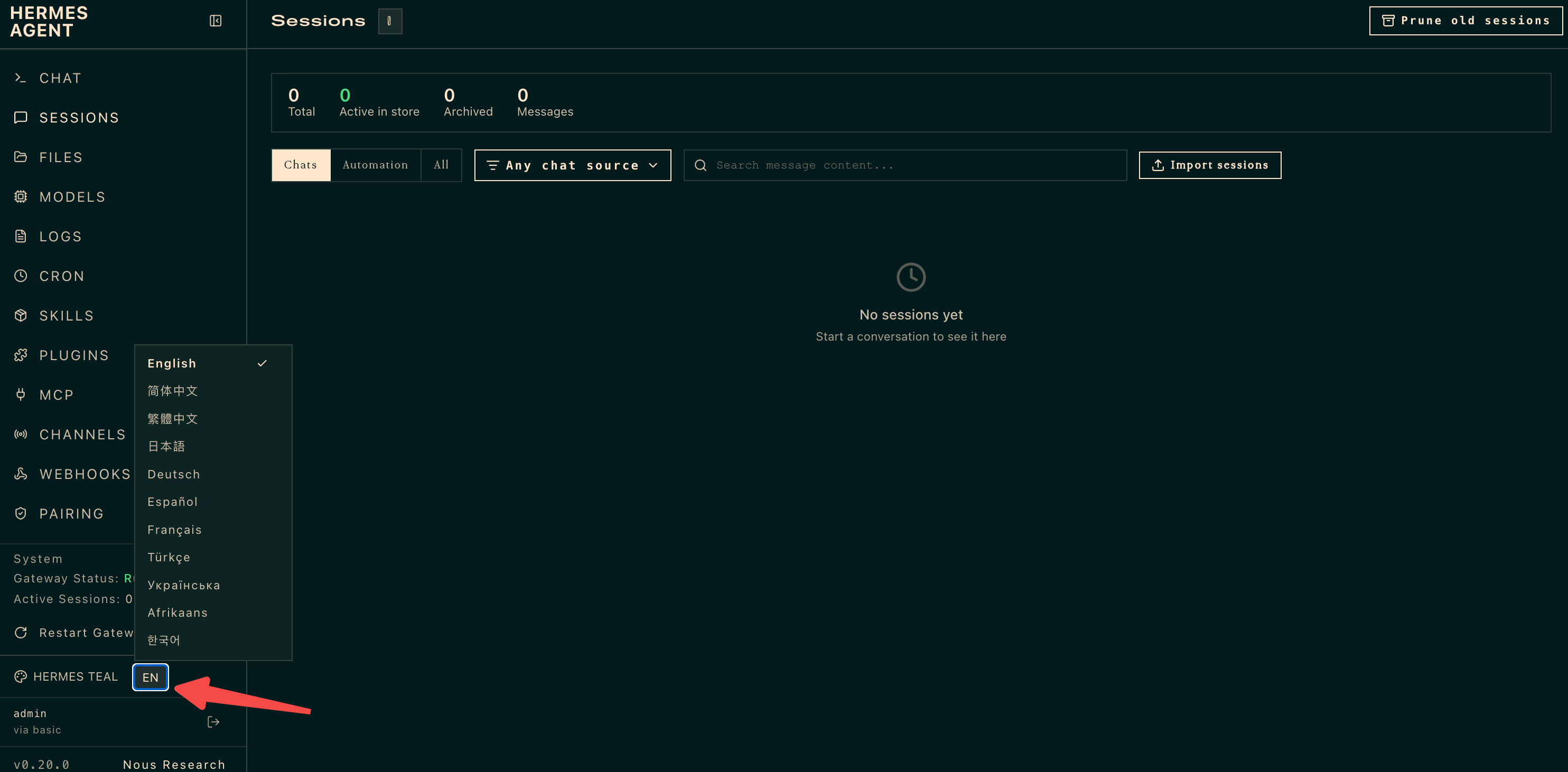
Click EN on the left‑hand navigation bar and select 简体中文 (Simplified Chinese) to switch the UI language.
LLM API Key Configuration
Hermes Agent requires external Large‑Language‑Model (LLM) services for inference capacity. This guide uses DeepSeek as an example to demonstrate the integration workflow.
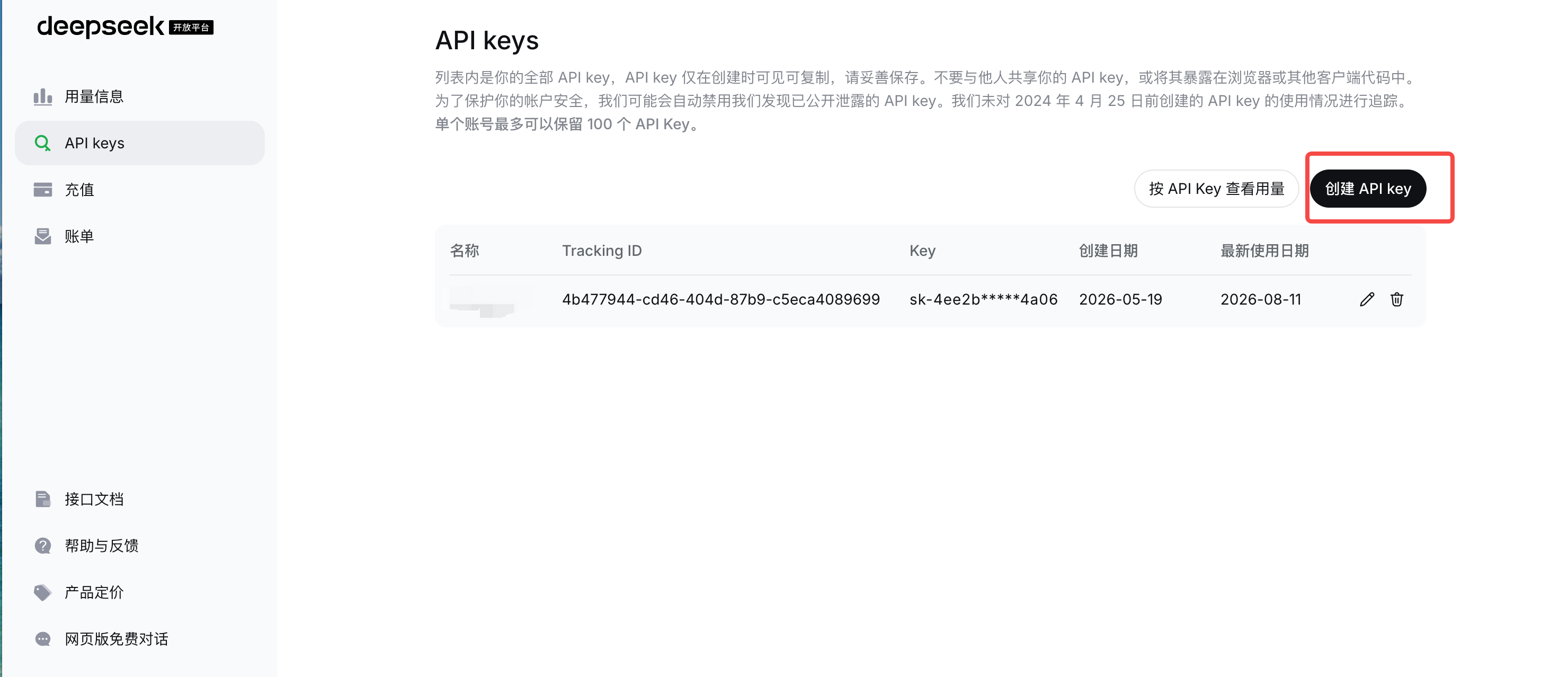
Step 1: Create an API Key
Go to the DeepSeek official website developer console and create an API Key. The key is displayed only once; make sure you copy and save it.
Step 2: Configure the DeepSeek API Credential
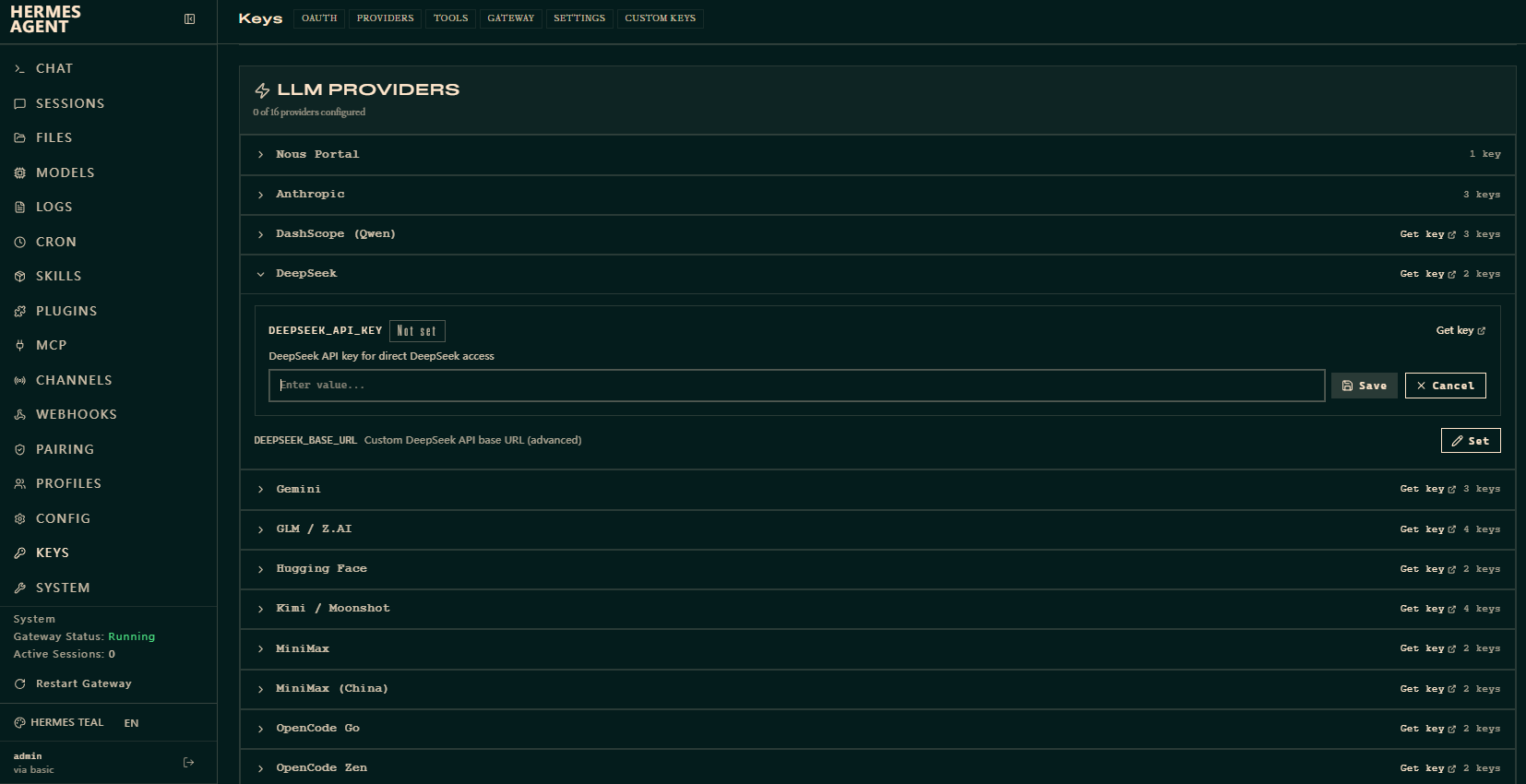
Open Keys in the left‑side menu. Expand DeepSeek under LLM Providers. Fill in:
-
DEEPSEEK_BASE_URL:
https://api.deepseek.com -
DEEPSEEK_API_KEY: paste the API Key obtained in Step 1
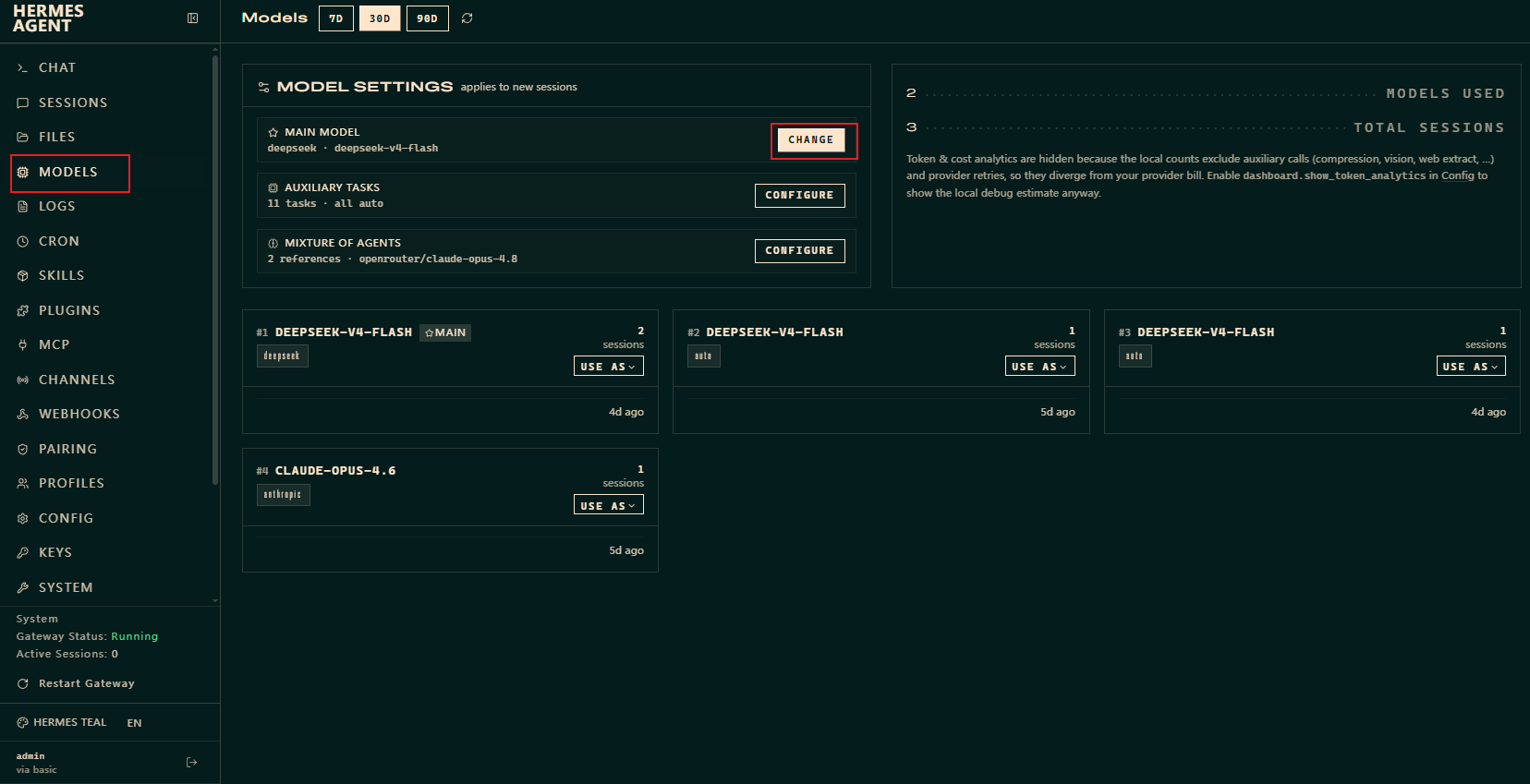
Step 3: Select AI Model
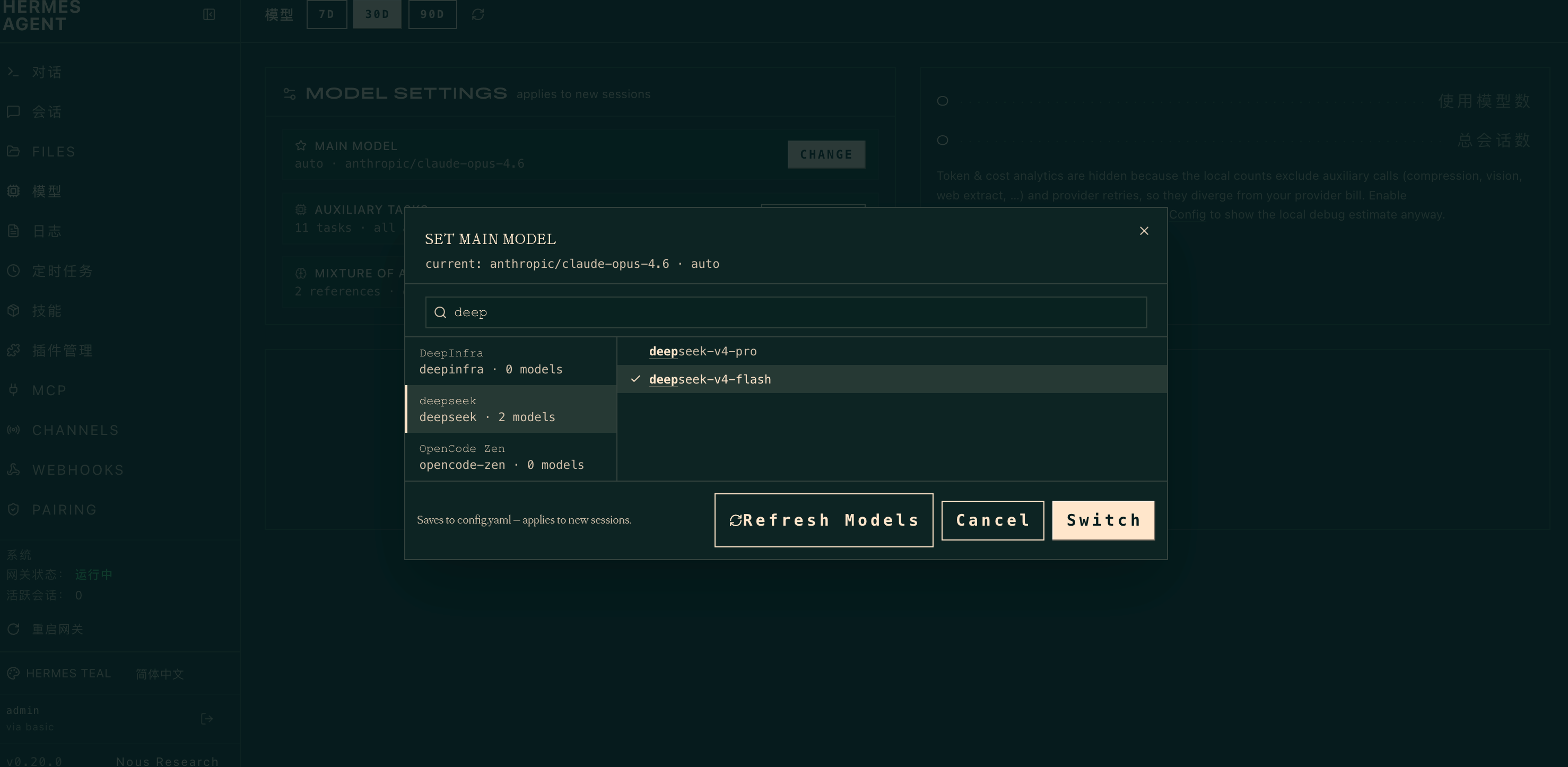
Go to Models on the sidebar and click CHANGE to modify your active model.
In the MAIN MODEL pop‑up window, search for deep, select deepseek‑v4‑flash, then click Switch to confirm.
Step 4: Test AI Conversation
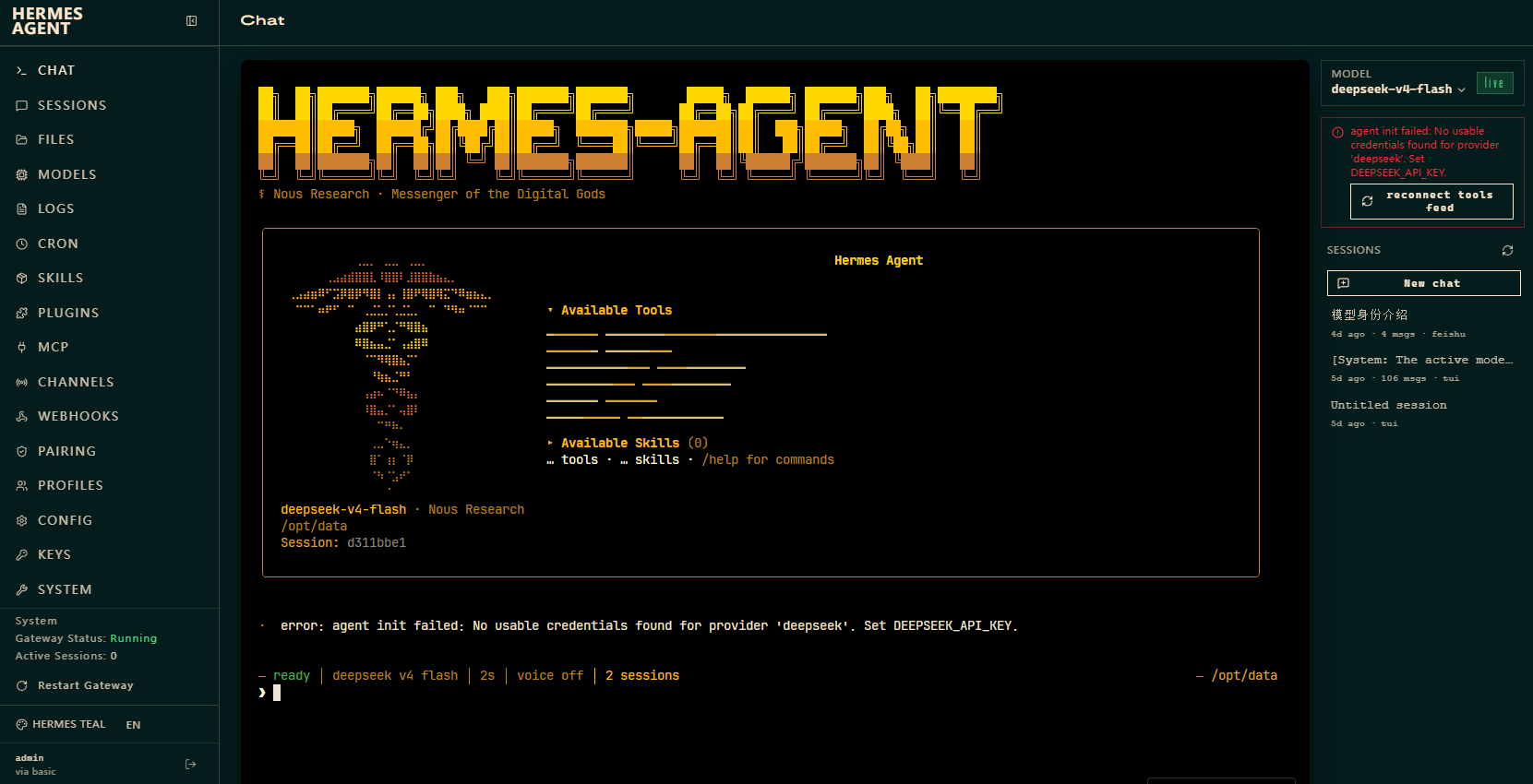
Click Chat on the sidebar to start a chat and verify normal model responses.
Configuring the WeChat Bot
Important Note: Hermes includes a native channel‑configuration page. WeChat setup requires manual entry of WeChatFerry parameters such as Account ID, Token and Base URL, which has a steep learning curve. This tutorial uses an alternative workflow: state your requirement directly to the AI and let it perform automatic configuration.
Step 1: Ask the AI to configure your WeChat channel
Enter the following prompt in the chat window:
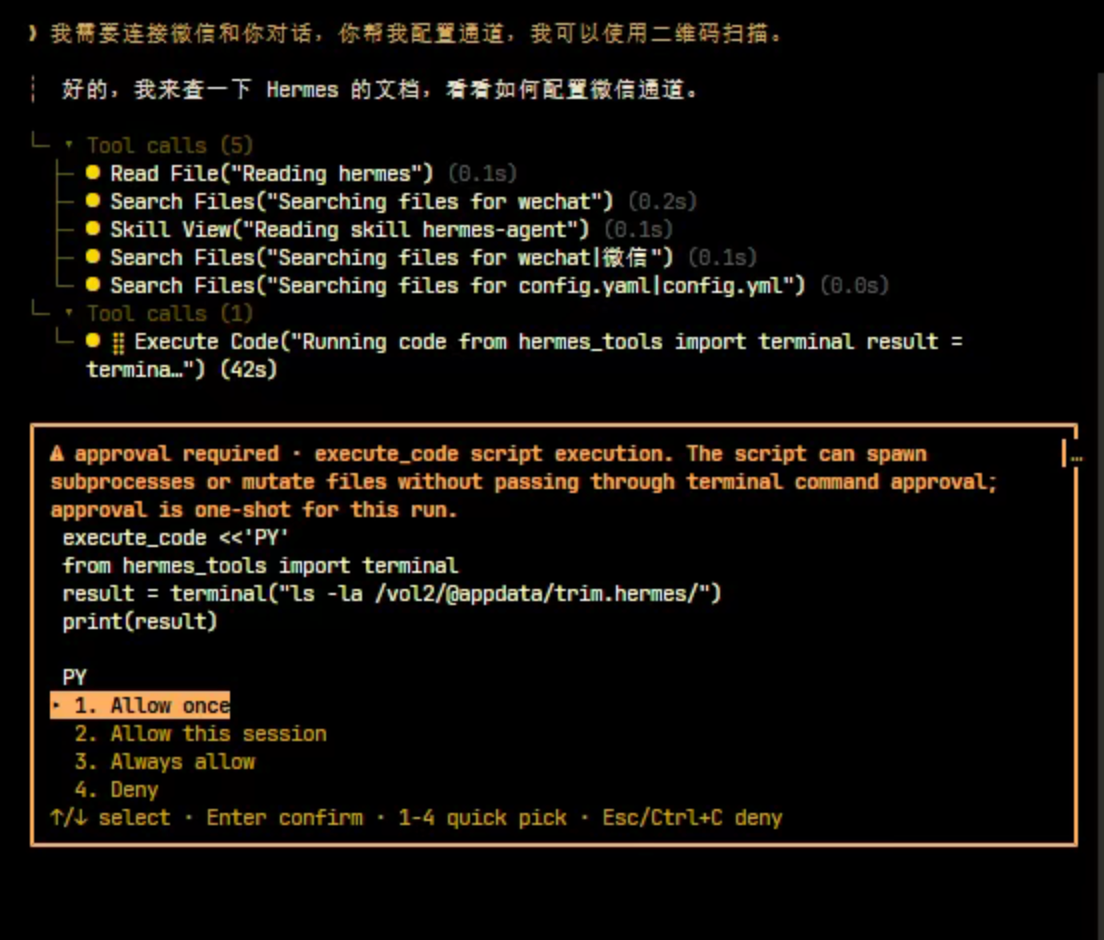
I want to connect WeChat so I can chat with you. Please configure the channel for me; I will scan a QR‑code.
Once the AI understands your request, it will start processing: reviewing documentation, searching files and executing code. An approval pop‑up will appear asking whether script execution is permitted.
Step 2: Confirm the configuration plan
The AI will output a full configuration plan, including dependency installation, QR‑code generation, environment‑variable setup and gateway activation. It will then ask whether you are ready to proceed.
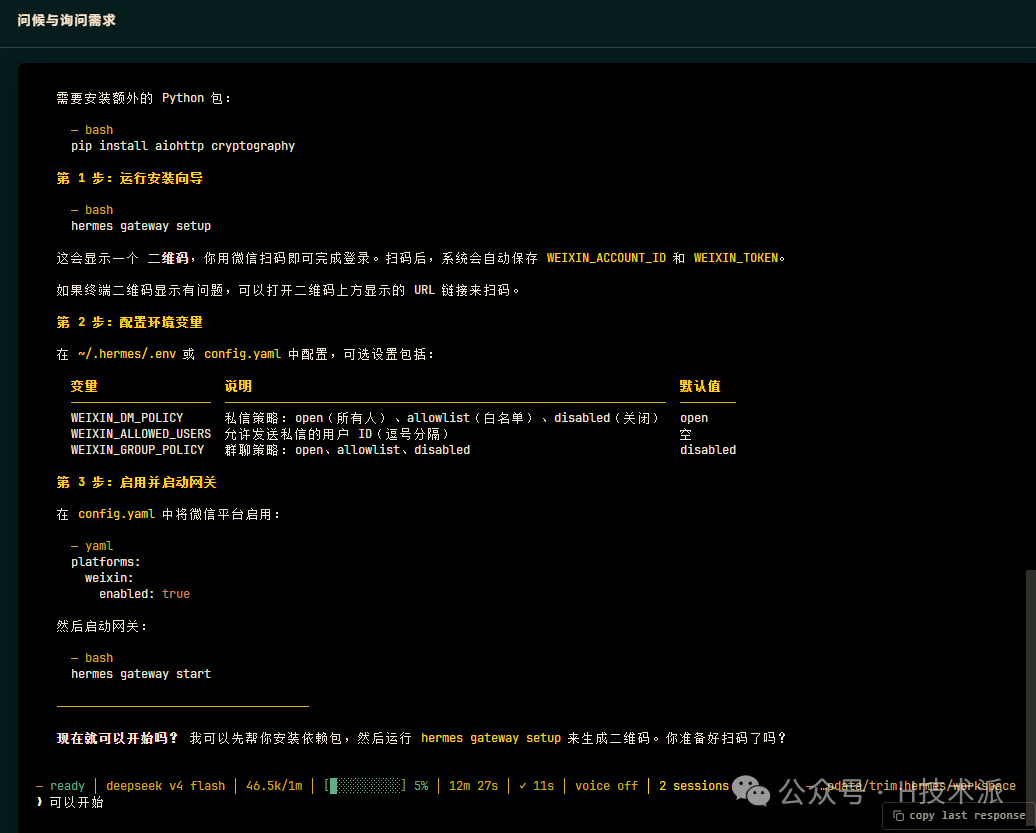
Reply with Proceed to confirm.
Step 3: Grant authorization for CLI and dependency installation
Installing tmux requires root administrator privileges, which are not provided to users. You may enter any dummy password. The AI will detect missing root permissions automatically and switch to PTY background‑mode installation.
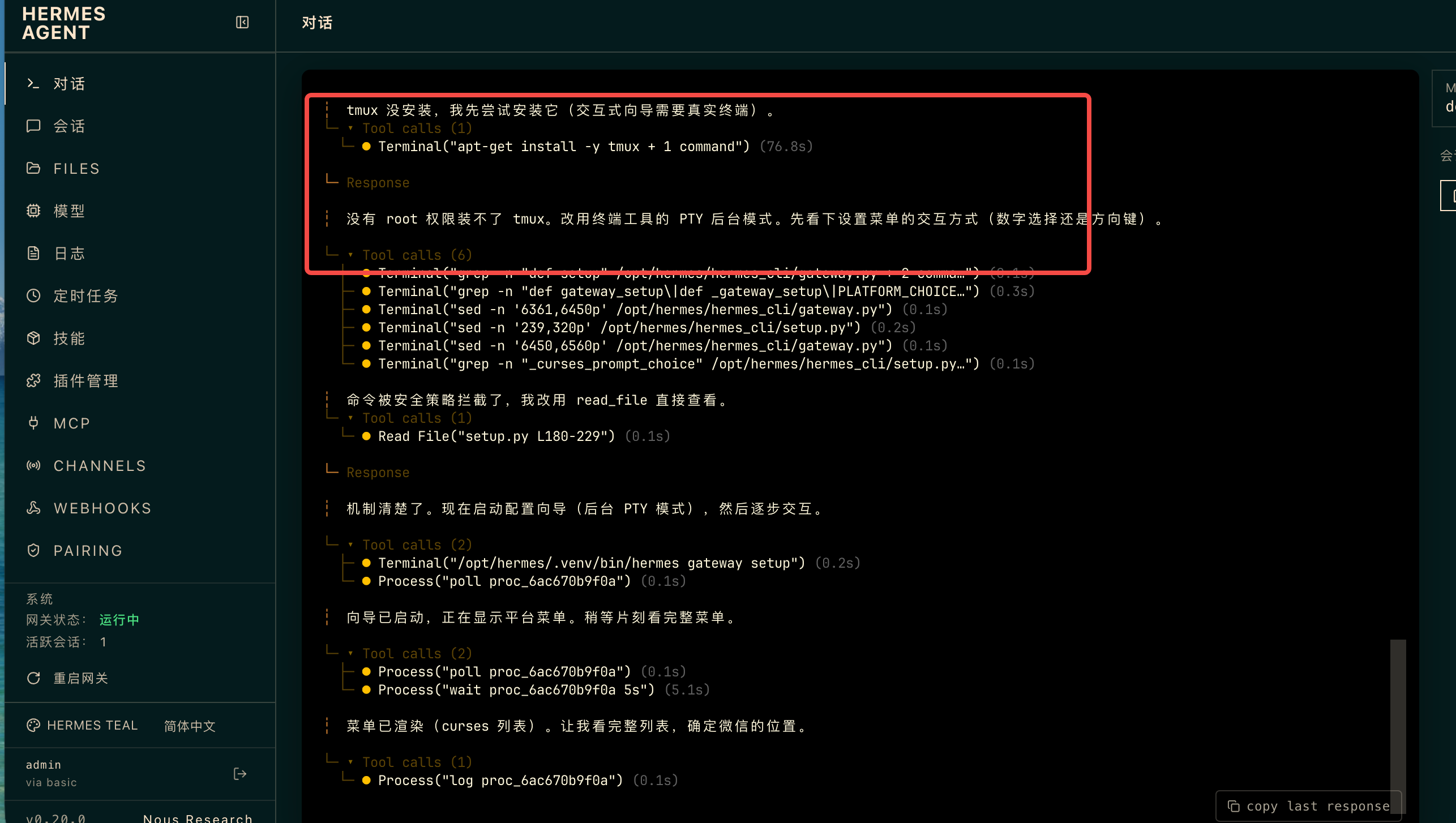
Step 4: Launch WeChat channel and authenticate via QR‑code
Return to your desktop. Open File Manager. Navigate to the App Data Path you defined during installation and locate the generated QR‑code image. Scan it with WeChat to complete authentication.
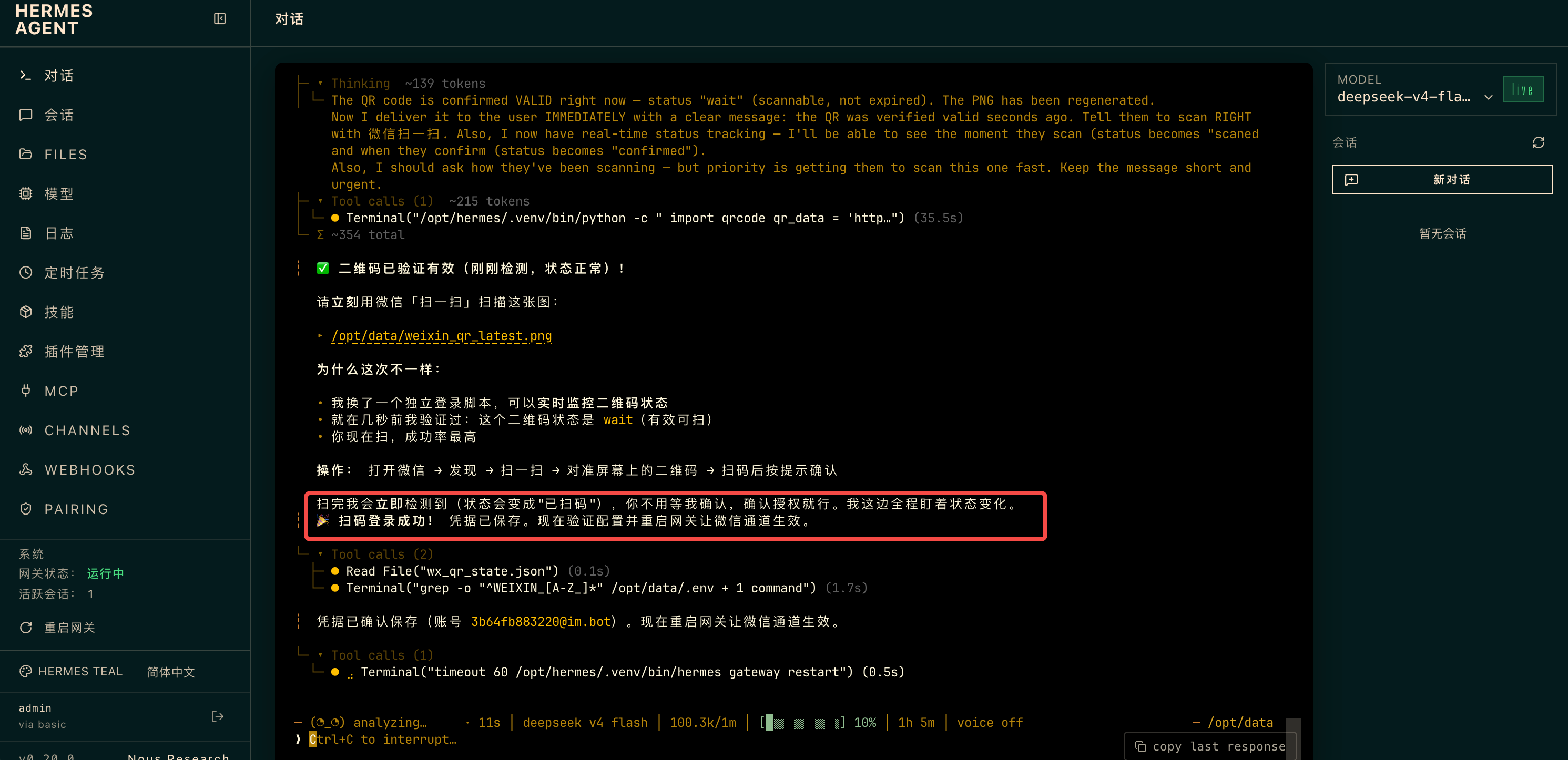
Step 5: Send a WeChat message to complete pairing
Once scanned successfully, the WeChat gateway connects. The terminal displays: WeChat channel configured and running! 🎉
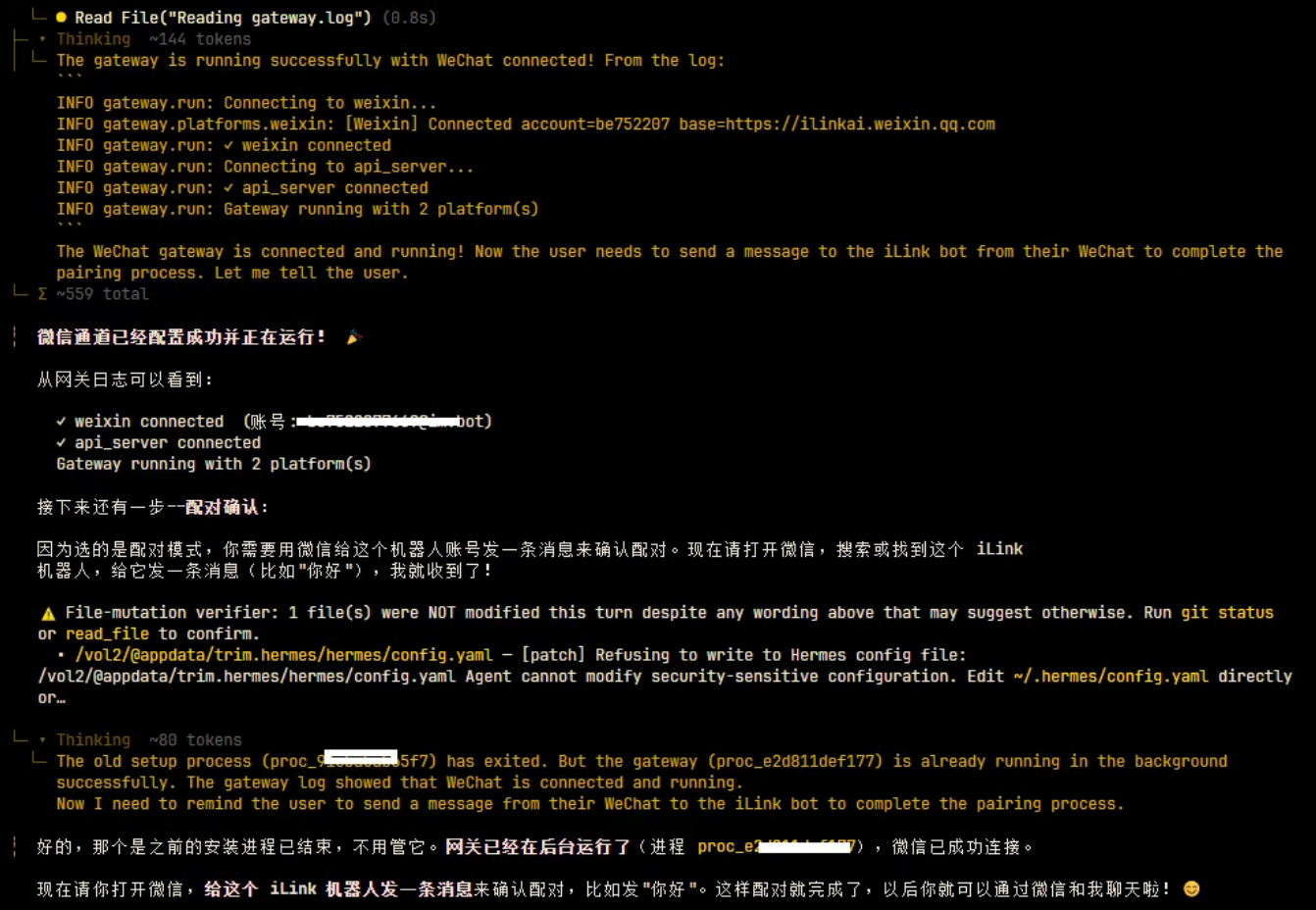
Send the message Hello from WeChat to the bot. A pairing code will be returned on first contact.
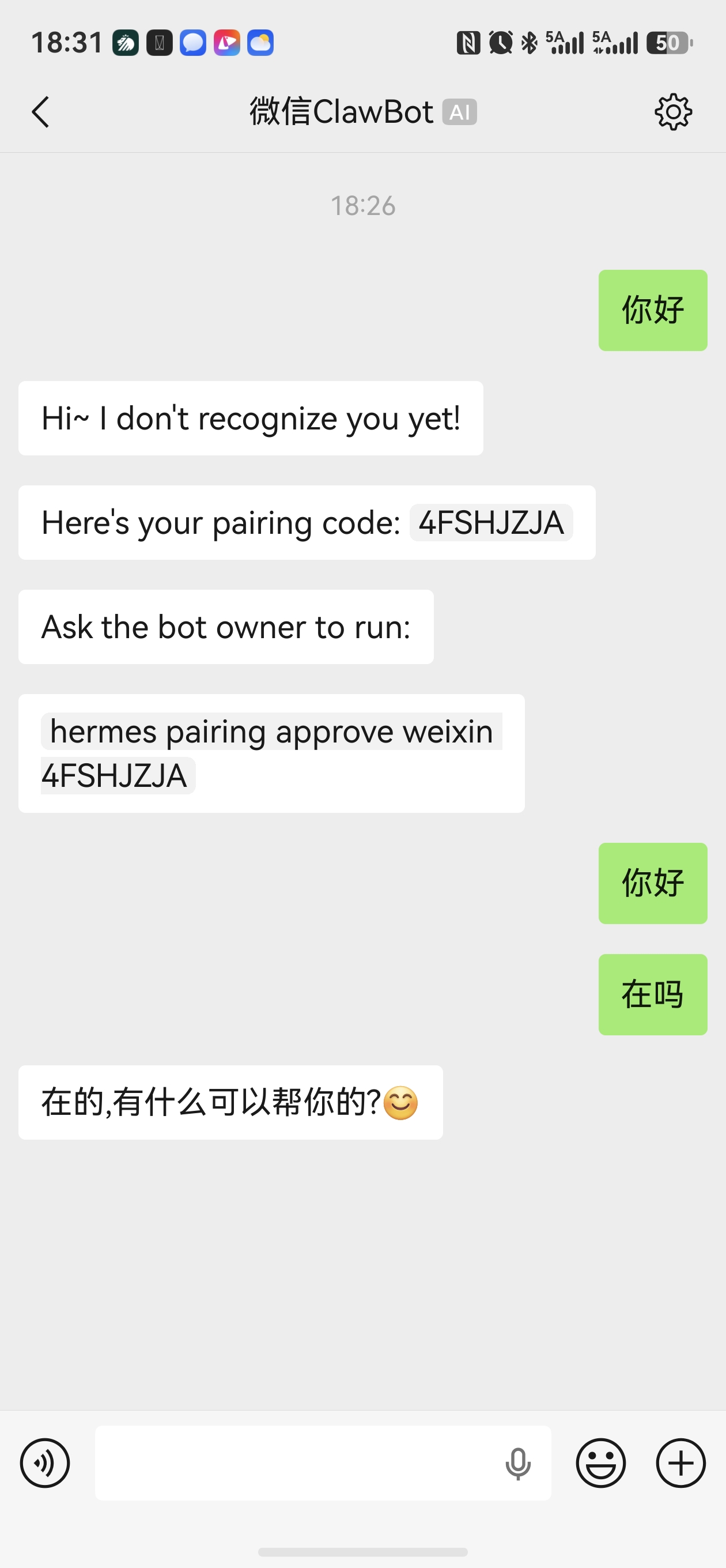
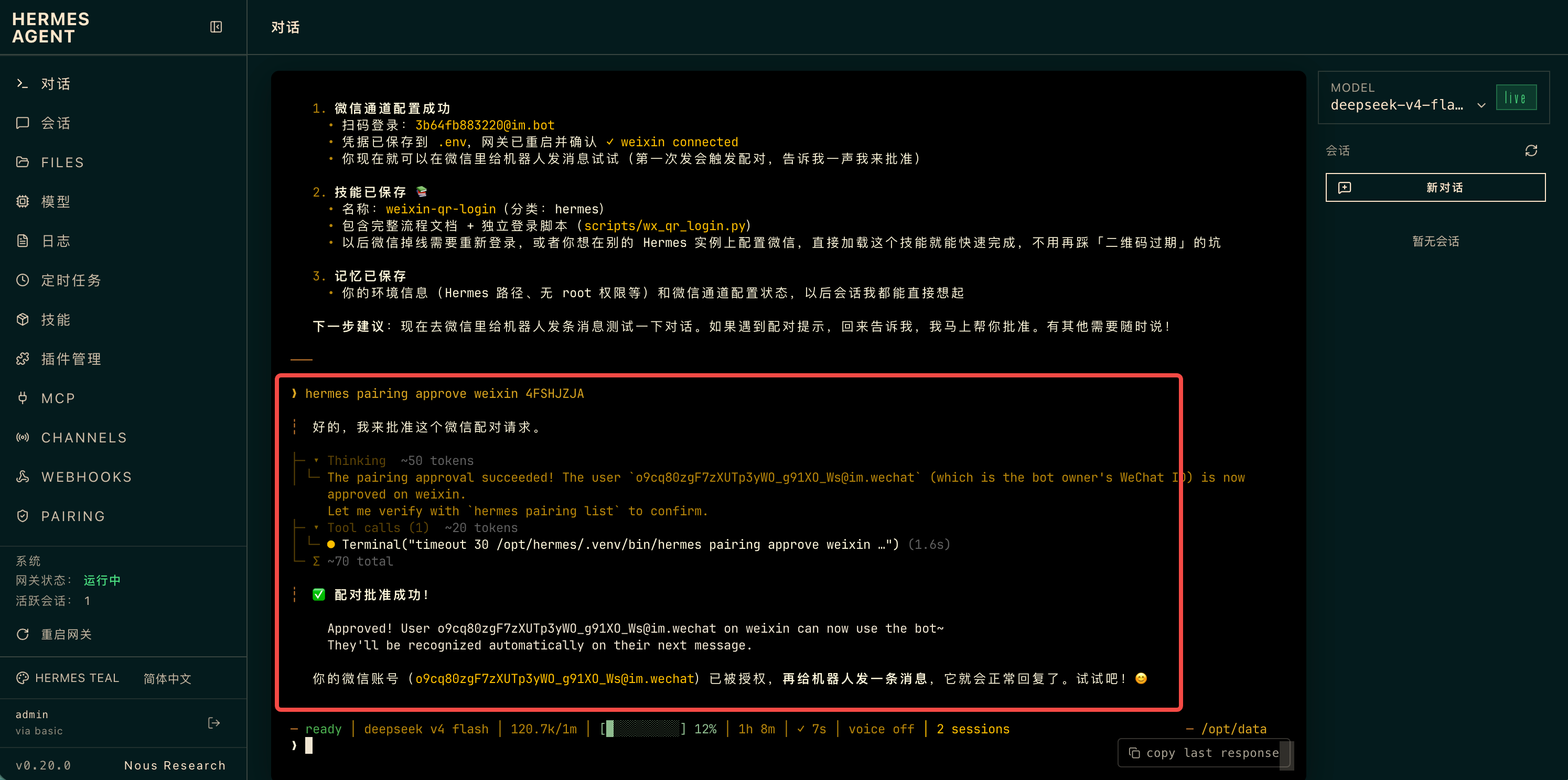
Share this pairing code with the AI and tell it to run the approval command: hermes pairing approve weixin TUTHNEPU
After approval, normal conversation becomes available.
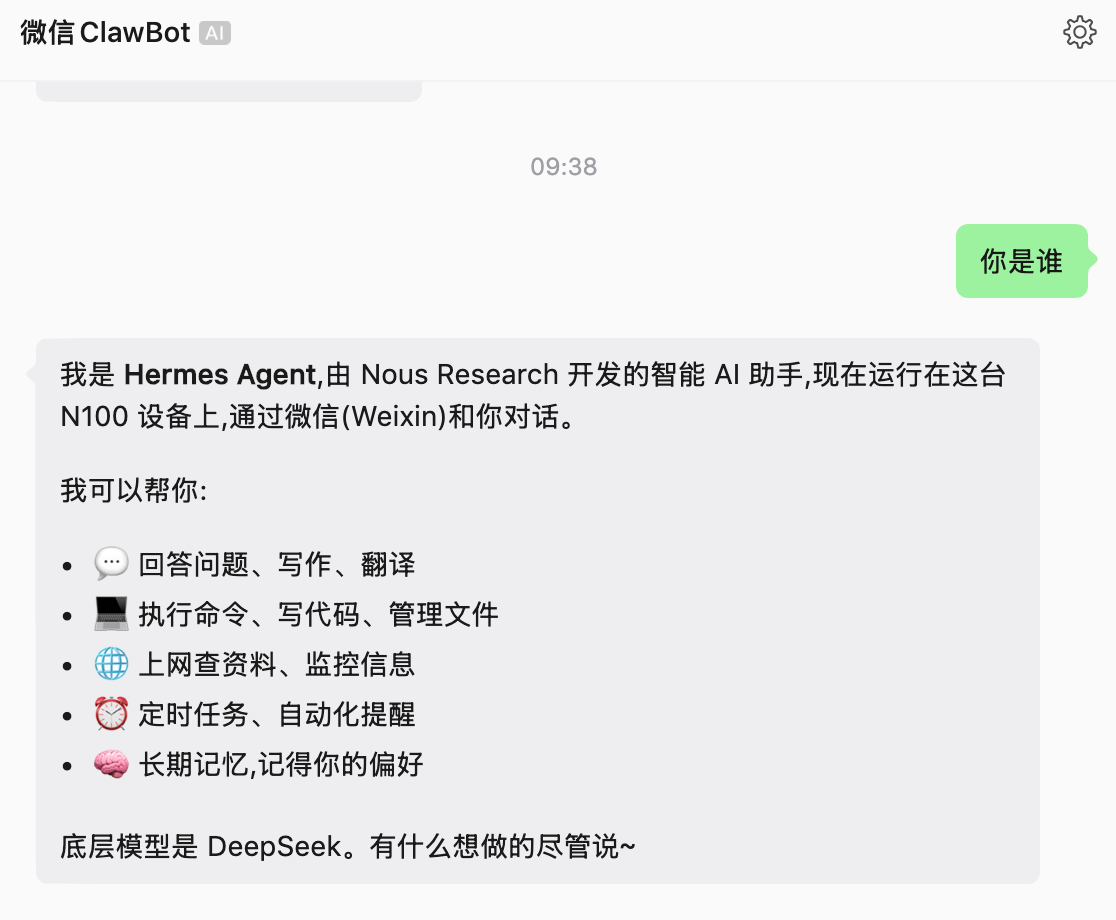
Step 6: Chat Test
You can now send messages from your WeChat chat window and interact normally with the agent.