HomeAssistant Quick Start Guide
App Overview
Home Assistant is an open-source home automation platform that connects smart home devices on a local network and enables automated control.
Default Login Information
● Default Access Port: 8123
● Local Area Network Access: Enter http://NAS_IP:8123 in the browser’s address bar. For example, if the NAS’s IP address is 192.168.10.146, enter http://192.168.10.146:8123进行访问 in the browser.
Note:
● You can find [Network Settings] under “System Settings”, click [Ethernet Port], and view the NAS device’s IP address.
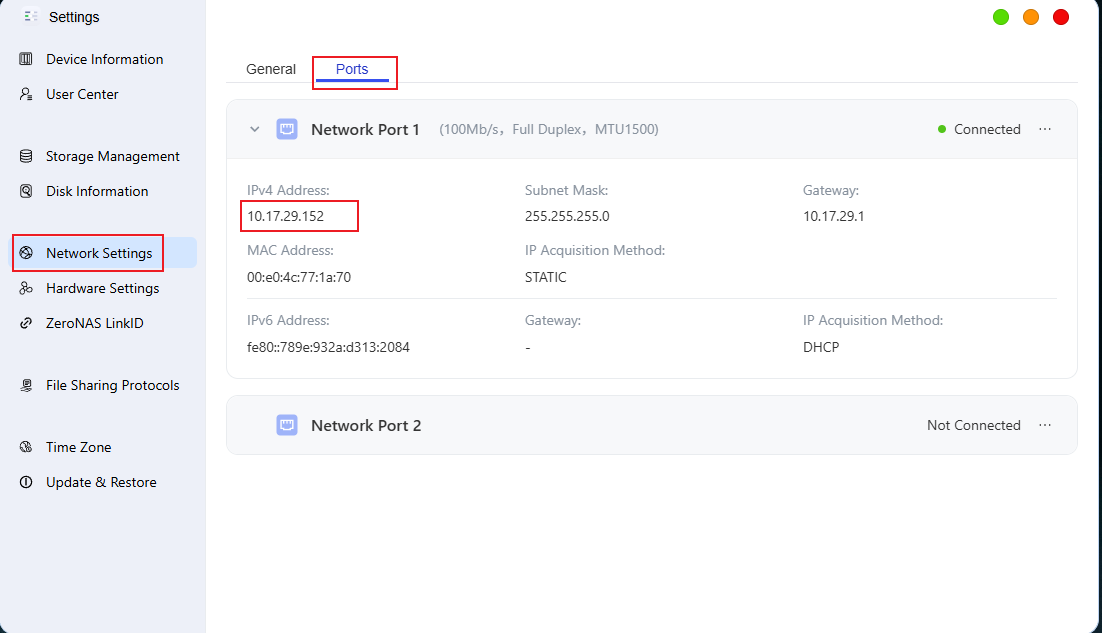
Default Login Information
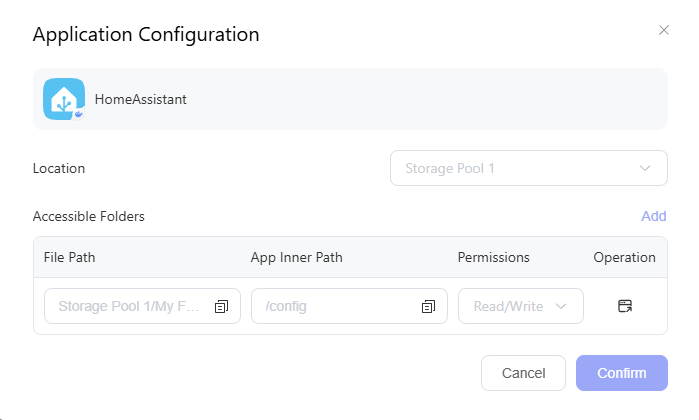
● The path where the app stores its configuration. You can place plugins such as HACS, HomeKit, and official Xiaomi plugins in this path.
● Once the configuration path folder is set up, please do not delete, move, or rename the folder, as this will cause the app to malfunction.
Path Mounting Rules
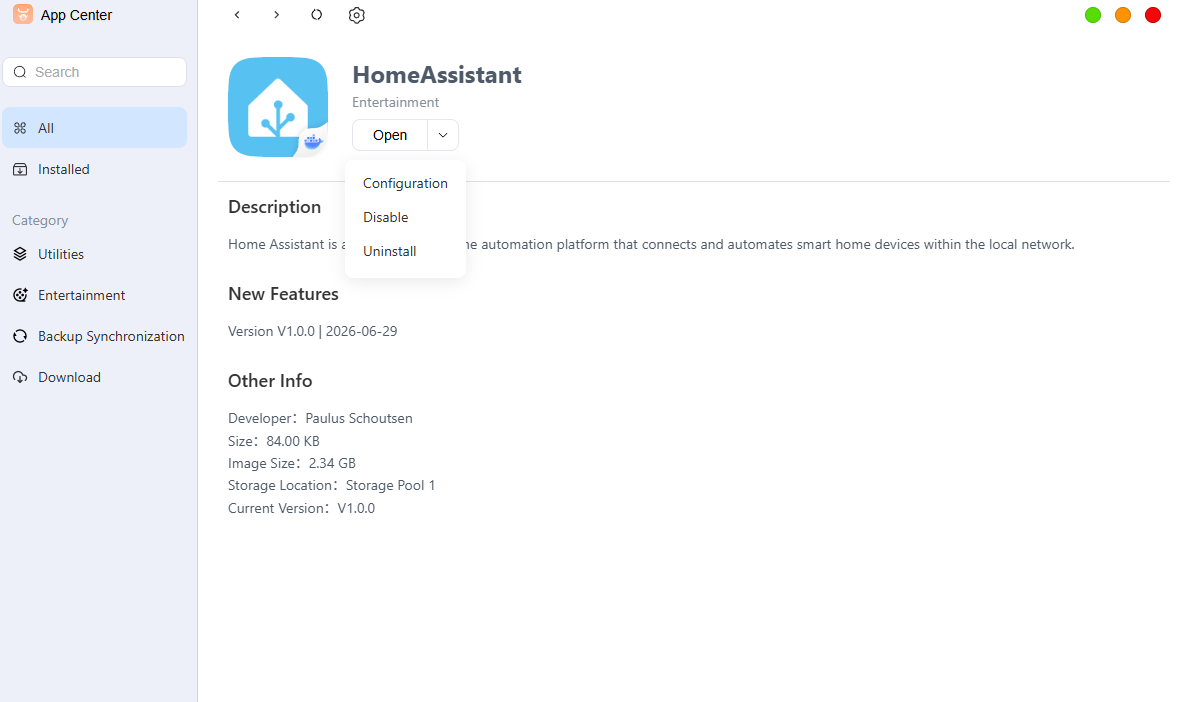
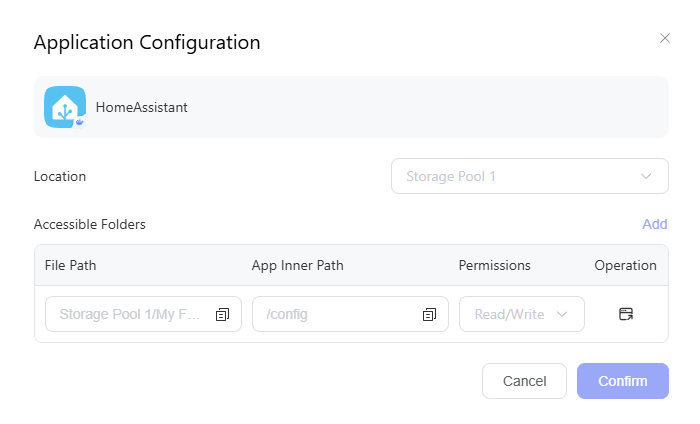
After the app is installed, you can view the corresponding path under [Configuration] on the app details page.
Installation Guide
To install the Home Assistant app, follow these steps:
-
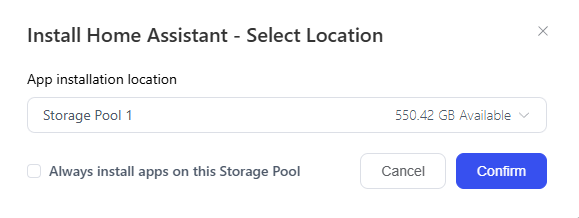
Open the [App Center], find the Home Assistant app, and tap “Install.”
-
Select a storage location, then tap “Next” to continue.
3. Select the configuration path, create a new folder within that path to store the Home Assistant configuration data, and click “Install” to continue.
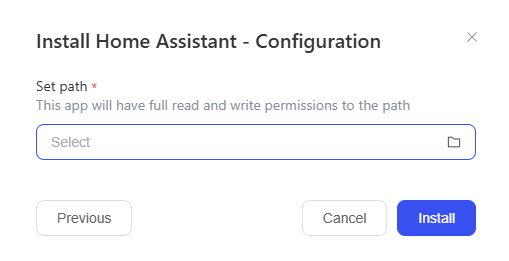
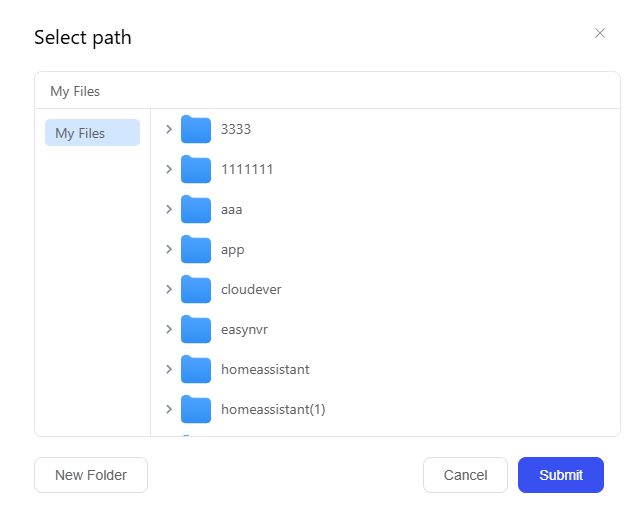
Note: Uninstalling the app does not delete the data in the configuration directory. If you reinstall the app using the same configuration directory, the original configuration will be retained. To reinitialize the app, first delete the data in the original configuration directory.
Accessing the Home Assistant App
You can access the Home Assistant app in the following ways:
Method 1: Access via the App Center
Within the local area network, the administrator clicks the Home Assistant app icon, and the system will redirect to the login screen.
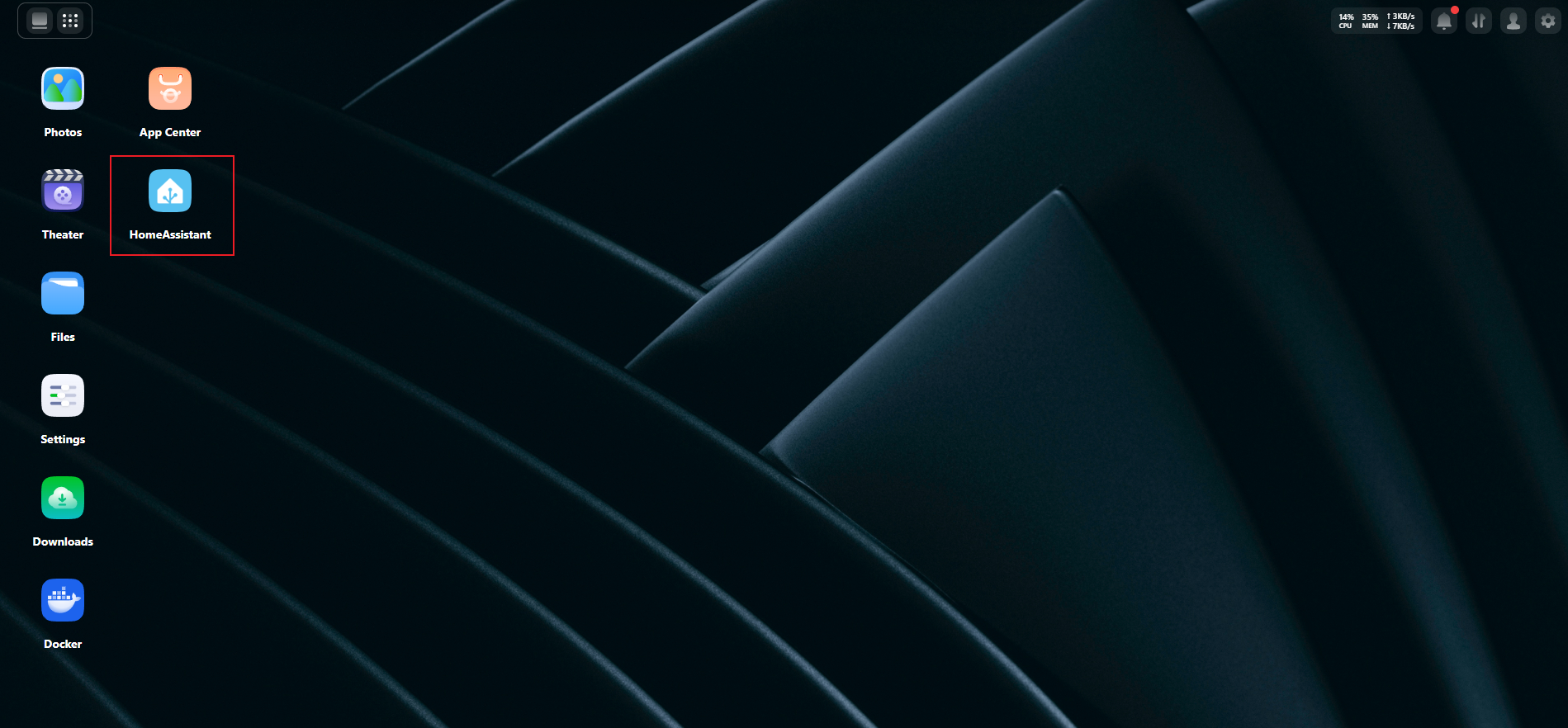
Method 2: Access via a Local Area Network
Use http://NAS_IP:8123within the local area network. For example, if the NAS IP address is 172.17.70.86, enter ``http://172.17.70.86:8123 in your browser.
Enable Remote Access in Home Assistant
Preparations Before Configuring Remote Access
- Open the [App Center], go to the Home Assistant app's details page, and click the [Configuration] button to view the app's configuration file path.
- In [File Manager], navigate to the configuration path you obtained in the previous step and locate the
configuration.yamlfile.
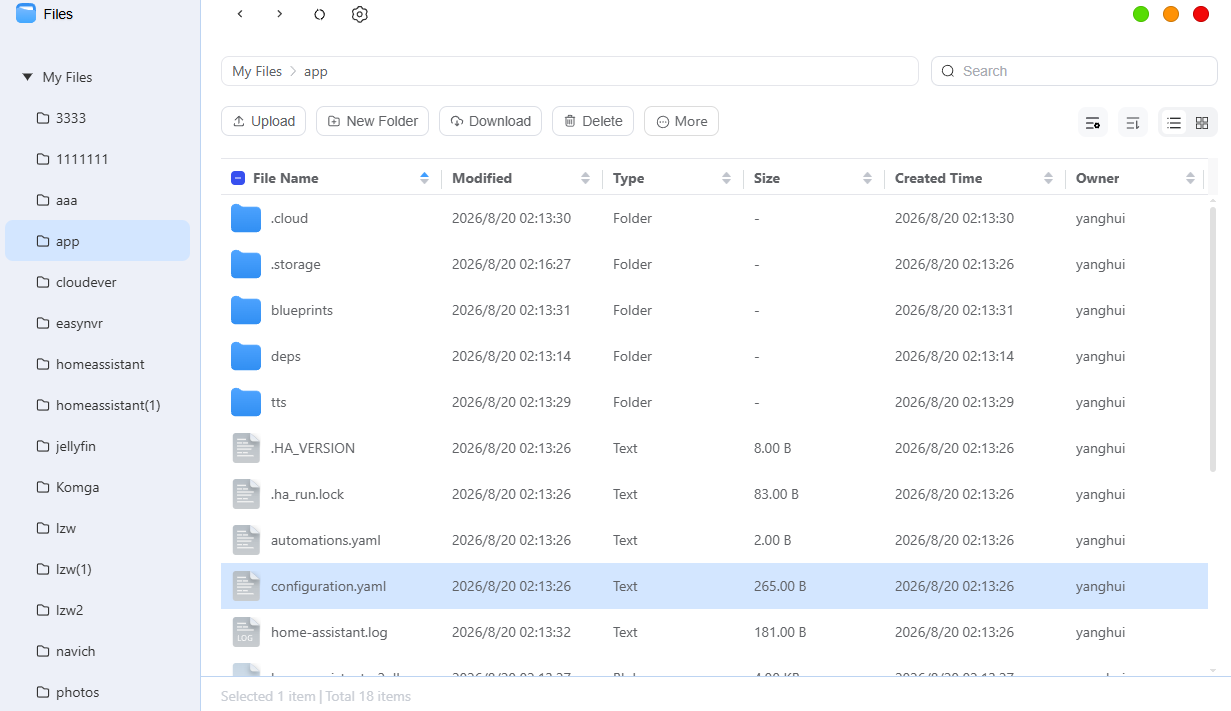
Edit the configuration.yaml file
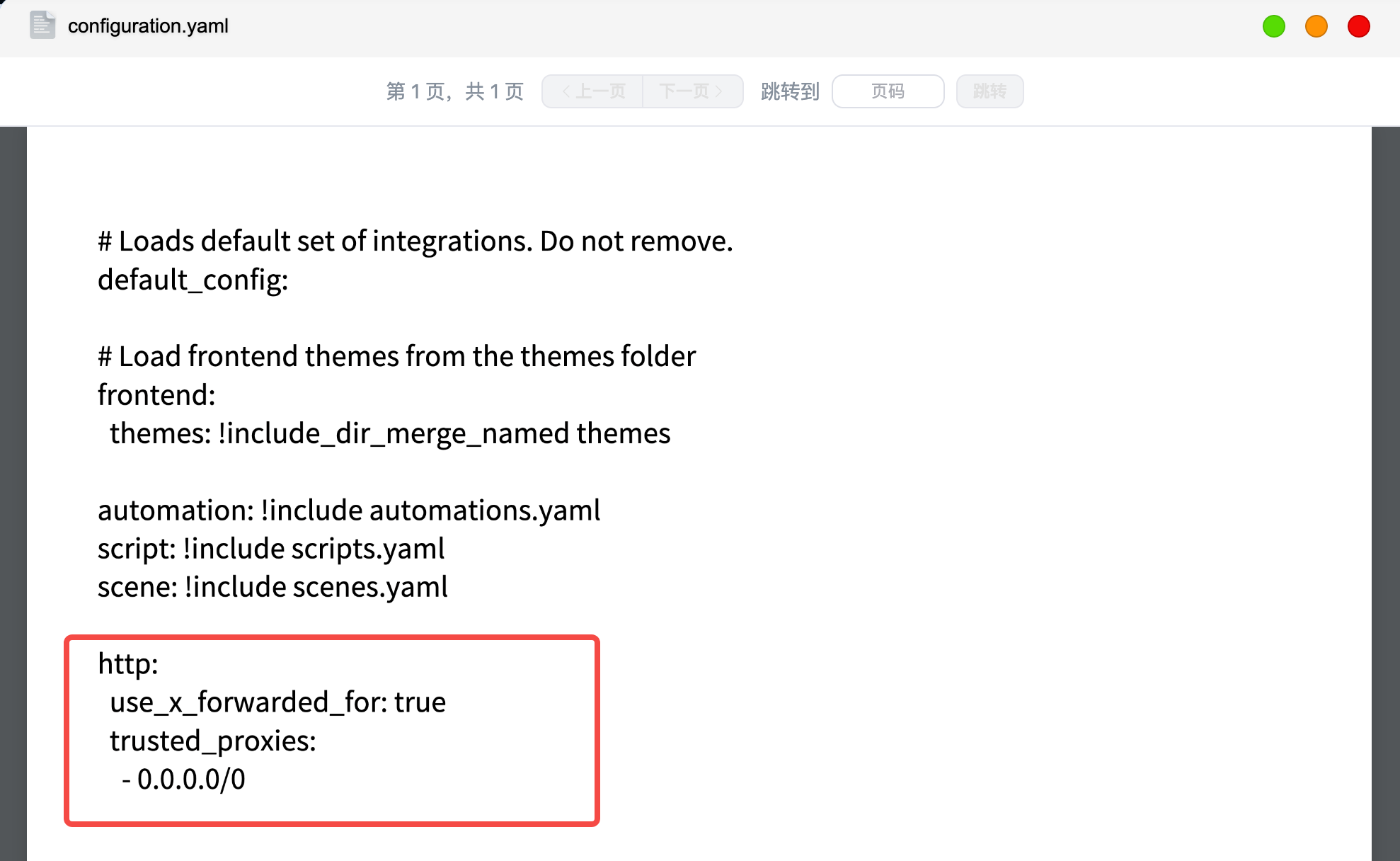
Download the configuration.yaml file to your local computer and add the following content to it. After saving your changes, upload it to the path on the NAS where the original configuration.yaml file is located and replace the existing file.
http:
  use_x_forwarded_for: true
  trusted_proxies:
    - 0.0.0.0/0
Restart the Home Assistant App
In the [App Center], disable the Home Assistant app and then re-enable it.
Access the Container App Remotely
After the restart is complete, tap the [Container App] icon, and the system will automatically redirect you to its remote access interface.
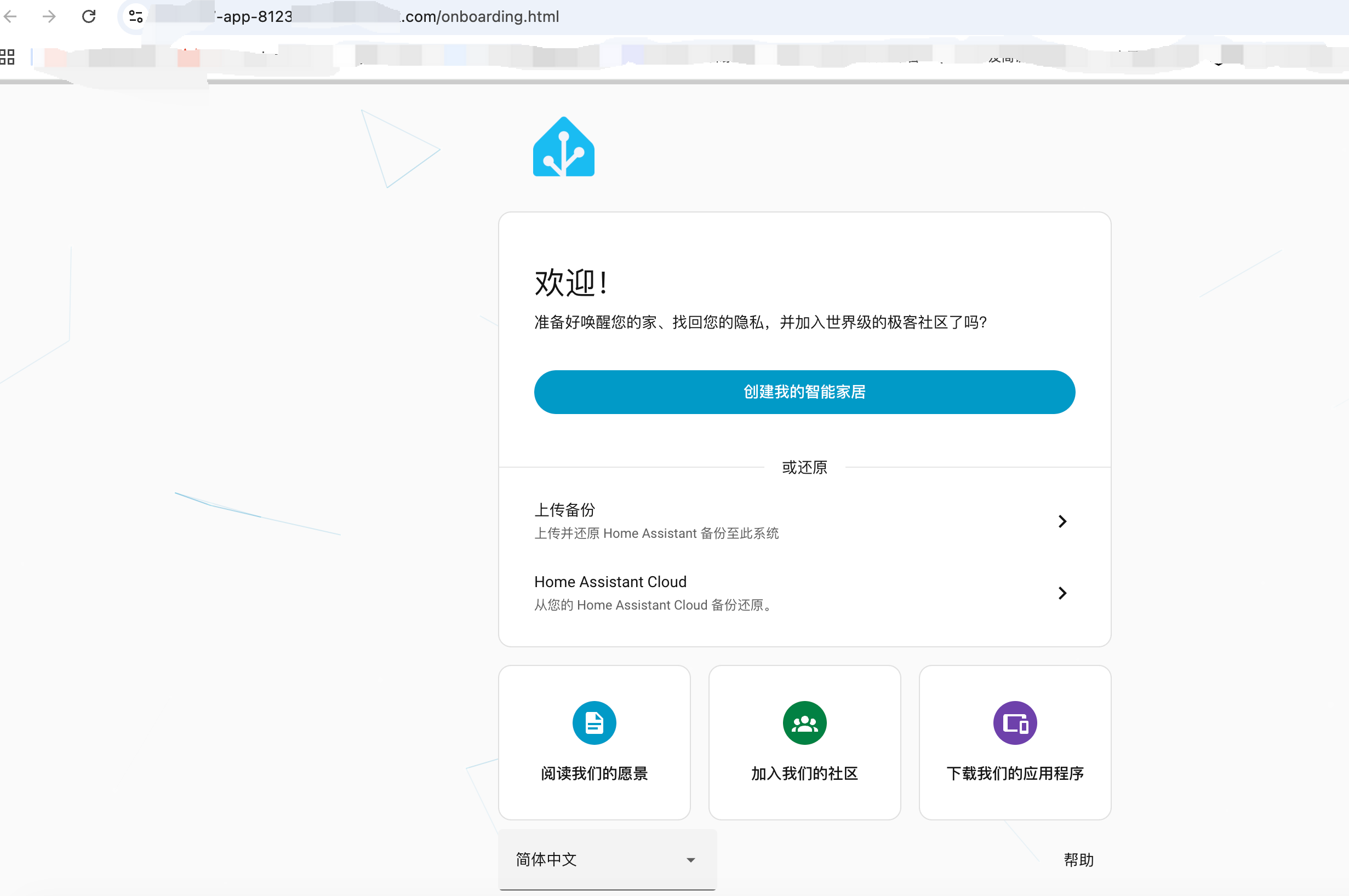
Please make sure you are currently logged in with an account that has a Tieniu LinkID for the remote access feature to work properly.