File Sharing Protocol - APP
Function Introduction
"File Sharing Protocol Management" is an efficient and convenient file sharing management tool that supports multiple mainstream file sharing protocols, helping users easily realize file sharing and access across different operating systems and network environments. Whether users are on Windows, macOS or Linux, they can use this function to achieve cross-platform file transmission and centralized management. File Sharing Protocol Management has the following functional features:
- Multi-protocol support: Integrates multiple mainstream file sharing protocols including Samba (SMB/CIFS), DLNA, WebDAV, FTP and NFS to meet file sharing requirements under different operating systems and network environments.
- Flexible Access Control: Supports controlling the access scope of shared directories.
- Cross-platform compatibility: Windows users can access via SMB/CIFS (Network Neighborhood), FTP, and WebDAV; macOS users can access via SMB, FTP, and WebDAV; Linux users can access via SMB, FTP, NFS, and WebDAV.
- Centralized Configuration Management: All settings of shared protocols and user directory configurations are managed through a unified entry, enabling convenient and efficient operations.
Function Overview
- Multi-protocol support: Supports five protocols including Samba (SMB/CIFS), DLNA, WebDAV, FTP and NFS.
- Protocol Independent Switch: Each protocol can be enabled or disabled independently and turned on as needed.
- Access Directory Configuration: Supports configuring shared directories separately for each protocol (Samba, WebDAV, and FTP allow modifying the accessible directory range, while DLNA and NFS only support specifying a single directory).
- Custom Port Settings: WebDAV, FTP, and DLNA support customizing the communication port for each protocol.
- Security Settings: Support security options such as encrypted transmission (e. g. HTTPS, FTPS).
Precautions
- System settings do not allow ordinary users to access. If an ordinary user needs to modify the sharing protocol settings, please contact the administrator for operation. If an ordinary user needs to modify the access scope of Samba, WebDAV, FTP and NFS, they can click the settings button of the [File Management] application, and go to the [File Management Settings] - [File Sharing Protocol] page to configure the visible file scope. This page is consistent with the subsequent [Visible File Scope Configuration] page, and the description is shown later.
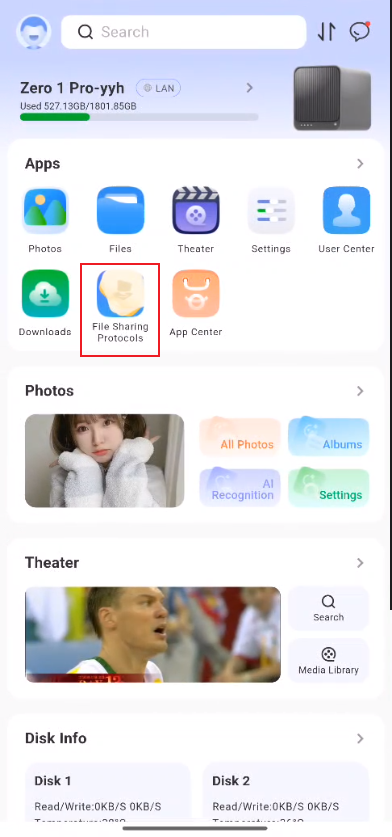
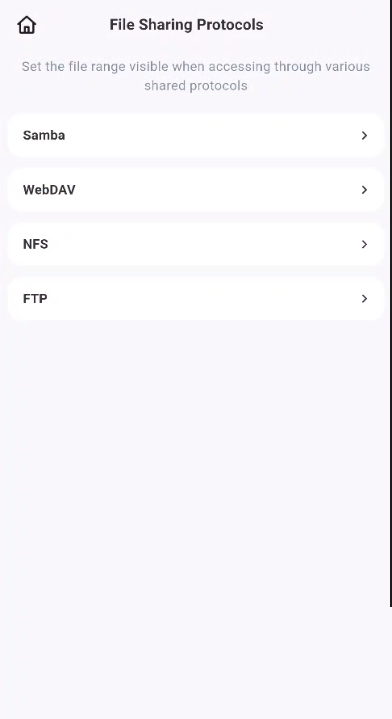
Description of Settings
The function switches and advanced settings entry for file sharing protocol management are located in **System Settings **'s **File Sharing Protocols **page. The steps to access it are as follows:
- After entering the main page, select [System Settings].
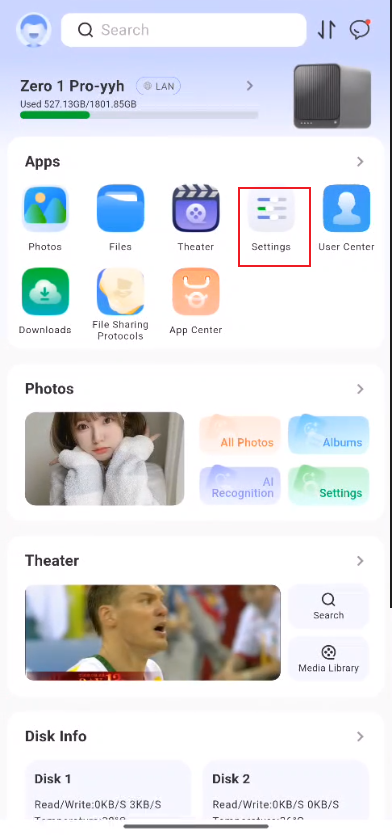
- On the [System Settings] page, select [File Sharing Protocol].
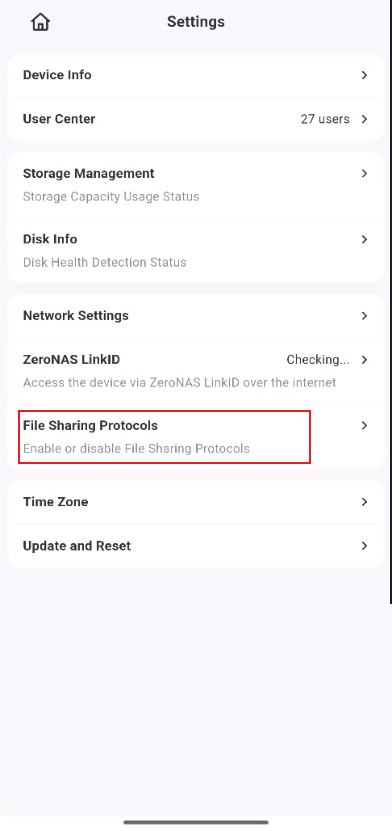
- Go to the [File Sharing Protocol] page and select the appropriate protocol as needed for subsequent operations.
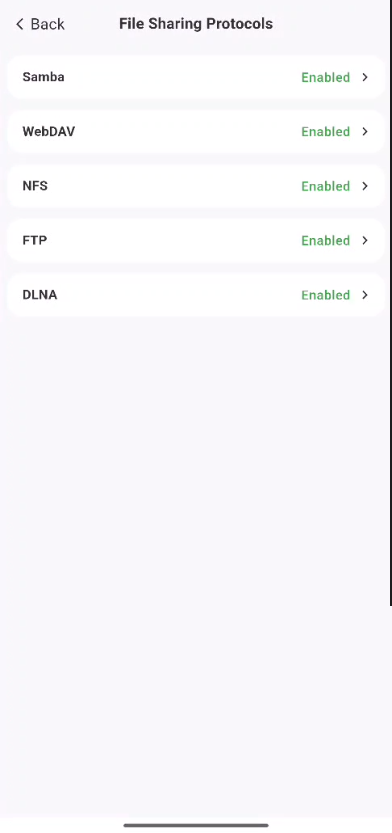
The description of the setting items for each protocol is as follows:
I. Samba (SMB/CIFS) Settings
The Samba protocol is mainly used for file sharing in Windows environments.
- Enable SMB File Service: Turn the Samba file sharing service on or off.
- Accessible Scope Configuration: Supports users in configuring accessible scopes, such as "All User Files", "External Storage", etc.
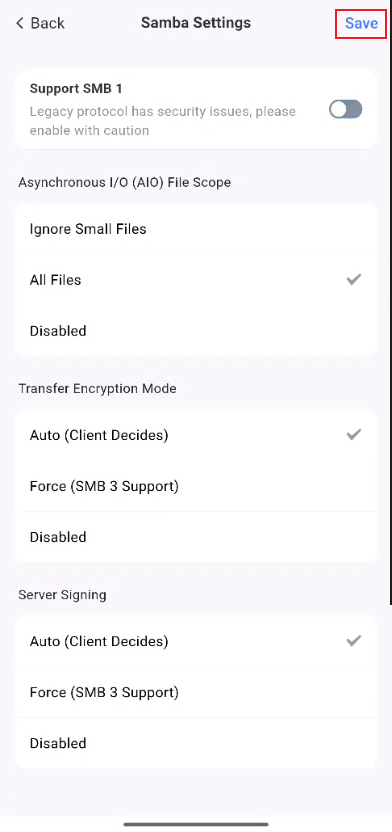
- Advanced Settings: Click to open the advanced settings page, where you can modify configuration items such as SMB1 and asynchronous file IO.
- Time Machine Settings: Support enabling and disabling the Time Machine function, and also support modifying the storage pool used by the Time Machine function.
- View Connection Instructions: Supports displaying the description of the connection method to facilitate users to connect from other devices.
(1) Enabling or Disabling the Samba Function
The operation steps are as follows:
- Go to the [File Sharing Protocol] page and select [Samba].
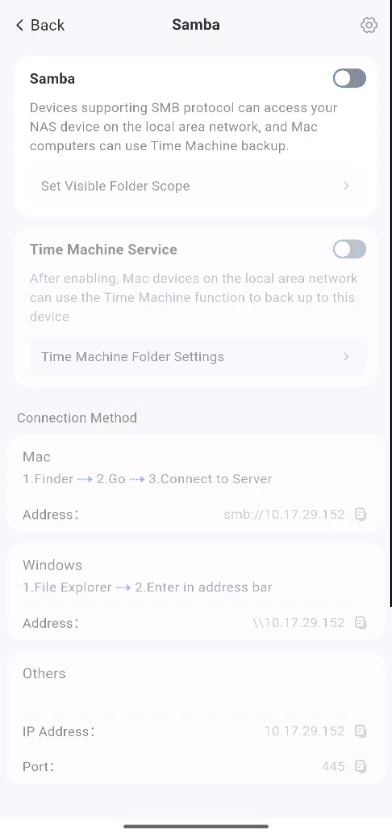
- Click the button on the right side of the [Samba] bar to enable/disable the Samba function.
(1) Enable the Samba function
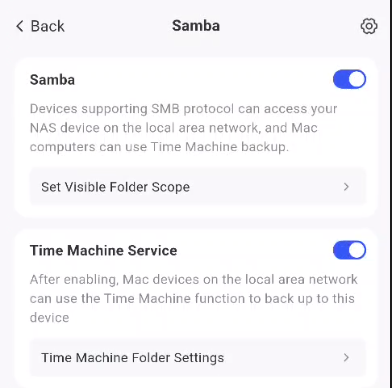
It is disabled by default; click the button to enable it.
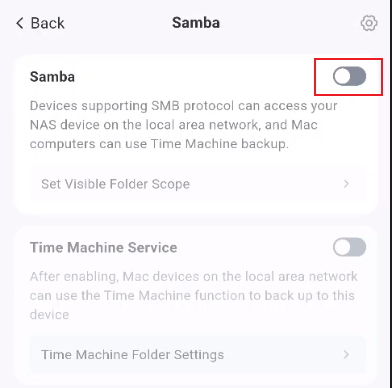
Open successfully.
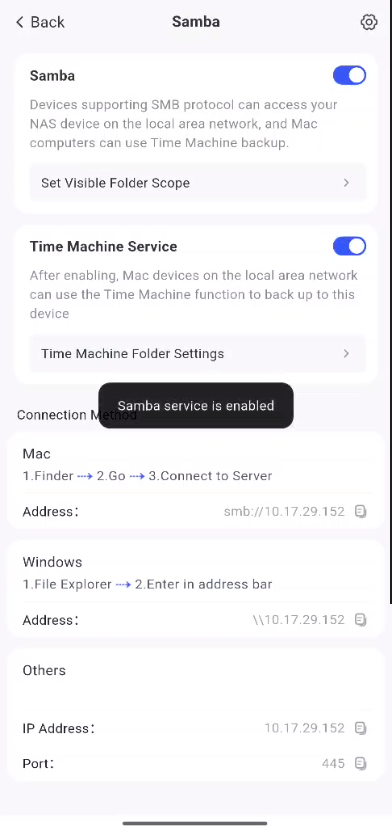
(2) Disable the Samba function.
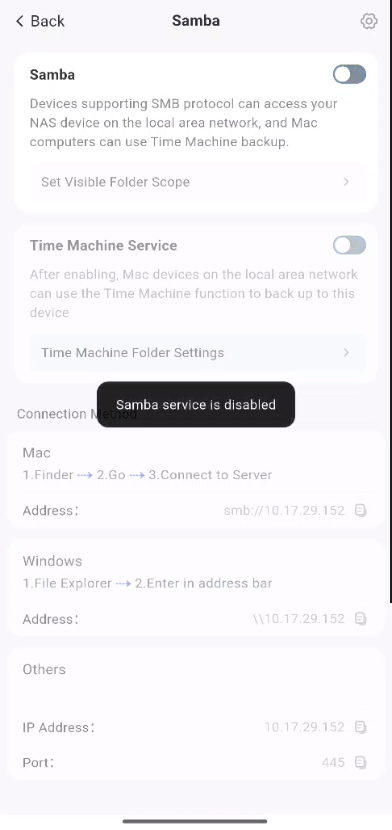
Click the button again while it is on to turn it off.
Closed successfully.
(2) Modify Advanced Settings
The operation steps are as follows:
-
Go to the [File Sharing Protocol] page and select [Samba].
-
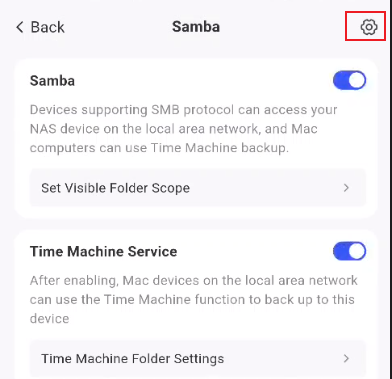
Click the Settings button in the upper-right corner to access the [Samba Advanced Settings]. Note: If the Samba function is not enabled, you need to enable Samba first before modifying the advanced settings.
- Modify the Samba settings as needed, then click the [Save] button in the upper right corner. Note: Please make sure you understand the meaning of each option and the potential risks of the operation before modifying the settings.
(3) Modify the TimeMachine configuration
The operation steps are as follows:
-
Go to the [File Sharing Protocol] page and select [Samba].
-
Click the "TimeMachine Folder Settings" button to enter the "TimeMachine Folder Settings" interface. Note: TimeMachine settings can only be modified when TimeMachine is enabled.
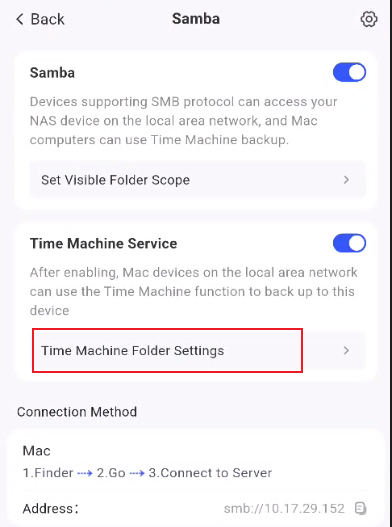
- Modify the storage pool and space limit used by the TimeMachine function as needed, then click [Confirm].
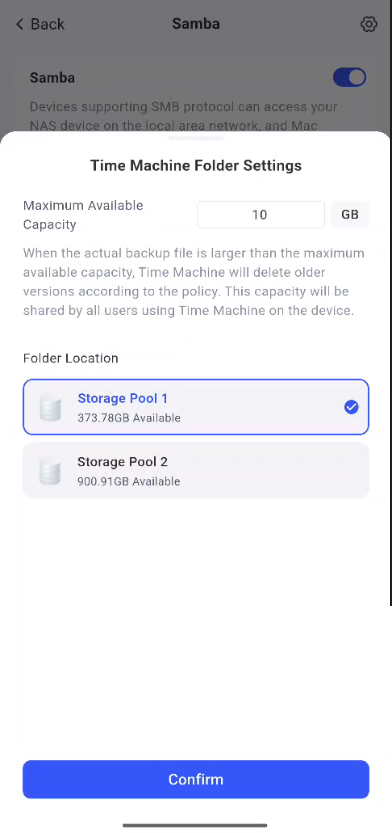
(IV) Modify the configuration of visible file scope
The operation steps are as follows:
-
On the [File Sharing Protocol] page, select [Samba].
-
Click the [Set Visible Folder Range] button. Note: If the Samba function is not enabled, you need to enable Samba first before accessing this setting.
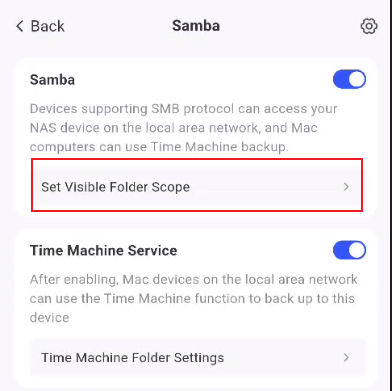
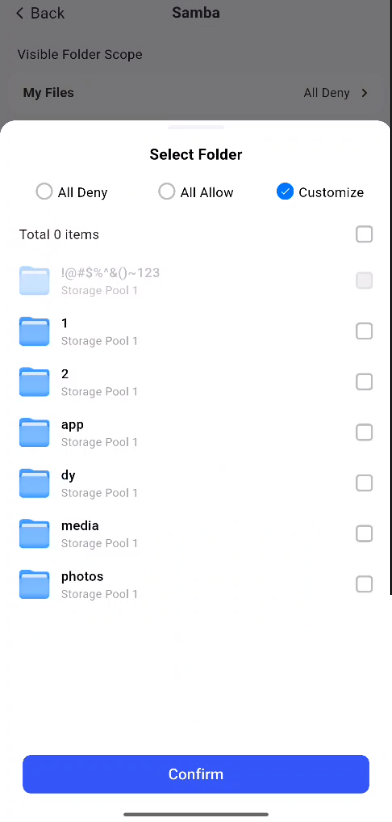
- Modify the visible folder scope configuration as needed.
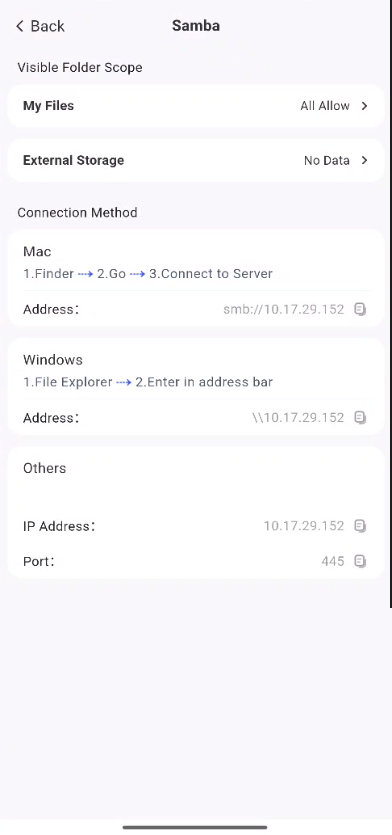
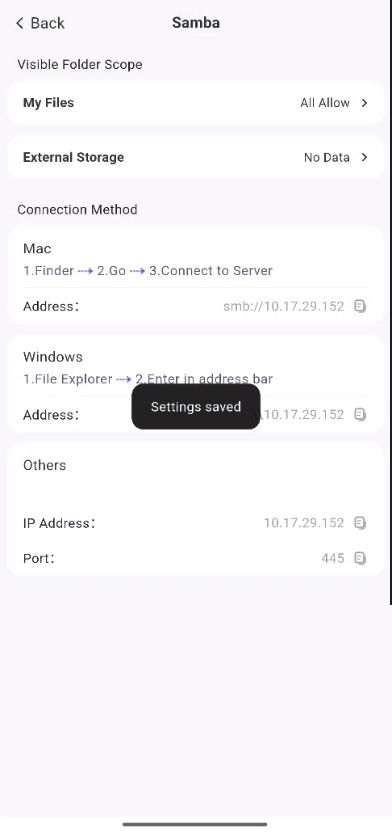
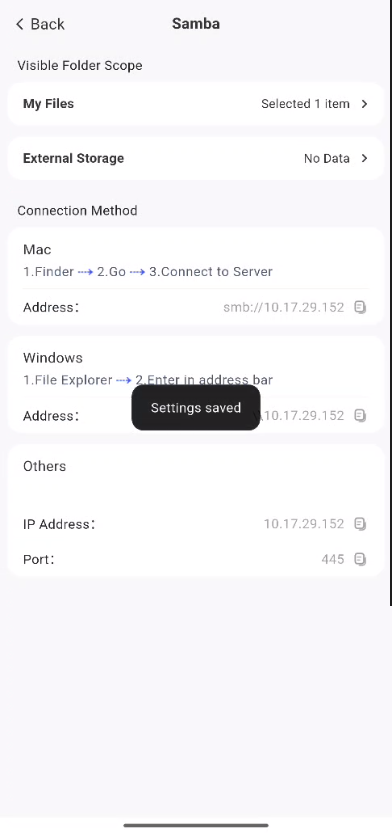
- When you need to modify the visibility of personal files, do so via the "My Files" section, and click "Confirm" once the modification is complete.
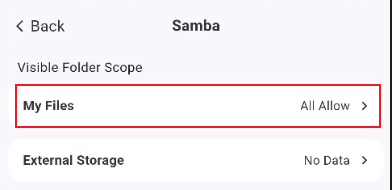
(1) Select to allow all user folders to be accessible via Samba.
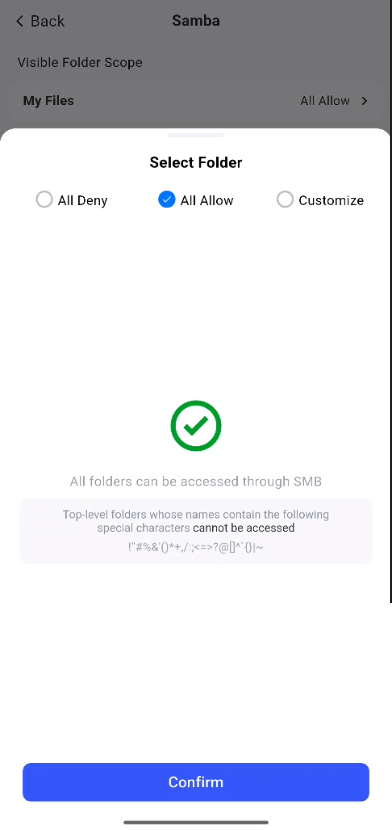
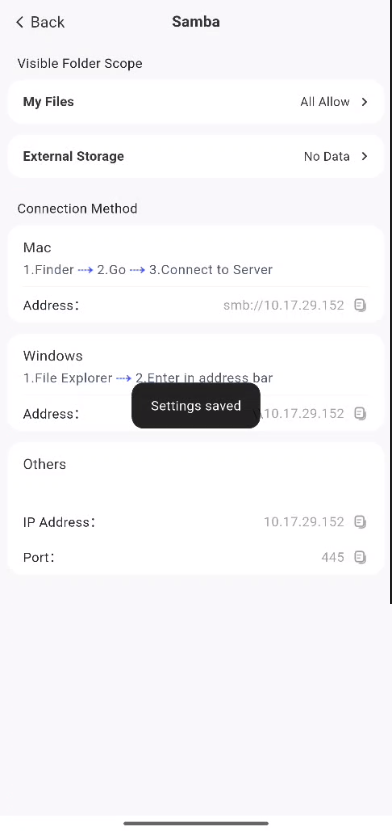
(2) Customize the folders accessible via Samba, check the boxes as needed, and click [Confirm].
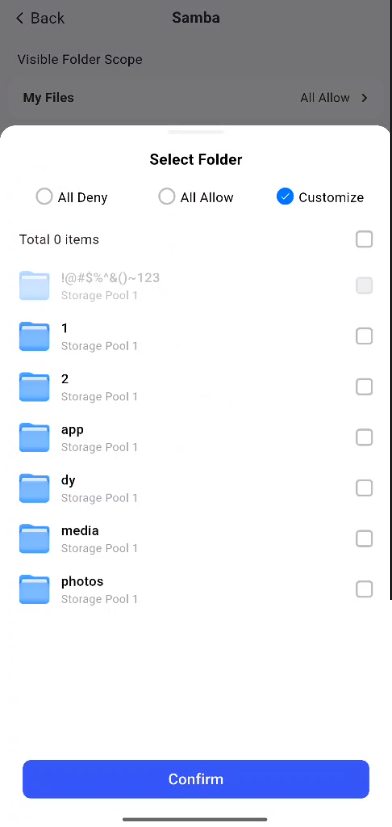
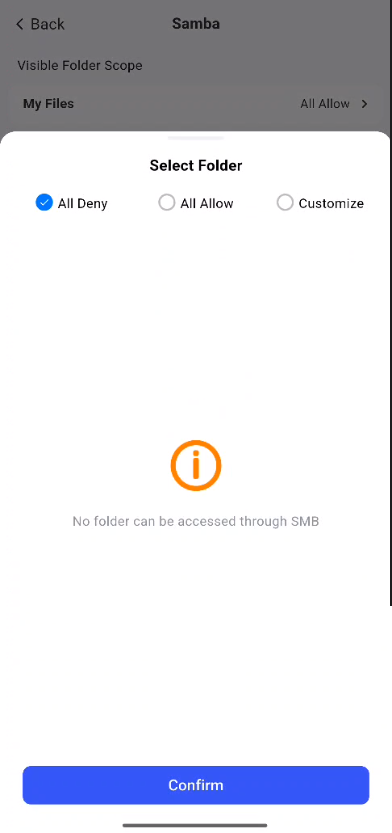
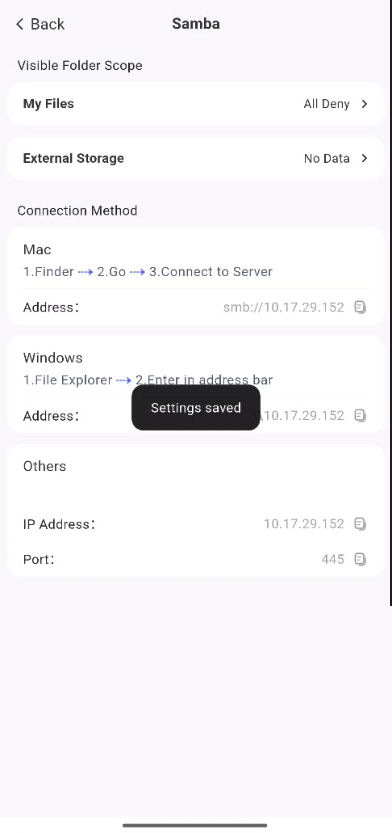
(3) Select to prohibit access to the personal folder via Samba, then click [Confirm].
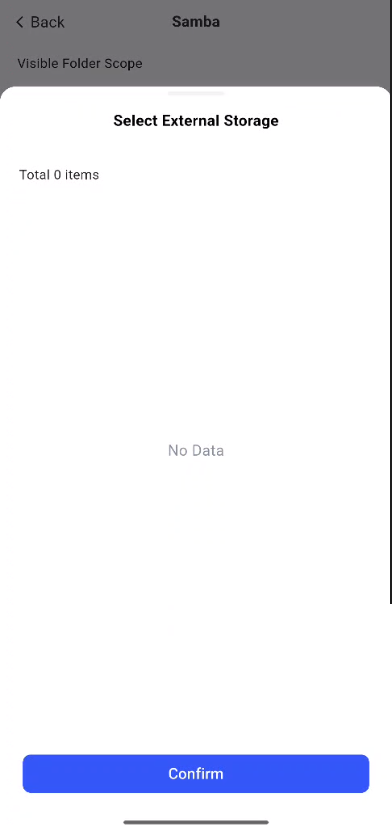
- When you need to modify the visibility scope of external storage, make the modification via the [External Storage] option, and click [Confirm] once the modification is completed.
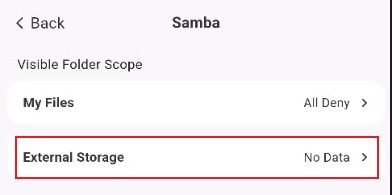
Select the external storage devices you need from the displayed list, check the corresponding boxes, and then click Confirm. There are no external storage devices connected here, so the list is empty.
(IV) Access via Samba
Taking Windows as an example, the operation steps are as follows:
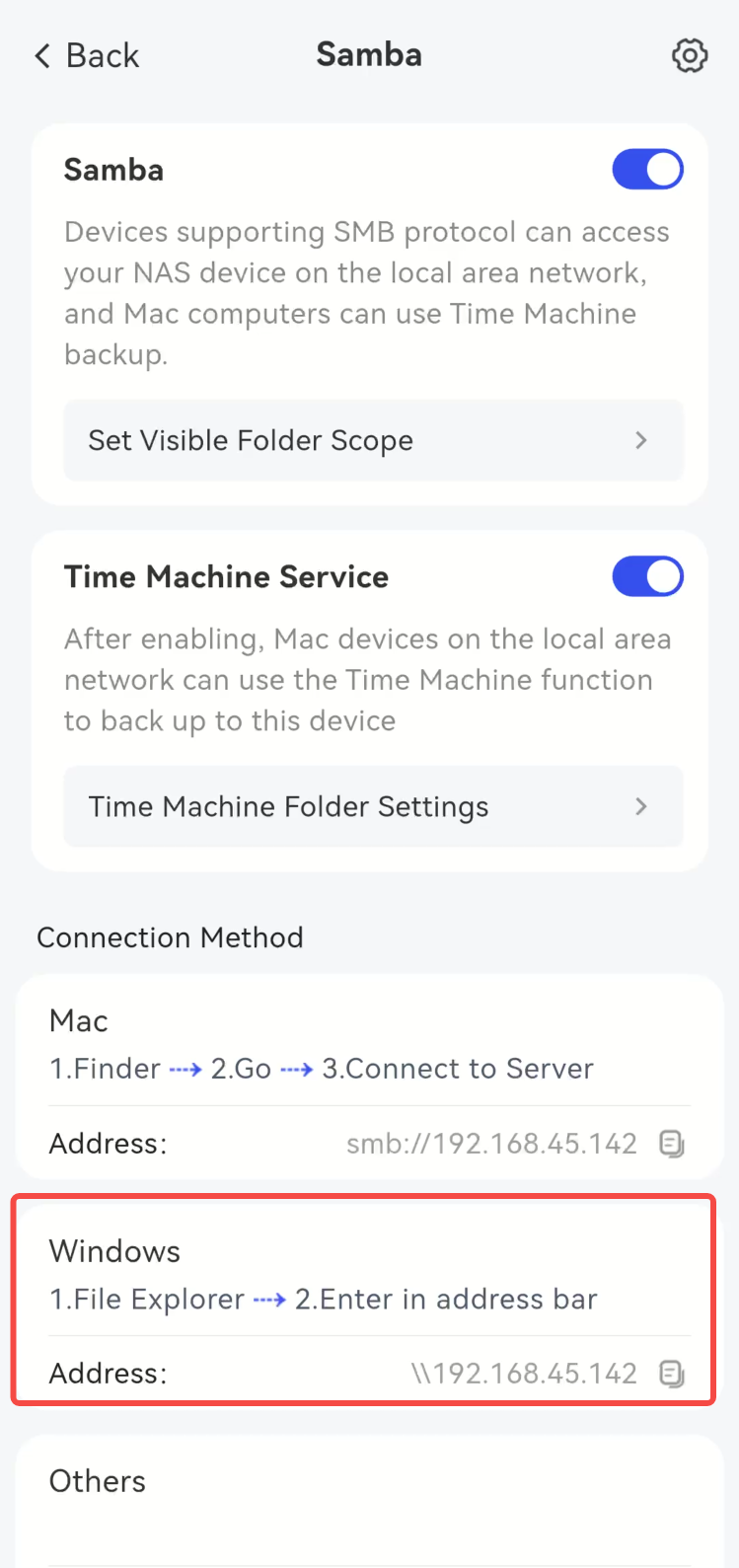
- View the device access method (optional, if the NAS device IP Address is known).
(1) Administrators can view it through the setting page of [System Settings] -- [File Sharing Protocol] -- [Samba].
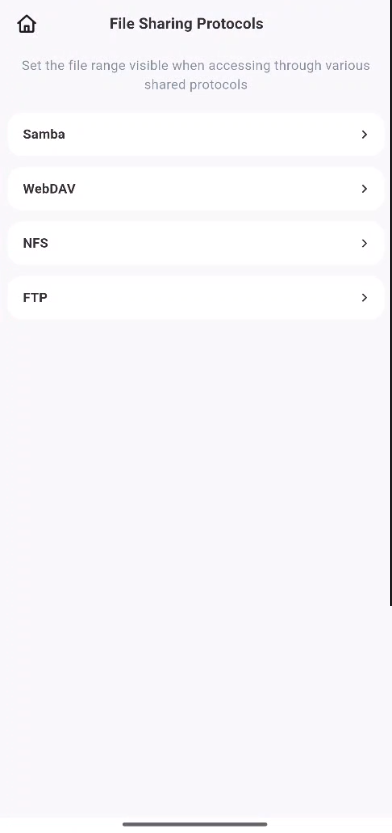
(2) Ordinary users can view it via the [File Sharing Protocol] -- [Samba] page on the homepage.
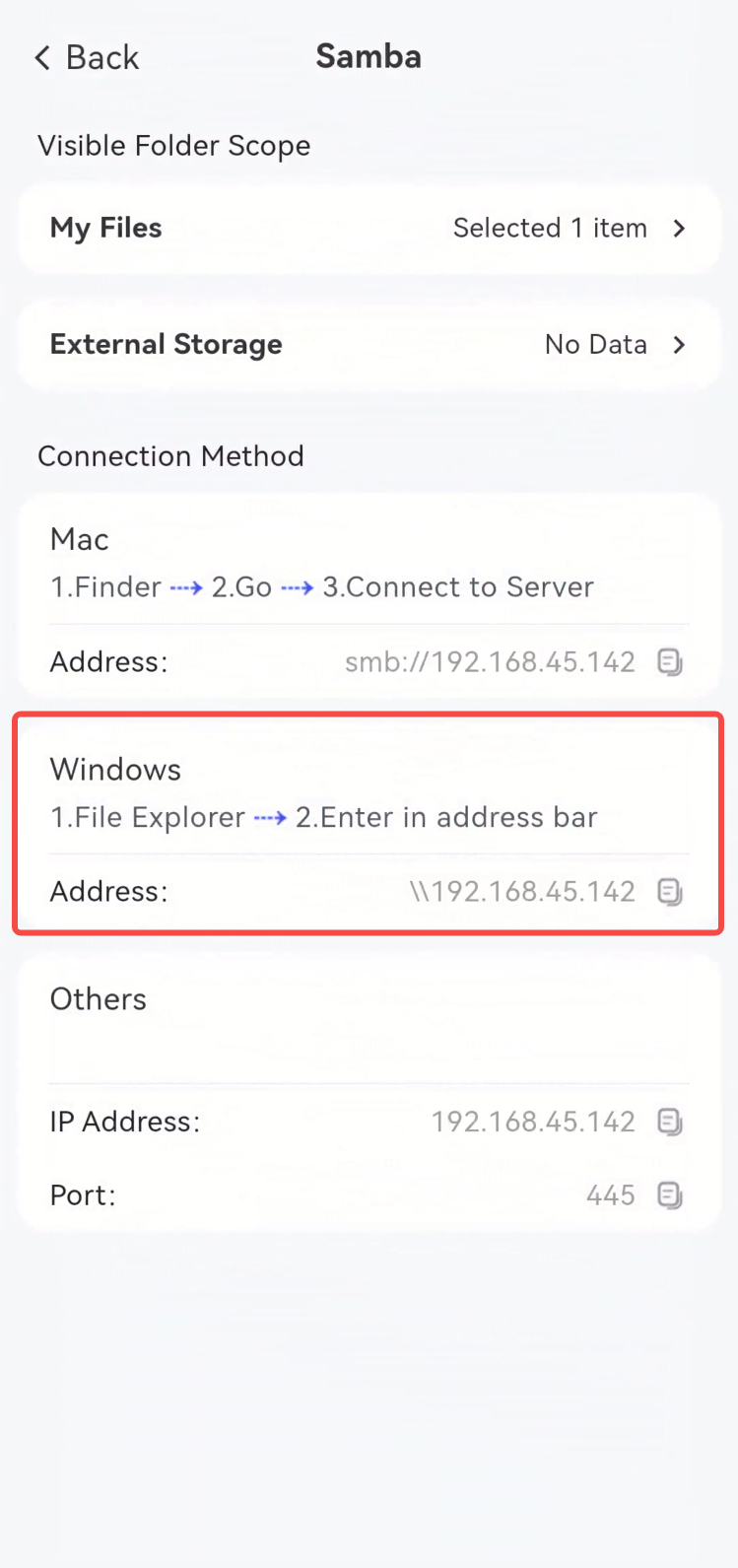
- Open Windows File Explorer, and enter the access path of the device in the address bar, for example, "\\192.168.45.142" as shown in the sample.
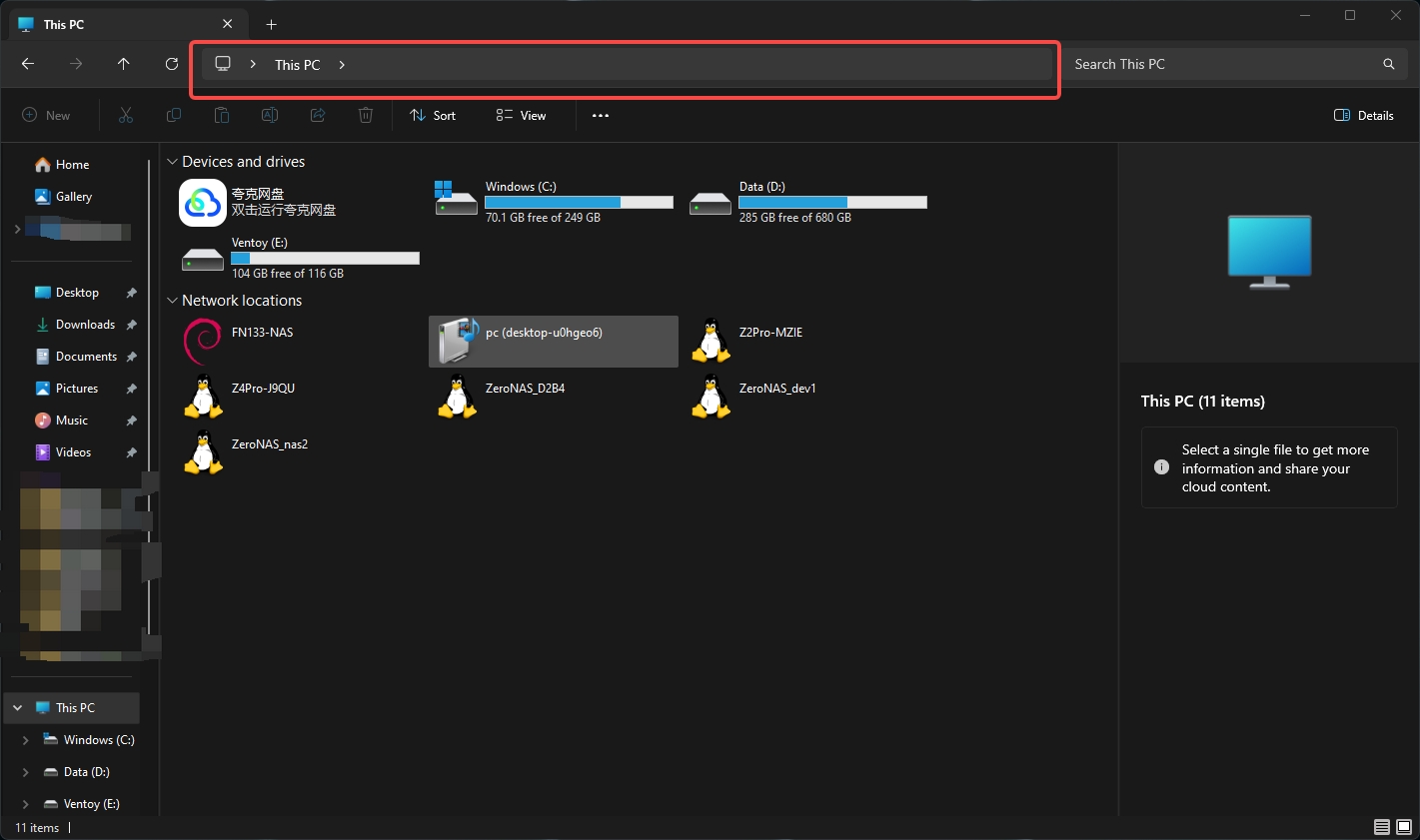
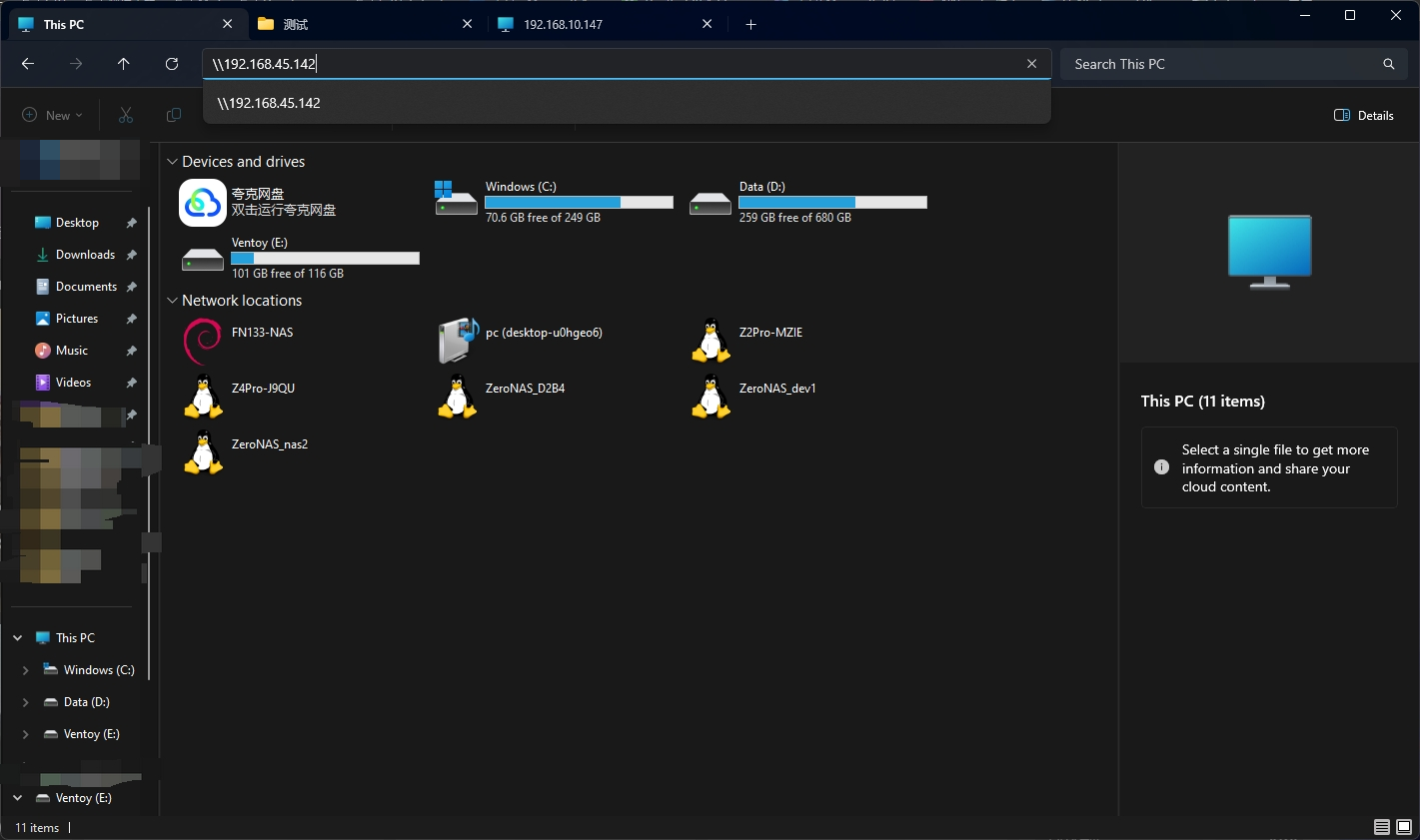
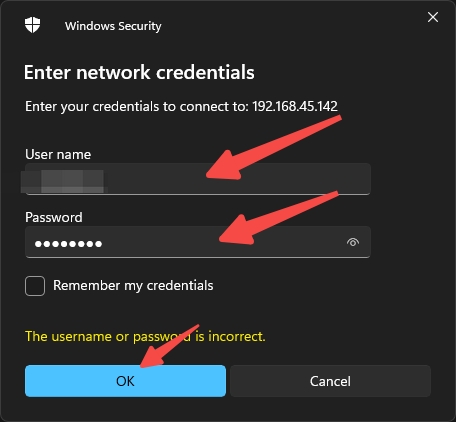
- Windows Explorer may prompt you to enter user credentials, please enter the NAS user account name and password, then click Confirm when finished.
- After the user credentials are verified, the accessible shared items can be viewed. As shown in the figure, the items include "TimeMachine"(which only exists when the TimeMachine function is enabled) and "xxxxxx_data"(where xxxxxx is the specific username), and the visible files are contained within "xxxxxx_data".
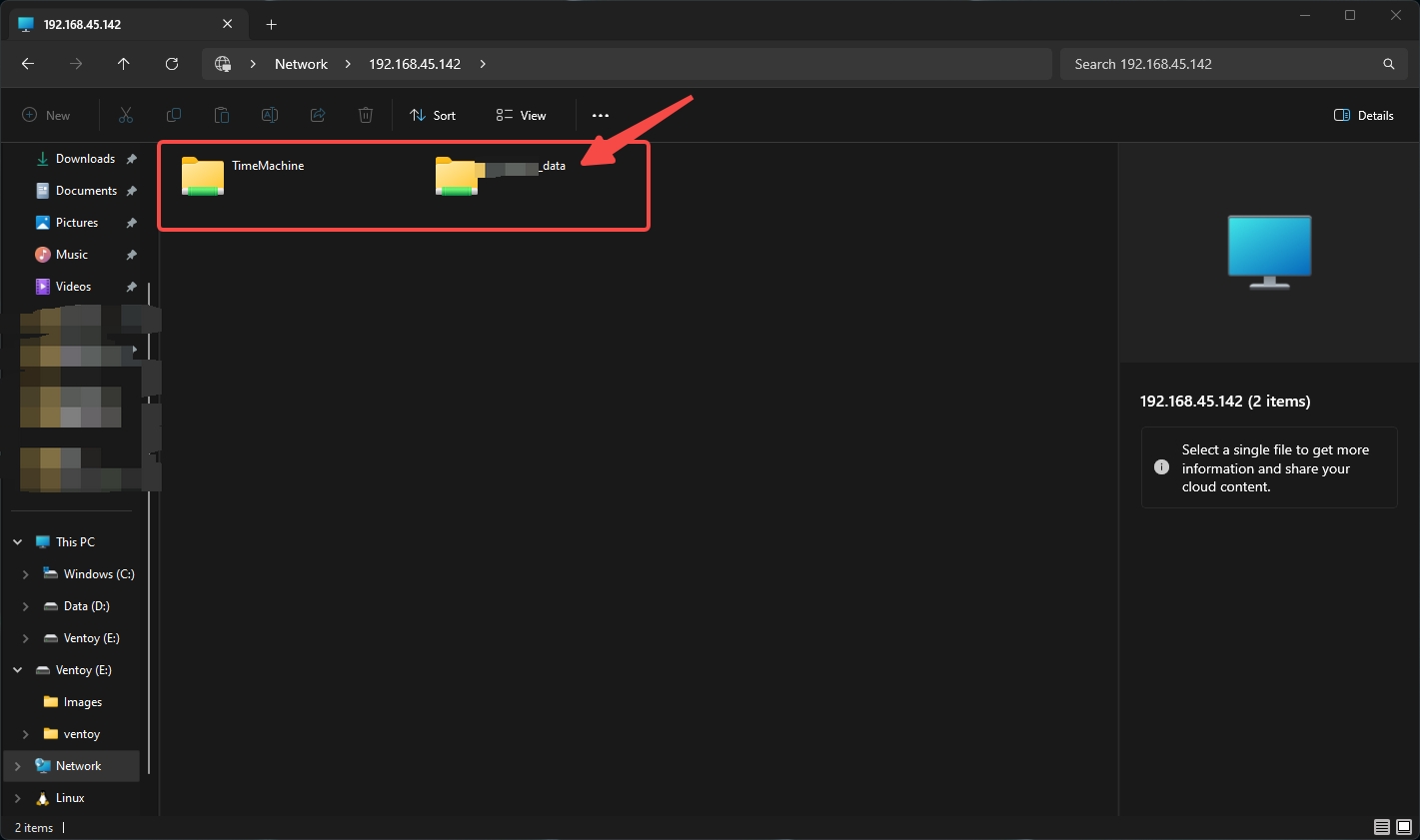
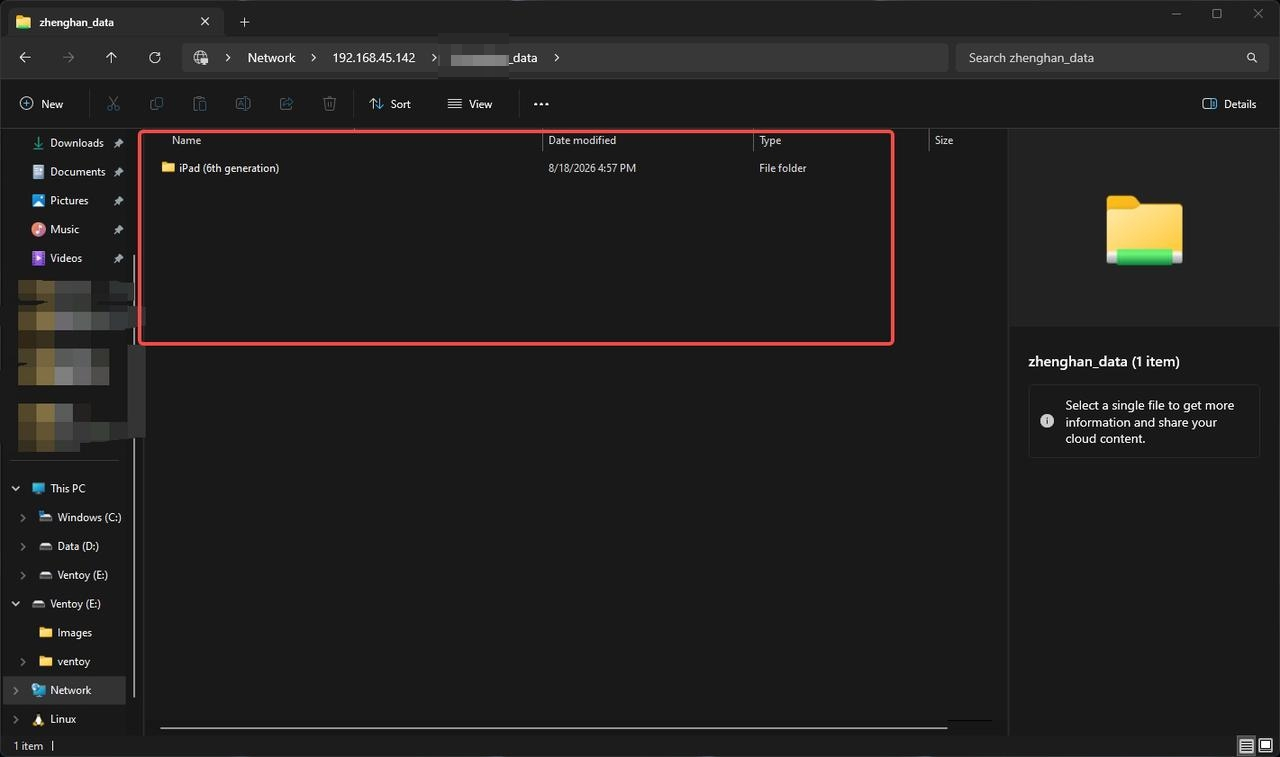
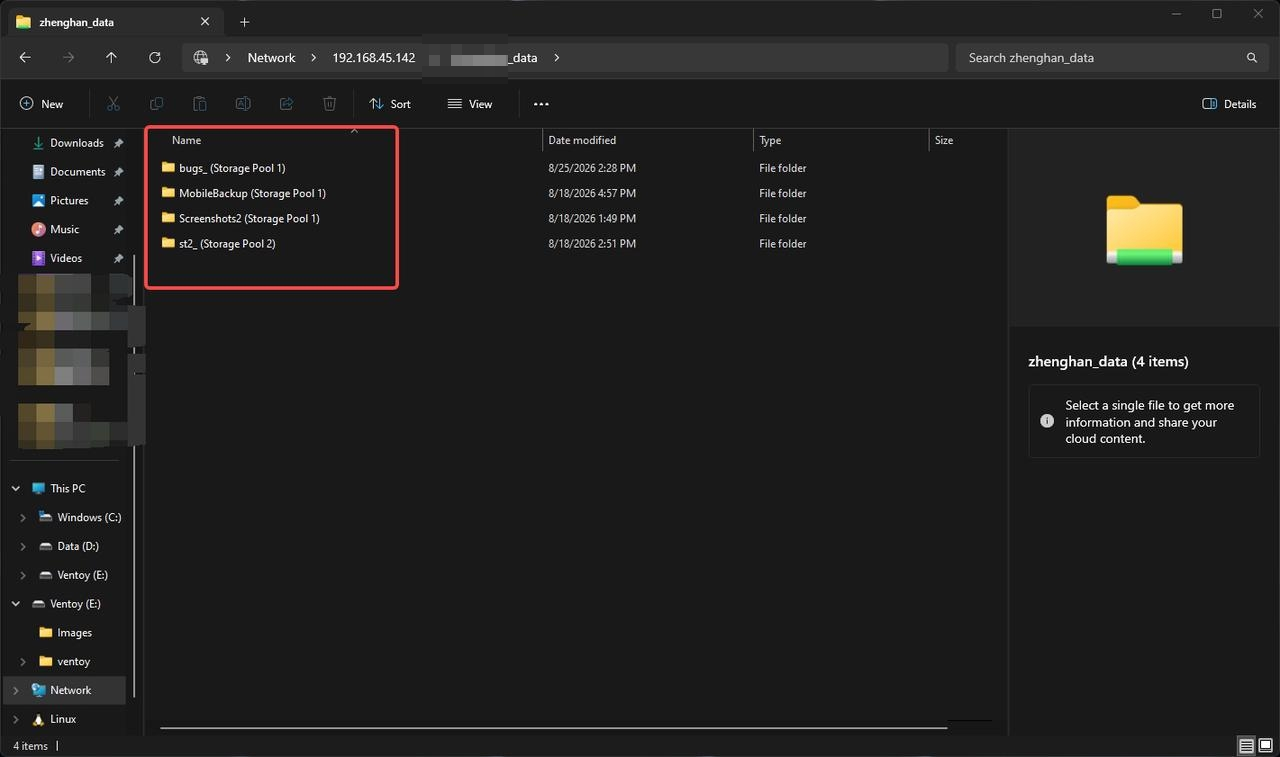
- Double-click "xxxxxx_data" to access the shared items; the content you see may vary depending on different scenarios.
(1) When there is only one directory in the visible directory (only one is selected in "Custom Folders" and "External Storage" is not selected), the content of the selected directory is displayed in "xxxxxx_data".
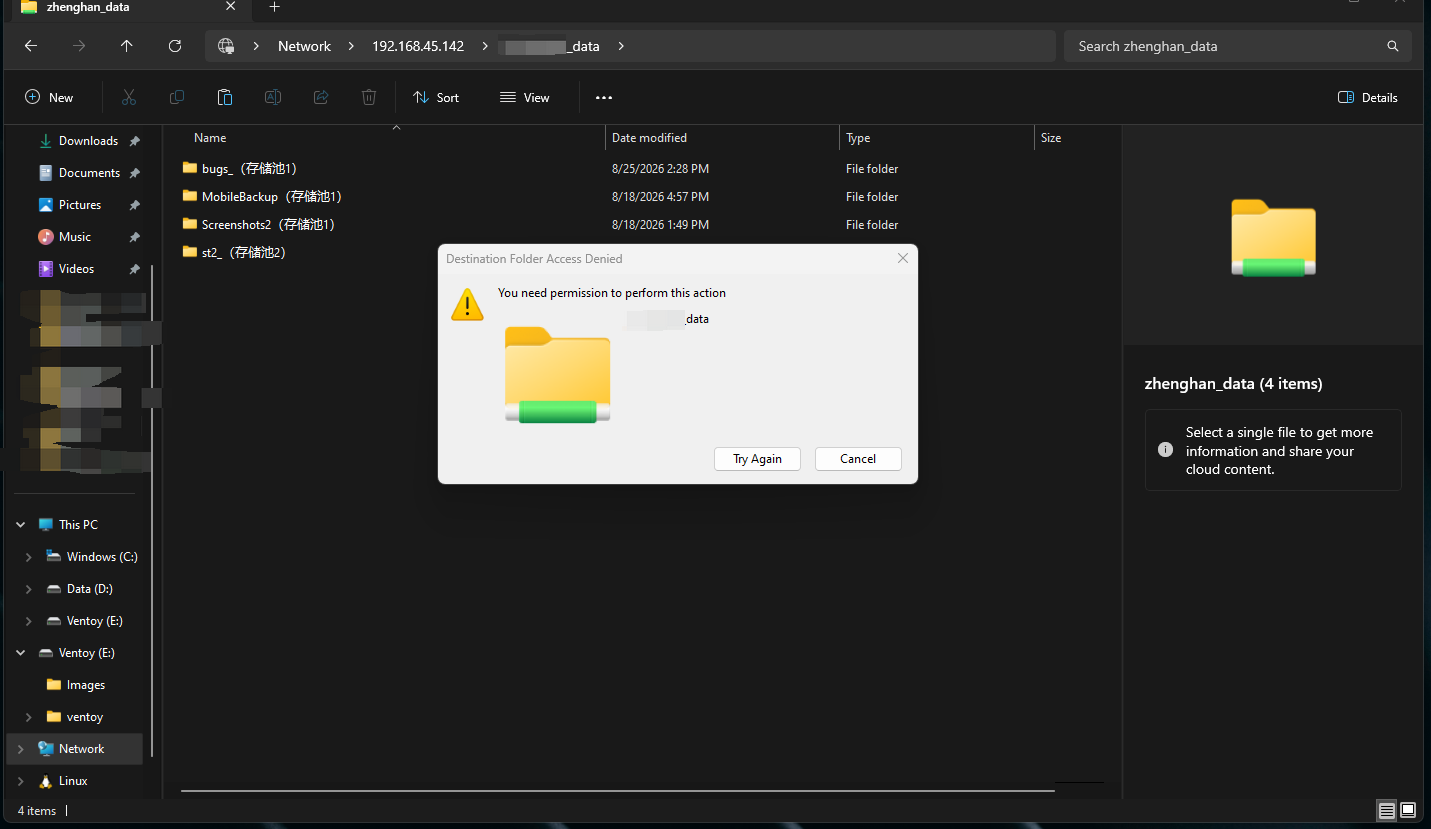
(2) When "All Folders" is selected in [My Files], or more than two directories are selected in [Custom Folders], or a directory is selected in [External Storage], the folder list displayed in "xxxxxx_data" includes the folders accessible in the personal directory and the external storage that is permitted to access. Note: In this case, write operations on the shared root directory are prohibited, including creating folders, uploading files, renaming, etc.
Access denied prompt appears when attempting to create a directory
Ⅱ**. WebDAV Settings**
The WebDAV protocol is based on HTTP/HTTPS and supports file access via web pages.
- Enable WebDAV service: Turn on or off the WebDAV file sharing service.
- Advanced Settings: Click to open the advanced settings page, which supports toggling HTTP/HTTPS protocols, port configuration, accessible directory scope, and more.
- Accessible Scope Configuration: Supports users in configuring accessible scopes, such as "All User Files", "External Storage", etc.
- View Connection Instructions: Supports displaying the description of the connection method to facilitate users to connect from other devices.
(1) Enabling or Disabling the WebDAV Function
The operation steps are as follows:
- Go to the **File Sharing Protocol** page and select **WebDAV**.
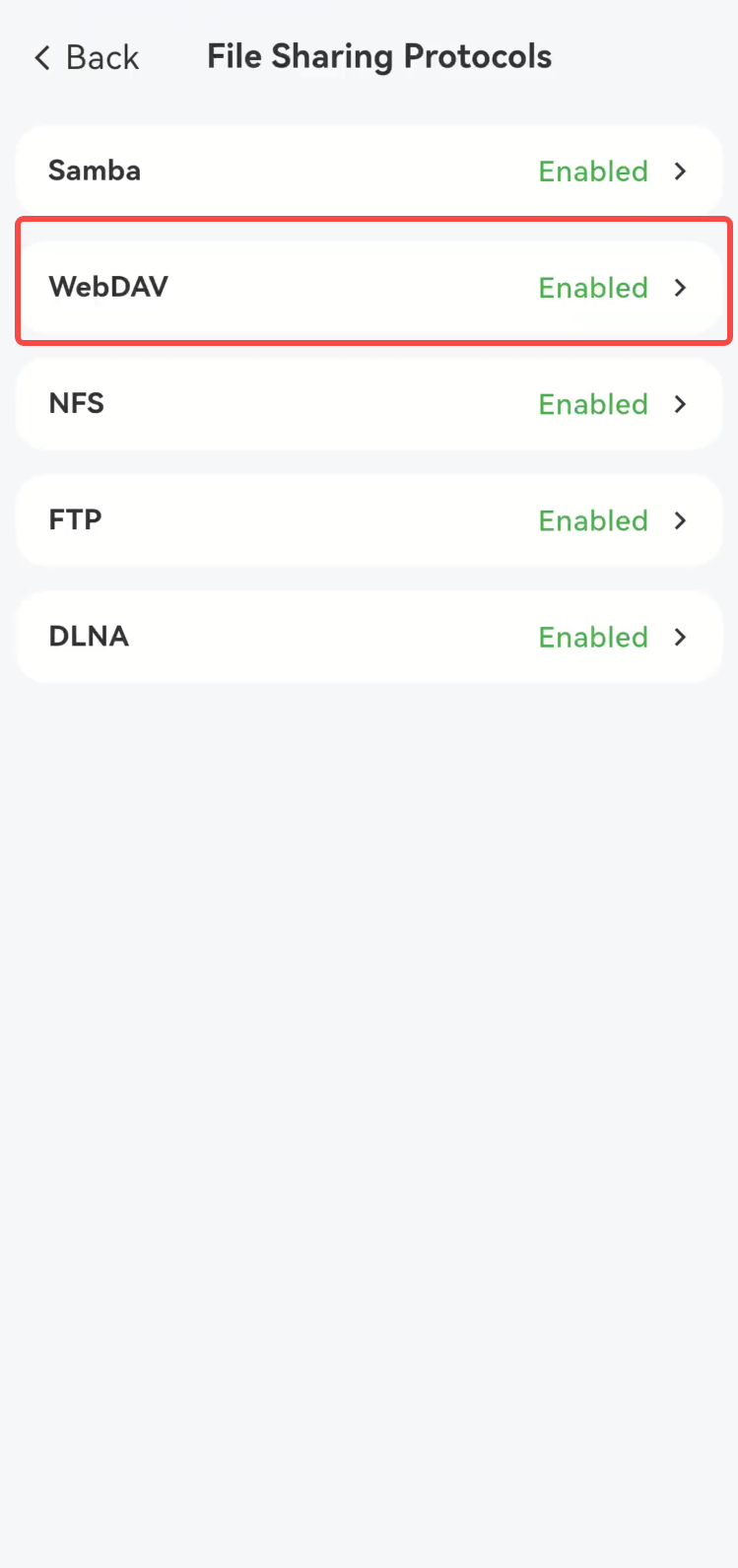
- Click the button on the right side of the [WebDAV] section to enable or disable the WebDAV function.
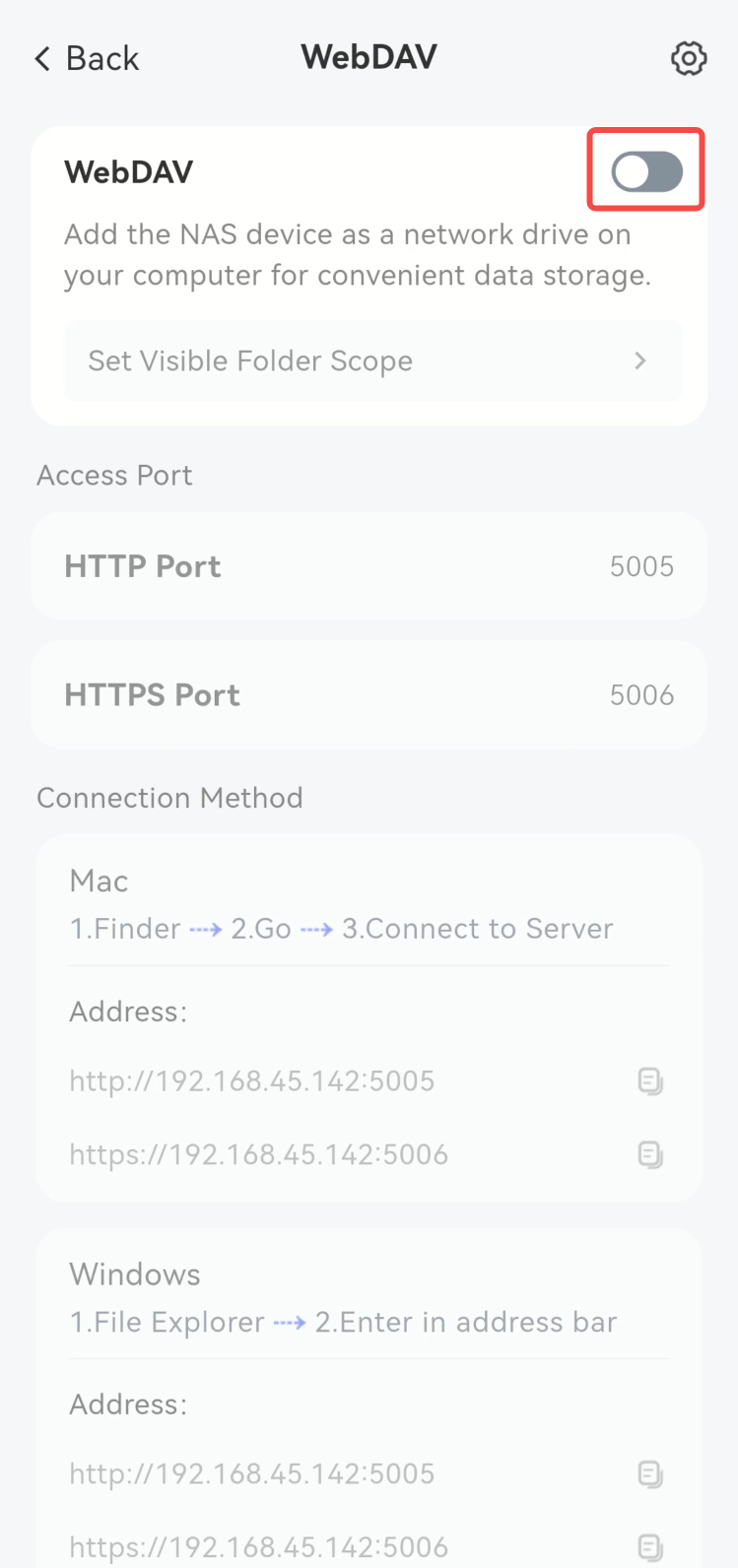
(1) Enable the WebDAV function
It is disabled by default; click the button to enable it.
Open successfully.
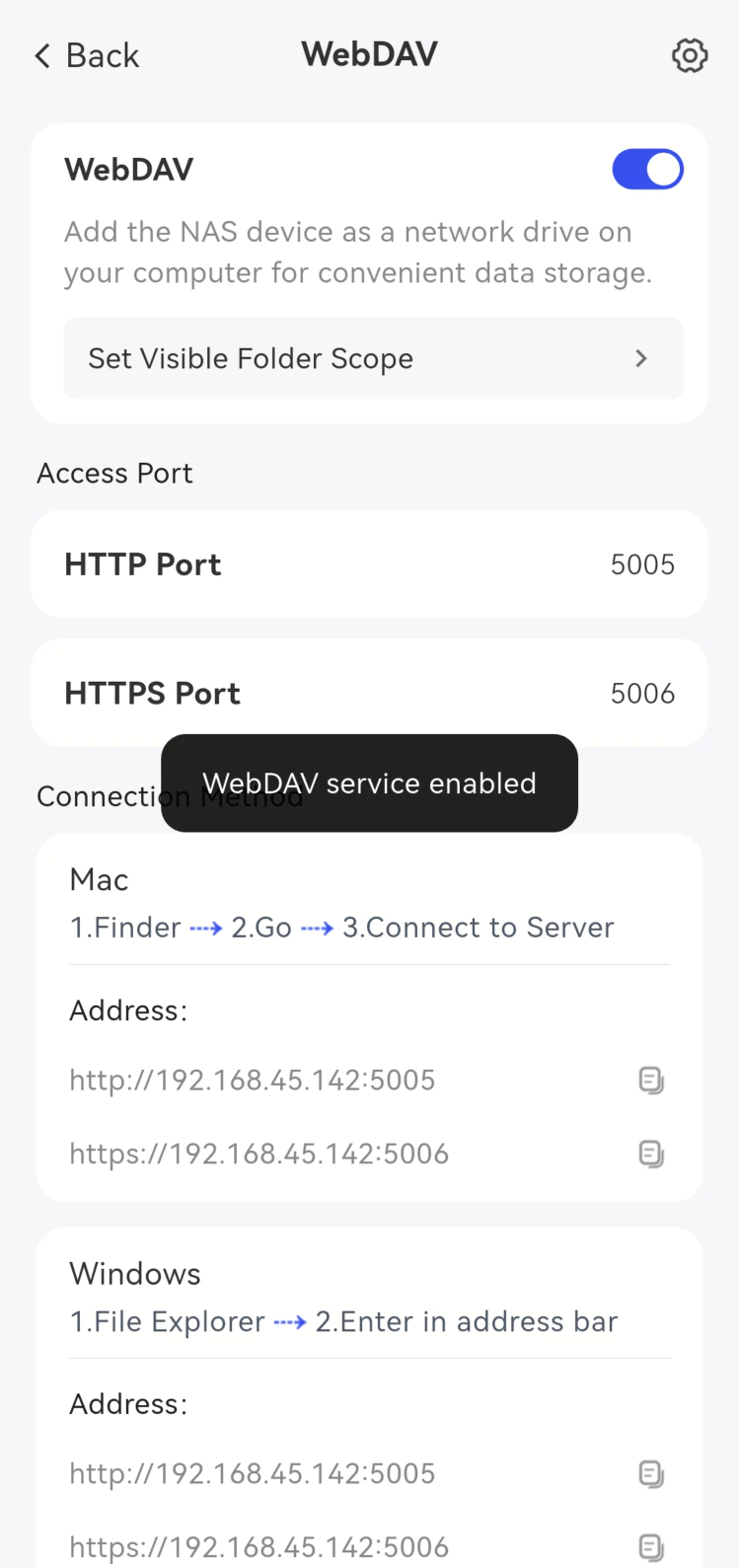
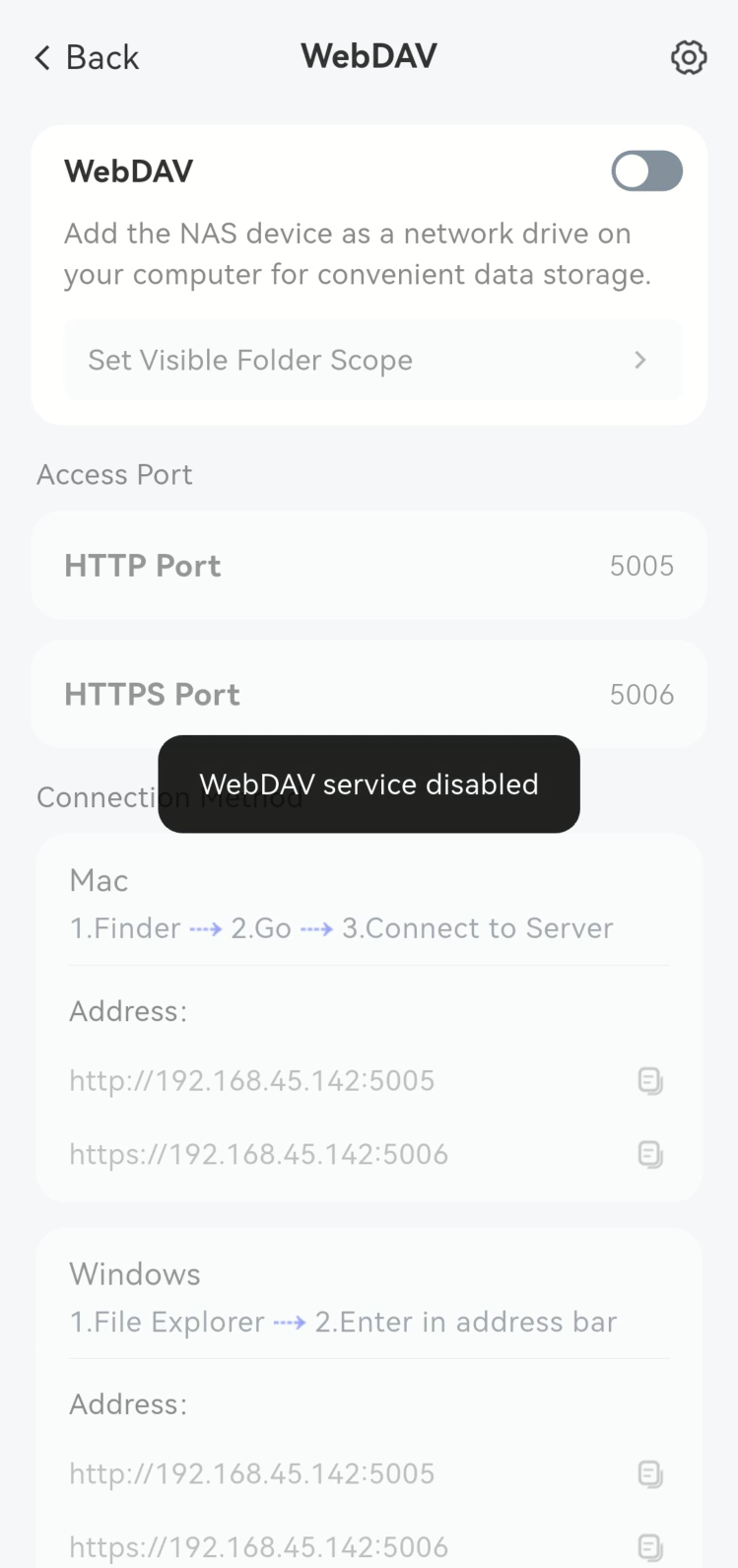
(2) Disable the WebDAV feature.
Click the button again while it is on to turn it off.
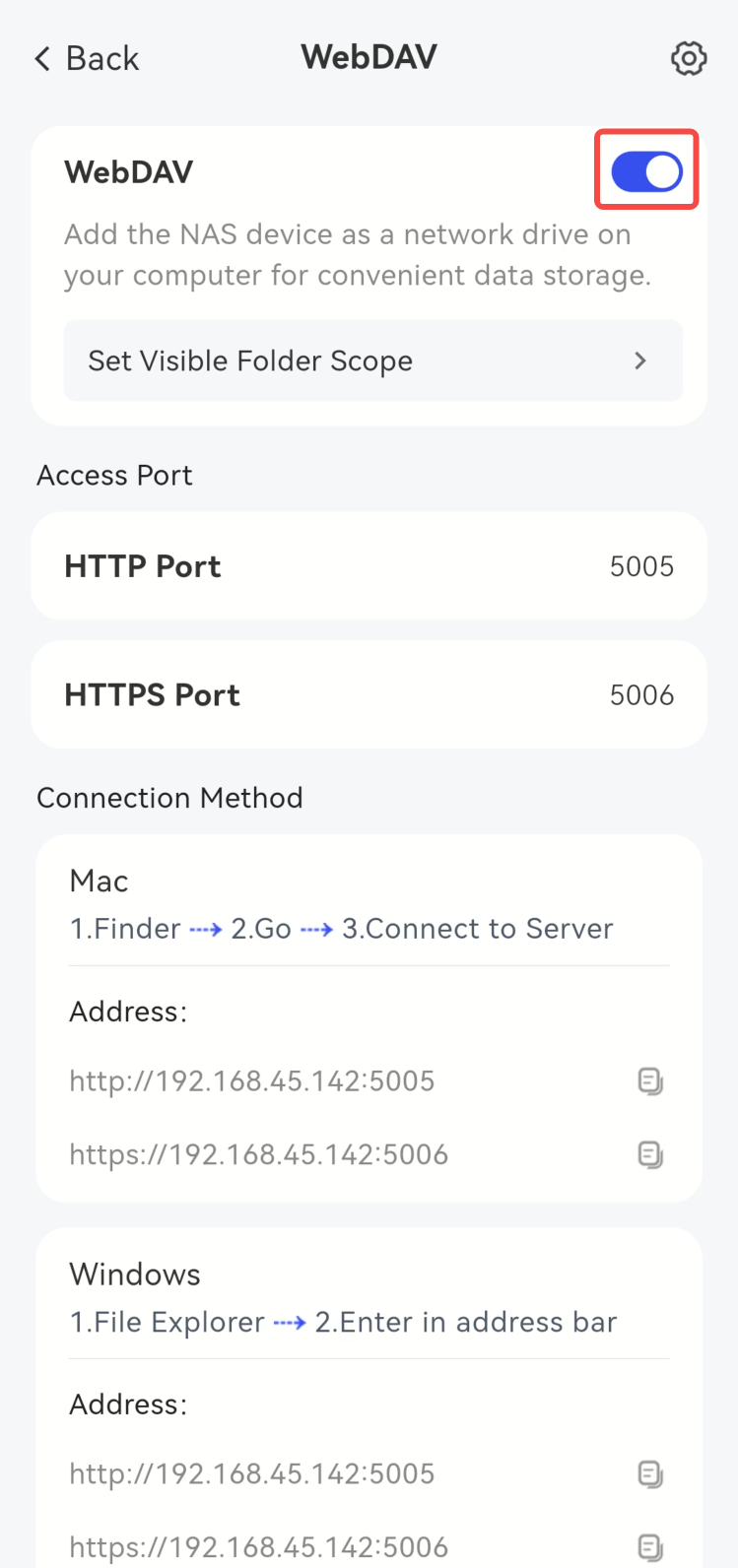
Closed successfully.
(2) Modify WebDAV Function Settings
The operation steps are as follows:
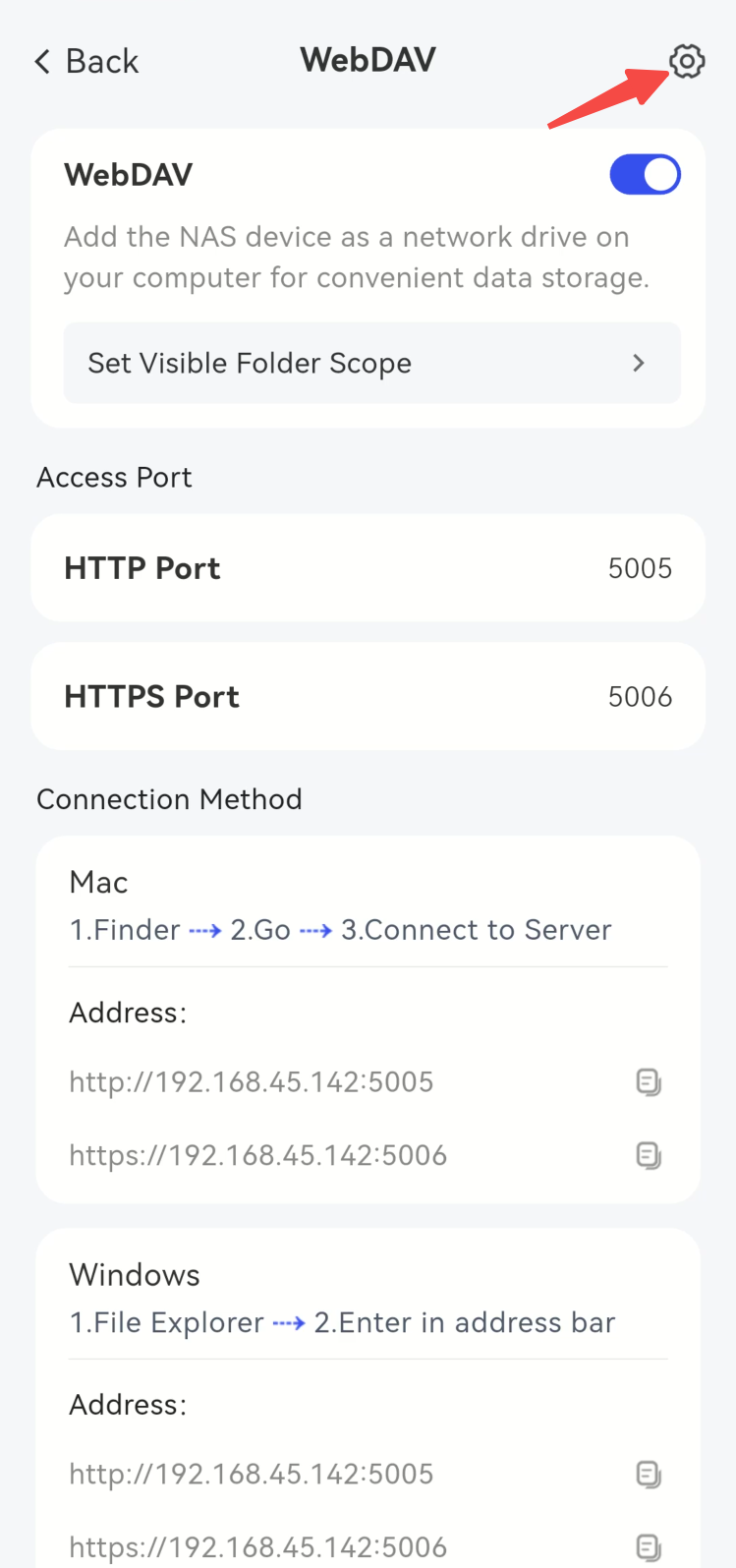
- Click **Advanced Settings** on the **WebDAV** page. Note: Modifications to WebDAV advanced settings are supported even when the service is disabled.
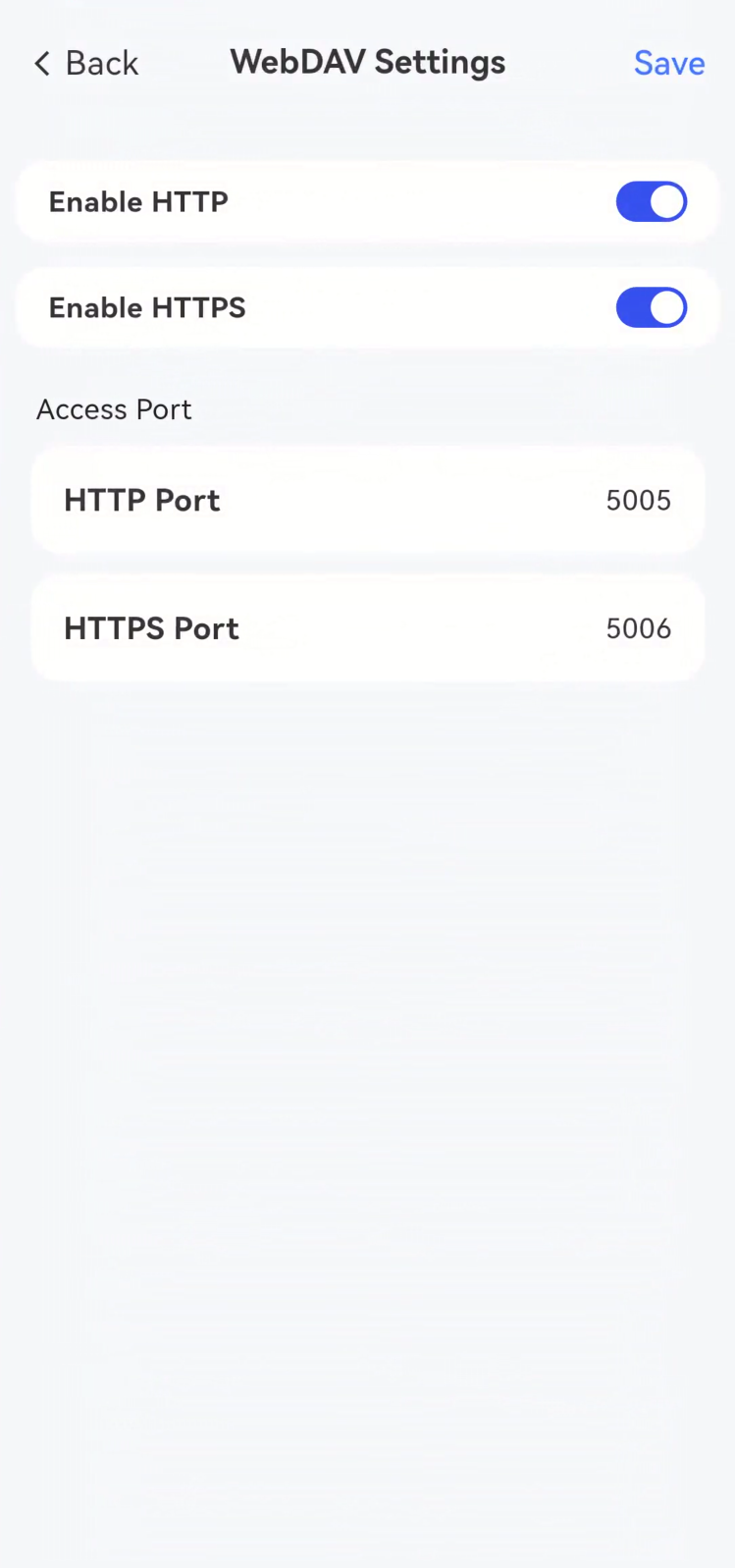
- Configure the enabled protocol (HTTP or HTTPS) and its corresponding Port Number as needed, and click [Save] after the modification is completed. Note: HTTP and HTTPS support being configured with the same port.
(III) Accessing WebDAV
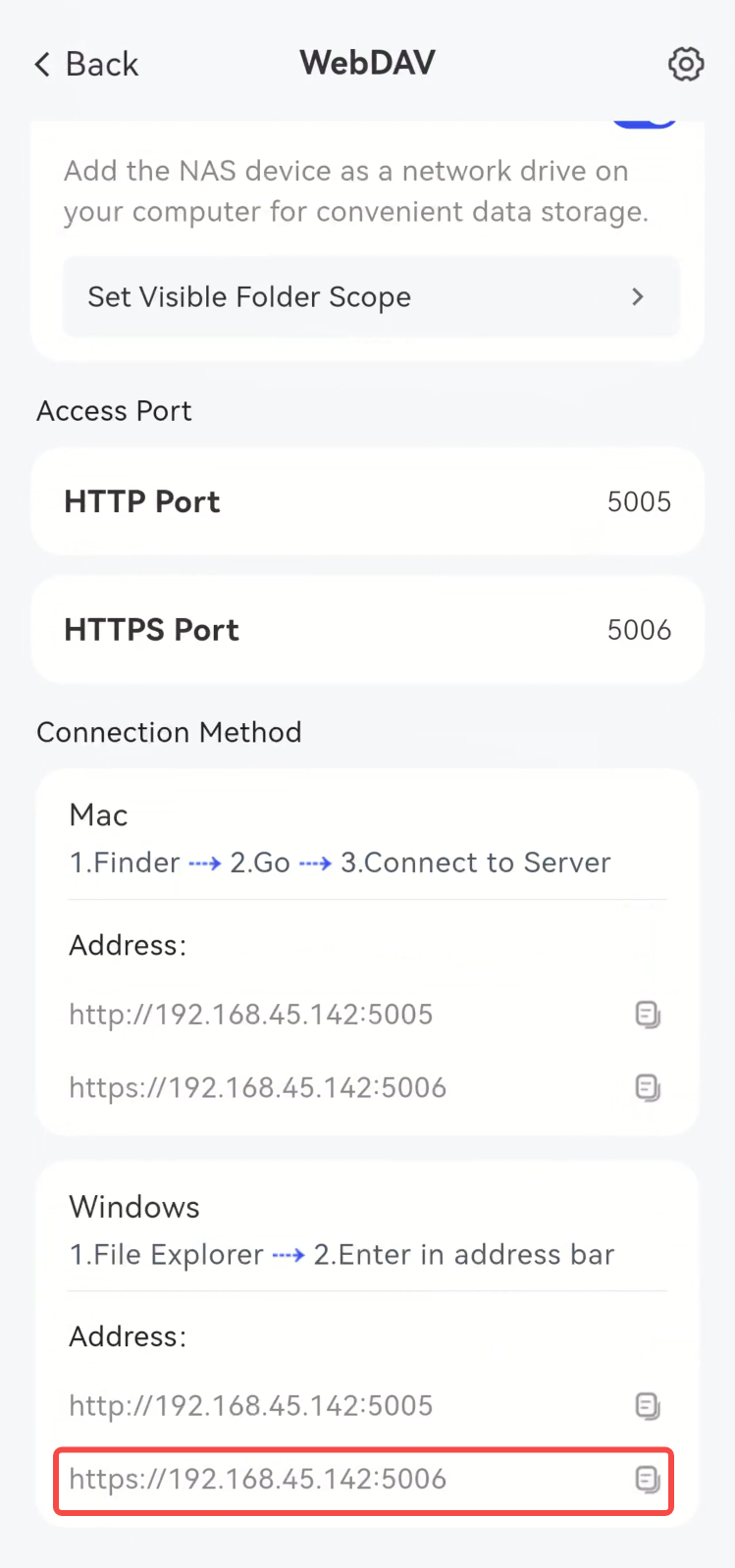
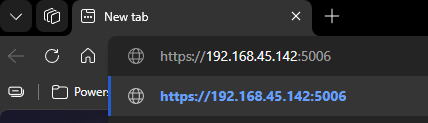
It can be accessed via clients that support the WebDAV protocol, such as Cyberduck, Windows File Explorer, etc. Meanwhile, it also supports viewing the file list through a browser. Here we take the Edge browser as an example. The operation steps are as follows:
- Enter the address displayed in [Connection Method] in the browser's URL address bar, and select the HTTPS address here.
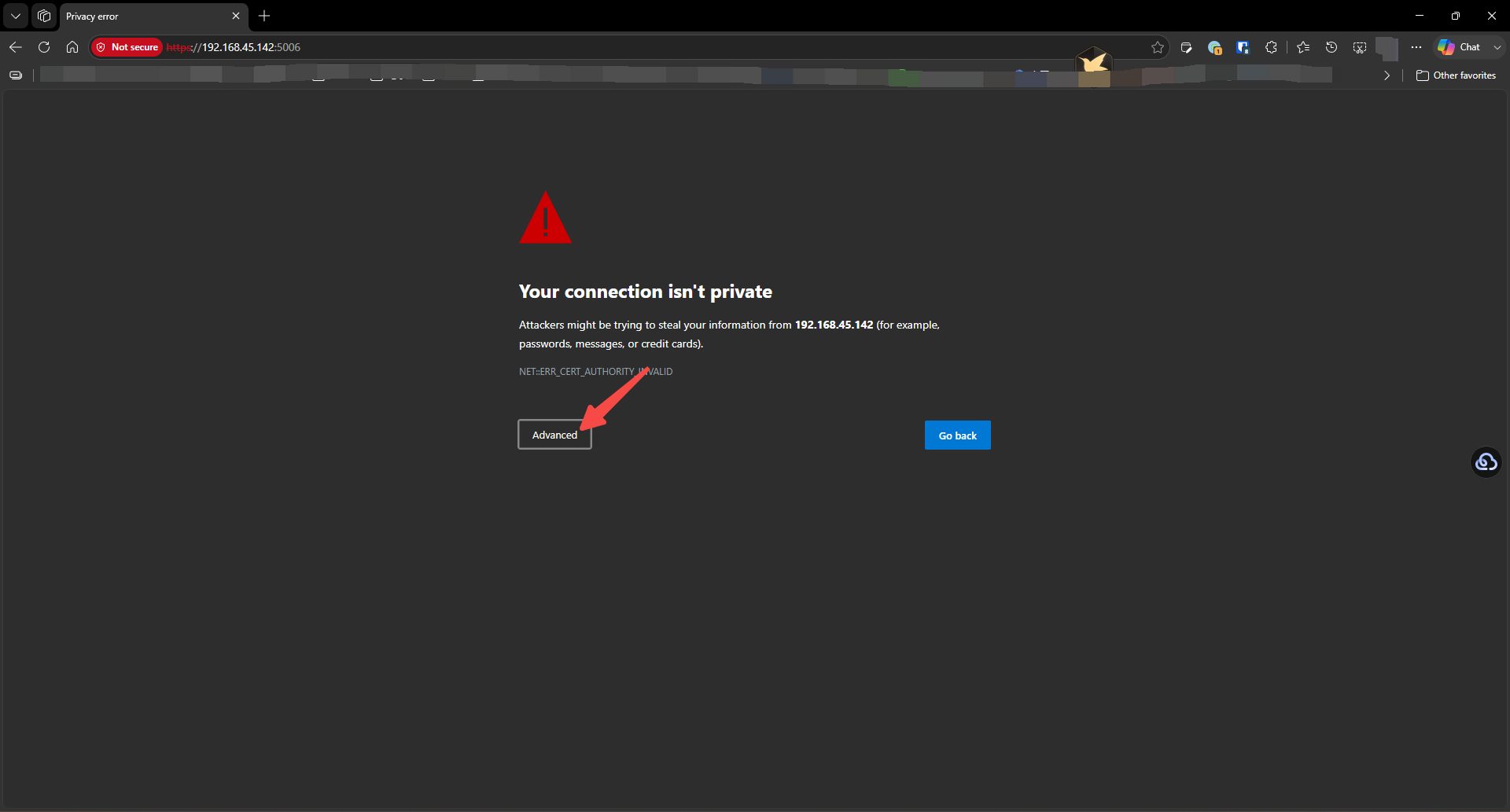
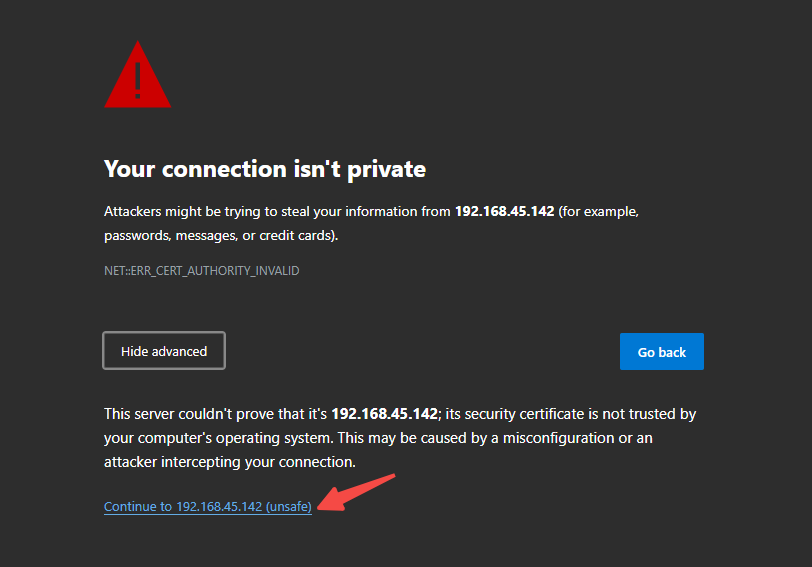
- If a privacy security error is prompted, select [Advanced] -- [Continue to 192.168.45.142 (unsafe)].
- When prompted to enter user credentials, please enter **the username and password of your NAS account **to log in.
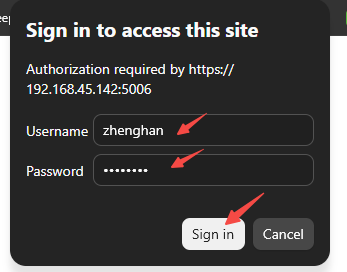
- Display the access list authorized by the user.

(IV) Modify the configuration of visible file scope
The configuration of the visible file range for WebDAV is basically consistent with that of Samba. Please refer to the operation steps of Samba.
III. FTP Settings
The FTP protocol is a classic file transfer protocol.
- Enable FTP Service: Turn on or off the FTP protocol.
- Advanced Settings: Click to open the advanced settings page, where you can configure FTP/FTPS protocol toggle, port settings, passive port range, idle timeout, etc.
- Accessible Scope Configuration: Supports users in configuring accessible scopes, such as "All User Files", "External Storage", etc.
(I) Enabling or Disabling the FTP Function
The operation steps are as follows:
- Go to the [File Sharing Protocol] page and select [FTP].
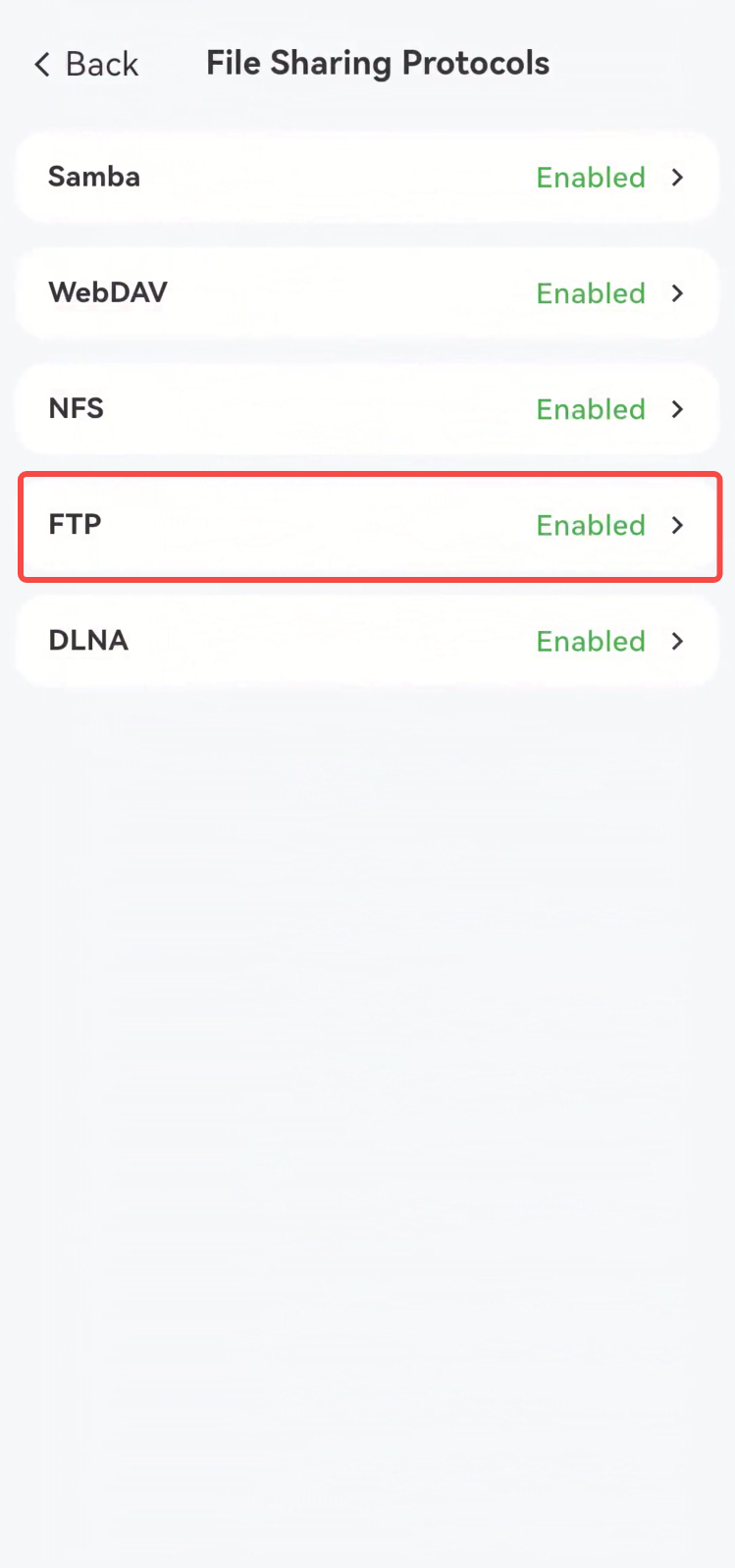
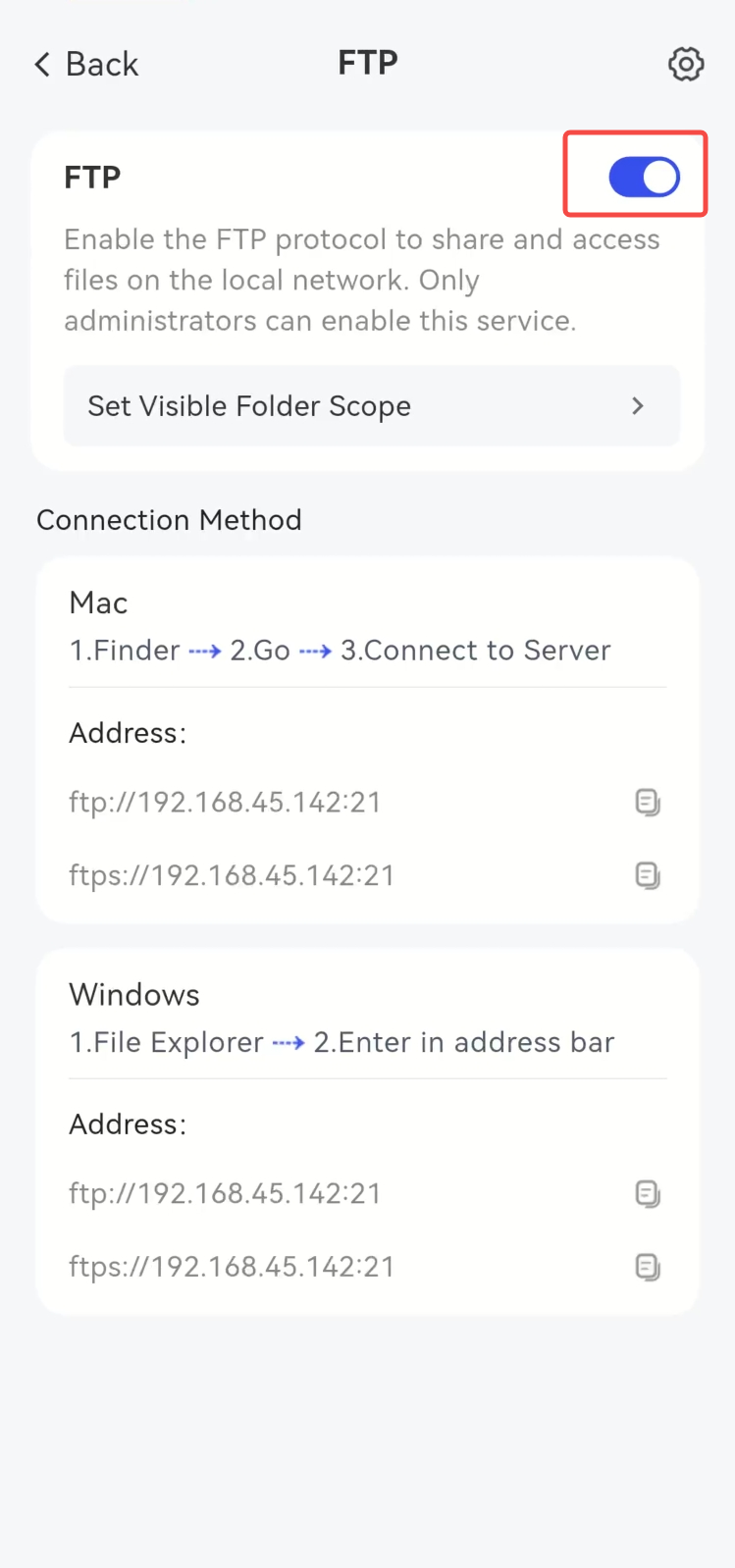
- Click the button on the right side of the [FTP] section to enable/disable the FTP function.
(1) Enable the FTP function
It is disabled by default; click the button to enable it.
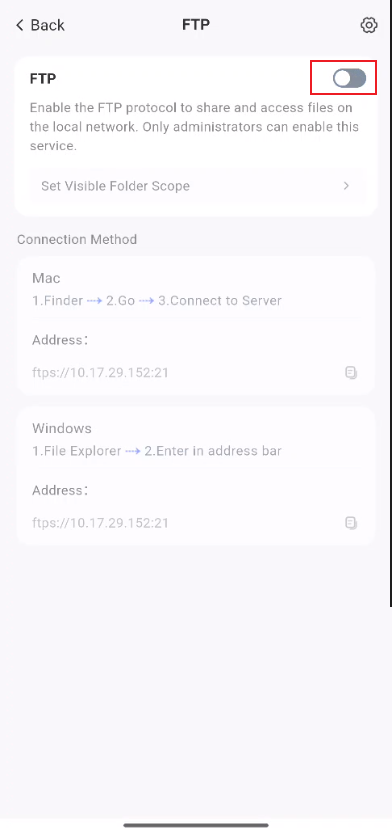
Open successfully.
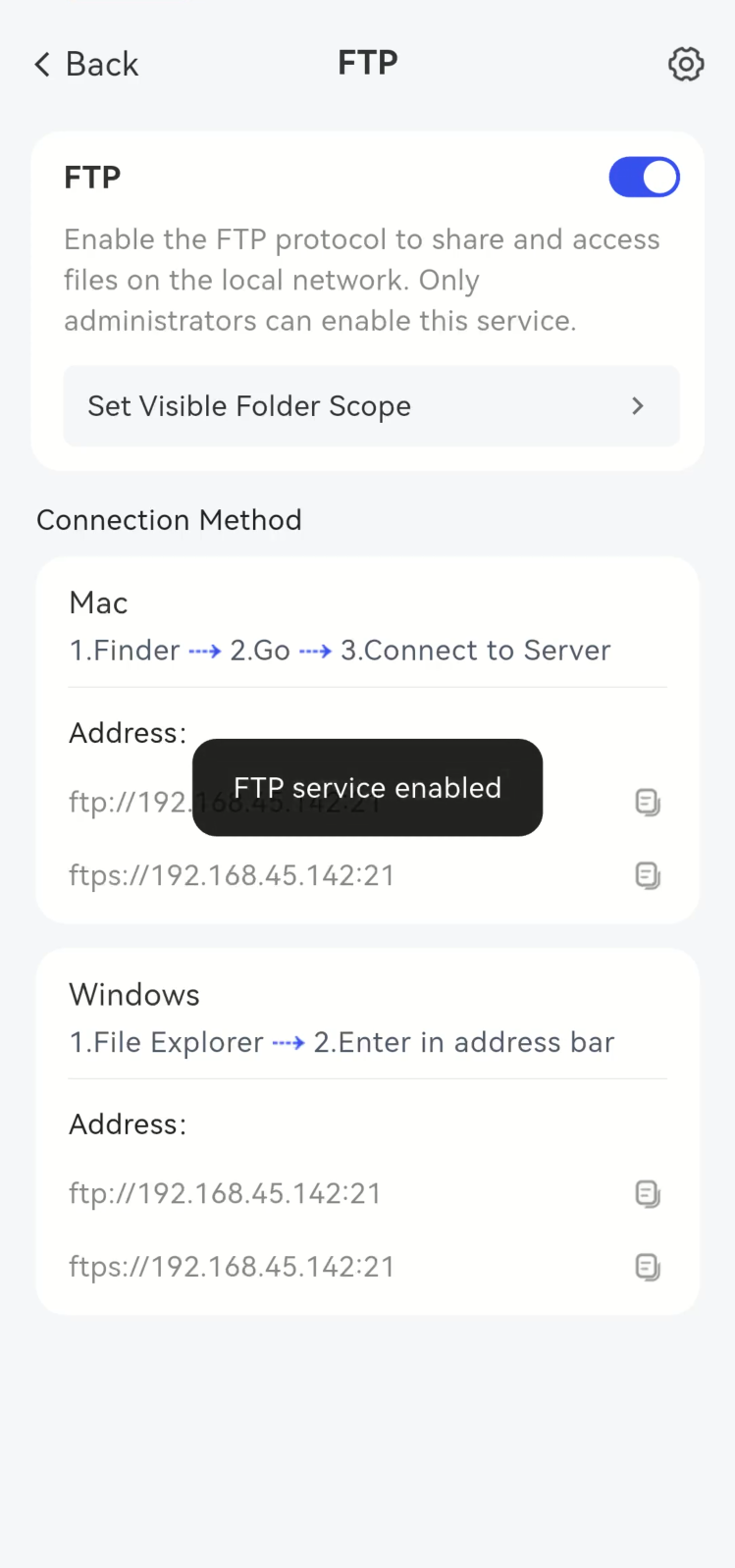
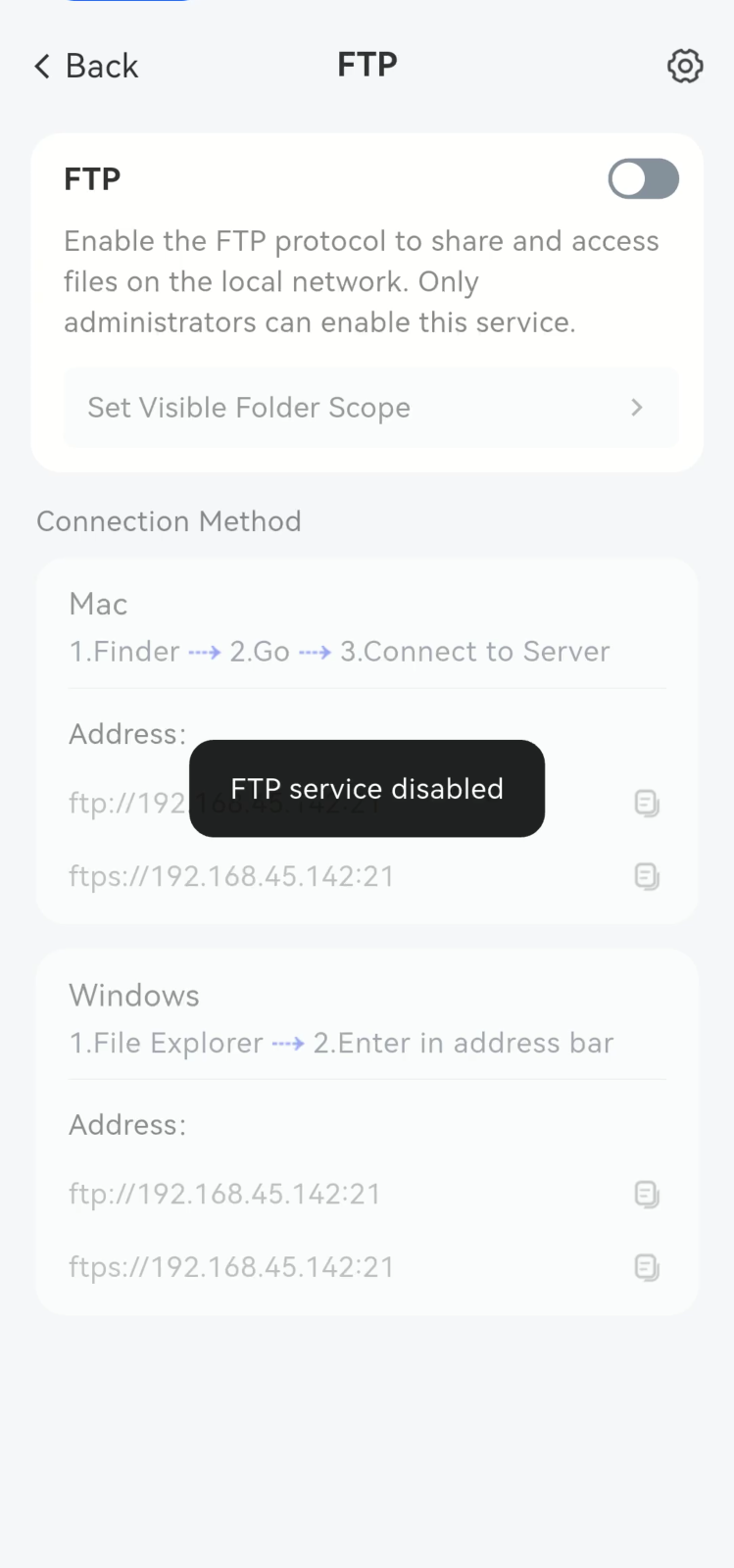
(2) Disable the FTP function.
Click the button again while it is on to turn it off.
Closed successfully.
(2) Modify FTP Function Settings
The operation steps are as follows:
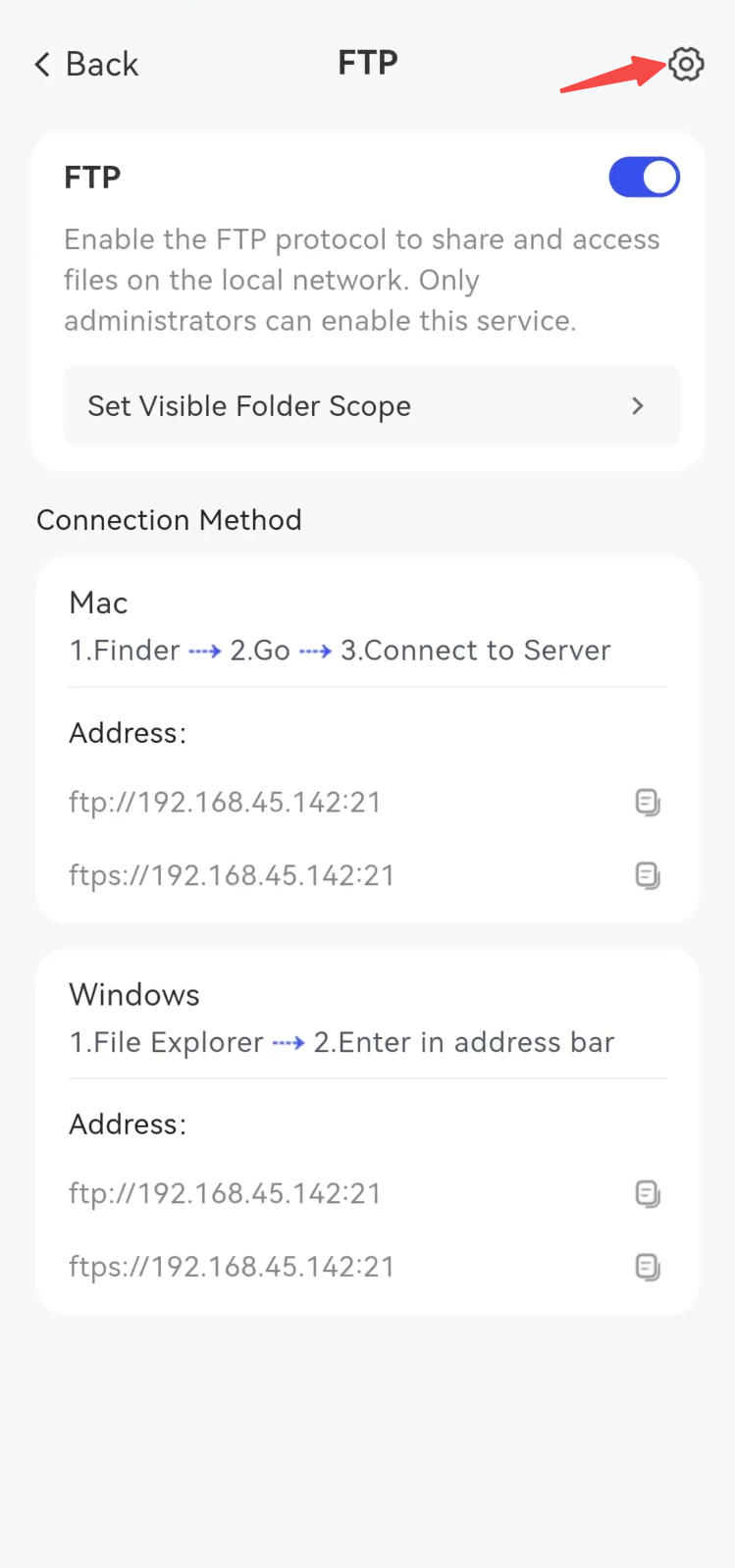
- Click the **Settings** icon in the top-right corner on the **FTP** page. Note: Advanced FTP settings can be modified when the service is in the off state.
- Configure the enabled protocol (FTP or FTPS), the Port Number used by the protocol, the passive FTP port range, and the idle timeout as needed, and click [Save] after the modification is completed. Note: When configured as 990, enabling only unencrypted FTP service will result in connection failure.
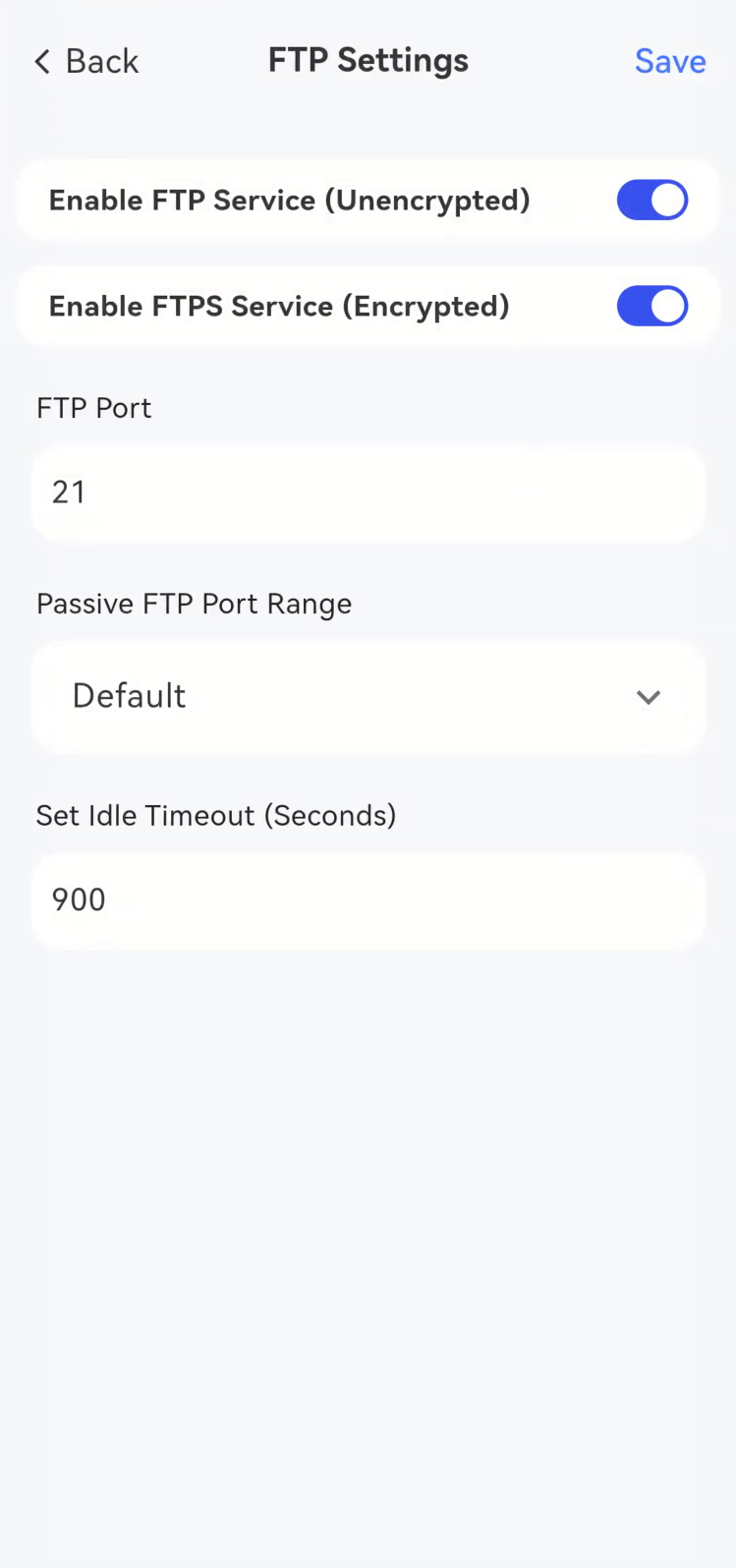
Note: Port 990 is the default implicit FTPS port. When using this port, the FTP Client will recognize the connection as implicit FTPS. After the connection is established, the Client must immediately perform an SSL/TLS handshake; otherwise, the connection will be rejected. If the FTPS service is not enabled, the connection will fail as the SSL/TLS handshake cannot be completed.
- Prompt modified successfully.
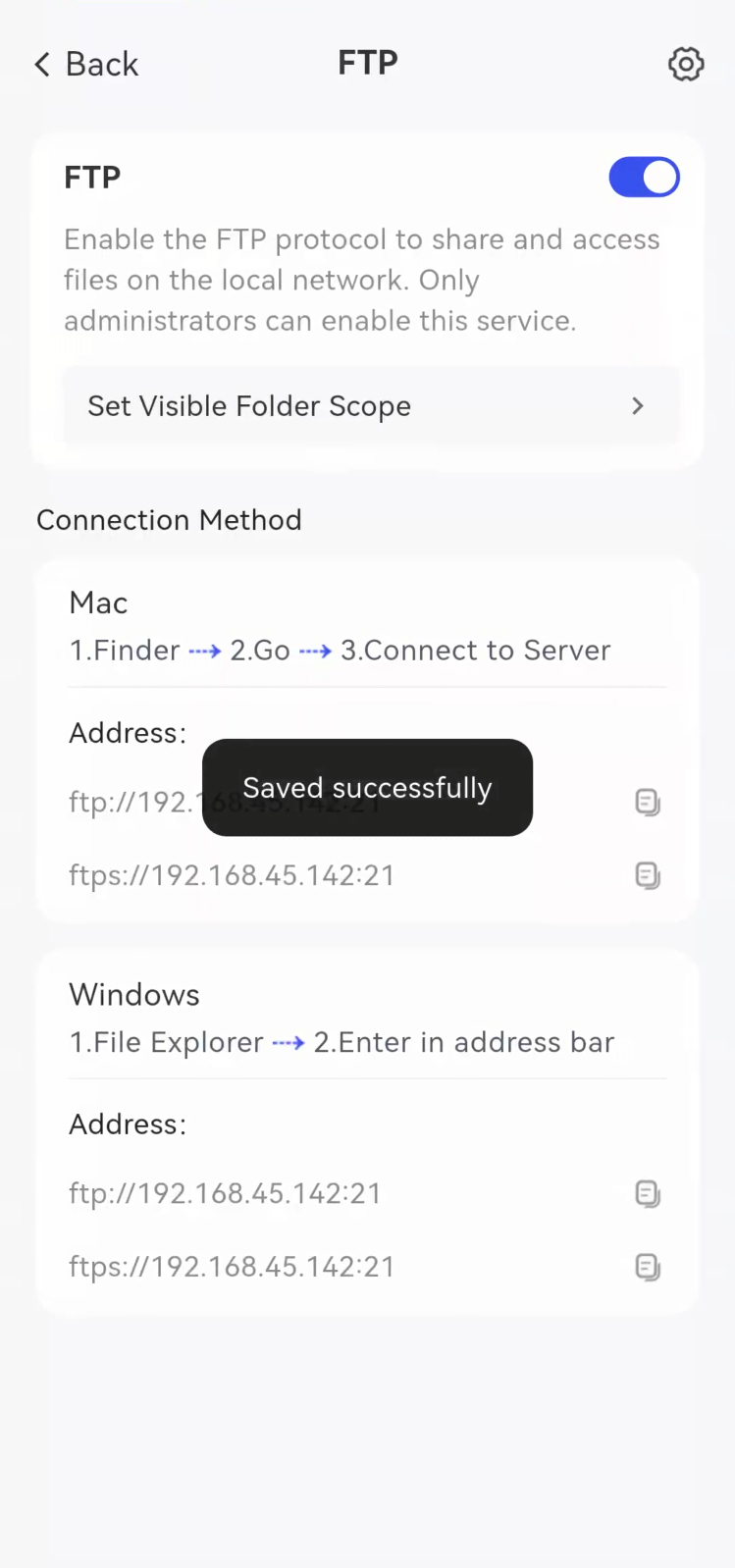
(3) Accessing FTP
It can be accessed via FTP protocol-compatible Clients such as Cyberduck and FileZilla; meanwhile, Windows File Explorer also supports plaintext FTP. Here we take FileZilla as an example. Note: When connecting via FTPS, please use a relatively new version of the Client as much as possible to avoid connection failures caused by the cipher suites of old Clients being deprecated.
The operation steps are as follows:
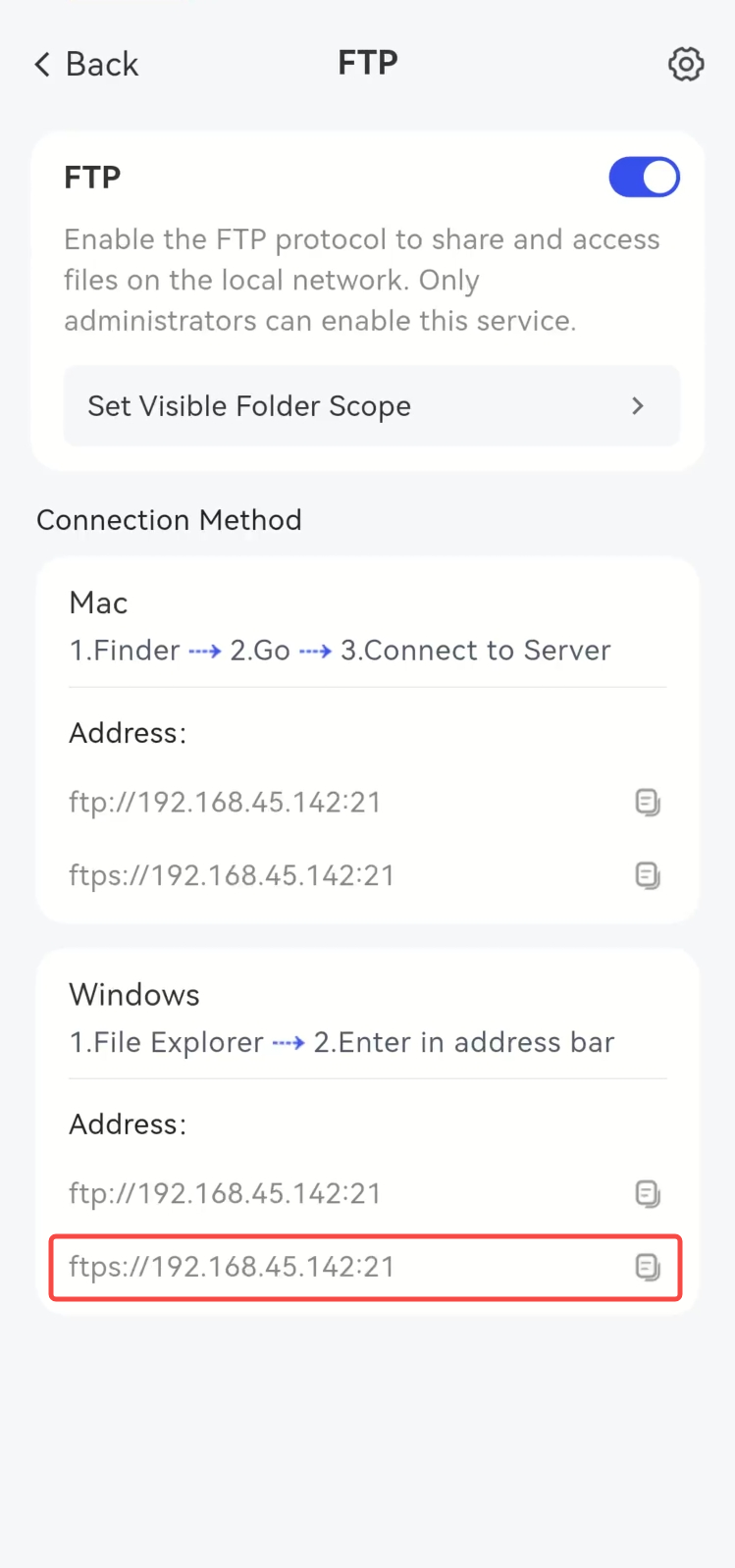
- Enter the address displayed in the [Connection Method] into the address bar of FileZilla, and select the HTTPS address here.
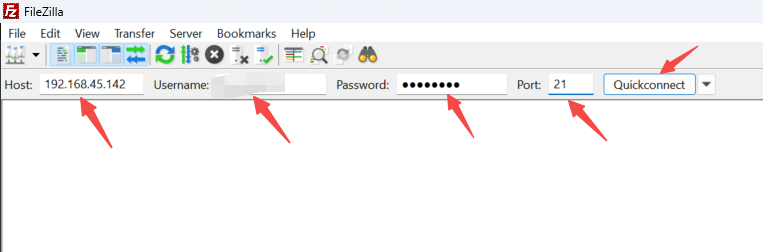
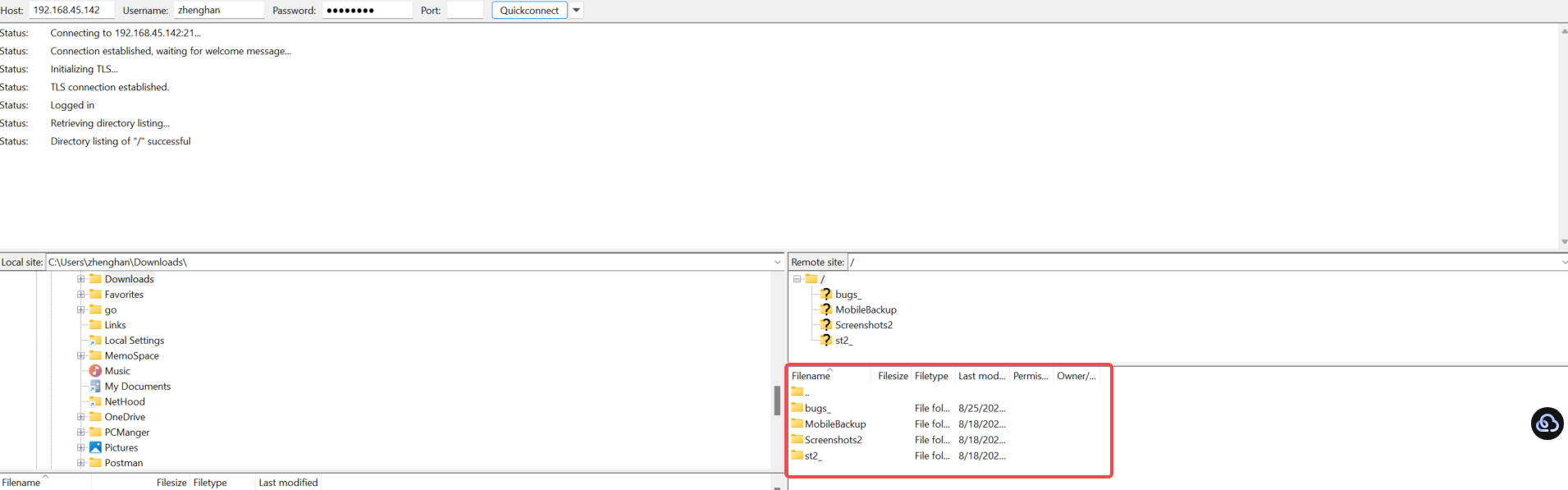
Enter the NAS IP Address, **the NAS account username and password, **the FTP protocol Port Number (you do not need to provide it when using the default value 21), then click [Quickconnect]. In the example, the NAS IP Address is 192.168.45.142 and the Port Number is 21.
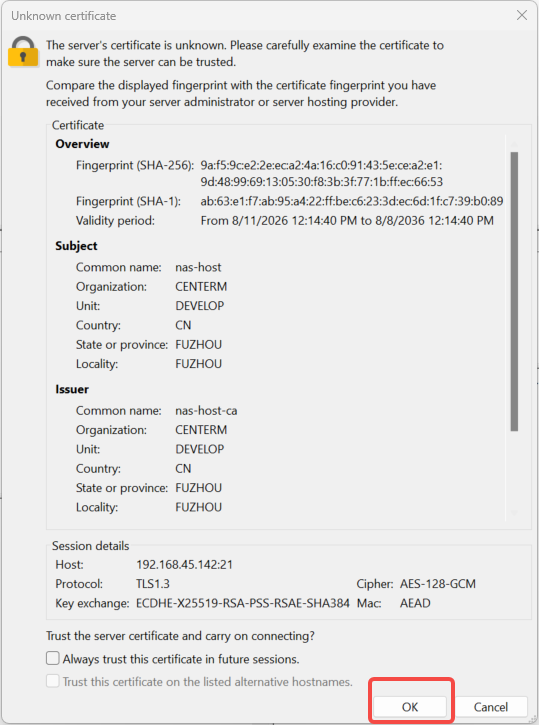
- If a prompt indicating an unknown certificate appears, select [OK] to proceed.
- Connection succeeded, and user files are now visible.
(IV) Modify the configuration of visible file scope
The configuration of the visible file range for FTP is basically consistent with that of Samba, please refer to the operation steps of Samba.
Ⅳ**. NFS Configuration Items**
The NFS protocol is mainly used for file sharing in Linux/Unix environments.
- Enable NFS Service: Turn on or off the NFS file sharing service.
- Specify Visible Directories: Allow users to add or remove folders to be shared via NFS.
- View Connection Instructions: Supports displaying the description of the connection method to facilitate users to connect from other devices.
(1) Enable or disable **NFS **function
The operation steps are as follows:
- Go to the [File Sharing Protocol] page and select [NFS].
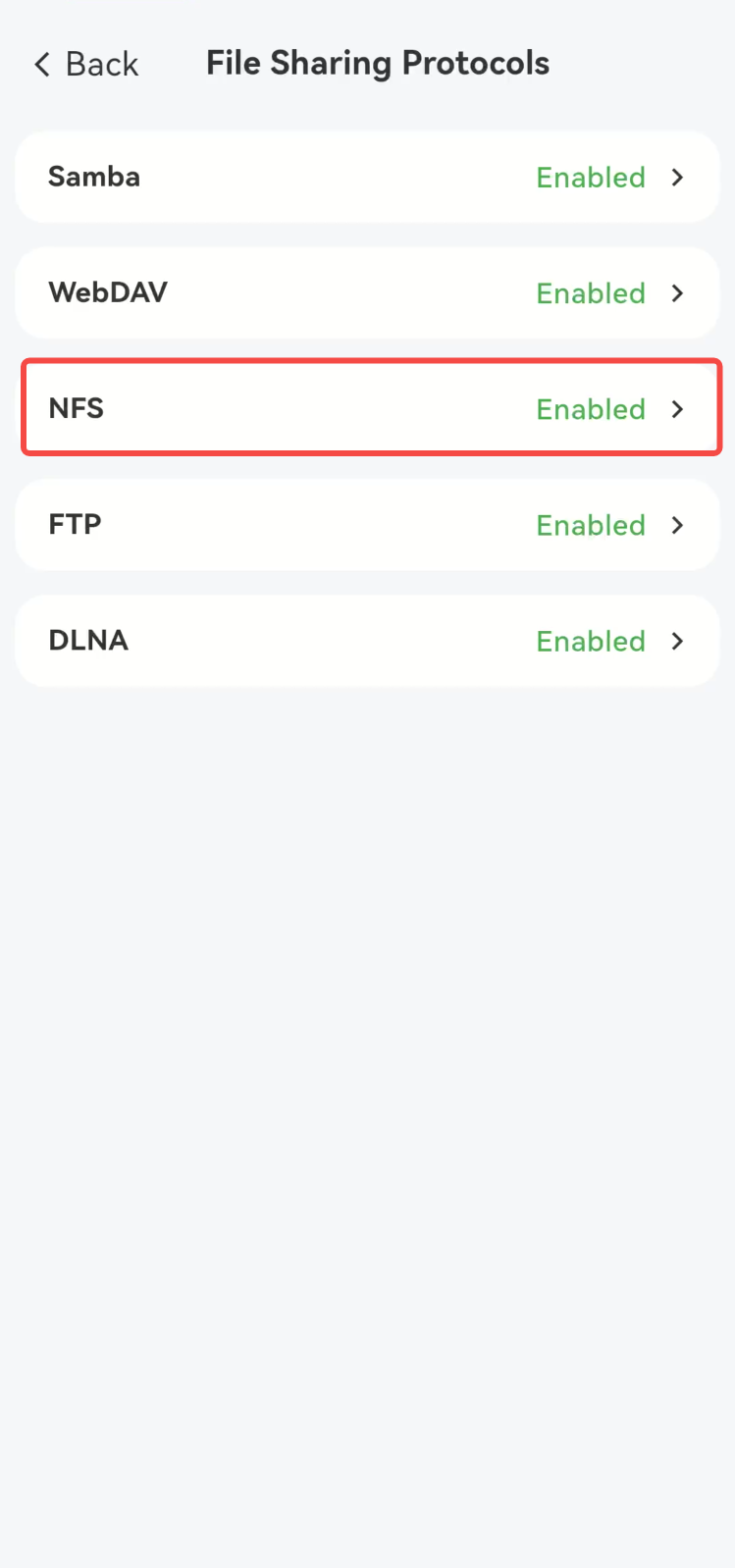
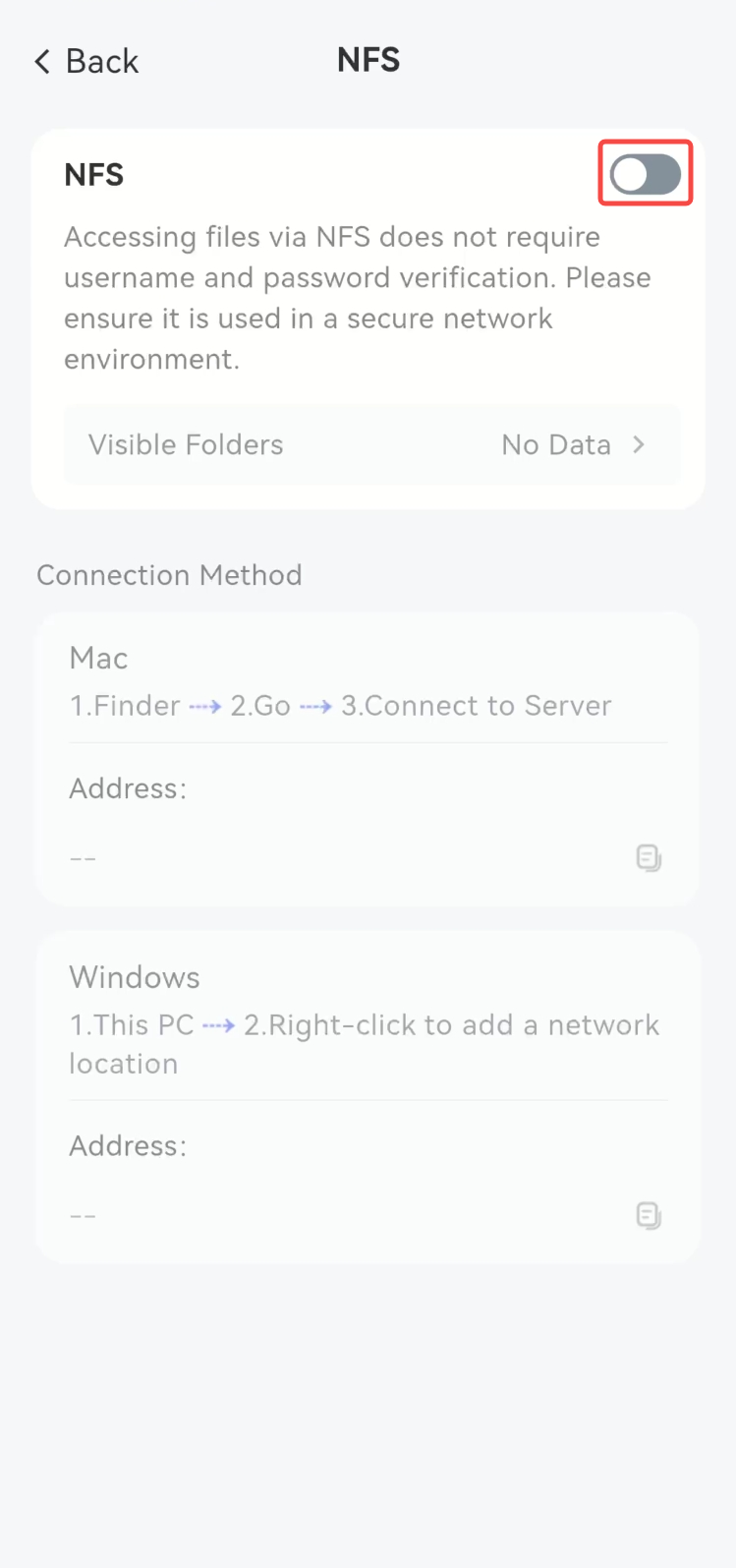
- Click the button on the right side of the [NFS] bar to enable/disable the NFS function.
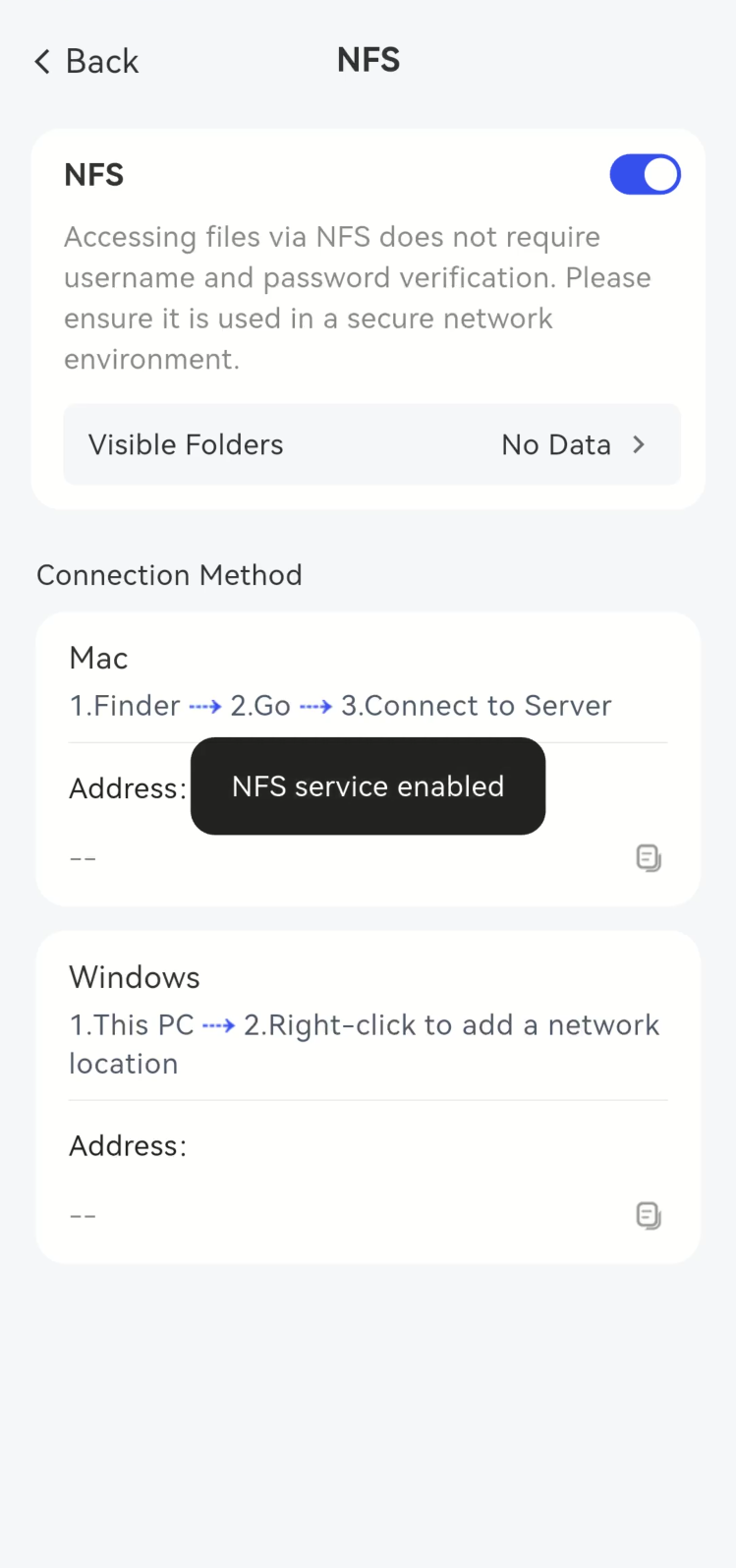
(1) Enable the NFS function
It is disabled by default; click the button to enable it.
On the pop-up [Security Notice] page, select [Enable] to Enable.
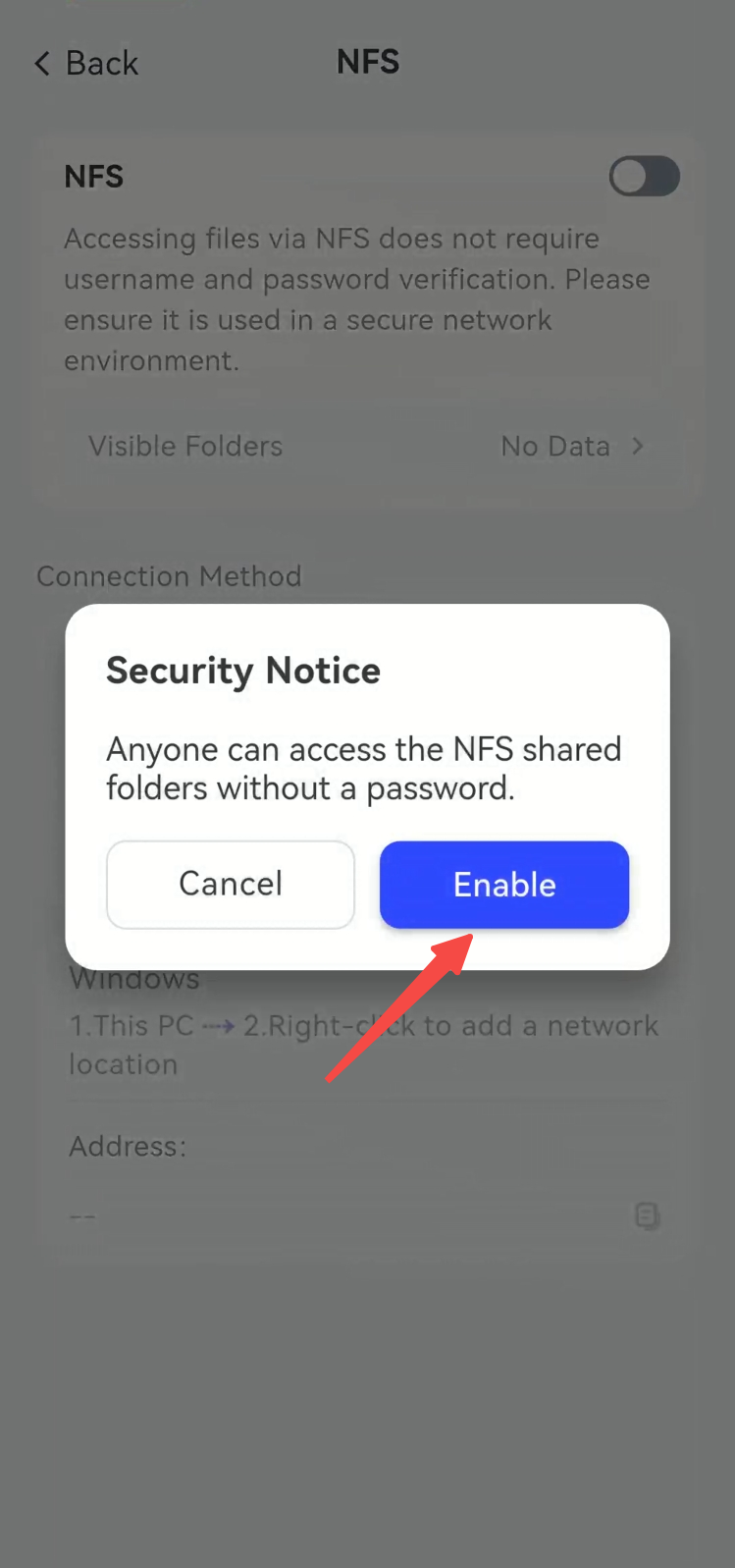
Open successfully.
(2) Disable the NFS function.
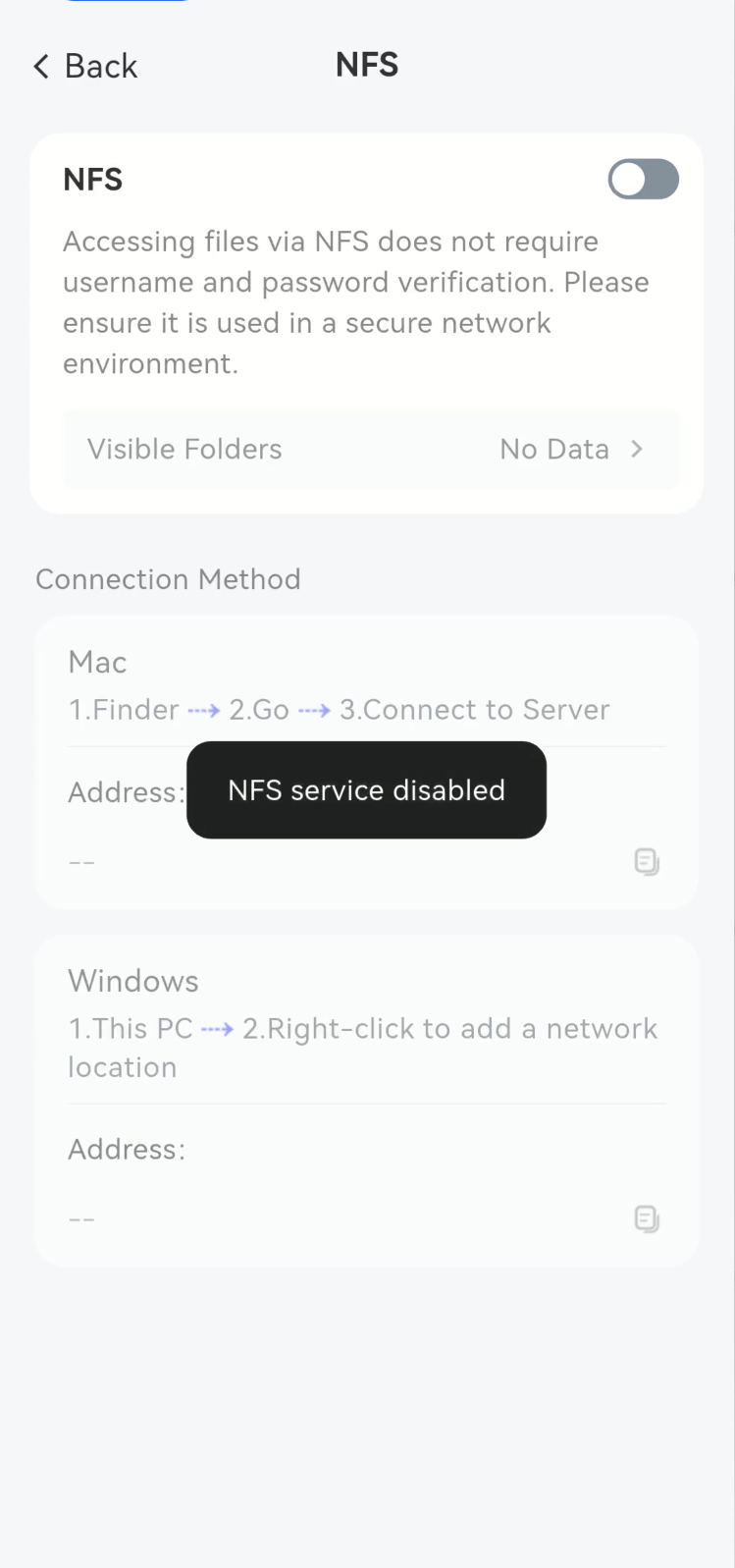
Click the button again while it is on to turn it off.
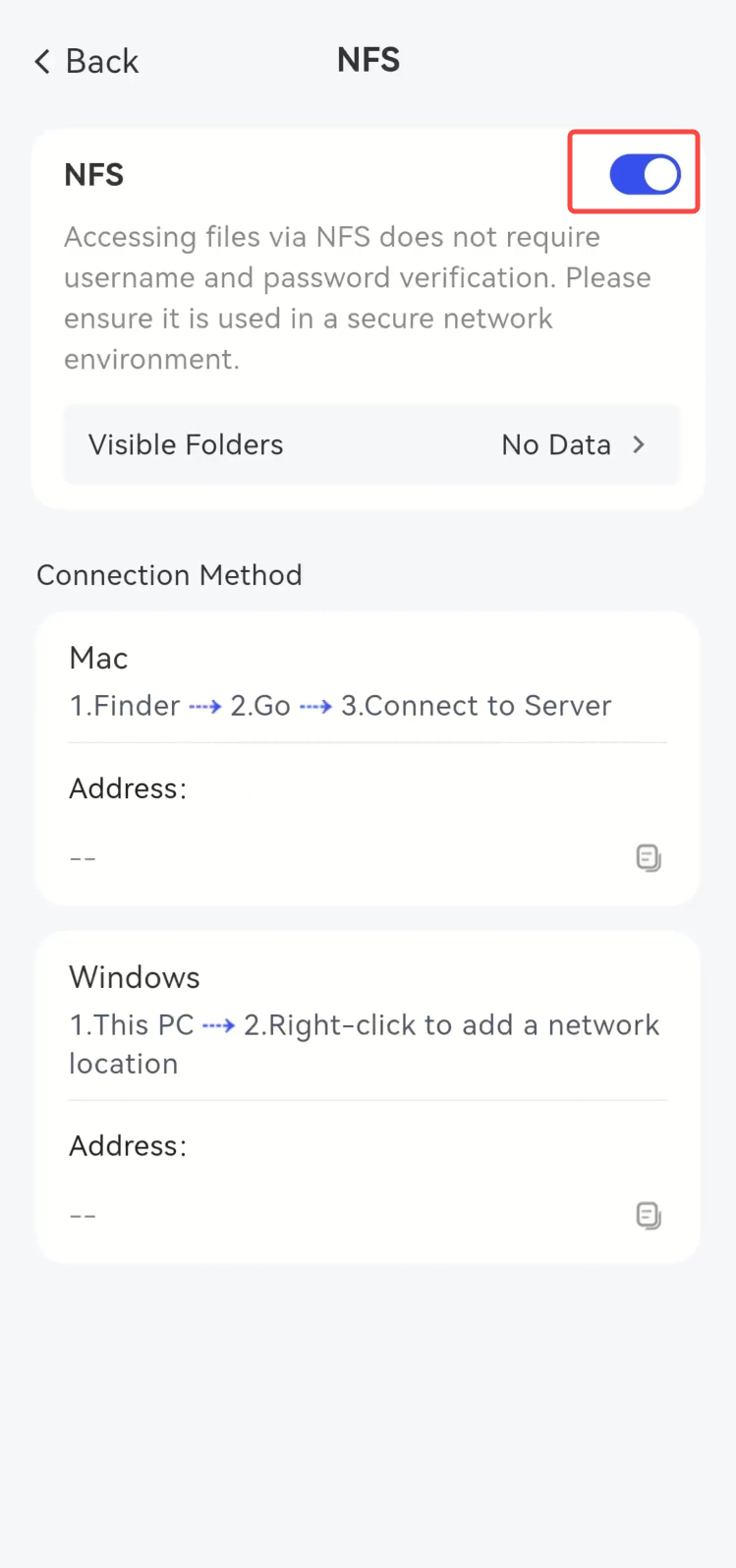
Closed successfully.
(2) Adding NFS Export Path
The operation steps are as follows:
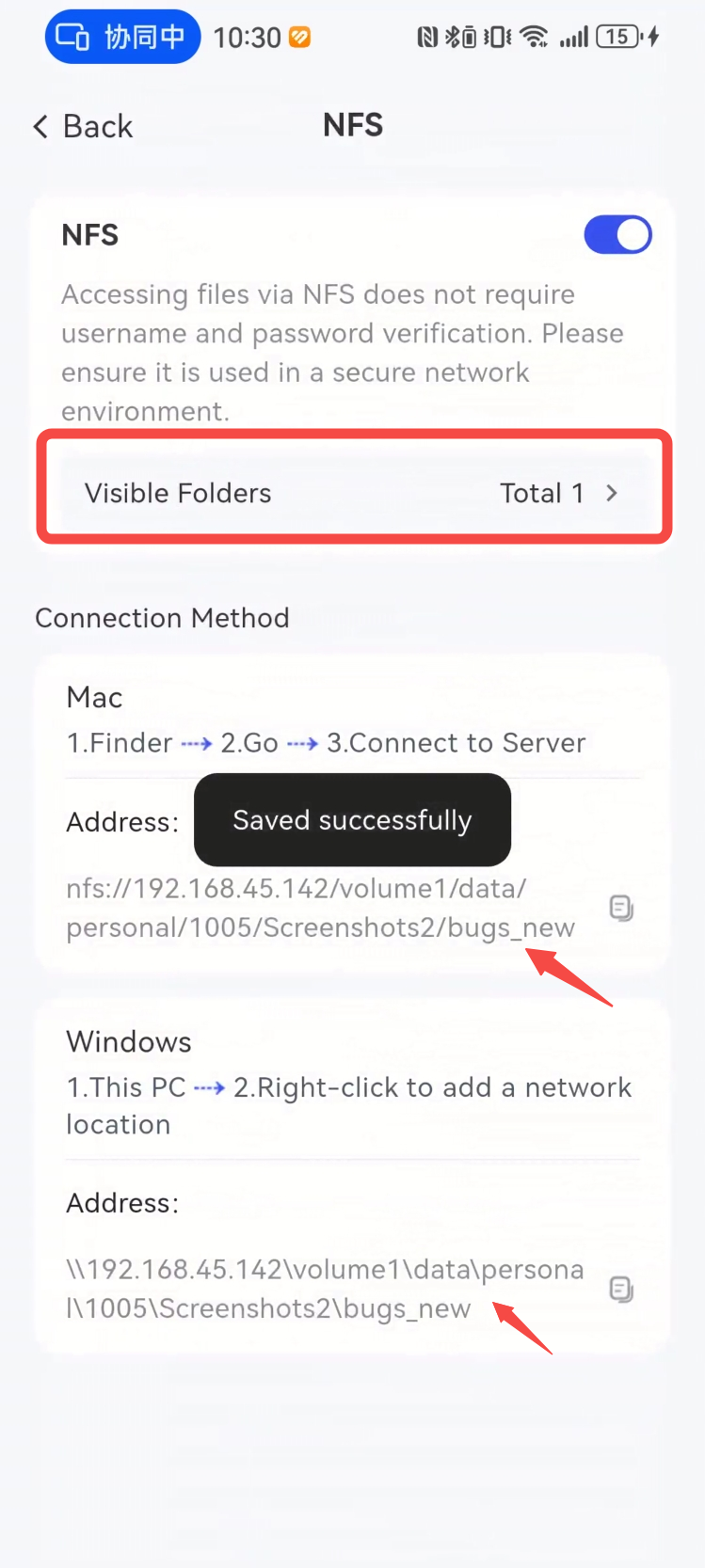
- Go to the **File Sharing Protocol** page, select [NFS], and click **Visible Folders**.
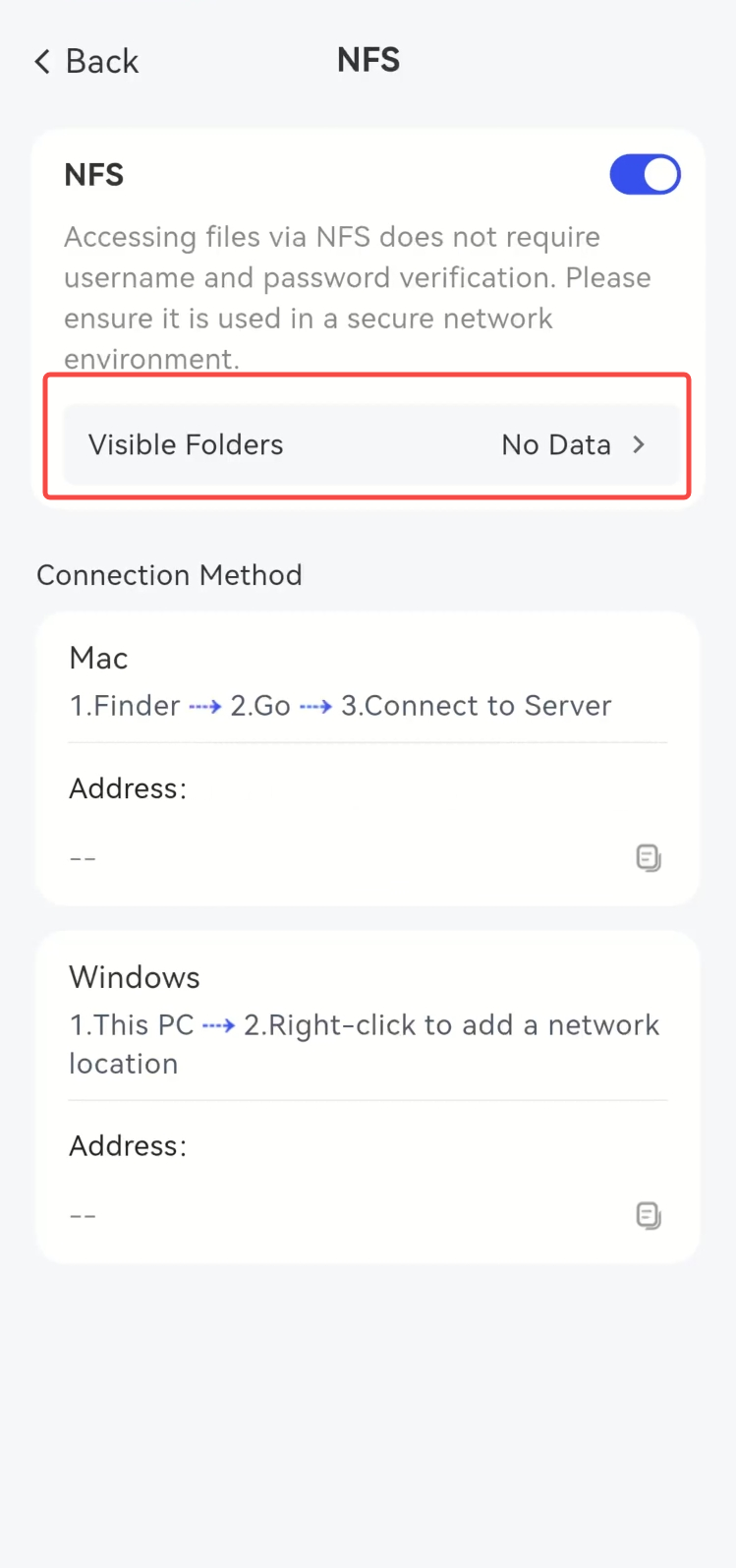
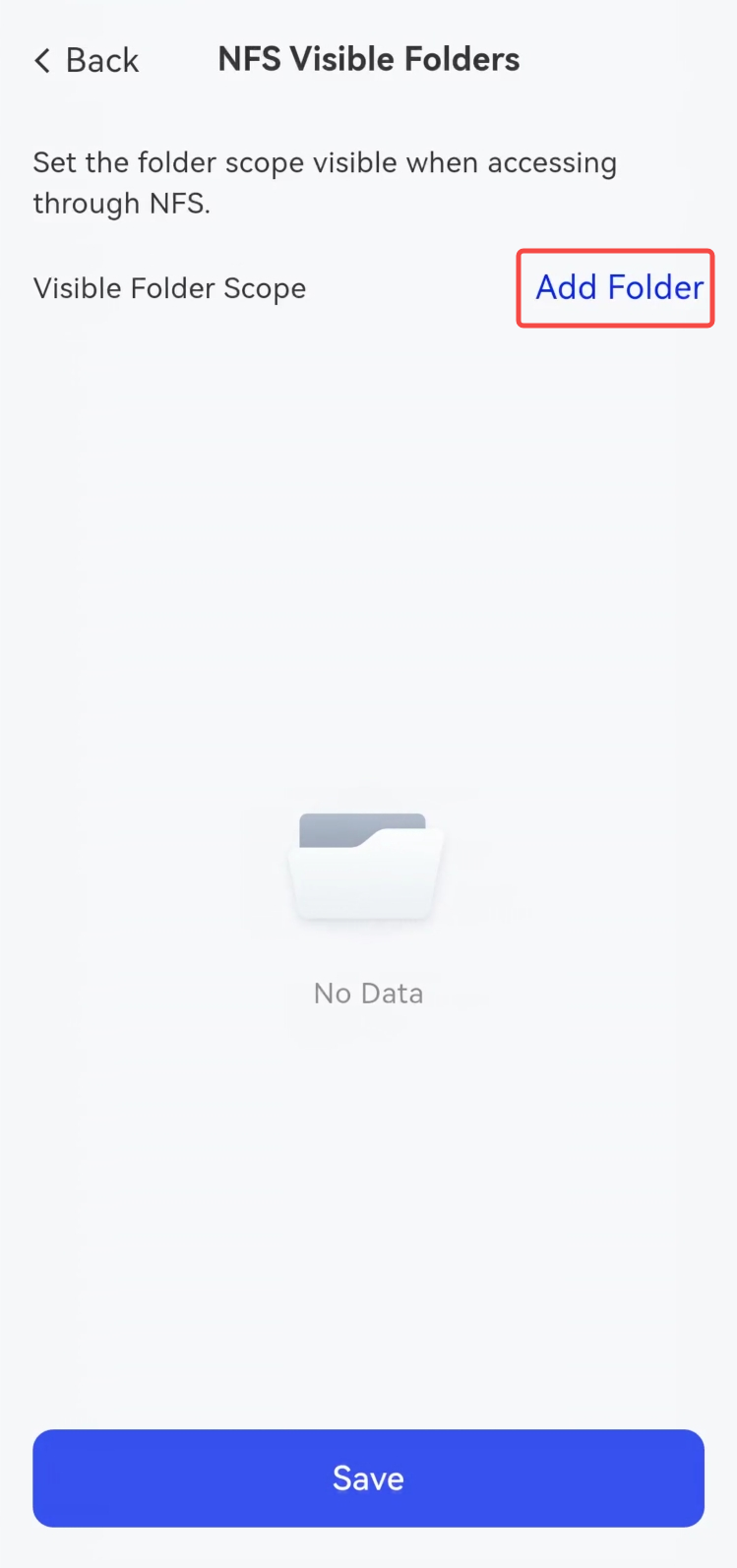
- In the pop-up [NFS Visible Folders] page, click [Add Folder].
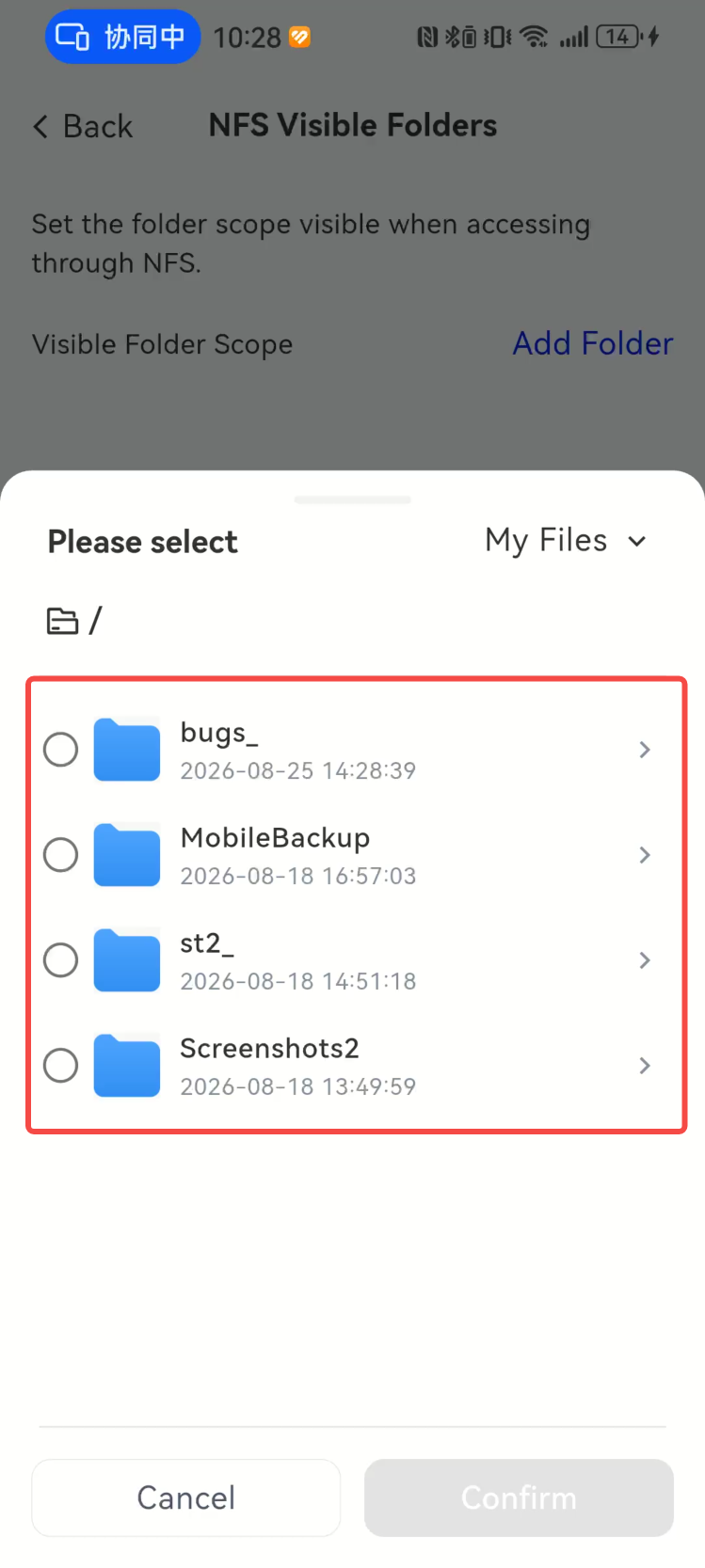
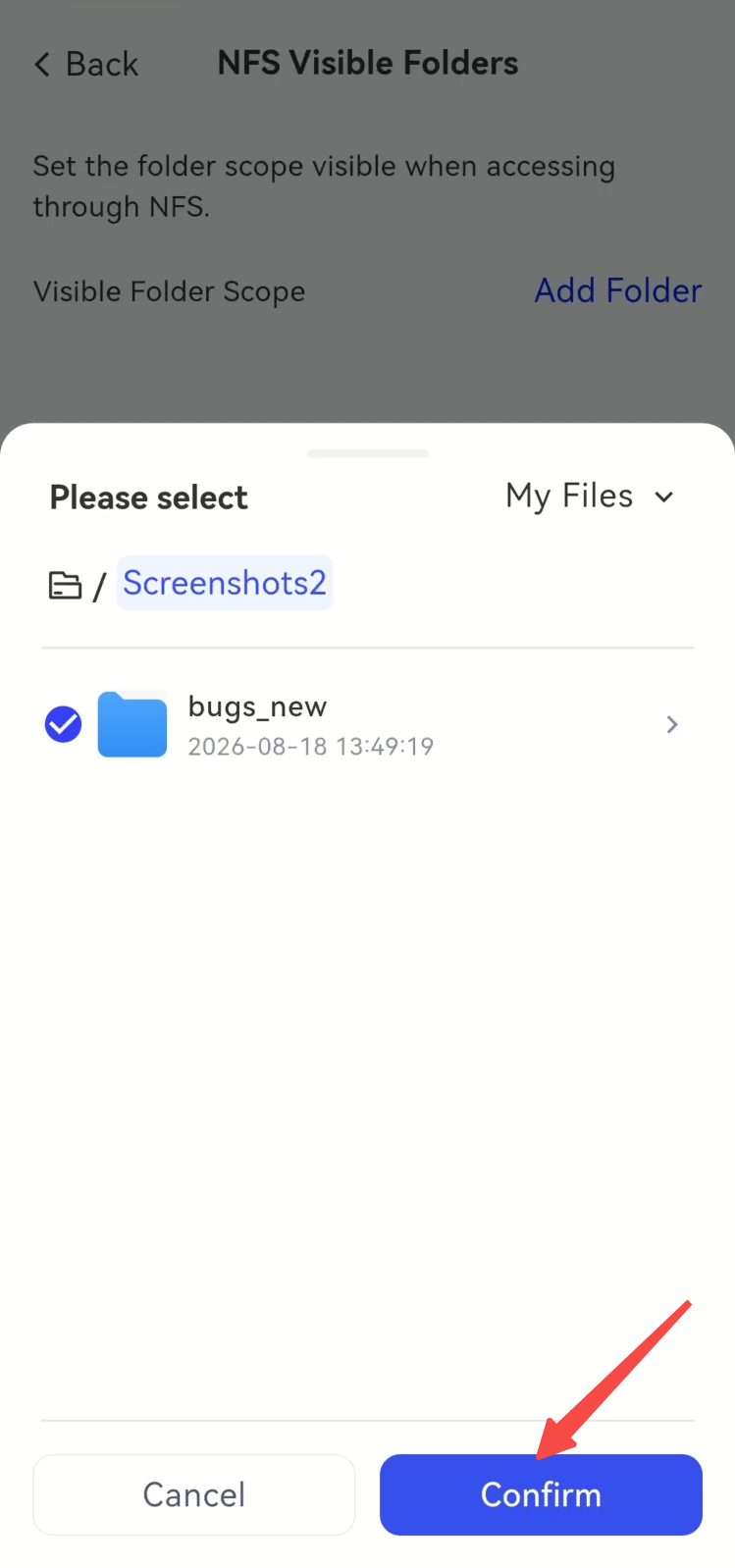
- Check the export path as needed, then click [Confirm].
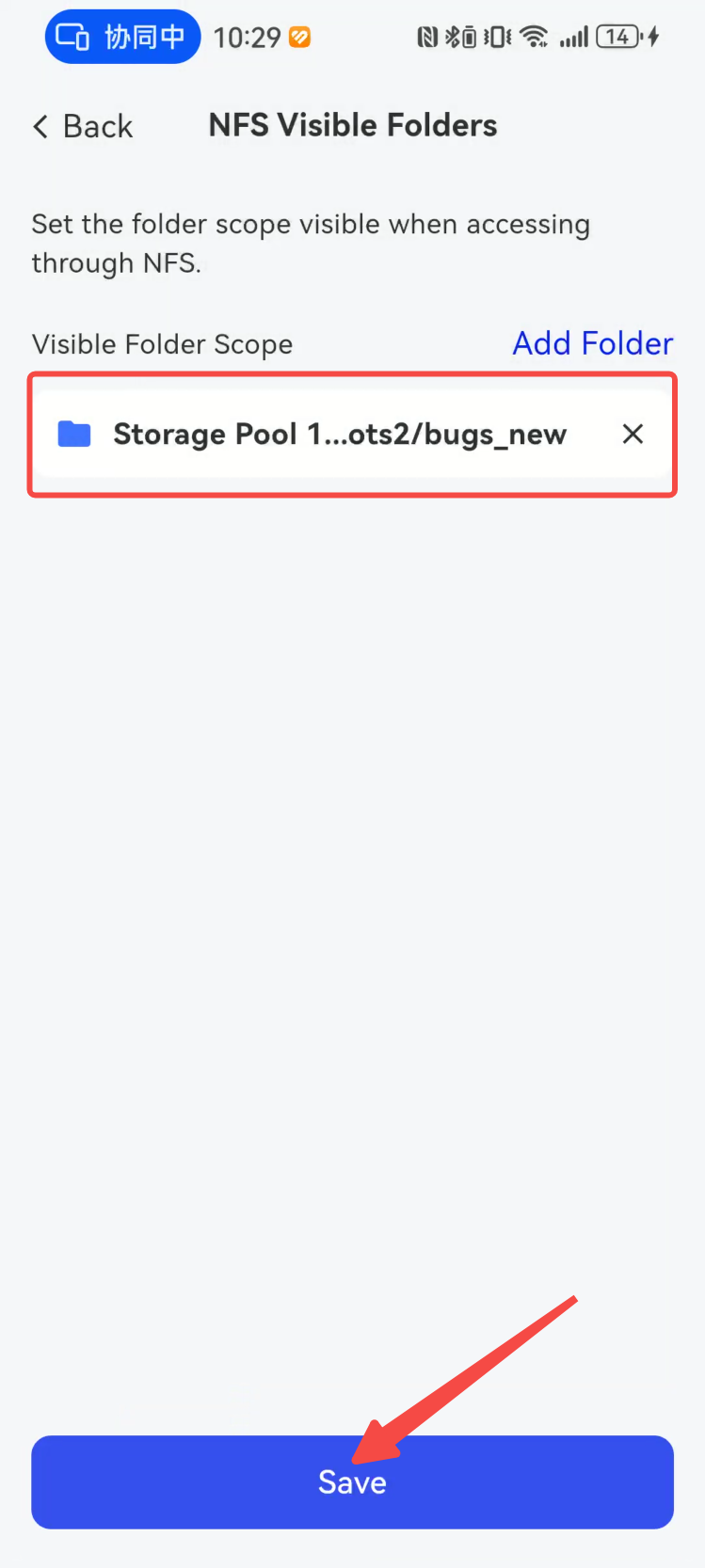
- Return to the [NFS Visable Folders] page, where you can view the newly added path, then click [Save] to save the configuration.
- Go back to the [NFS] page, and you will see the newly added export path appear in the [Connection Method] section.
(3) Accessing the NFS Export Path
Taking the Windows environment as an example below, the operation steps are as follows:
Step 1: Install the NFS Client
By default, the NFS feature is not enabled on Windows systems, so you need to install it manually. The following takes Windows 11 and later versions as an example; the interfaces of different versions may vary slightly:
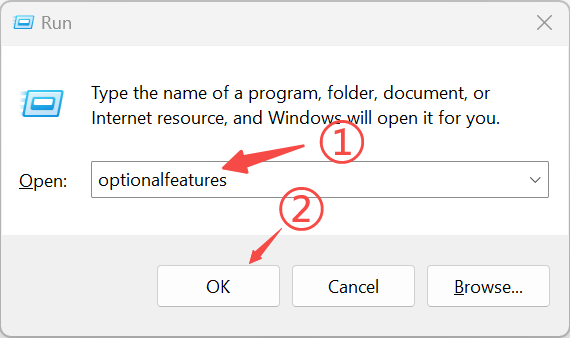
- To enable "Optional Features", you can press the Win+ R shortcut key to open the "Run" window, then type "optionalfeatures" and run it.
- In the pop-up window, locate "Services for NFS", expand the menu, and check the option for "Client for NFS".
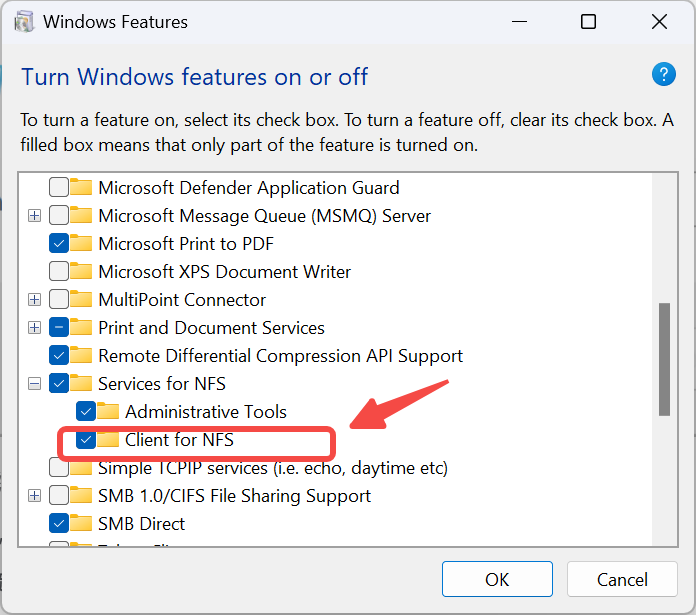
- Click "OK" and follow the wizard to complete the installation. After the initial installation, the system may prompt you to restart; simply restart as instructed.
Step 2: Mount the NFS share
- In the Command Prompt (CMD), use the
mountcommand to perform mounting, and the basic format is as follows:
mount -o nolock <*Server **IP*>:<*Share Pat*h> <*Local drive letter*>:
-
-o nolock: This is a commonly used option to disable file locking, which can avoid compatibility issues on some NFS servers. -
<Server IP>:``<Shared Path**>: the IP Address of the NFS server and the path of its exported directory, for example192.168.45.142:/volume1/data/personal/1005/Screenshots2/bugs_new. -
<Local drive letter>:the free drive letter to be assigned to this share, for exampleZ:.
Example:
Taking \\192.168.45.142\volume1\data\personal\1005\Screenshots2\bugs_new as an example, the NFS server IP is 192.168.45.142, and the exported path is /volume1/data/personal/1005/Screenshots2/bugs_new. If you want to mount it as the localZ: drive, the command is:
mount -o nolock 192.168.45.142:/volume1/data/personal/1005/Screenshots2/bugs_new Z:
Note: In the mount command, you need to replace the backslash "\" in the export path with a forward slash "/".
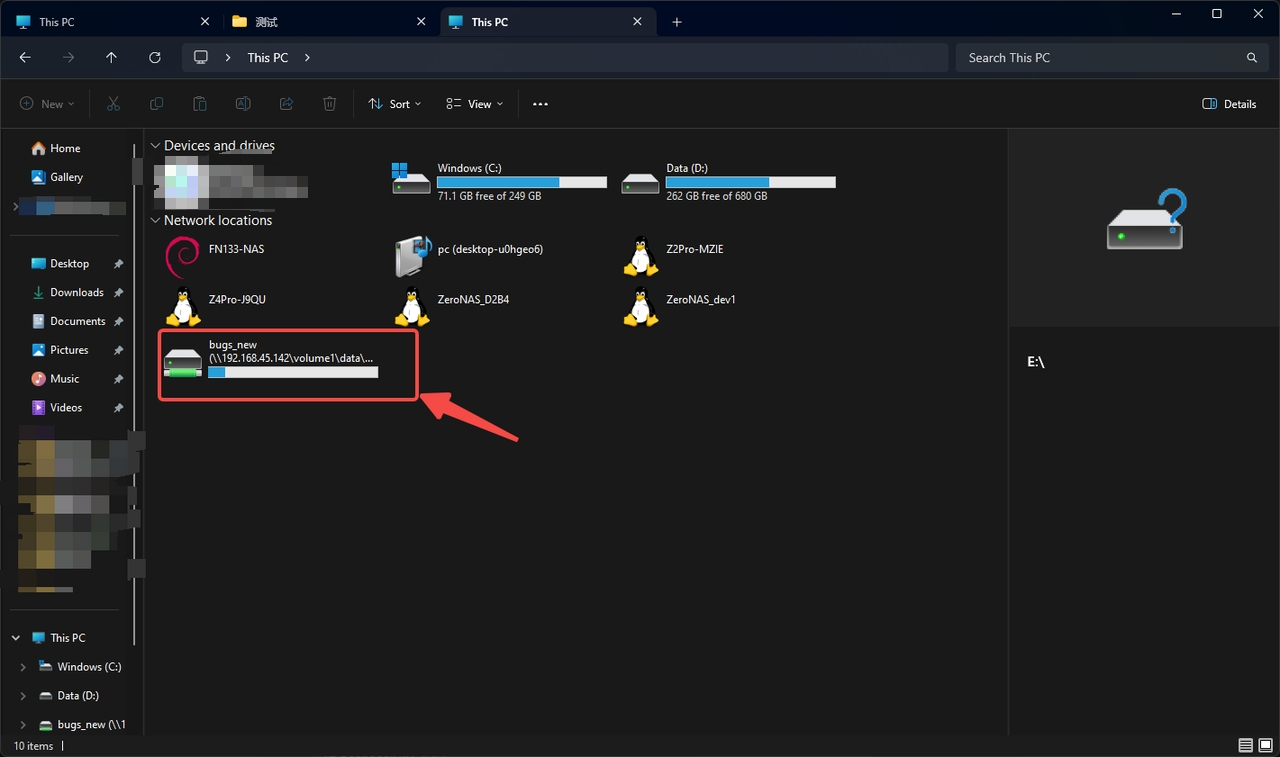
- Press the "Enter" key to mount the directory. Once mounted successfully, you will see a new drive letter in "This PC", and you can access it just like using a local hard disk.

Frequently Asked Questions and Troubleshooting
-
Permission issue: If you can see the drive letter but cannot create or modify files, this is usually caused by the mismatch between the permission systems (UID/GID) of Windows and Linux. You can try modifying the Windows registry to solve this problem:
-
Open the Registry Editor (
regedit). -
Navigate to the following registry key:
HKEY_LOCAL_MACHINE\SOFTWARE\Microsoft\ClientForNFS\CurrentVersion\Default. -
Create two new DWORD (32-bit) values, and name them
AnonymousUidandAnonymousGidrespectively, then set both of their values to0. -
Restart your computer to apply the settings.
-
-
Mount timeout or failure: Check whether the Windows Firewall allows NFS-related ports. In addition, if the NFS server only supports NFSv3, you can try specifying the version in the mount command:
mount -o nolock, vers= 3 ``<Server_IP>``:``<Shared_Path>`` ``<Local_Drive_Letter**>:.
Ⅴ**. DLNA Settings**
DLNA (Digital Living Network Alliance) is a universal protocol designed to enable seamless sharing of multimedia files among different devices (such as computers, televisions, and mobile phones) in a home network. Once the DLNA service is activated, devices like televisions, speakers, or game consoles can directly play movies, music, and photos stored on a NAS.
- Enable DLNA Service: Turn on or off the DLNA multimedia sharing service.
- Advanced Settings: Click to open the advanced settings page, which supports port configuration.
- View Connection Instructions: Supports displaying the description of the connection method to facilitate users to connect from other devices.
(1) Enable or disable DLNA** **function
The operation steps are as follows:
- Go to the [File Sharing Protocol] page and select [DLNA].
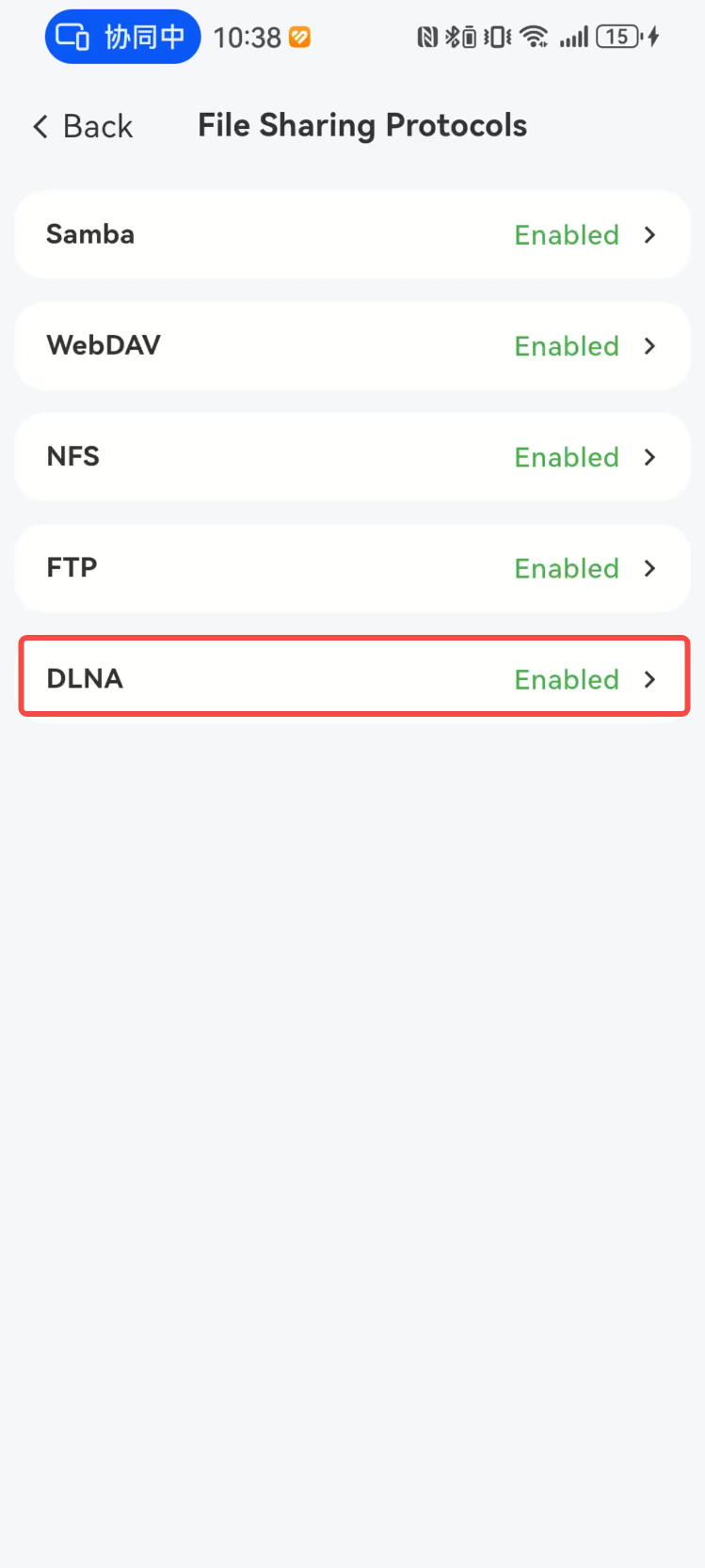
- Click the button on the right side of the [DLNA] section to enable/disable the NFS function.
(1) Enable the DLNA function
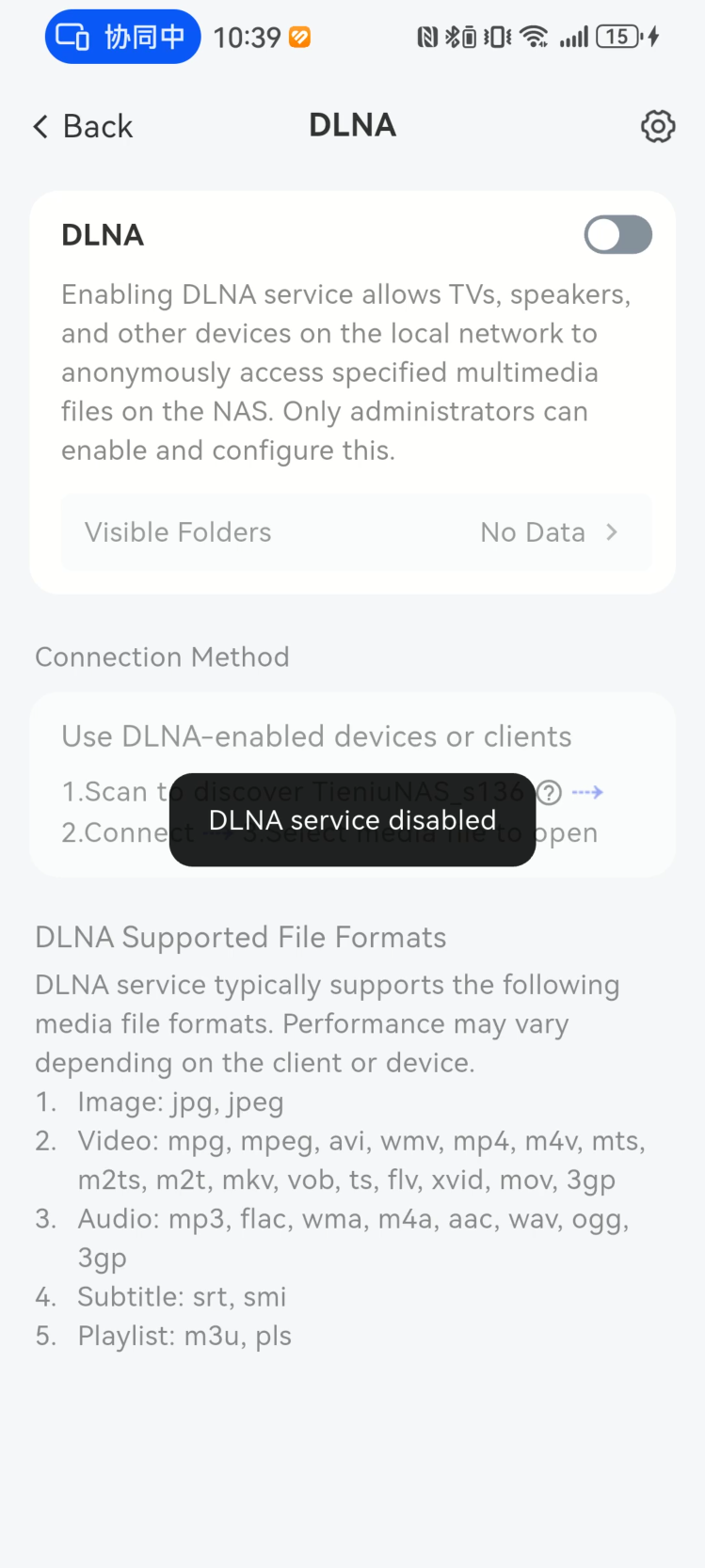
It is disabled by default; click the button to enable it.
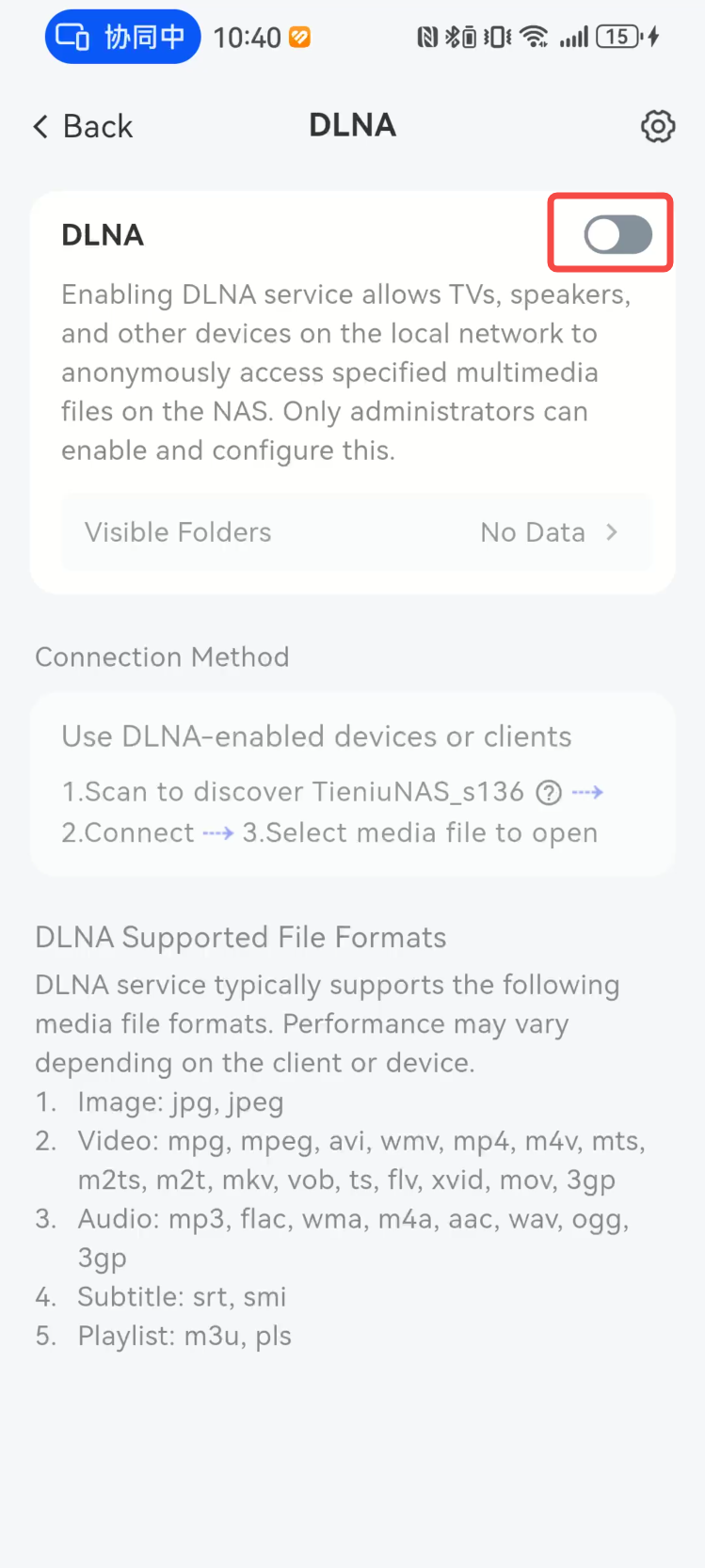
Open successfully.
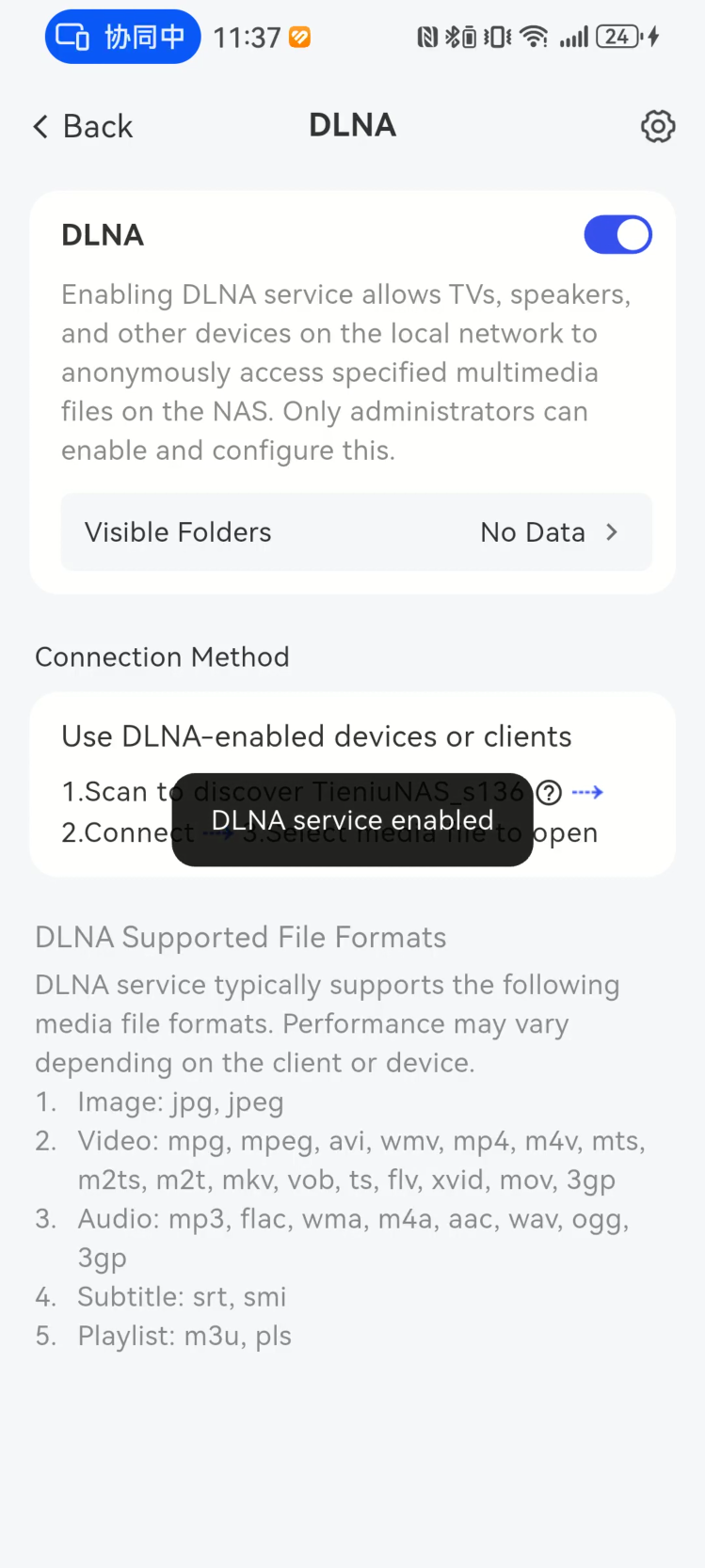
(2) Disable the DLNA function.
Click the button again while it is on to turn it off.
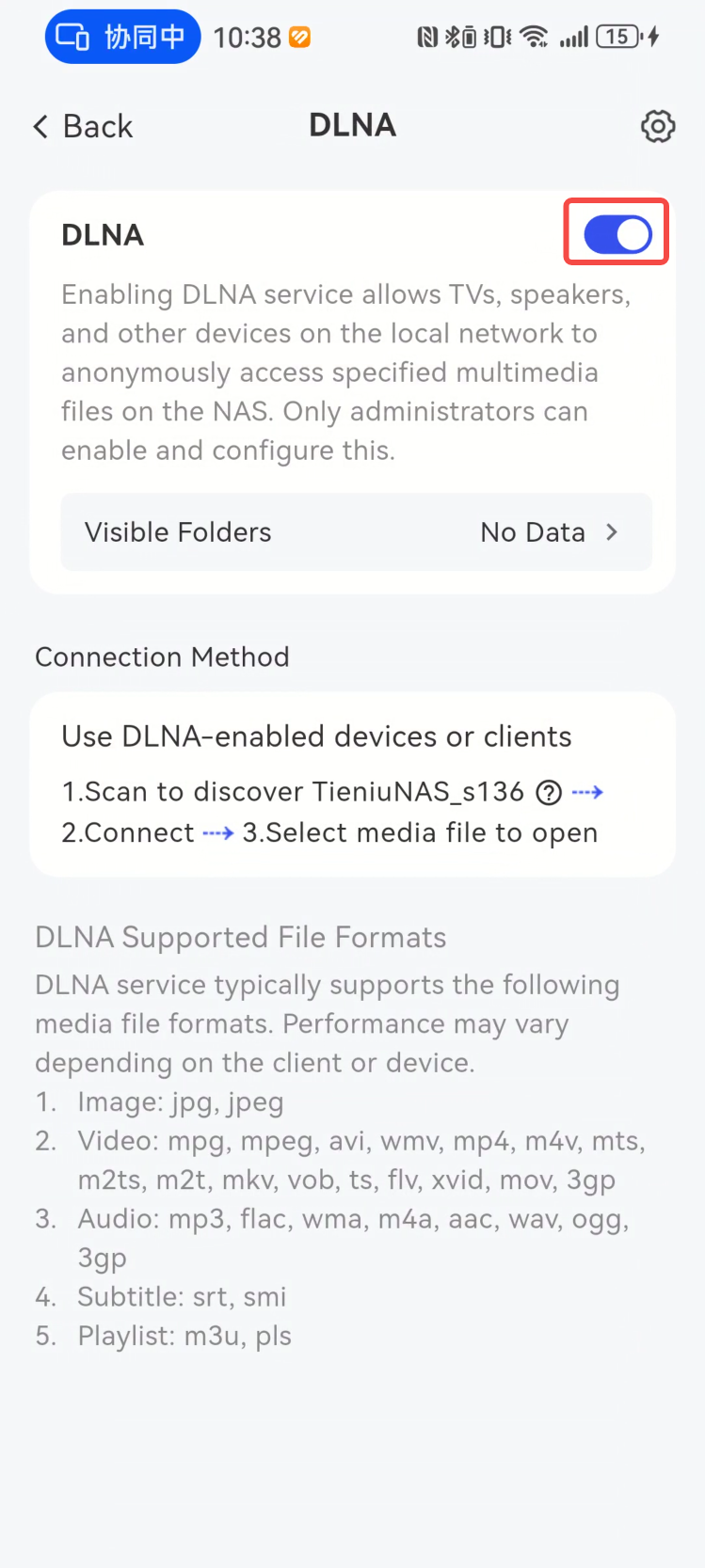
Closed successfully.
(2) Add DLNA sharing path
The operation steps are as follows:
- Go to the [File Sharing Protocol] page, select [DLNA], locate [Visible Folder Range], and tap the [Selected x Items] option below.
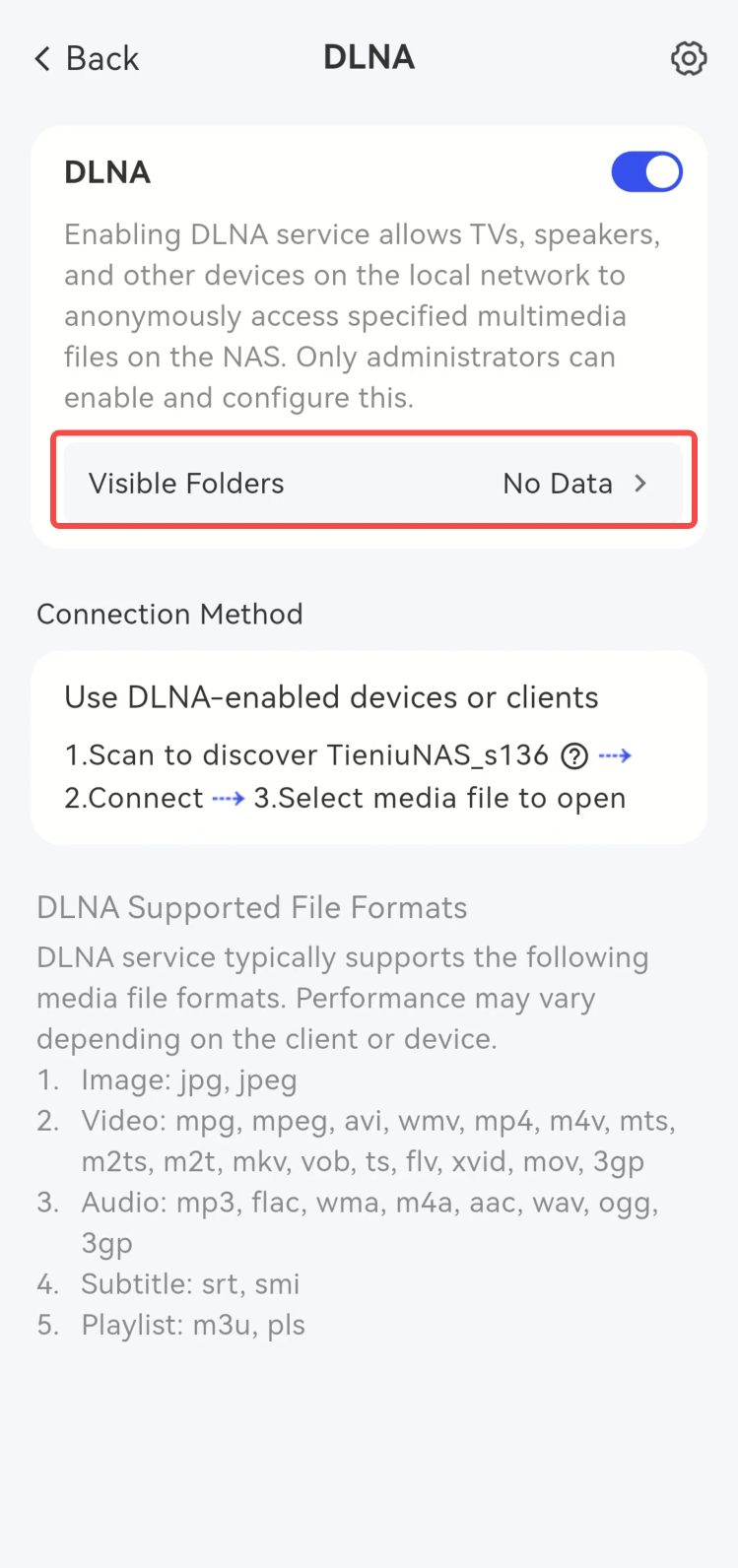
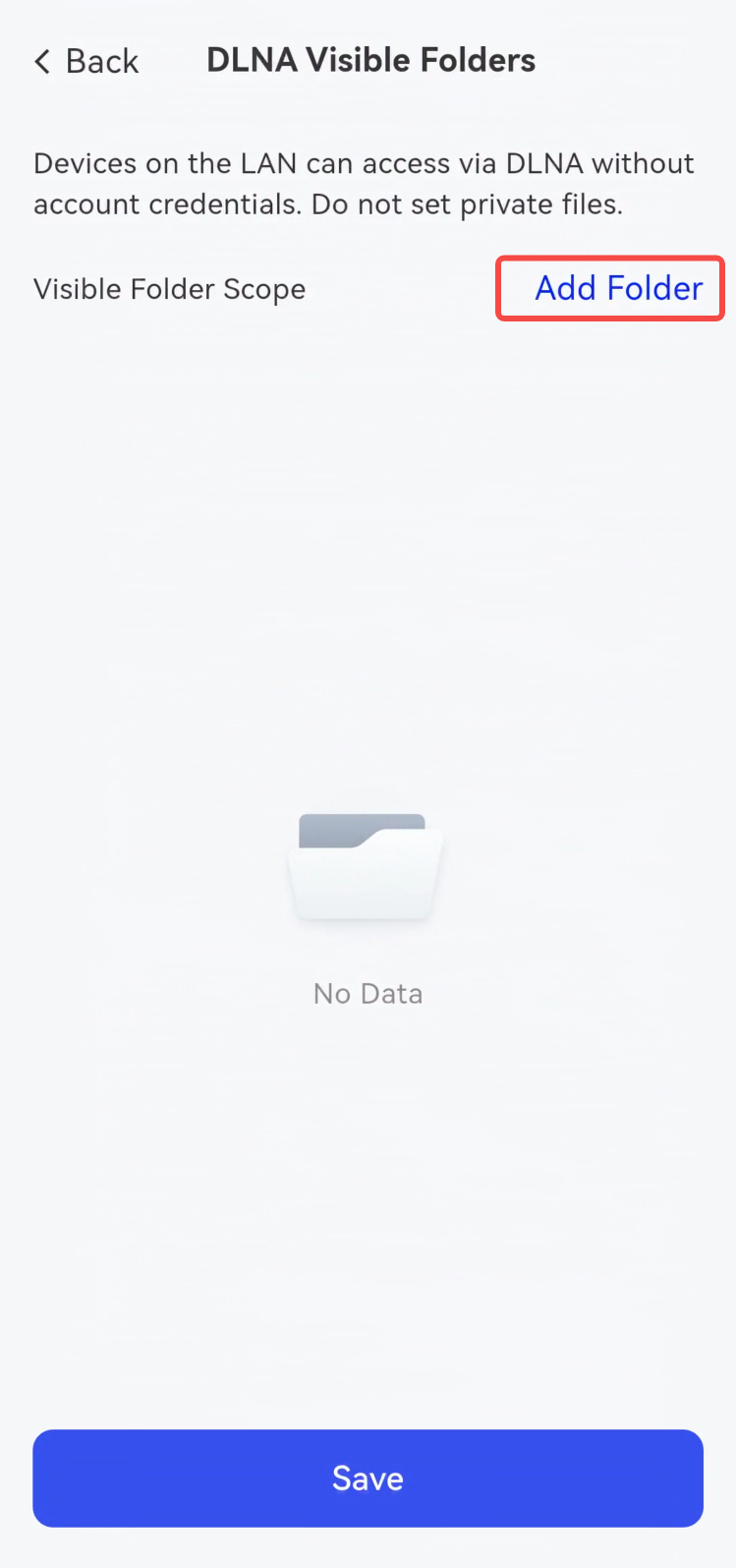
- In the pop-up [DLNA Visible Folders] window, click [Add Folder].
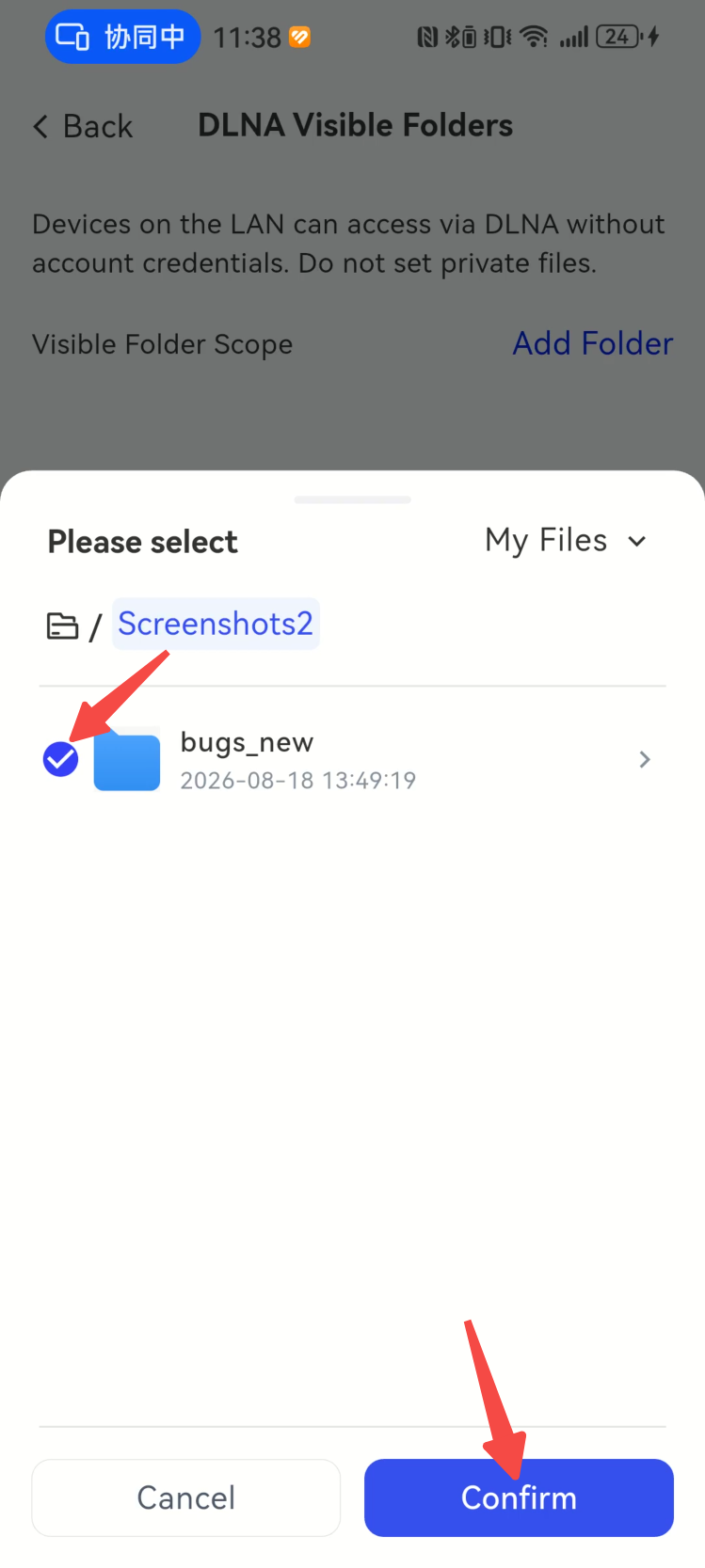
- Check the export path as needed, then click [Confirm].
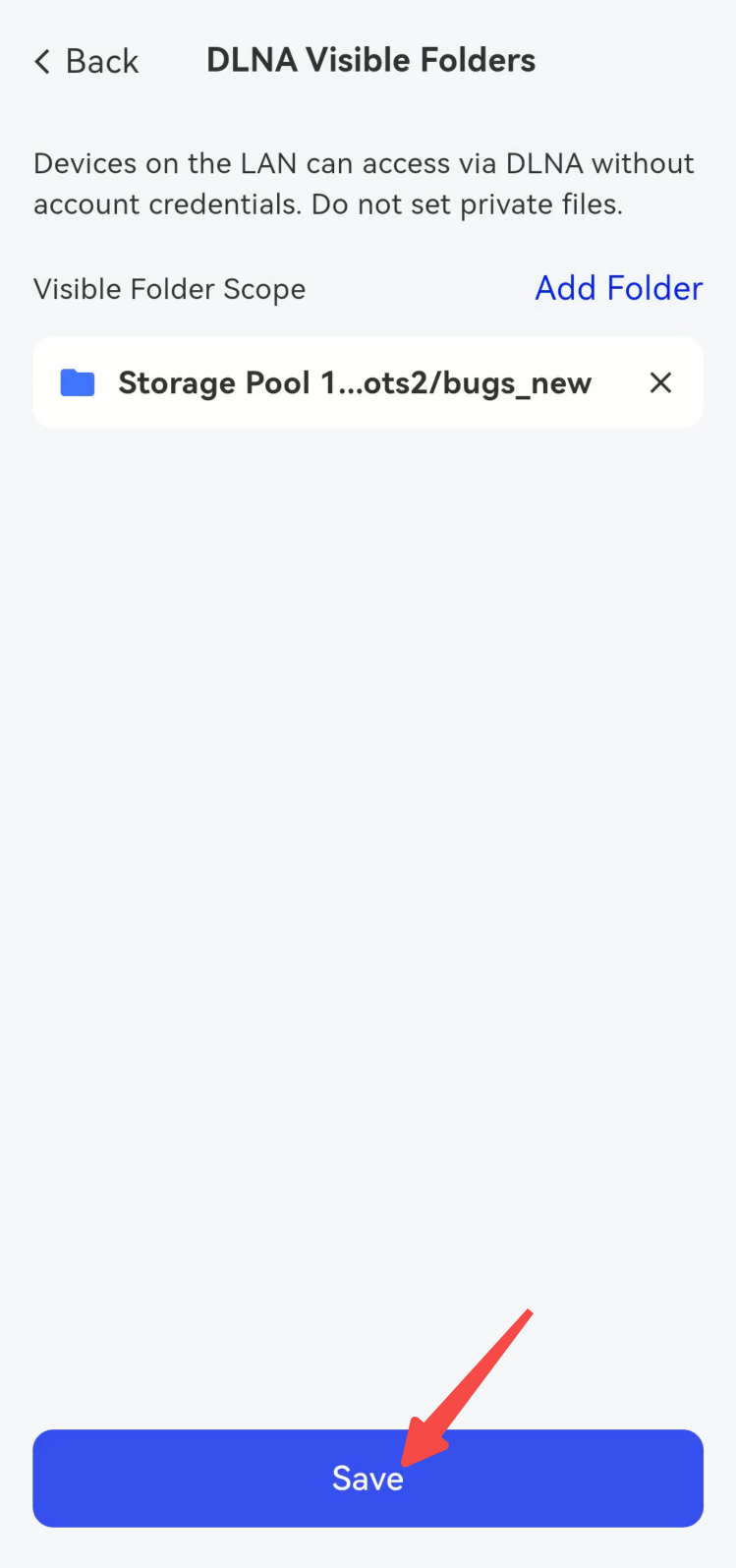
- Return to the [DLNA Visible Folders] page, where you can view the newly added path, then click [Save] to save the configuration.
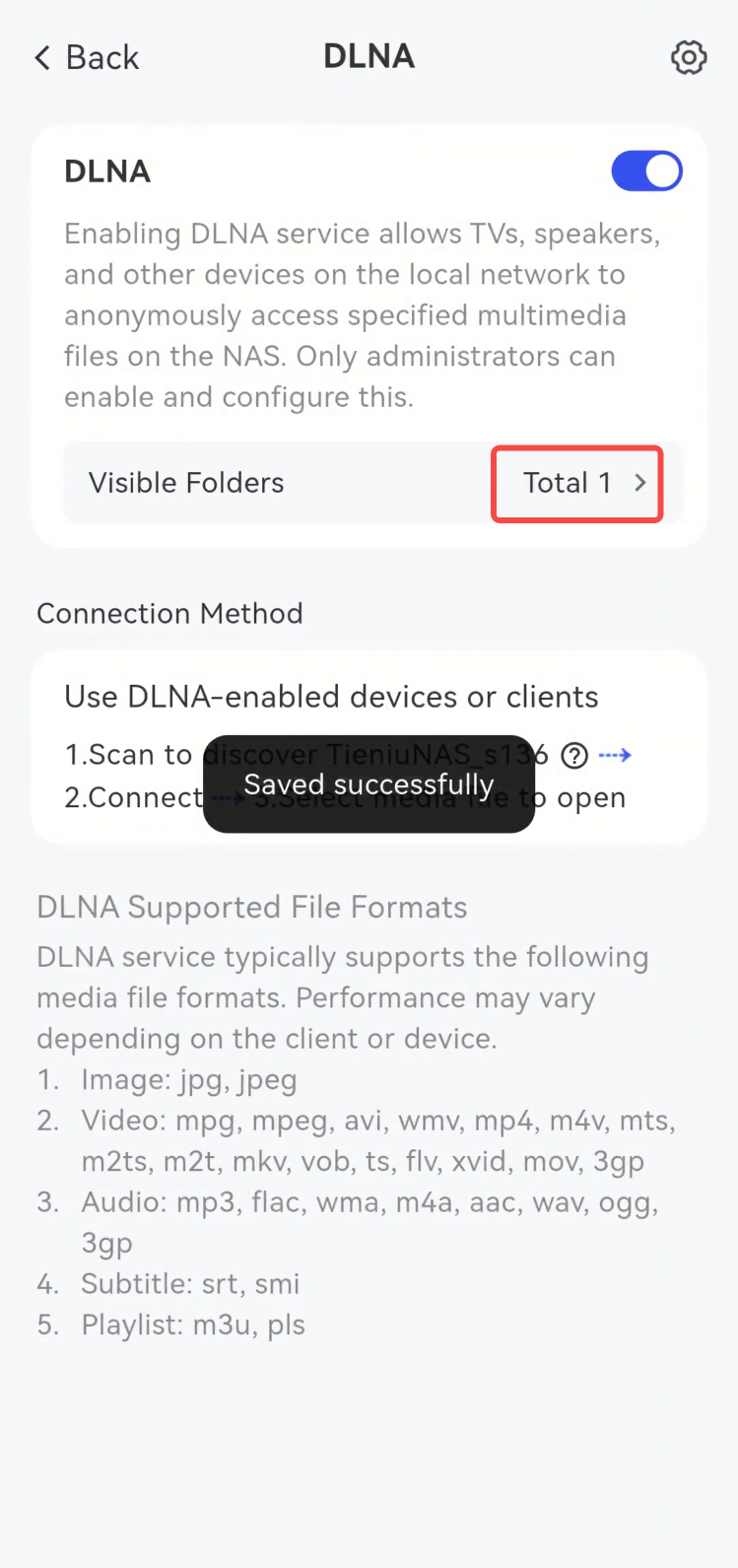
- Return to the [DLNA] page, and you will see the newly added export path appear in the [Connection Method] section.
(3) Access DLNA shared resources
When accessing resources on the NAS via DLNA, please ensure that the Client (mobile phone, computer, TV, etc.) and the NAS device (server) are on the same local area network. Taking the Windows environment + Windows Media Player (Legacy) as an example, the operation steps are as follows:
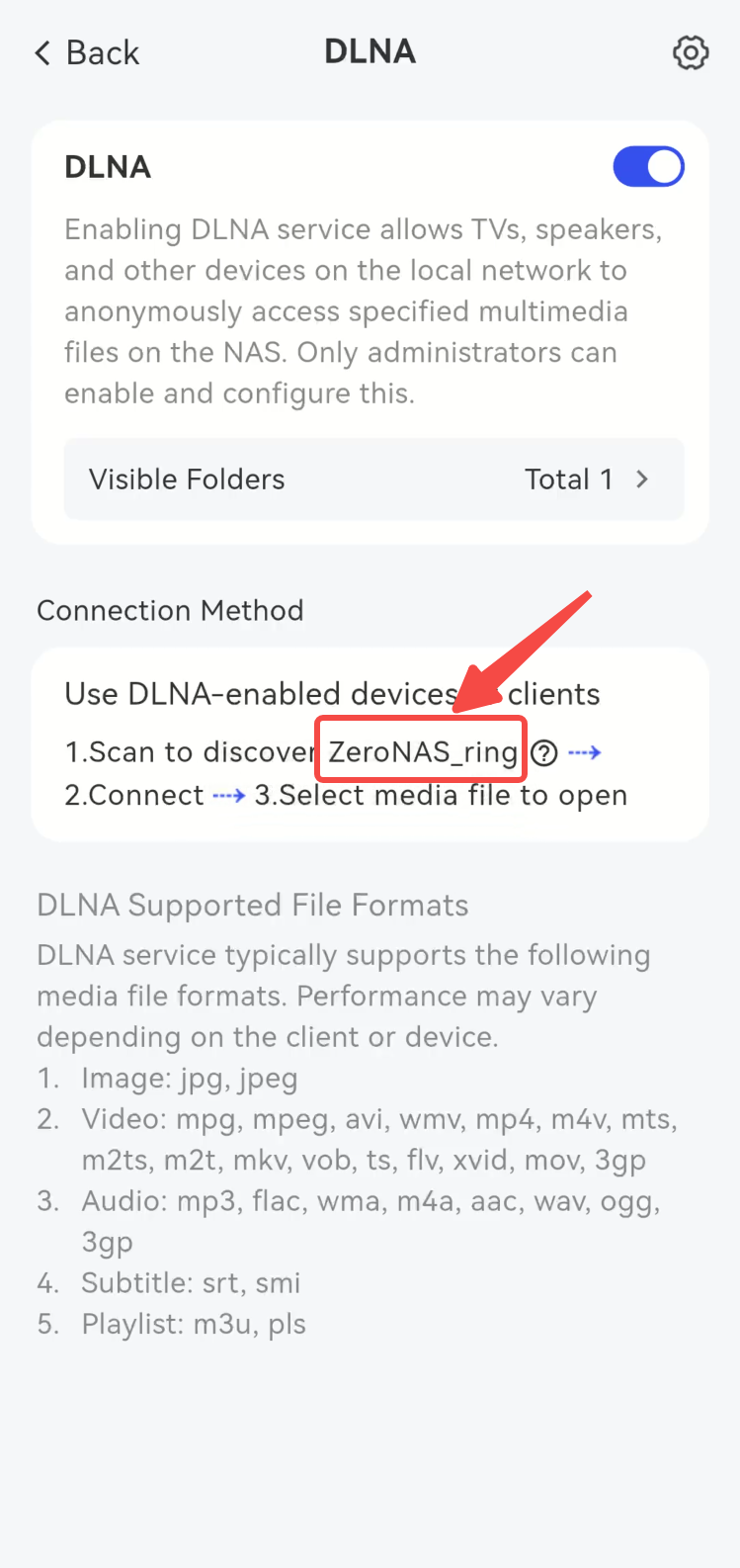
- Check the NAS device name (optional).
- Launch Windows Media Player, and locate the NAS device (the example here is TieniuNAS_ring) in the left pane.
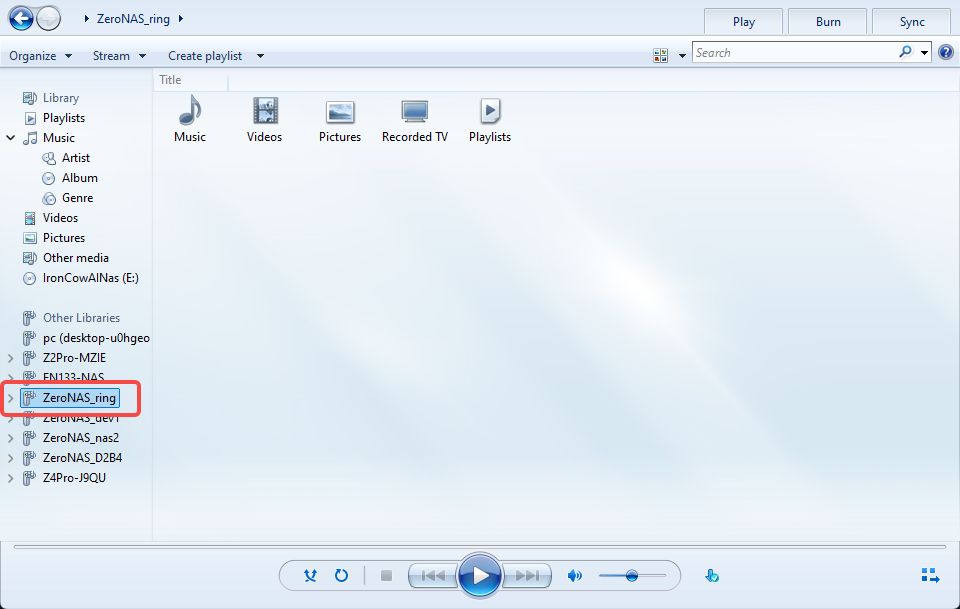
- Expand the drop-down menu and select the file you need to access.
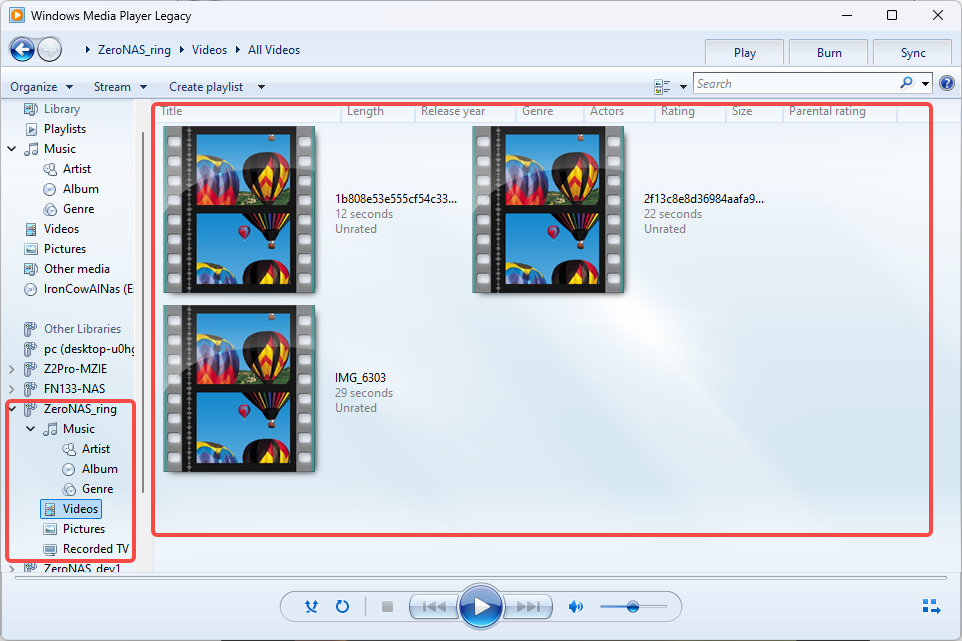
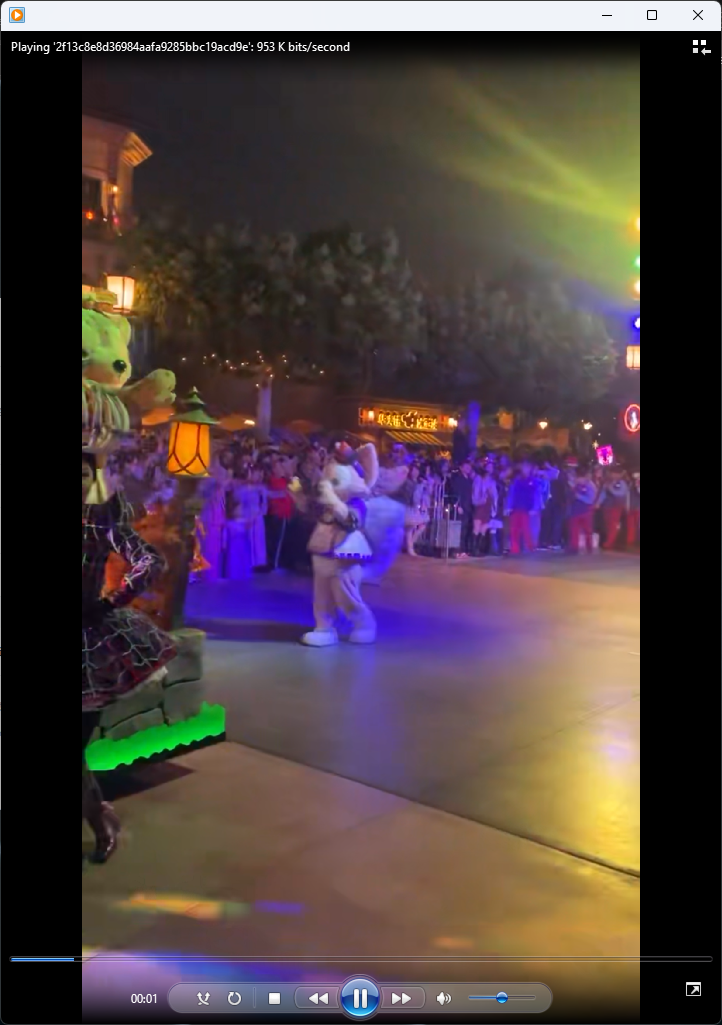
- Double-click the file to view it.
(4) Modify DLNA Function Settings
The operation steps are as follows:
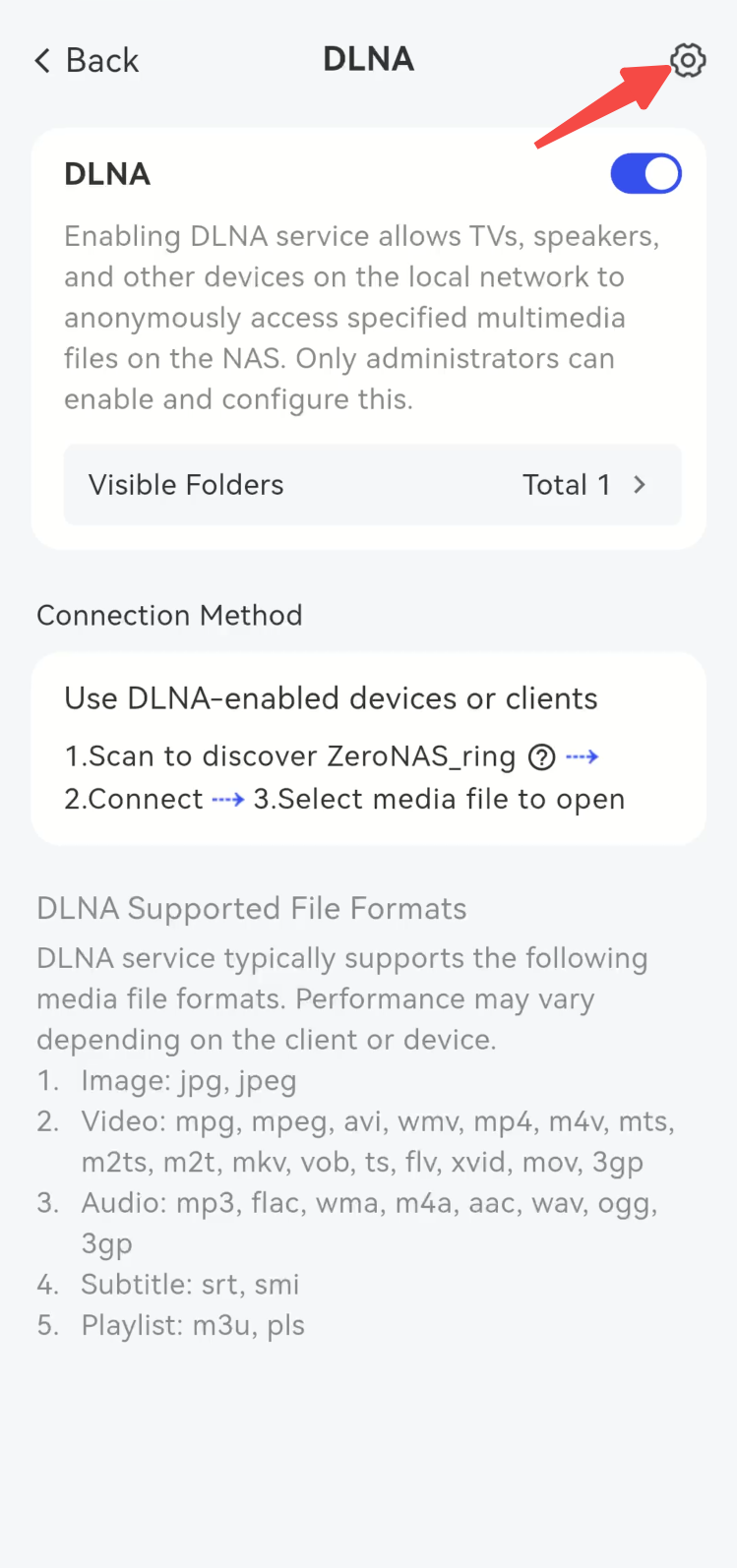
- Click the **Settings** icon in the top-right corner on the **DLNA** page. Note: Advanced DLNA settings can be modified when the service is in the off state.
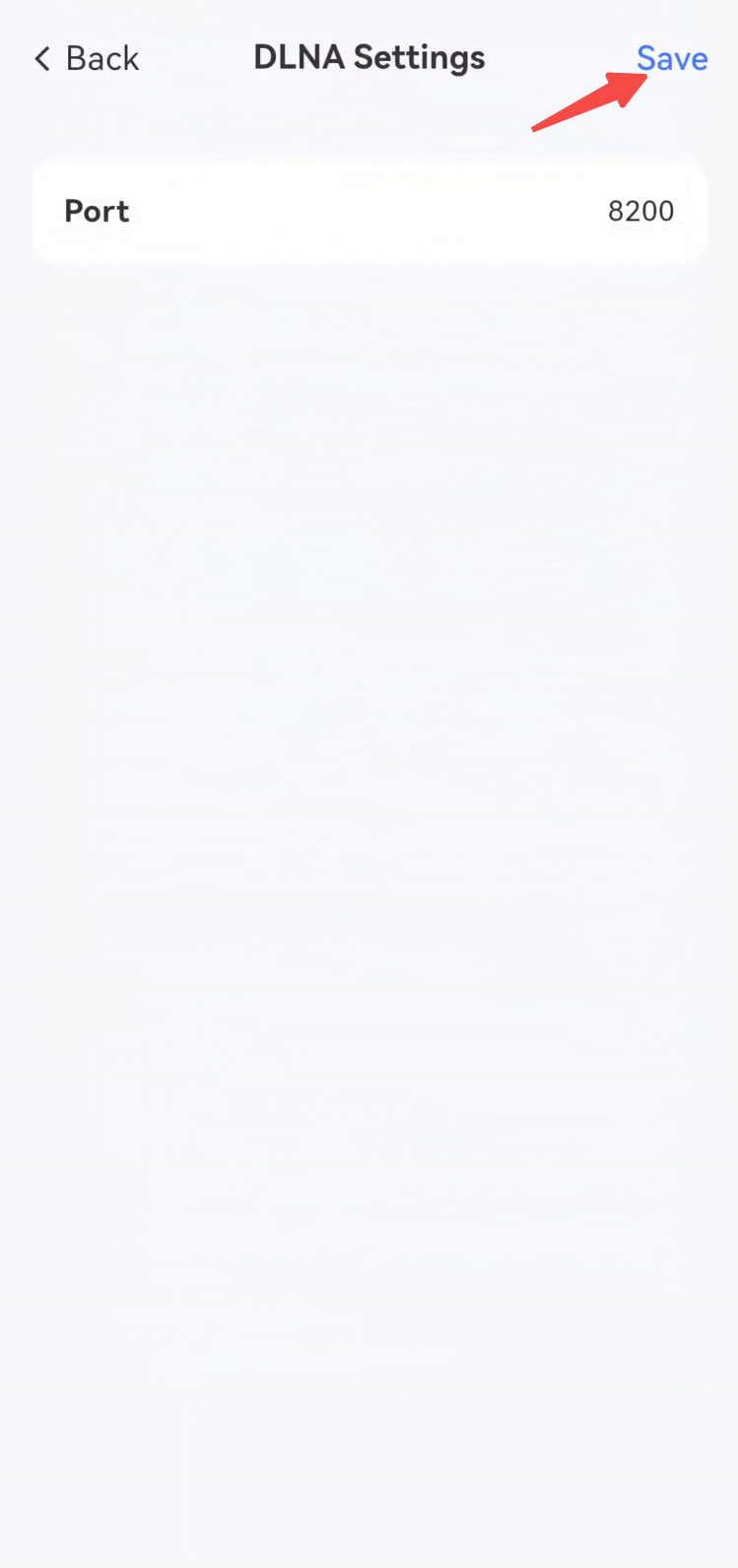
- Configure the corresponding Port Number as needed, and click [Save] after the modification is completed.
Glossary
-
Samba/SMB/CIFS: The most commonly used file sharing protocol in Windows environments, supporting Network Neighborhood discovery and file access.
-
DLNA: Short for Digital Living Network Alliance standard, it is mainly used for Streaming Media sharing of multimedia files, and supports playing media files stored in NAS on devices such as TVs and game consoles. |
-
**WebDAV: **A file transfer protocol based on HTTP/HTTPS, which supports remote access to and management of files via web pages.
-
**FTP: **File Transfer Protocol, a classic network file transfer protocol.
-
**NFS: **Network File System, mainly used for file sharing in Linux/Unix environments.