External Storage Management - PC
The screenshots and options shown in this article are for reference only. Actual displays may vary depending on the system version, app version, or device model. The images are primarily intended to guide users through specific operations; please refer to the actual interface.
Feature Overview
On the [External Storage Management] screen, you can view detailed information about mounted external storage devices, including:
-
Label: Displays the name assigned to the partition; if no label has been set, the model or manufacturer of the external storage device is displayed.
-
Capacity: Displays the device’s total capacity and used capacity.
How to Use
-
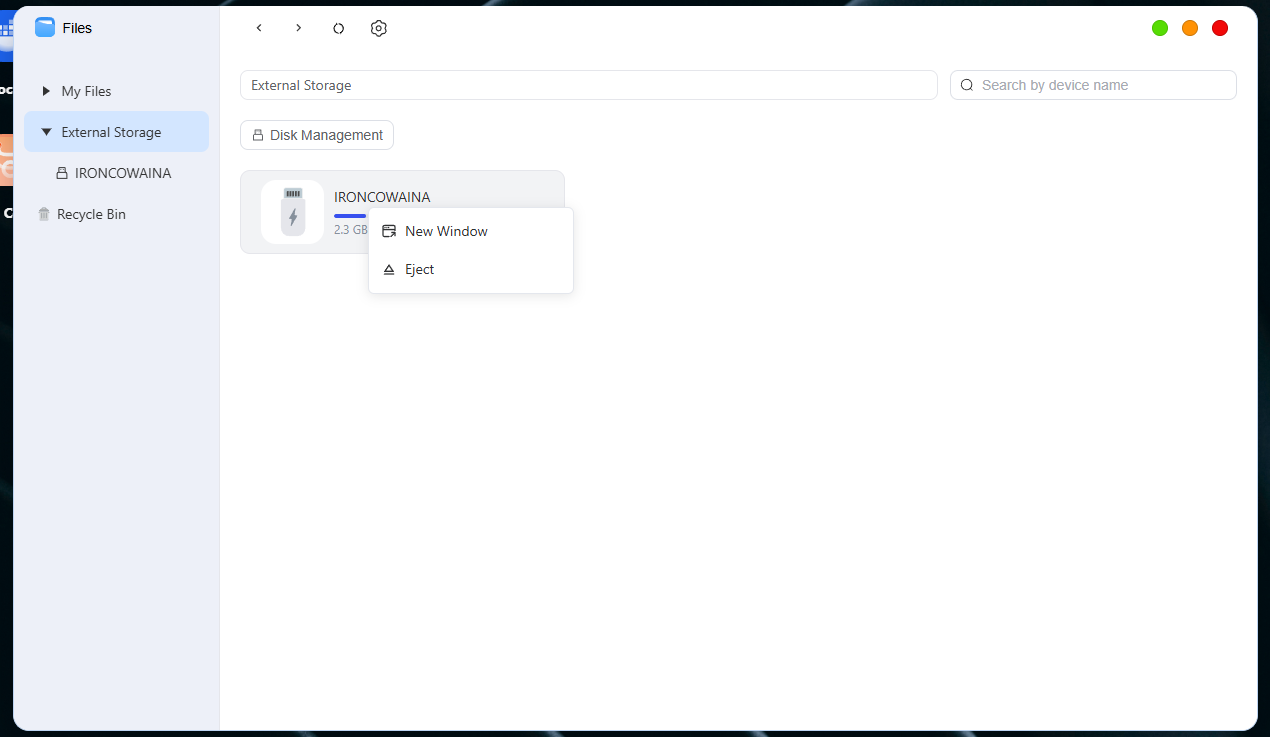
Go to the "External Storage Management" page: Tap [File Manager -> External Storage].
-
Access files:
Right-click the external storage usage bar (as indicated by the red arrow in the figure), then select "Open in New Window," or double-click to open the [File Manager] app to view the contents of the storage.
Supported External Storage Formats
Supported file system formats: btrfs, ext2, ext3, ext4, vfat, exfat, FAT16, FAT32, NTFS, XFS.
Unsupported file system formats: HFS+, APFS (primarily macOS-specific file systems)
Note:
-
Before removing a device, be sure to use the system’s “Eject” function to ensure the integrity of the stored data.
-
To remount an ejected device, you can either reinsert the storage device or restart the NAS system; the system will automatically attempt to remount it.
常见问题:
-
How do I remount a device that has been ejected? You can unplug and reinsert the storage device or restart the NAS system; the system will attempt to mount it automatically.
-
Why is it not recommended to simply unplug the storage device? Removing the device directly may result in data corruption or loss. Be sure to use the system’s “Eject” feature to safely remove the device first to ensure the integrity of the stored data.