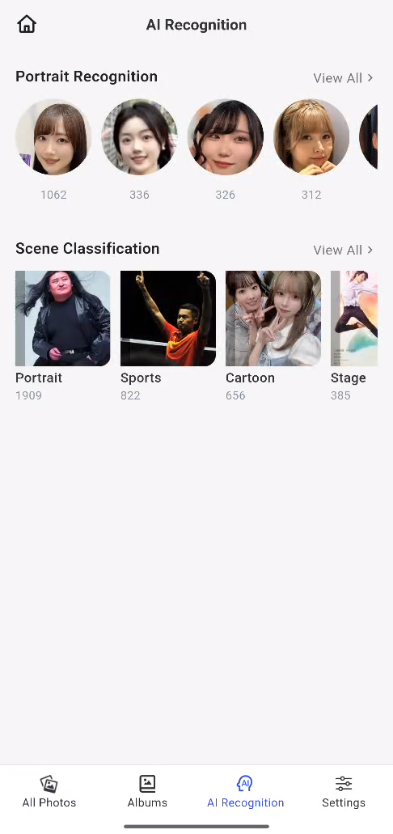
AI Image Recognition - App
There are two main modules: portrait recognition and scene classification.
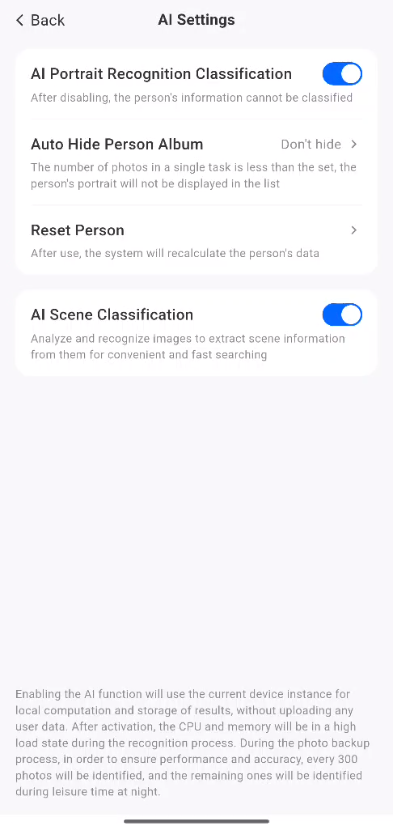
AI Feature Settings
To use AI features, you must first enable them. In the “Photos” app, tap the “Settings” button in the bottom menu bar to open the “AI Settings” page. Enable Face Recognition, AI Scene Recognition, and Map Mode privacy permissions. In Face Recognition, you can set the app to automatically hide the task album and reset the Face Recognition button when the number of photos falls below a specified threshold.
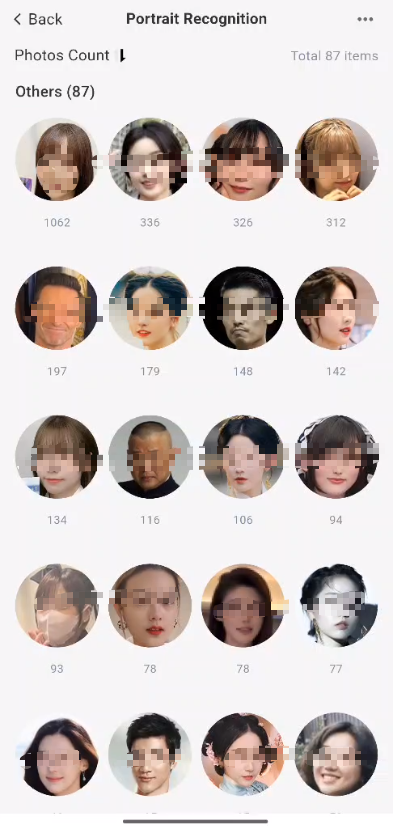
Portrait Recognition
Feature Description:
① Sorting Feature
In folder view mode, you can click the sort icon in the upper-left corner to sort your photos and videos, allowing you to quickly find specific content or organize your photos. This includes:
●Sort by number of photos (ascending/descending)
② More Features
Tap the “…” button at the top to bring up related features
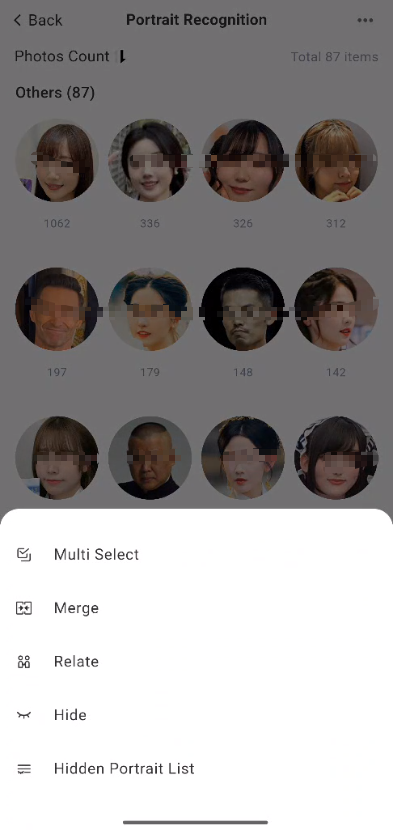
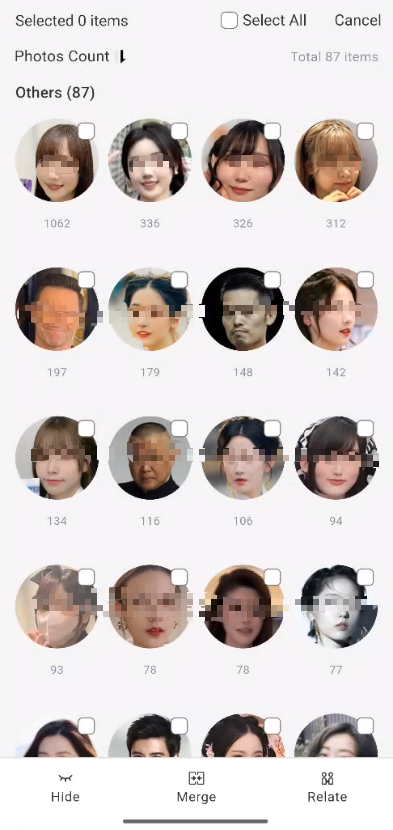
**Multiple Selection: **Select multiple people from an album to hide them, merge them, or perform other actions related to your relationship with them.
**Merge People: **Select multiple people's albums to merge them; once merged, they cannot be separated.
Relationship to Me: You can select "Myself," "Family," "Partner," "Friends," "Classmates," "Coworkers," or "Other" to help categorize the current album.
**Hide This Person: **If you select "Hide," their photos will no longer appear in the people list, but the photos themselves will not be deleted. You can restore them from the "Hidden People" list.
Hidden People List: Tap this to go to the "Hidden People" list.
③ View Details
1. Renaming Albums
Tap the name next to the profile picture to rename the album.
2. Sorting Features
In folder view mode, you can tap the sort icon in the upper-left corner to sort photos and videos, allowing you to quickly locate specific content or organize your photos. Options include:
● Sort by capture date (newest first / newest last)
3. Information Display
Each thumbnail supports the display of additional information, including:
● File Name
● Is this a file I like?
4. Filtering Features
Filtering features help you quickly find photos and videos. The following filters are supported:
- File Types
You can choose to view all files, view only videos, view only photos, view only Live Photos, view only GIFs, view only RAW files, or view only panoramic photos.
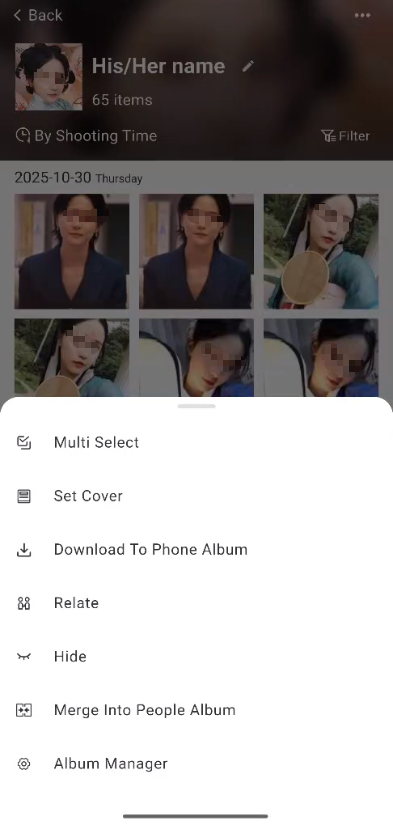
5. “...More Options” button
**Multiple Selection: **After selecting multiple photos, you can download, delete, or edit the capture time, among other actions.
Relationship to Me: You can select "Myself," "Family," "Partner," "Friends," "Classmates," "Coworkers," or "Other" to help organize your albums.
Set Album Cover: Select a specific photo to set it as the cover for this album.
Download to Phone Gallery: Download the contents of this album to your phone’s local storage.
**Hide This Person: **If you select “Hide,” their photos will no longer appear in the people list, but the photos themselves will not be deleted. You can restore them from the hidden people list.
Merge People: Select the album to which you want to merge the current person. Once merged, the albums cannot be separated.
Album Information Management: Navigate to the album information management page; operations are the same as for individual albums.
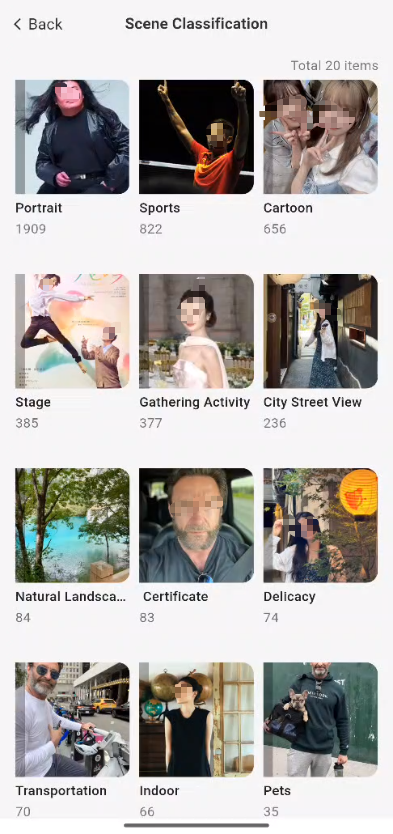
Scene Classification
By analyzing and recognizing images, scene information is extracted from them to facilitate quick searches.