Manage Photos - PC
The screenshots in this document are for reference only. The actual interface may vary slightly depending on the system or application version. Some options and functions may be modified in different versions. Please refer to the actual interface or the latest help document for details.
Introduction to Photo Page Features
On the **"All Photos" **page of the Photos app, you can view all photos and videos saved to the NAS photo album. The page displays them intuitively in thumbnail form and supports multiple filtering methods to facilitate quick search and management for users.
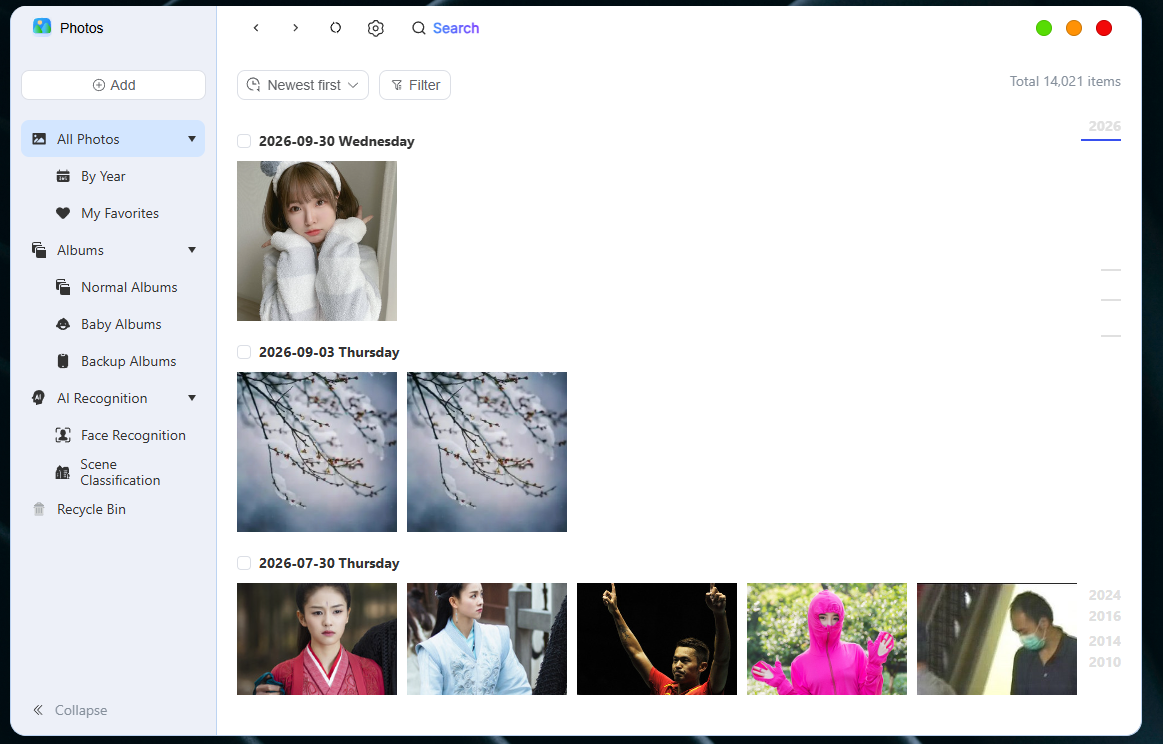
Function Description:
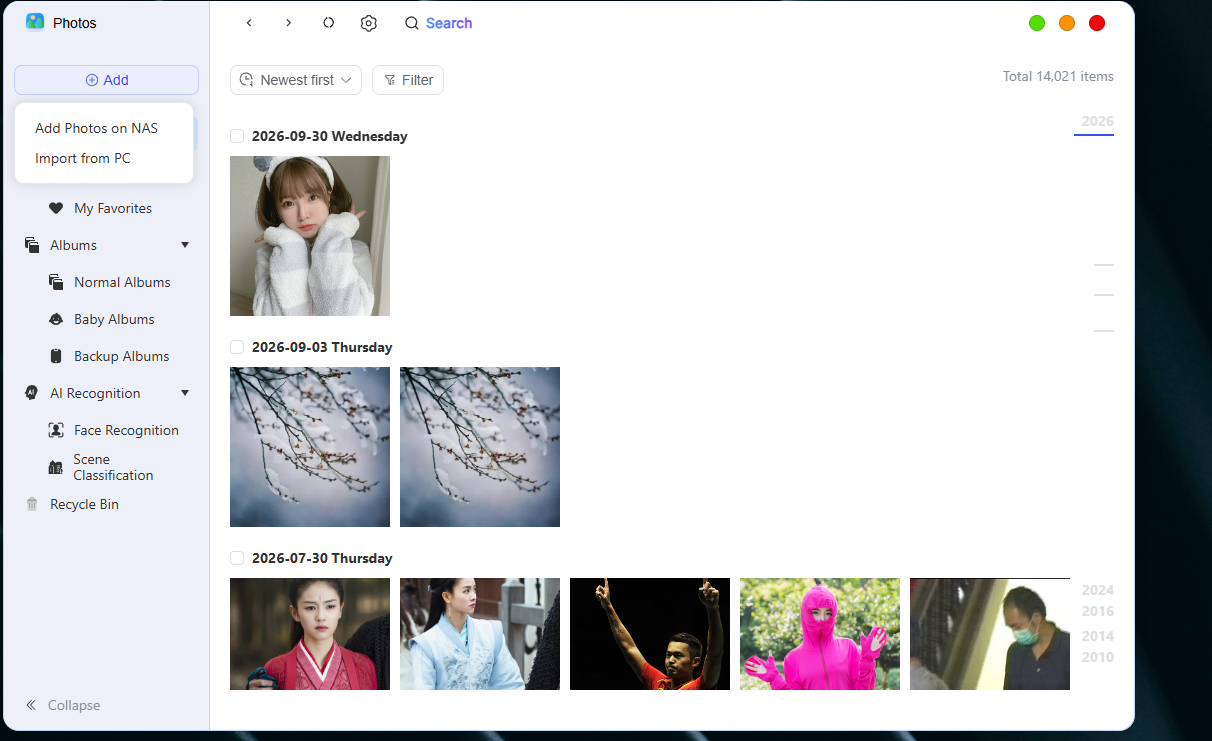
① Add photos
Click **the "Add" **button to upload photos to the NAS album by adding images from the NAS or importing local files from your computer; batch upload is supported. In folder view mode, clicking "Add Photos" also allows you to create a new folder for uploading.
② Sorting Function
In folder view mode, you can click the **sort icon **in the upper left corner to sort photos and videos, quickly locate specific content or organize your photos. This includes:
● Sort by shooting time (newest first / oldest first)
③ Information Presentation
Each thumbnail supports displaying additional information, including:
● File Name
● Whether the file is to my liking
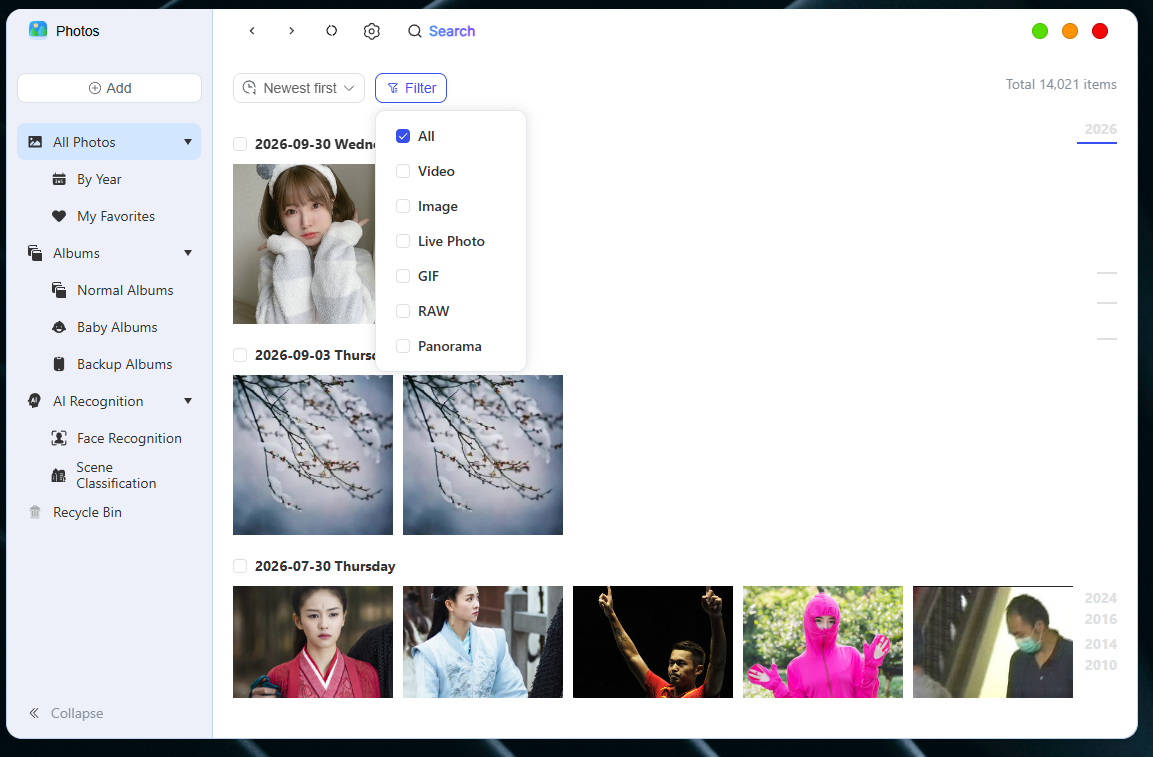
④ Filter Function
The filtering function helps you quickly find photos and videos. The following are the supported filter options:
- File Type
You can select all files, view only videos, view only ima ges, view only GIF animations, view only RAW files, and view only panoramic photos.
Folder View Operation Guide
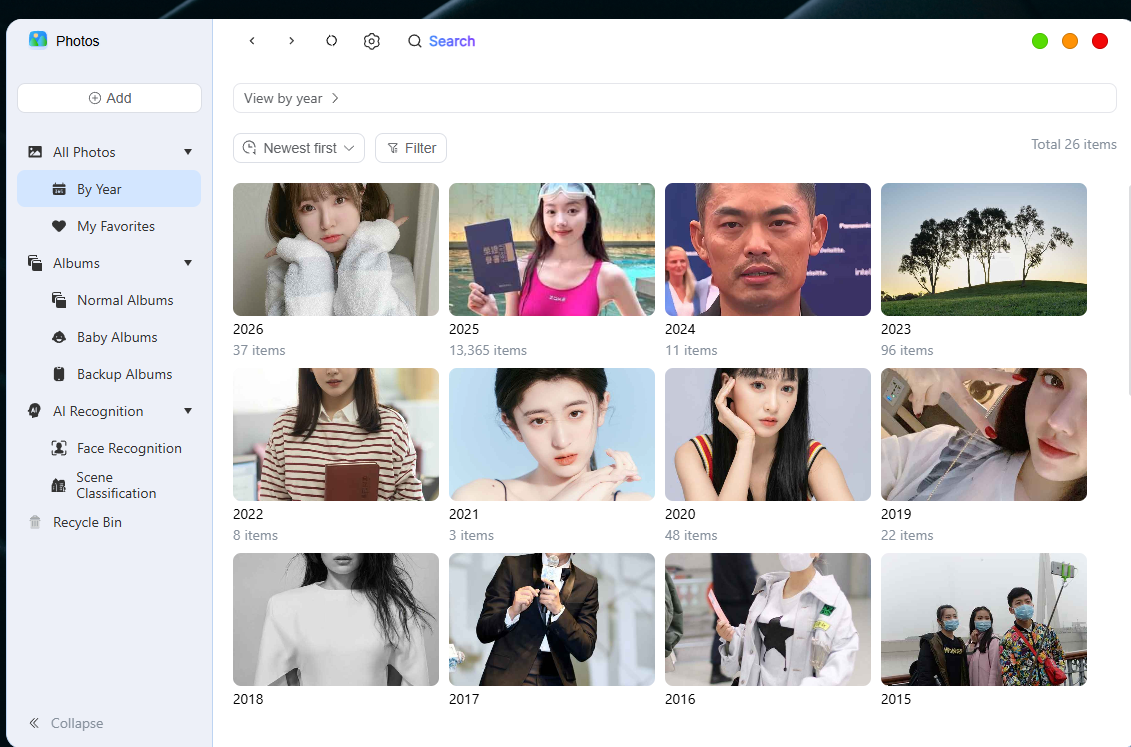
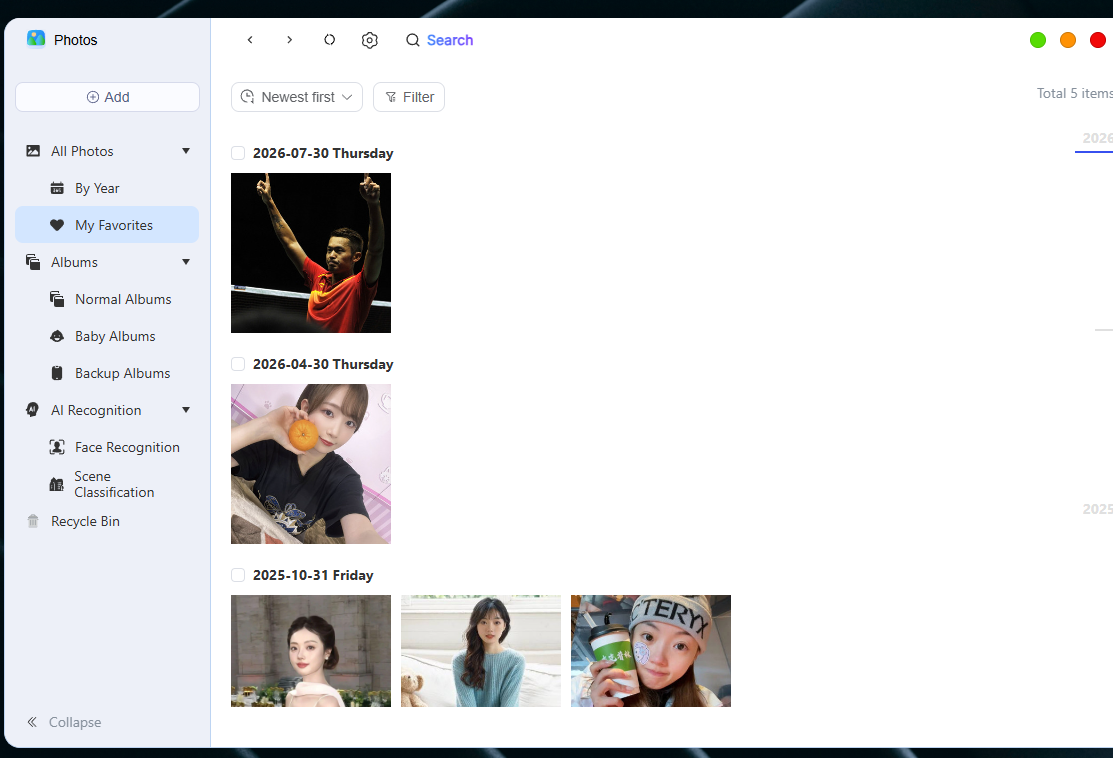
In the album's **Folder View **mode, you can conveniently view photos and videos by year, as well as view your favorite images and videos.
View by year
Click **View by Year** to browse photos and videos sorted by year.
what I like
You click the **Favorites** file category to view all the images and videos marked as your favorites.
Manage photo or video files
On the All Photos page, users can perform a series of operations on photo and video files, including sharing, downloading, copying, moving, deleting, blurring, etc. , to help users efficiently manage and organize the files in their albums.
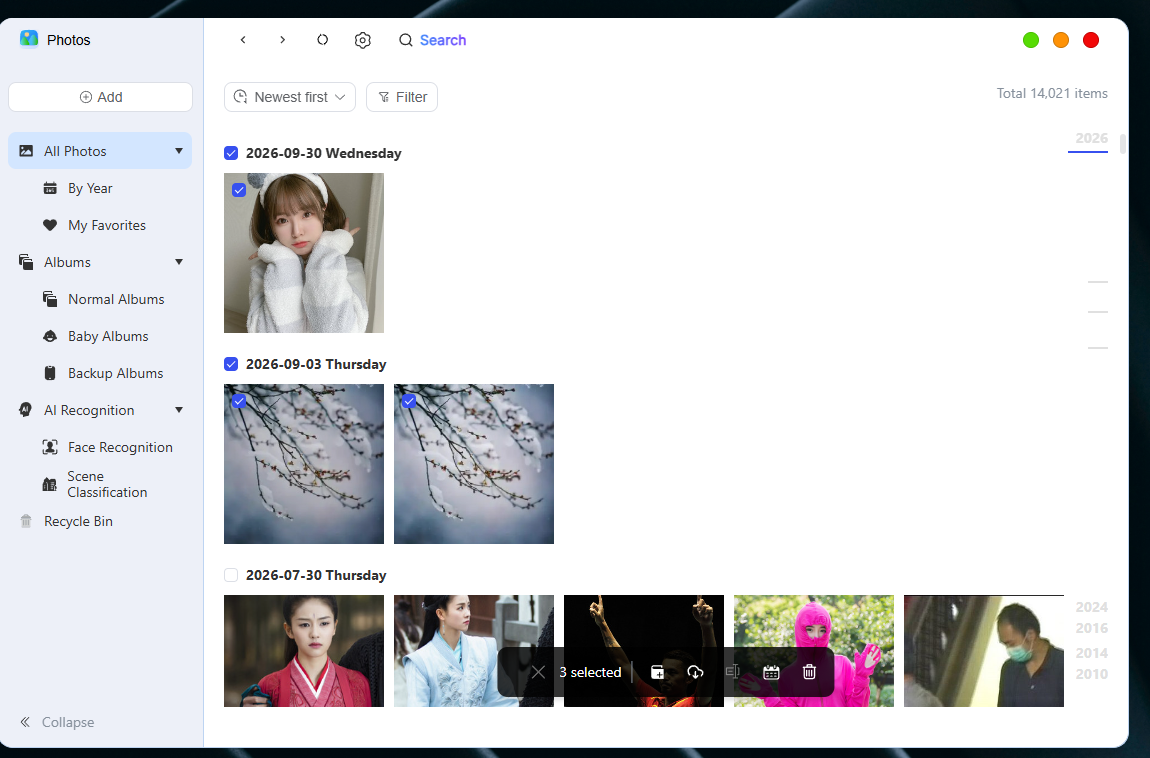
Batch management of photos and videos
-
On the photo page, tick the thumbnail (s) of one or more photos or videos;
-
In the action bar that appears at the bottom, select the desired action: Add to Album, Download, Copy, Rename (available when a single item is selected), Modify Capture Time, Delete, etc.
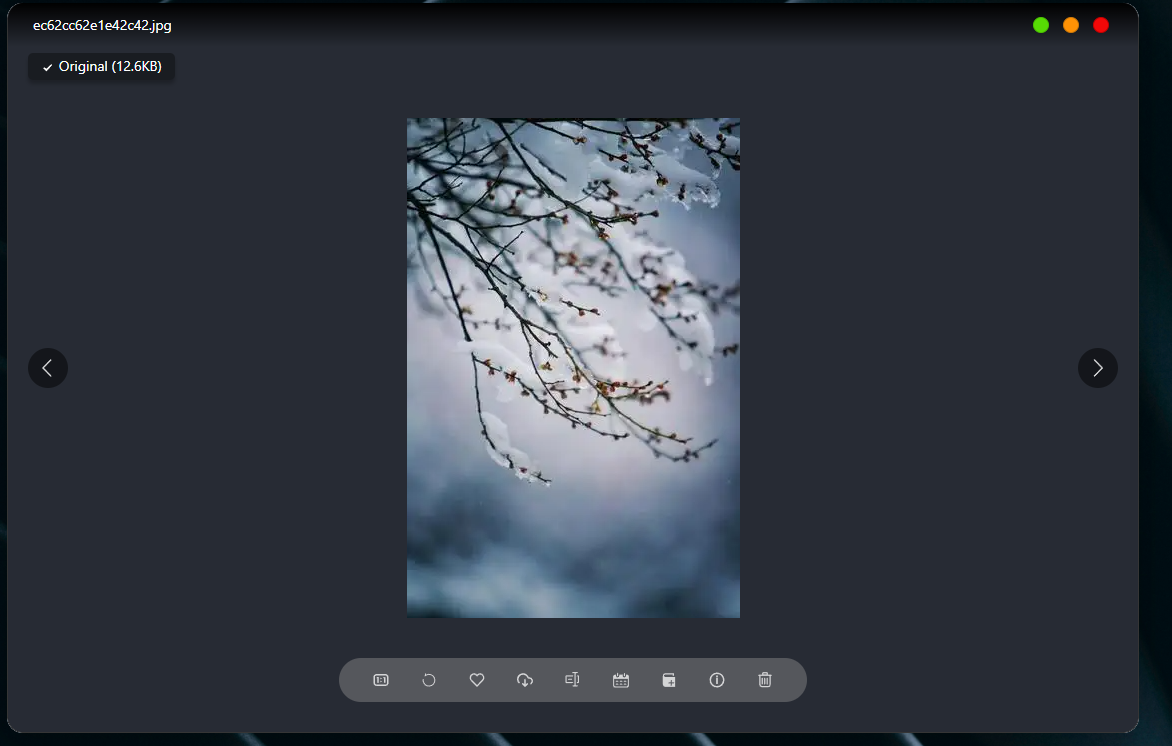
Go to the photo details page
-
Click on a photo to enter the detail page;
-
More actions are displayed directly at the bottom of the photo.
Quickly find photos and videos
-
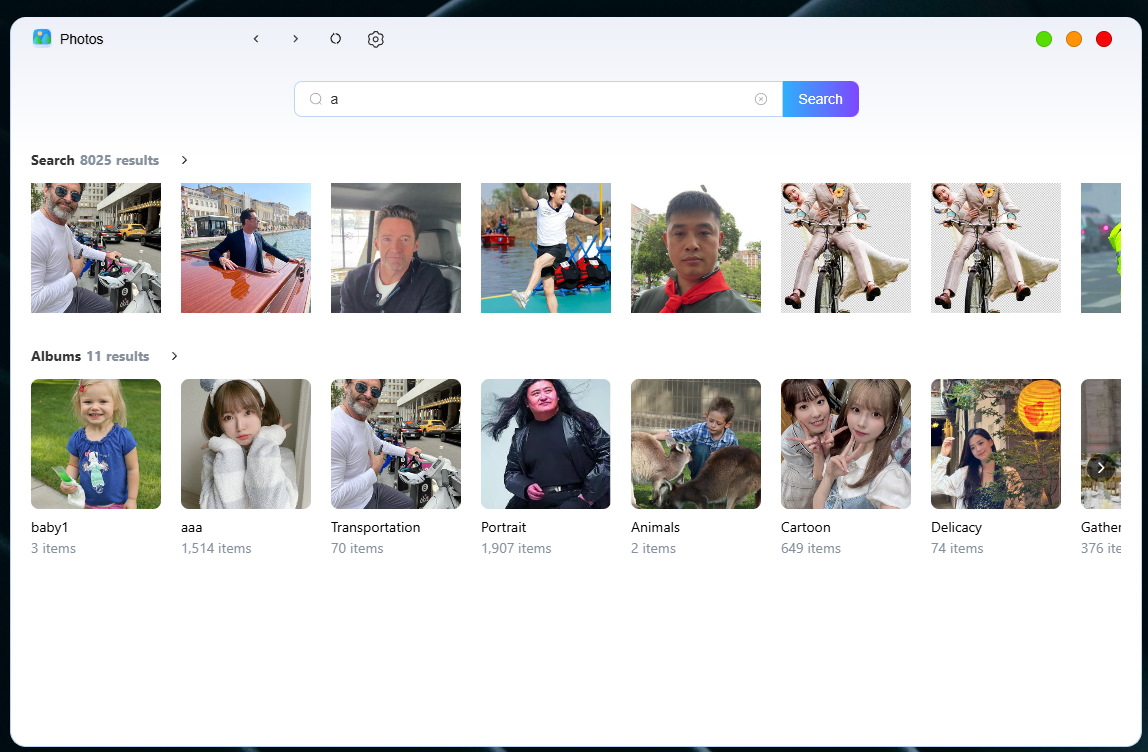
Click on the AI Search at the top of the album page;
-
Enter keywords and press the **Enter **key to get search results.
The photo album supports searching for people, scenes, and text within the album via text descriptions. You need to enable the portrait recognition and scene recognition functions in the settings, and after the enabling is completed and data calculation is finished, you can initiate an AI search.
Recover deleted photos and videos
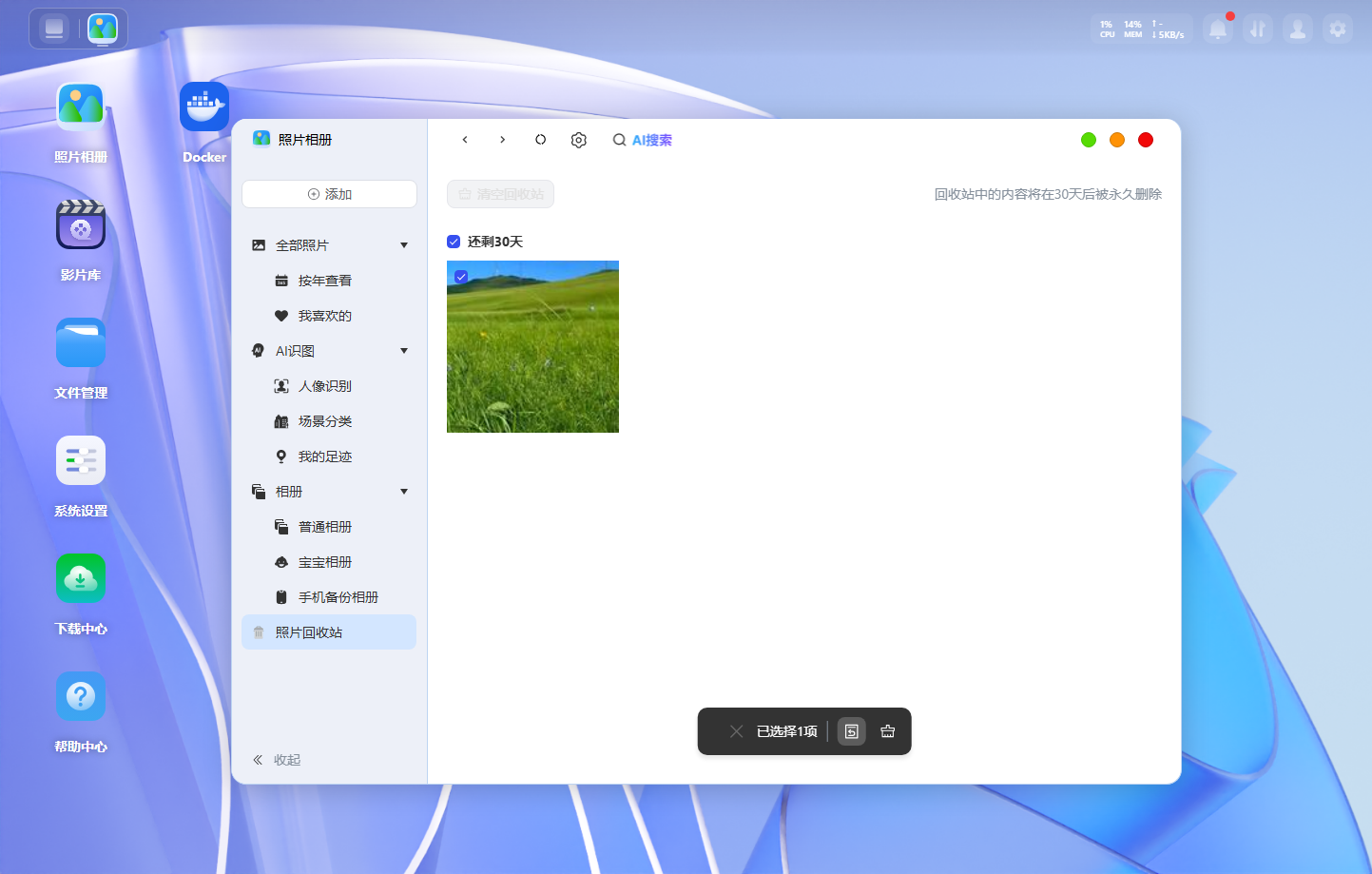
If you accidentally delete photos or videos, you can recover them by following the steps below:
- In the "Photos" app, click the [Photo Recycle Bin] button on the menu bar;
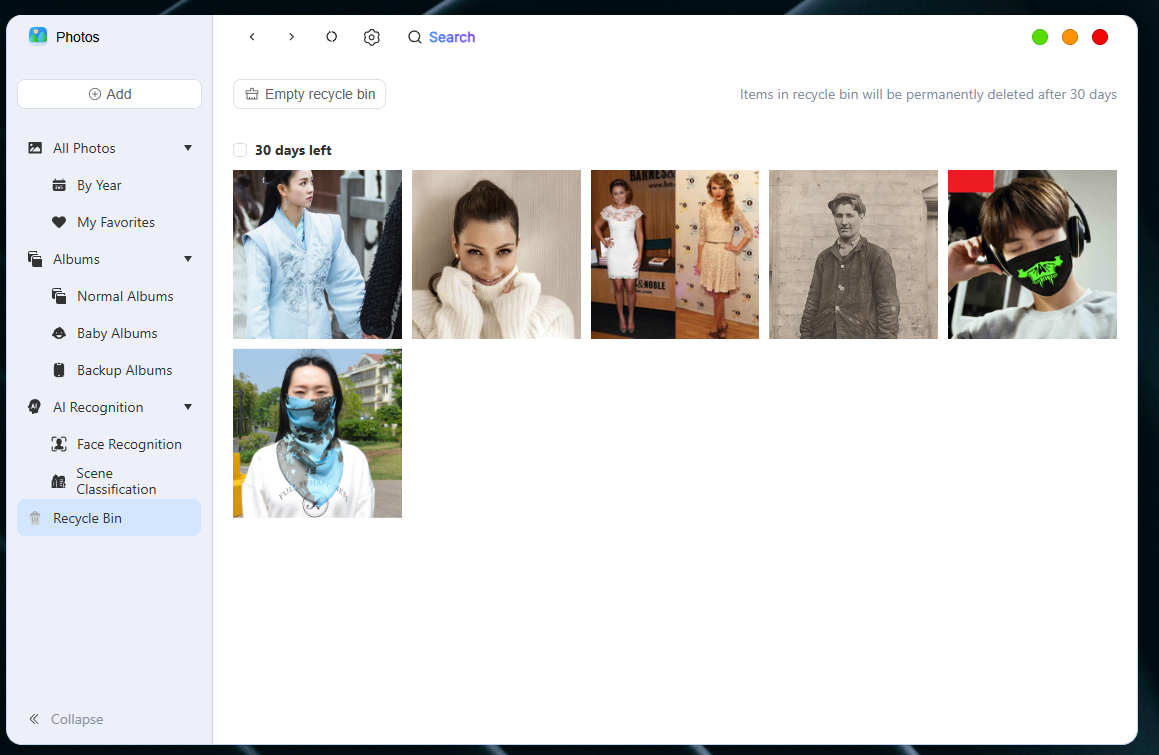
- Restore files: Select the target file and choose [Restore]. The file will be restored to its original directory location.
If you check the option [Delete permanently without moving to Recycle Bin] when deleting a file, the file will be permanently unrecoverable after deletion.
Batch delete similar or duplicate photos
1. In the "Photos" app, tap the **"Settings" **button in the top menu bar to enter the **"Clean Up Photos" **page.
2. On the **"Clean Photos" **page, find the **"Duplicate/Similar Photos Clean" **button and click **"Detect Now" **.
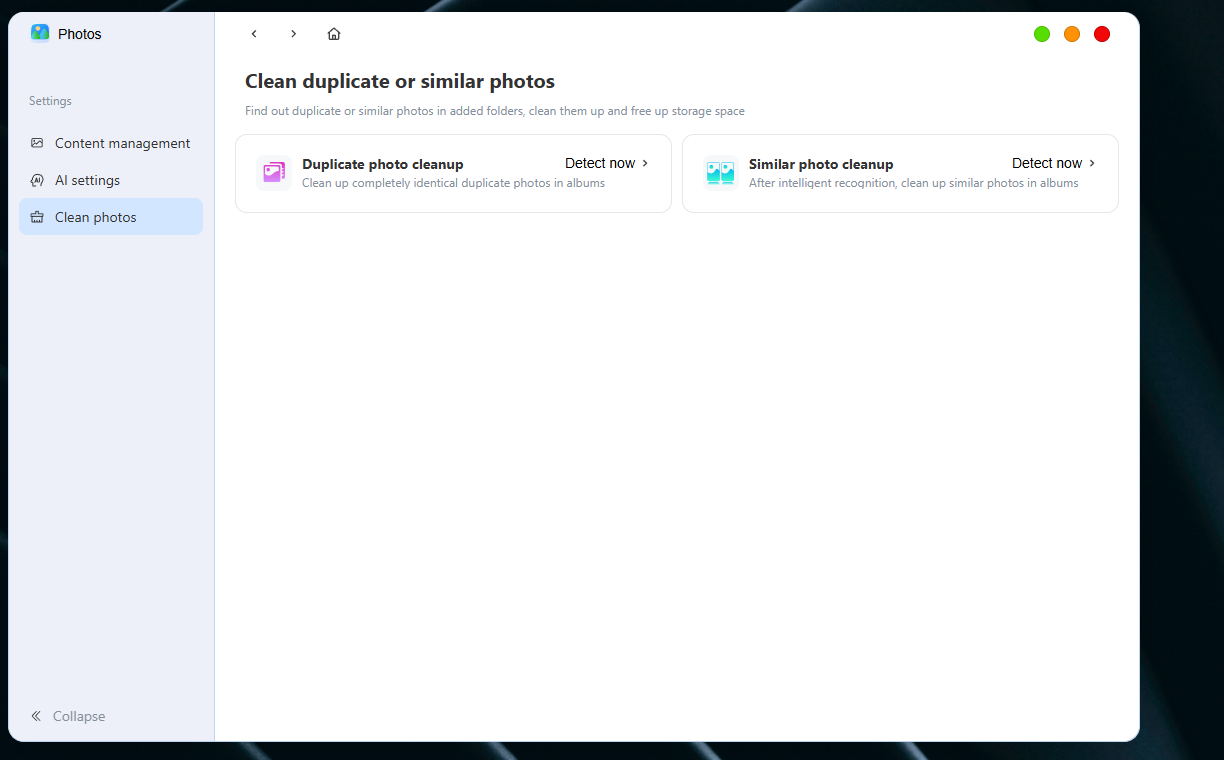
- After selecting the gallery range to search, click **"Start Detecting Duplicate Photos" **to begin the search.
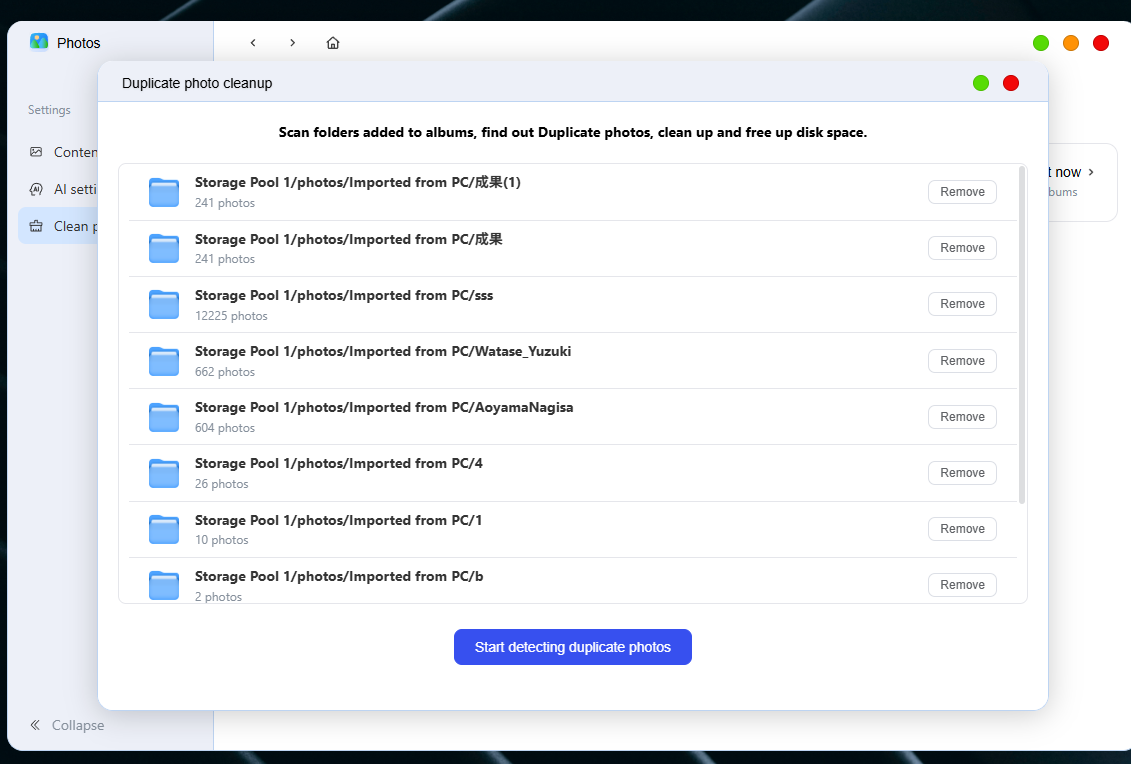
- The system starts creating a search task. Wait for the task to complete, then browse all duplicate or similar photos found.
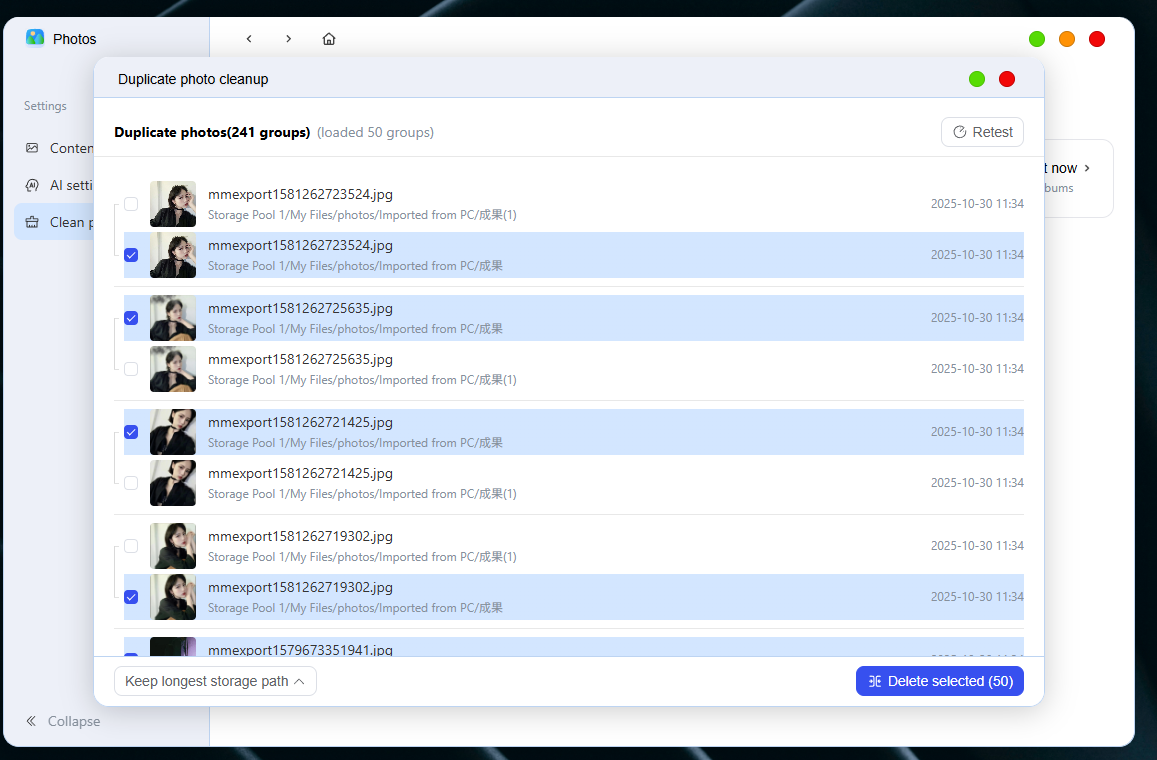
- Tick the unwanted photos and click the **"Clear Selected" **button to delete them. Batch selection and deletion are supported.
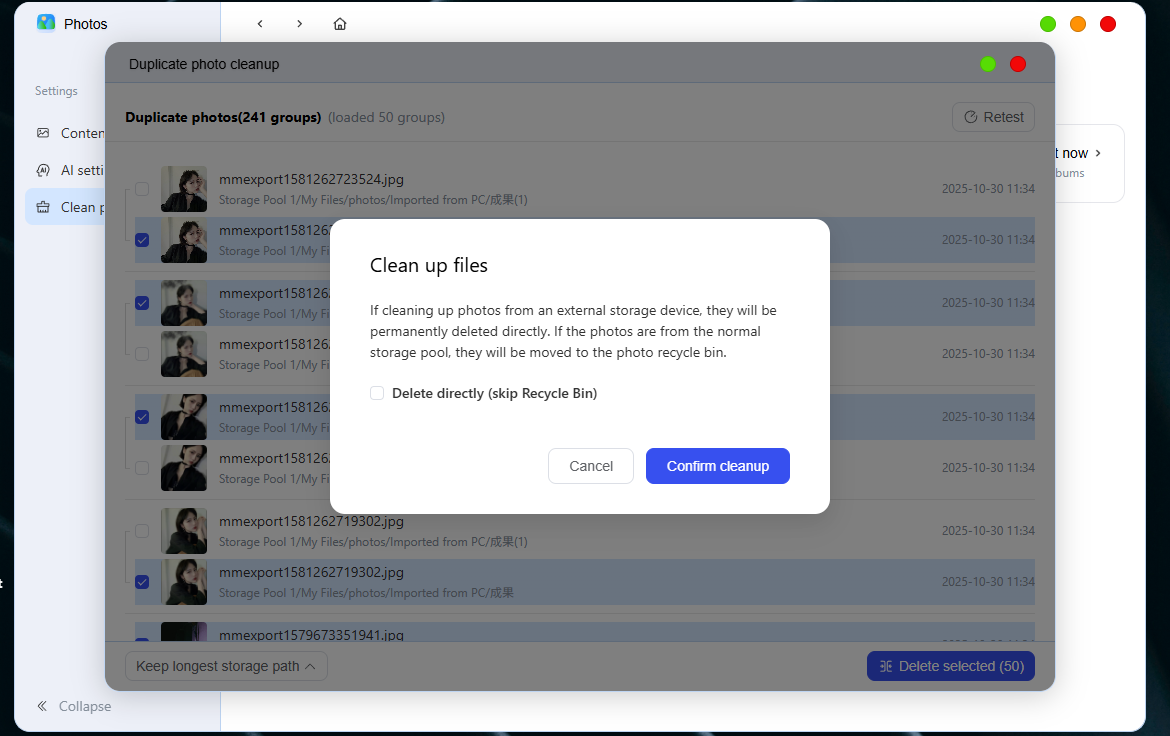
Content Management
1. In the "Photos" app, tap the **"Settings" **button in the top menu bar to enter the **"Content Management" **page.
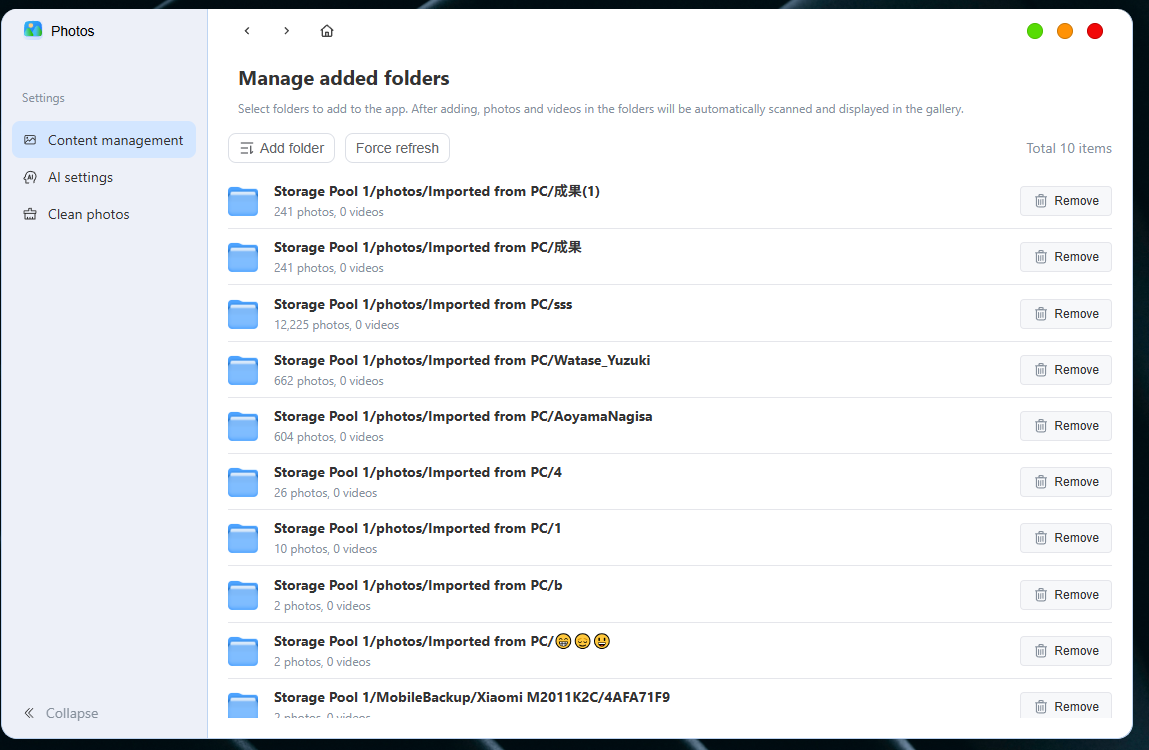
Manage added folders
Please select the folder you want to add to the app. Once added, the photos and videos in the folder will be automatically scanned and displayed in the gallery, where you can perform operations such as forced refresh and removal.