Disk Infomation - PC
The interface screenshots and options in this document are for reference only. The actual display may vary depending on the system version, application version or device model. The relevant pictures are mainly used to guide users in specific operations, please refer to the actual interface.
Hard Disk List and Status Overview
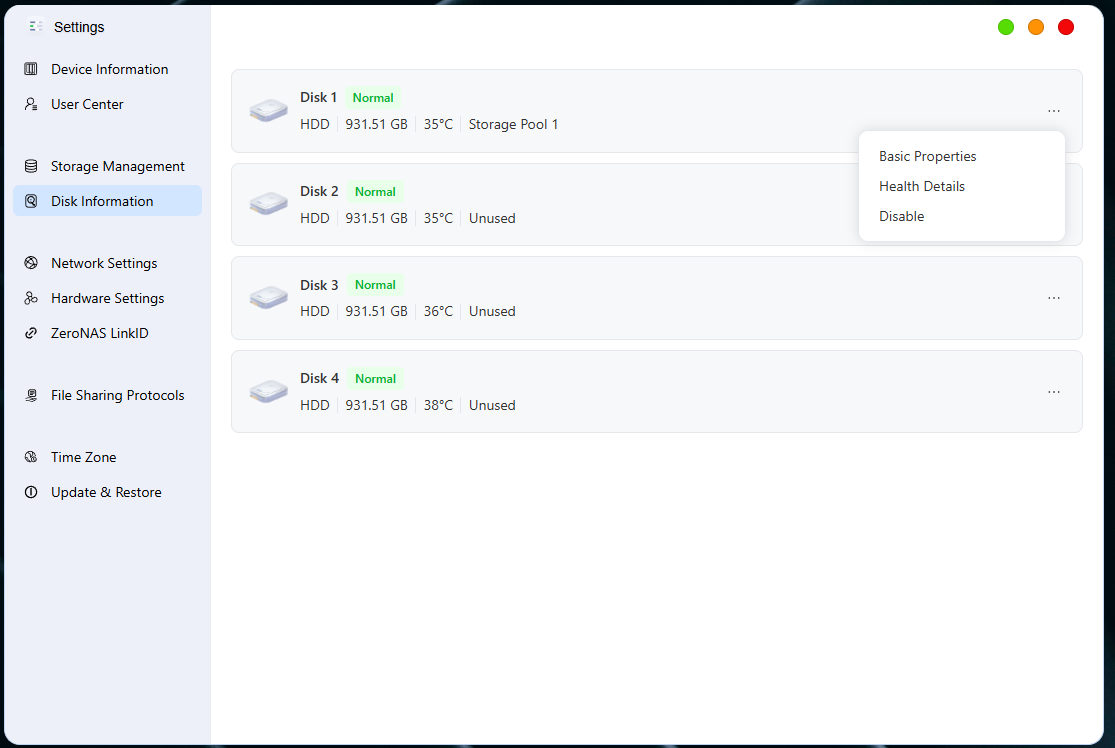
Entry: Click [System Settings -> Disk Info], and you can intuitively view the information of the hard disks in all slots of the current device:
-
Basic Information: displays the hard disk slot name (e. g., Hard Disk 1 corresponds to Slot 1), health status (e. g., " **Normal **"), hard disk type (HDD/SSD), total capacity, real-time temperature, and the storage pool it belongs to.
-
Operation Menu: Click the **". .." **icon on the right side of the hard drive to bring up the function menu, where you can perform operations such as viewing basic properties, checking health status details, and disabling the drive.
View Basic Attributes
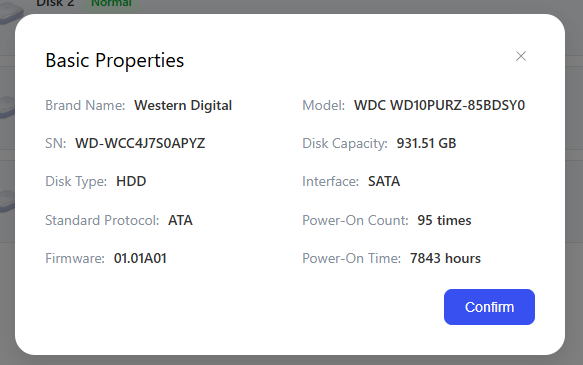
In the hard disk list, click on the right side of any hard disk [ **“···” **- > **Basic Properties] **to view the relevant parameters of the hard disk:
- List hardware information such as the brand, model, serial number (SN), firmware version, rotational speed and interface protocol of the hard disk.
Health Status Details (SMART Information)
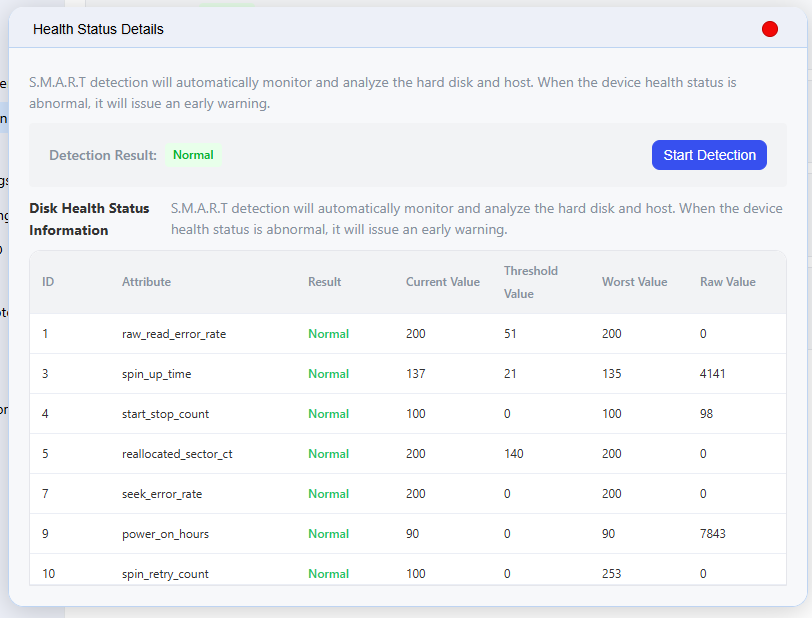
In the hard disk list, click the [**"···" **-> **Health Status Details]**on the right of any hard disk to view the detailed SMART information of the disk and the hard disk health detection function
SMART Information
Note:
-
The specific SMART information supported by each hard disk drive is determined by the hard disk manufacturer
-
The results of each attribute value are for reference only, and the specific meaning of some items is related to the manufacturer.
Hard Drive Health Check
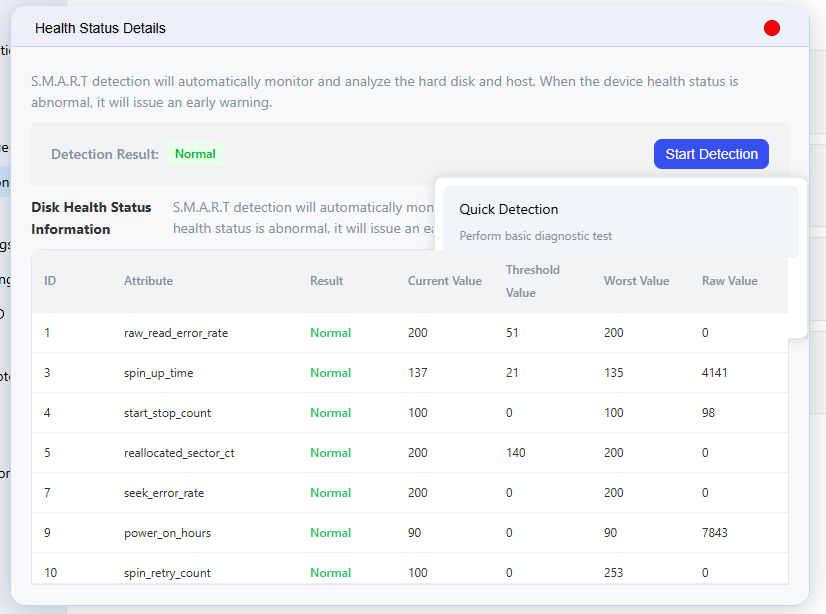
Click [ **Start Detection **- > **Quick Detection **/ **Complete Detection **], the corresponding detection progress will appear, and the SMART information will be updated and the detection results will be displayed after the detection is completed
-
Quick Test: This mode only inspects key areas of the hard disk (such as circuits, read/write heads, and a small number of random sectors), typically covering around the first 5% of the storage space. It usually imposes low I/O load, has minimal impact on the system, and can be completed in just a few minutes in most cases.
-
Full Scan: This function performs a full scan of all sectors on the hard drive and verifies data integrity sector by sector, which can detect deeper media issues. However, it imposes a relatively high load on the system, so it is recommended to run it during idle periods, and the process usually takes several hours.
Precautions
-
If the status of the hard drive changes to an alarm or error status, it is recommended to replace the hard drive in a timely manner and back up the data properly.
-
During the hard drive installation process, improper operation or issues with the hard drive may result in data loss. Therefore, be sure to back up your data before proceeding with the hard drive installation.
-
When removing or installing a hard disk, make sure that the NAS device has been powered off and the power cord has been unplugged.