Delete Storage Pool - APP
Deleting a storage pool will erase all data within it. Please confirm that the data has been backed up or that there is no remaining usable data before proceeding with this operation.
Delete Storage Pool
-
To access the "Storage Management" page: click [System Settings -> Storage Management]
-
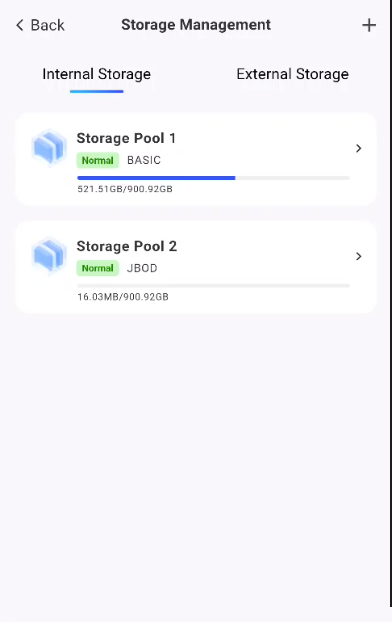
In the storage pool list, select the storage pool you need to operate on.
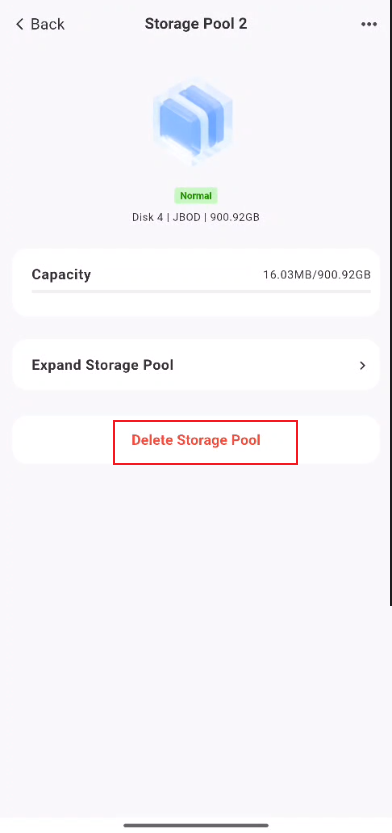
- On the displayed storage pool details page, click Delete Storage Pool
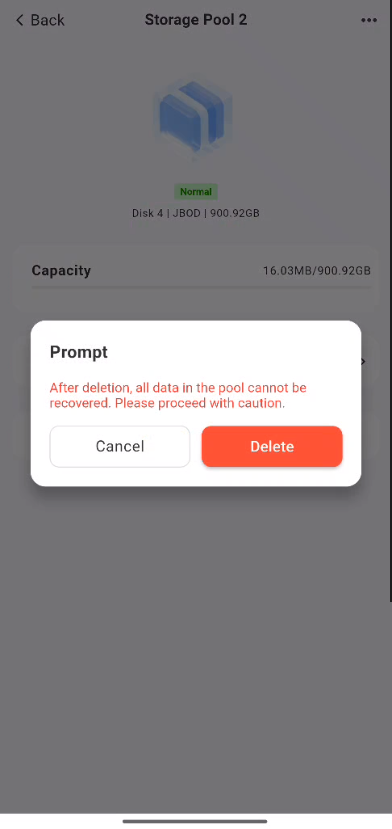
- After confirming for three seconds that it can be deleted, click **Delete **in the pop-up box, enter the password of the administrator account, and then the storage pool can be deleted.
⚠️ Notes
-
Confirm the requirement: Please carefully confirm that the data in this storage pool is no longer needed to avoid losses caused by accidental deletion.
-
Data backup: Before deleting the storage pool, please make sure to backup important data to other storage devices. After deletion, the data cannot be recovered.
-
Check application occupancy: Before deletion, confirm that the storage pool is not occupied by other applications, especially Docker:
-
Check path: Click [Docker] → [Overview] → [Docker Service] → [Storage Location]
-
If the storage pool is set as the storage location for Docker, please modify the Docker storage path or migrate the relevant containers first, and then perform the deletion operation.
-