Repair Storage Pool - PC
When one of the hard drives in your storage pool (such as redundant modes like RAID 1, RAID 5, RAID 10, etc.) fails, the system will enter a "degraded" state. At this point, the data is temporarily safe, but the redundancy capability has been lost.
**Important Note: **Please get it fixed as soon as possible to avoid data loss and irreversible damage caused by the simultaneous failure of another hard drive.
Before starting the repair, you can first try to assess the status of the faulty hard drive:
-
If it is a temporary fault, try to repair the faulty drive itself.
-
If physical damage to the hard drive is confirmed, please prepare a new hard drive with a capacity greater than or equal to that of the faulty drive for replacement.
Repair Storage Pool
-
Go to the "Storage Management" page: click [System Settings -> Storage Management]
-
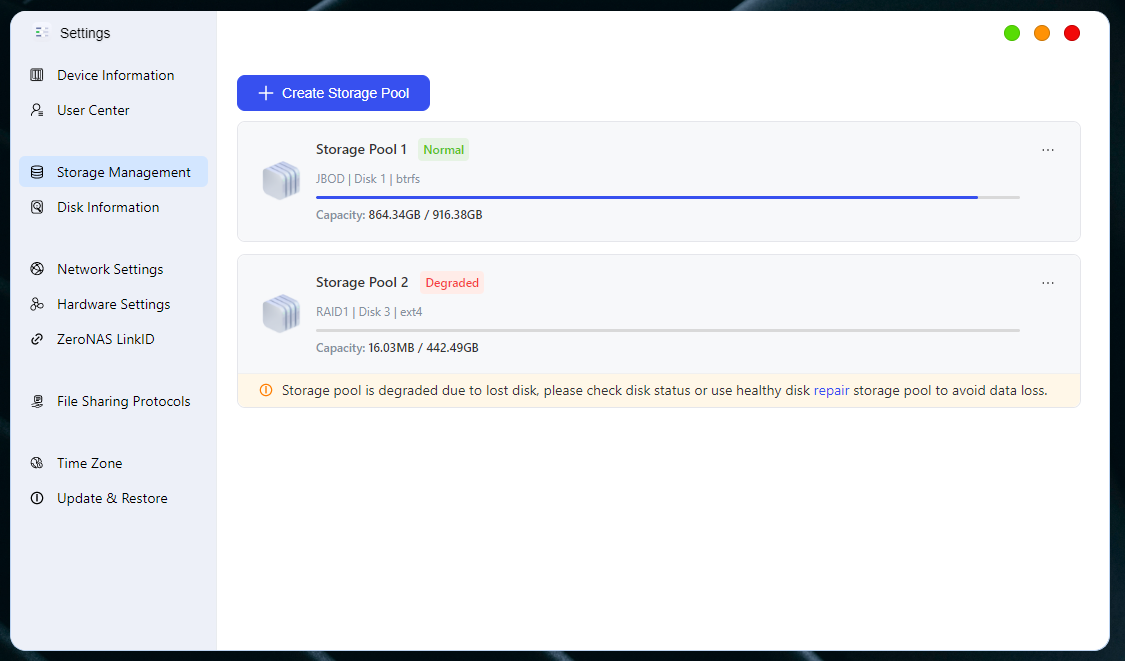
Locate the degraded storage pool: In the storage management interface, you will see the storage pool marked with a "Degraded" status and an alert label.
-
To initiate repair: Click the "Repair" button on the storage pool card; or click the "···" menu on the right side of the storage pool and select "Storage Pool Repair".
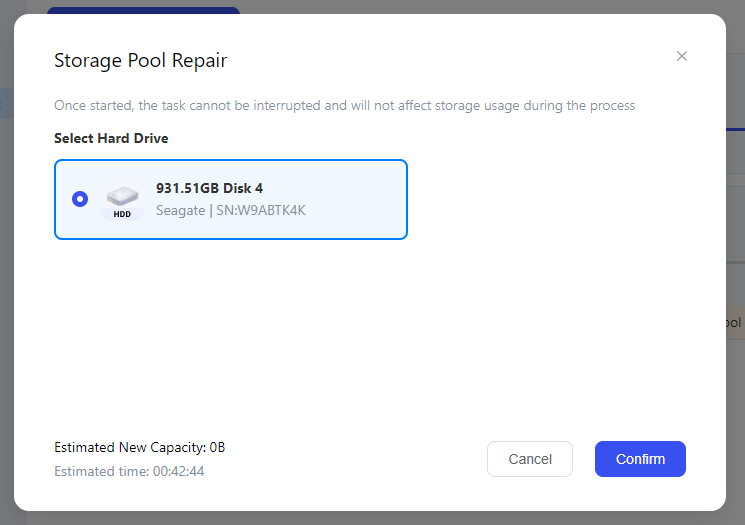
- On the "Storage Pool Repair" page, select an available disk as the replacement disk
Note:
-
Capacity requirement: If no available hard disk is present, the capacity of the newly inserted hard disk must be greater than or equal to that of the original failed hard disk.
-
Safe Operation: When replacing a physical hard disk, be sure to perform the operation under power-off conditions.
- Click "OK", enter the password of the administrator account to verify your identity, and the system will start the repair process. Just wait for the data synchronization to complete afterwards, and do not force an interruption during this period.