ZeroNAS LinkID Setup Guide - PC
Go to the Settings interface
You can access the ZeroNAS LinkID settings page in the following two ways:
- New Device Guide: A guide page will automatically appear on a new device when you log in for the first time. Locate the " **Set up ZeroNAS LinkID **" option, then click [Go to Settings].
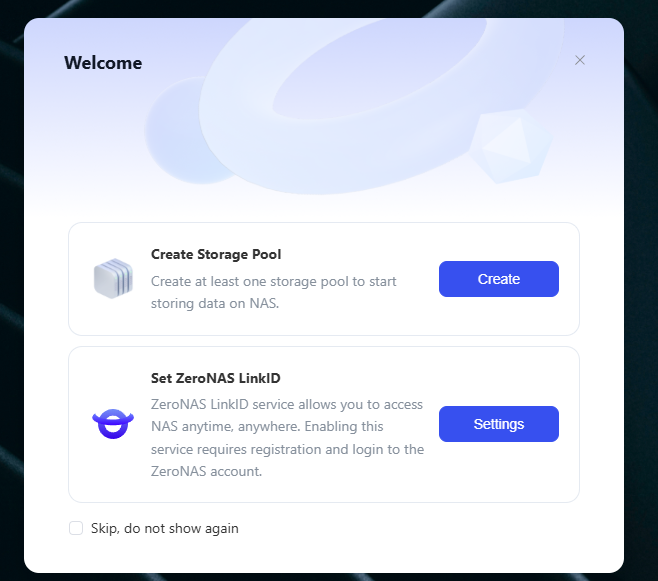
- Manual entry: Click [System Settings -> ZeroNAS LinkID] to access the settings page.
Bind ZeroNAS Account
- Click [Bind] to enter the account settings page.
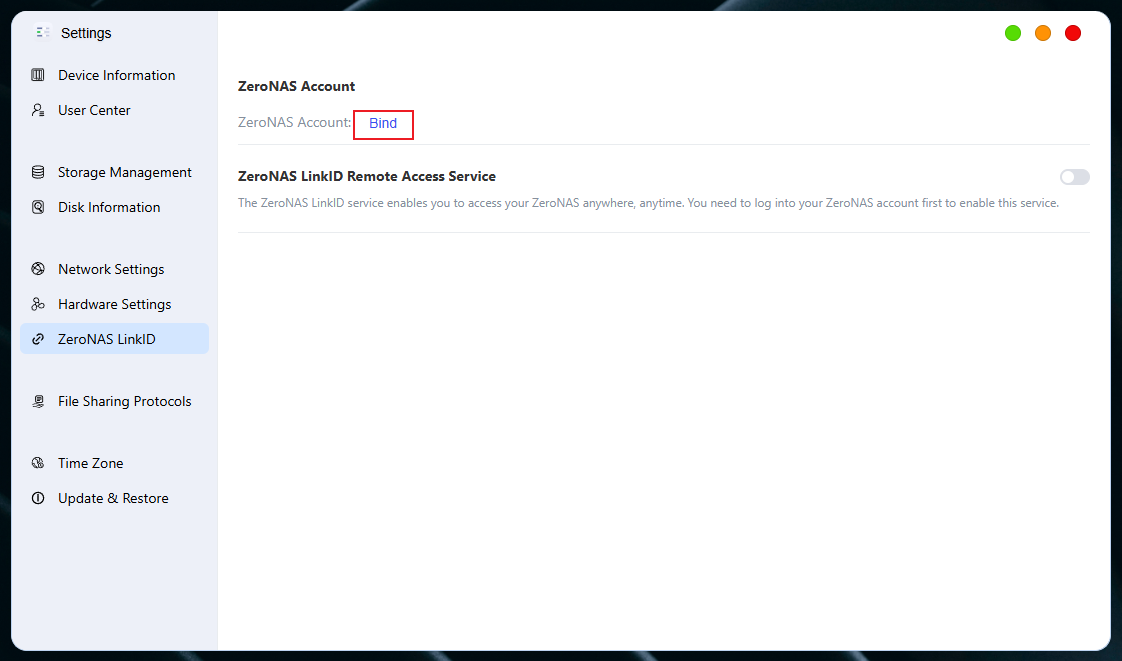
-
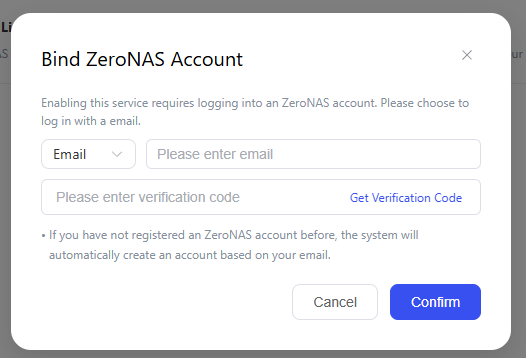
Please enter your email address and click to send the verification code.
-
Log in to your email to check the verification code, then enter the received verification code on the settings page.
-
Click [OK] to complete account login.
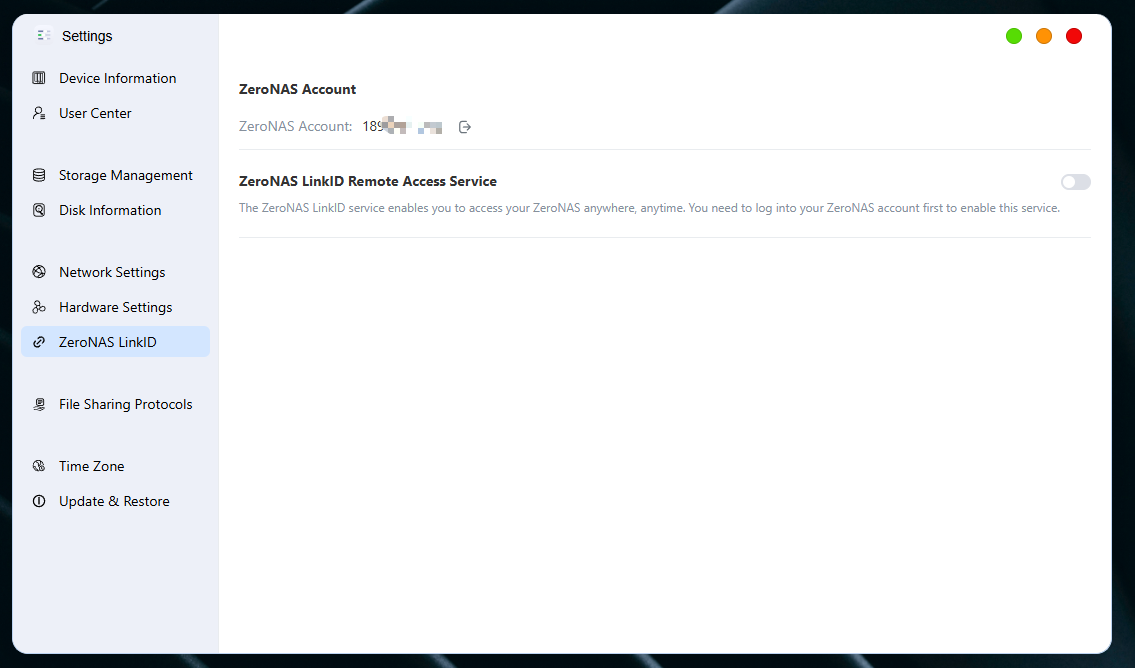
Configure IronCow LinkID Remote Access Service
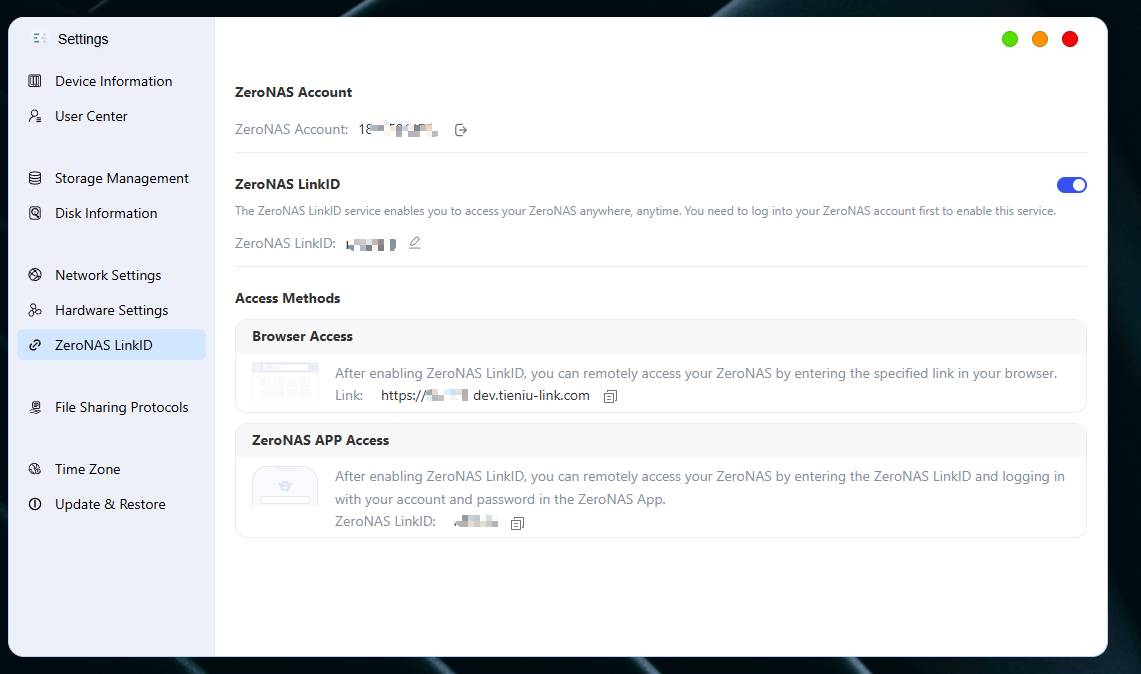
- Enable the service: Turn on the switch for "ZeroNAS LinkID Remote Access Service".
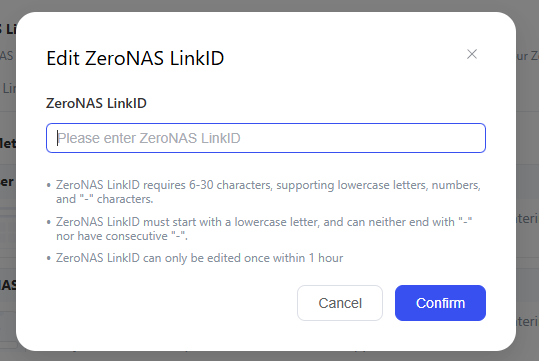
- Set LinkID: In the newly pop-up settings page, fill in the custom LinkID account, and follow the on-screen prompts to ensure the account complies with the naming rules.
-
APP Access: After successful binding, you can directly log in with your LinkID account instead of an IP Address on the mobile APP.
-
Browser Access: Enter the corresponding LinkID access address in the browser to remotely access your NAS.
Function Description
-
Remote Access: With your LinkID account, you can remotely access your NAS device from anywhere at any time.
-
No need to memorize complex IP Addresses or worry about IP Address changes.
-
Cross-platform usage: Supports two access methods: APP and browser, making it more convenient to use.