Task Center - App
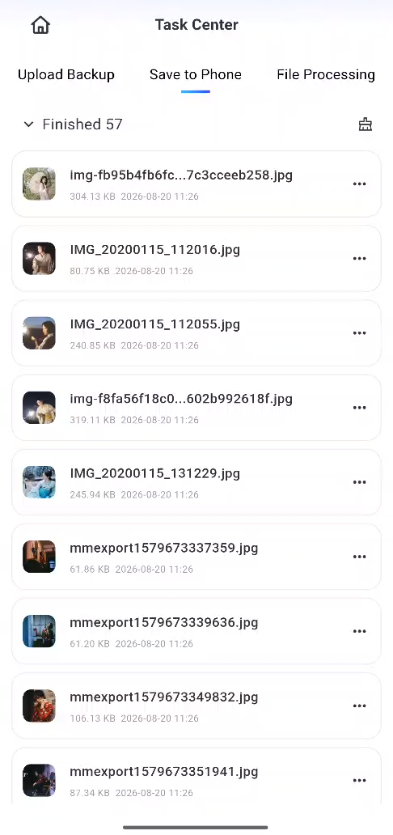
This Task Center includes three functional tabs ("Download to Phone," "Upload & Backup," and "File Processing") designed to facilitate the management of various file-related tasks. The interface is simple and intuitive. The core features are described below.
I. Description of the "Core Features" Tab
-
Download to Phone: View and manage all file download tasks on your phone; view progress, pause/resume, and delete tasks.
-
Upload and Backup: Manage file upload and backup tasks; view progress and completion history; cancel uploads and delete backup records.
-
File Processing: View processing tasks for downloaded and backed-up files, as well as processing progress and results.
II. Instructions for Clearing Records
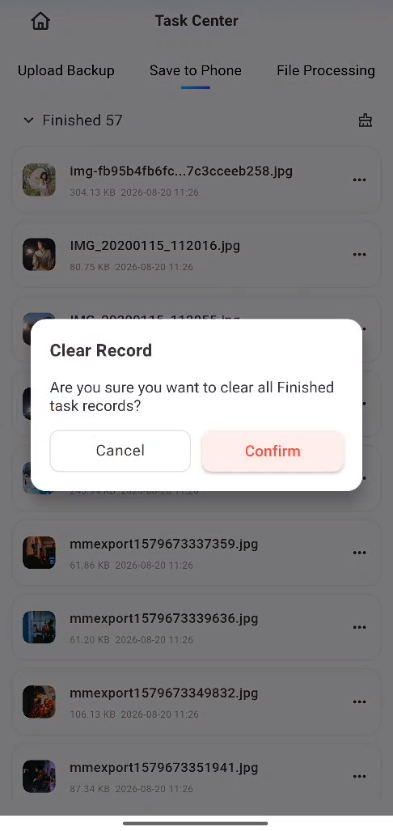
In the upper-right corner of each tab’s page, there is a “Clear History” button that allows you to quickly clear the task history under that tab. Follow these steps:
-
Go to the corresponding tab (e.g., “Downloaded to Phone”);
-
Locate and click the “Clear History” button;
-
After confirming the pop-up prompt, all task history under that tab (including completed and failed tasks) will be deleted.
Important Notes
-
Clearing the history only deletes task history records; it does not delete actual files that have been downloaded or backed up locally on your phone. Please proceed with confidence.
-
You can review the history before clearing it to avoid accidentally deleting task records you wish to keep.
-
You cannot clear the history while a task is in progress (e.g., downloading, uploading, or processing). You must first complete or terminate the task before proceeding.
III. General Precautions
-
While a task is in progress (downloading, uploading, or processing), do not force-quit the software to avoid task failure or file corruption.
-
We recommend regularly cleaning up backup files to free up storage space; before deleting a task, make sure the files do not need to be kept.