Create a New Media Library - PC
Feature Overview
"Media Library" is the core module of the Media Center app, used to categorize and manage audio and video resources on the NAS. The system supports creating, editing, and deleting media libraries, and automatically recognizes metadata for media files (such as posters, descriptions, and cast information). Through intelligent categorization, users can efficiently organize and search for movies by type, year, and other criteria.
Note: Before use, please ensure that media files are stored on the NAS and that you have created a media folder using the “File Manager” app, with full read permissions granted to that folder.
Create a Media Library
-
Open the "Movie Library" app and tap the "Settings" button at the top;
-
In the Settings menu, tap "Media Library" > "New Media Library" to go to the media library configuration page.
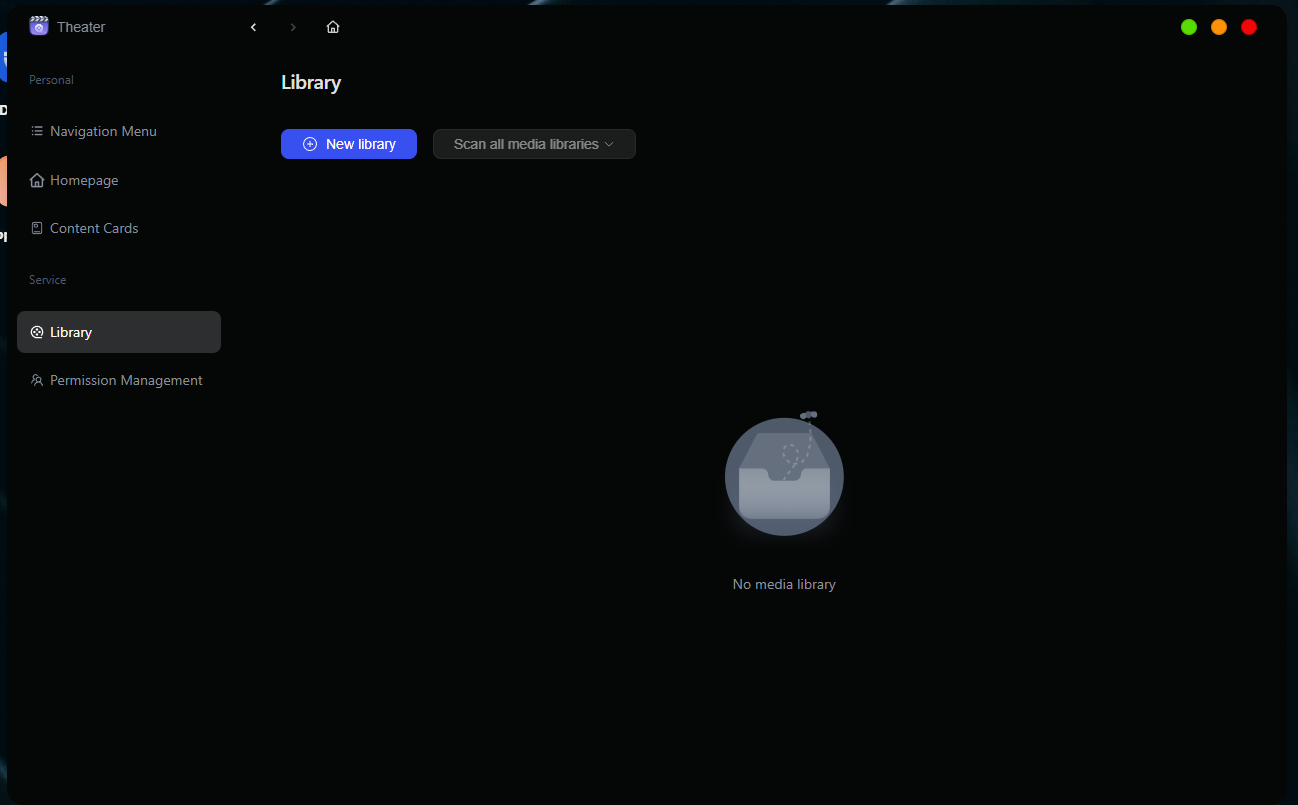
-
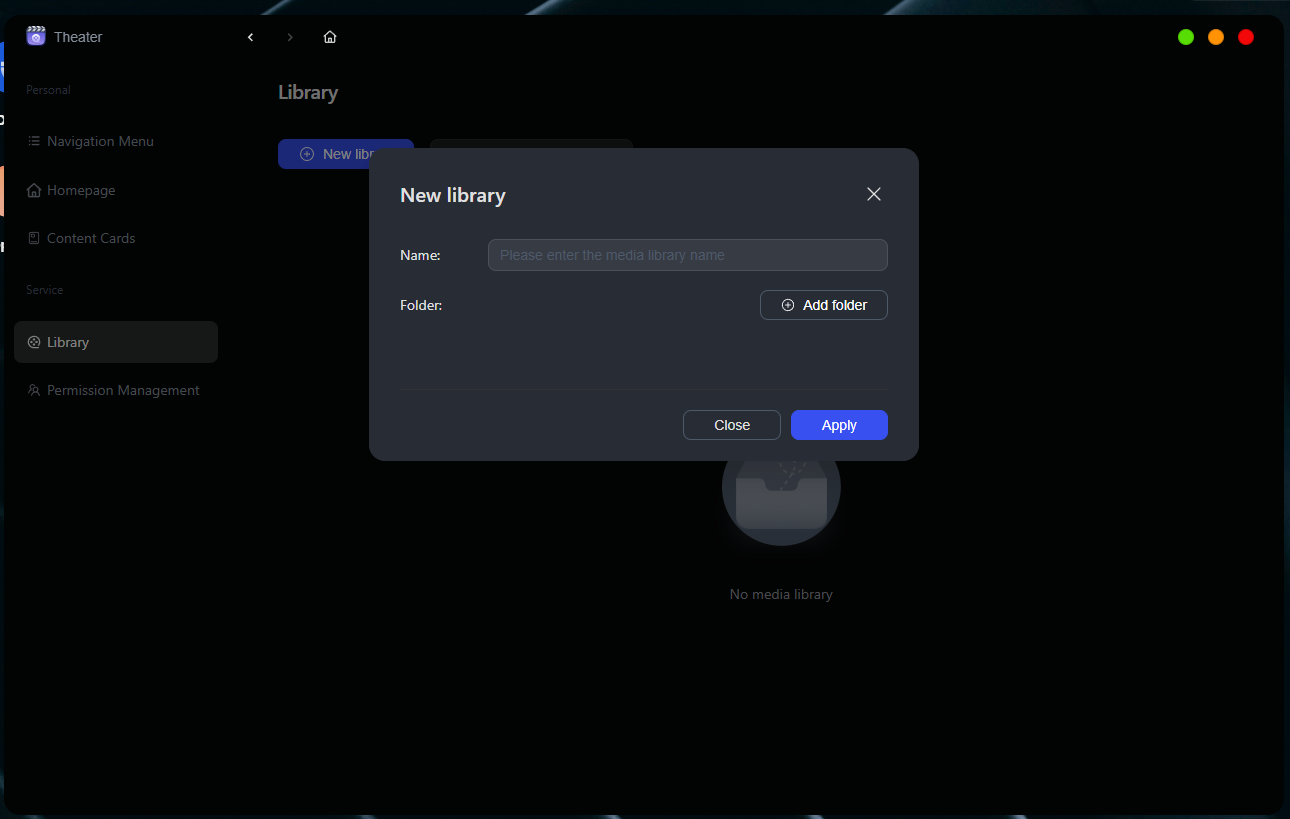
Enter a name for the library in the “Media Library Name” field (e.g., Variety Shows, European and American TV Shows).
-
In the “Media Folder” field, click the “Add” button and select the folder where your media files are stored.
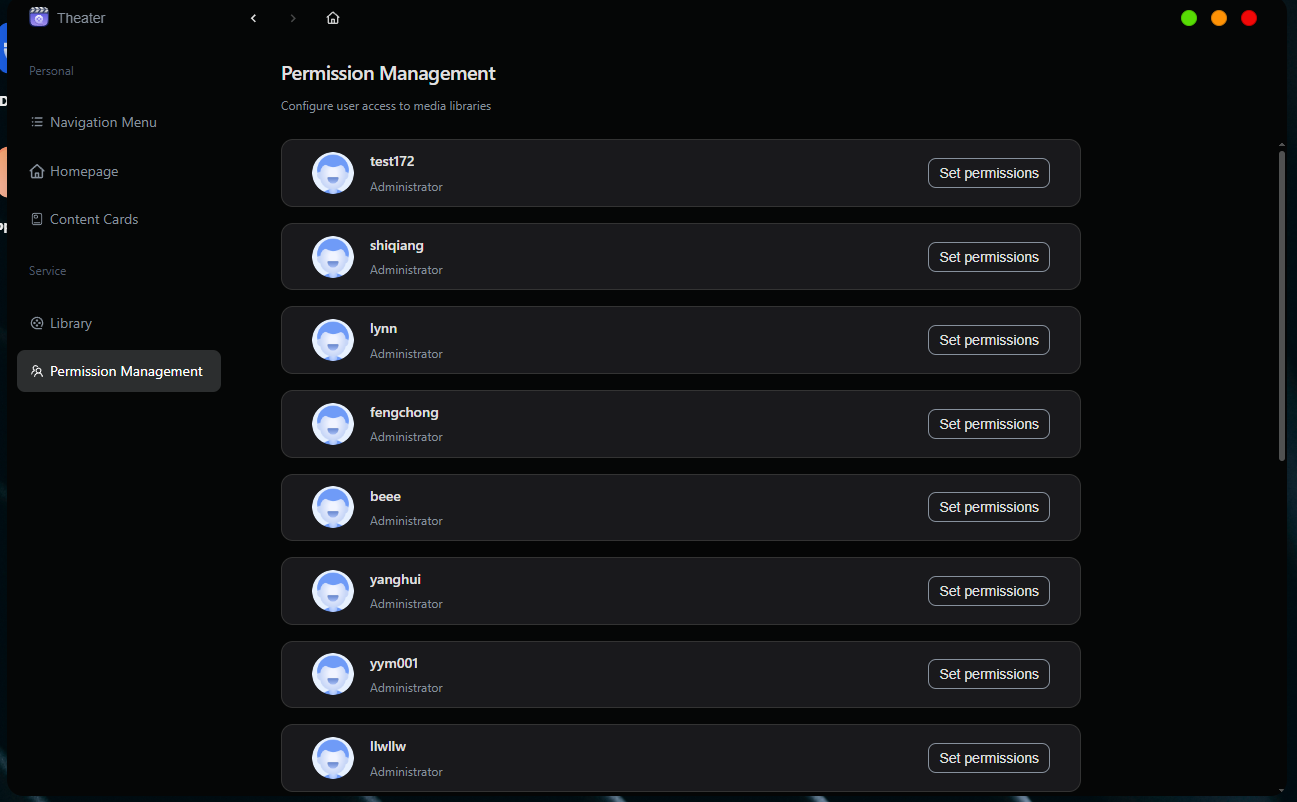
- You can configure media library access permissions for users on the device based on your needs (optional).
- After confirming that all settings are correct, click “Apply” to save and take effect. The system will begin scanning and syncing the resources in the media library.
Supported File Formats
The Media Center supports a variety of mainstream video formats. Users can directly play or manage the following types of media files and folders:
● Video file formats: rmvb, rm, mpg, mp4, avi, mkv, wmv, mov, etc.
Frequently Asked Questions
1. Why aren’t the files I added showing up?
Check whether the file format is supported, whether the path is accessible, and whether the permissions are set correctly.
2. How do I remove a media library?
Select the target library from the “Media Libraries” list, tap “···” > “Remove,” and confirm the action.