Media Library - PC
Media Library Overview
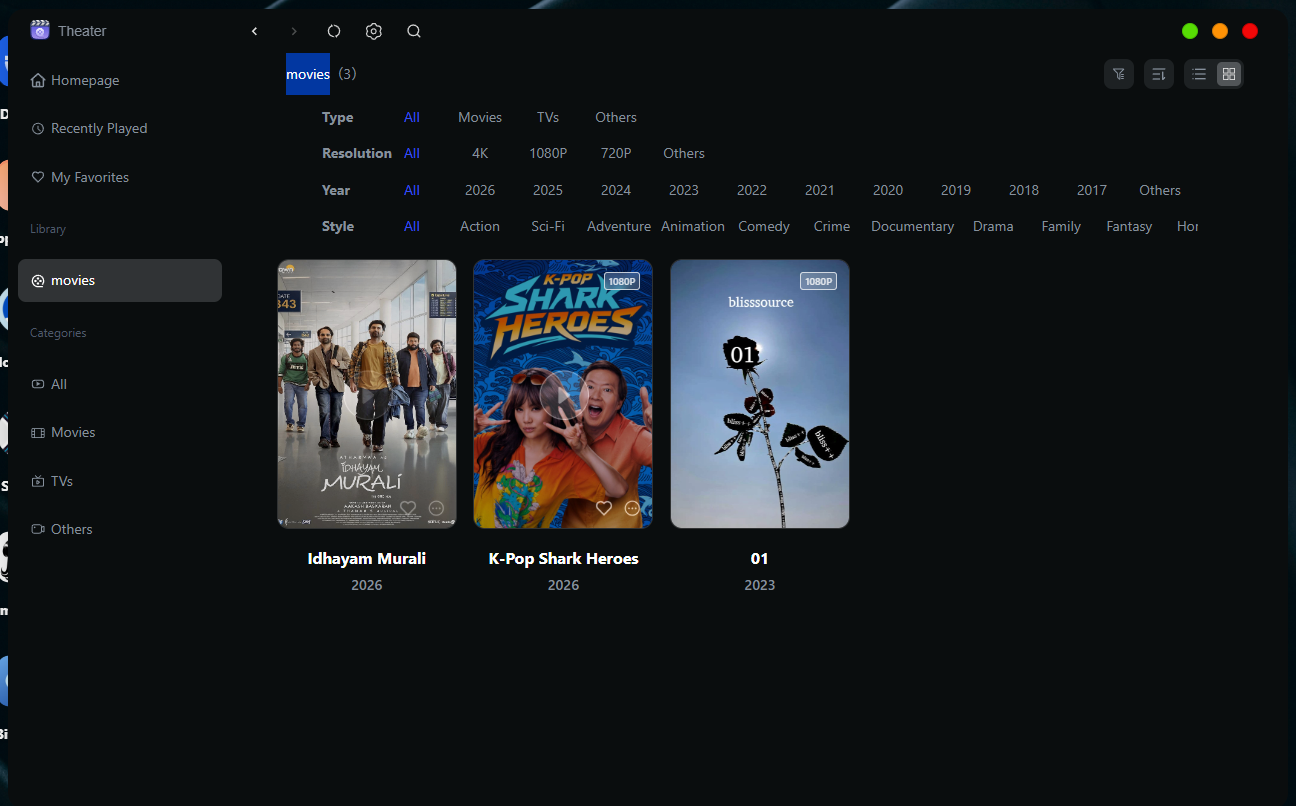
In the Video Library, users can browse all videos in the media library. Click “Media Library” in the menu bar to switch to viewing videos in the media library.
-
When there are a large number of videos, you can click the “Filter” button to set different filter criteria and view videos that meet those criteria.
-
If you want to search for a specific video, click the “Search” button and enter keywords in the search bar to quickly find it. Search results can be viewed by three categories: (All, Movies, TV Shows). Your search “History” is saved on the search page; long-press an individual search entry and tap “X” to delete it, or tap the “Delete” button to clear the entire history.
-
If you want to change the view or sorting order, tap the “Toolbar” button to switch between view styles and sorting options. View styles include “Text & Images” and “Standard Cards”, while sorting options include “By Title,” “By Release Date,” “By Update Date,” and “By Rating.”
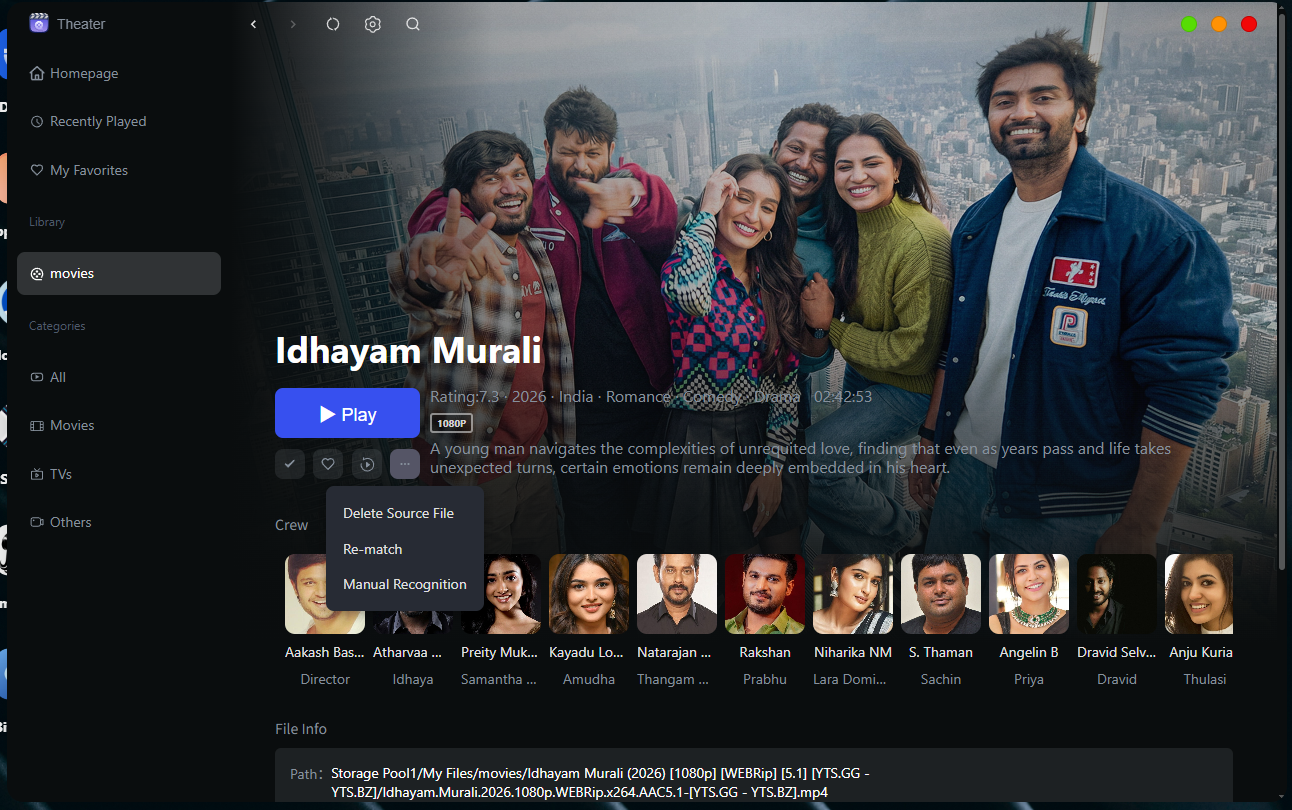
To view a video's details, click on the video to go to its details page. Follow these steps:
-
Click the "Play" button to play the video.
-
Click the "Favorites" button to add the video to "My Favorites."
-
Click the "Play from the Beginning" button to play the video from the beginning.
-
Click "..." to open the action bar and perform operations such as deleting the source file, re-matching, manual recognition, and disabling matching.