Poster Details Page - pc
The Movie and TV Center’s poster detail page offers a wide range of features and is designed to make it easy for users to browse and manage movie and TV content. Here is an overview of its features:
Poster View Display
The Film and Television Center offers beautifully designed poster backgrounds to enhance the visual experience of your movies and TV shows.

Switching Between Series Views
● Series support two view modes: List View and Card View. Users can switch between them freely, and the system will apply the selected view to all series by default, making it convenient to quickly browse and manage media content.
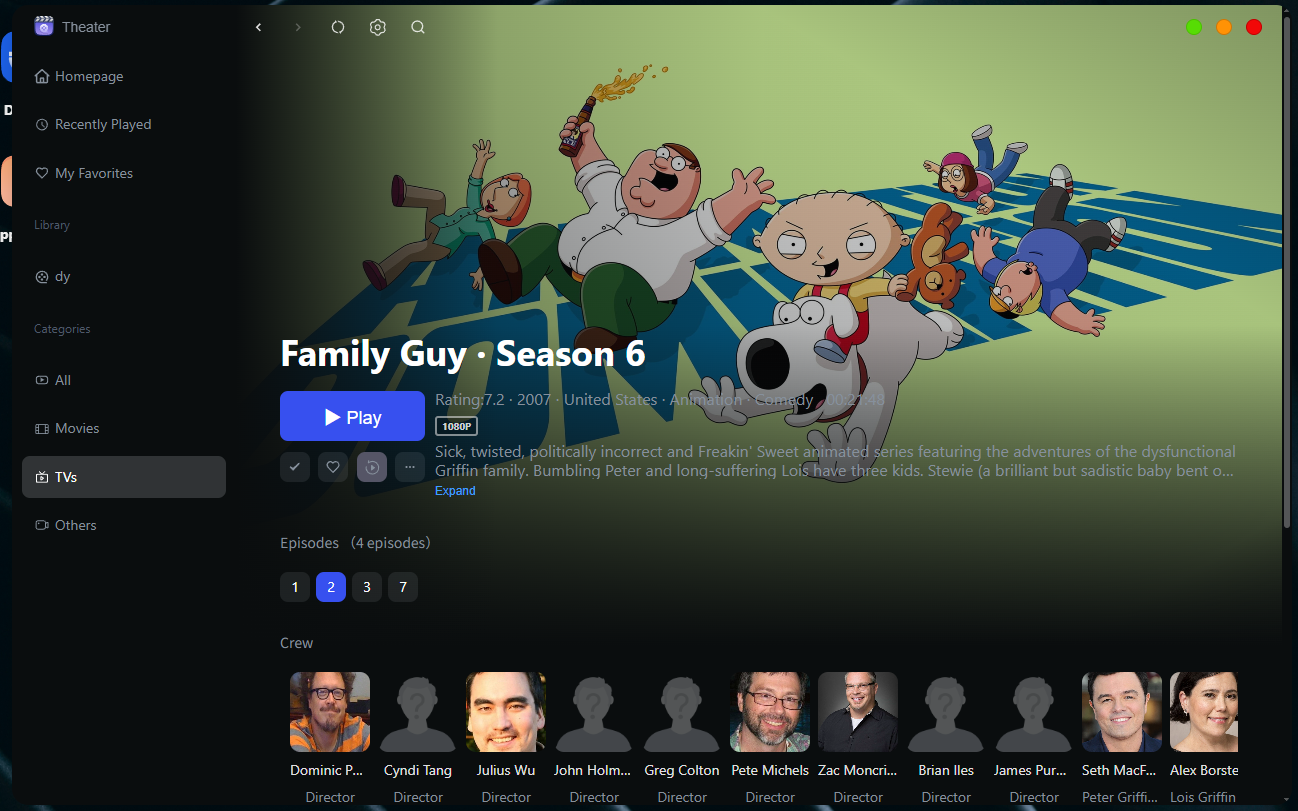
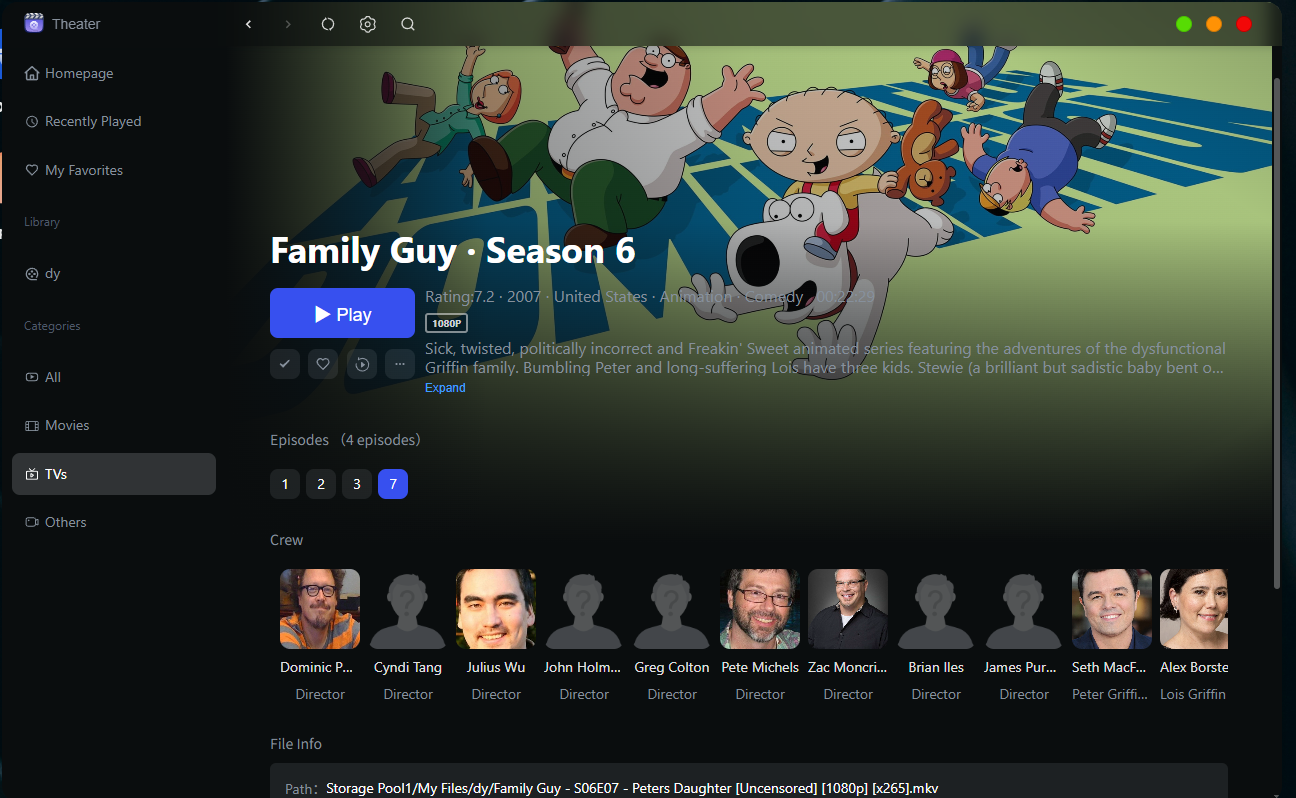
● For multi-episode series, you can quickly find the episode you want to watch using the "Episode List" view, which makes searching more efficient.
Filtering and Sorting
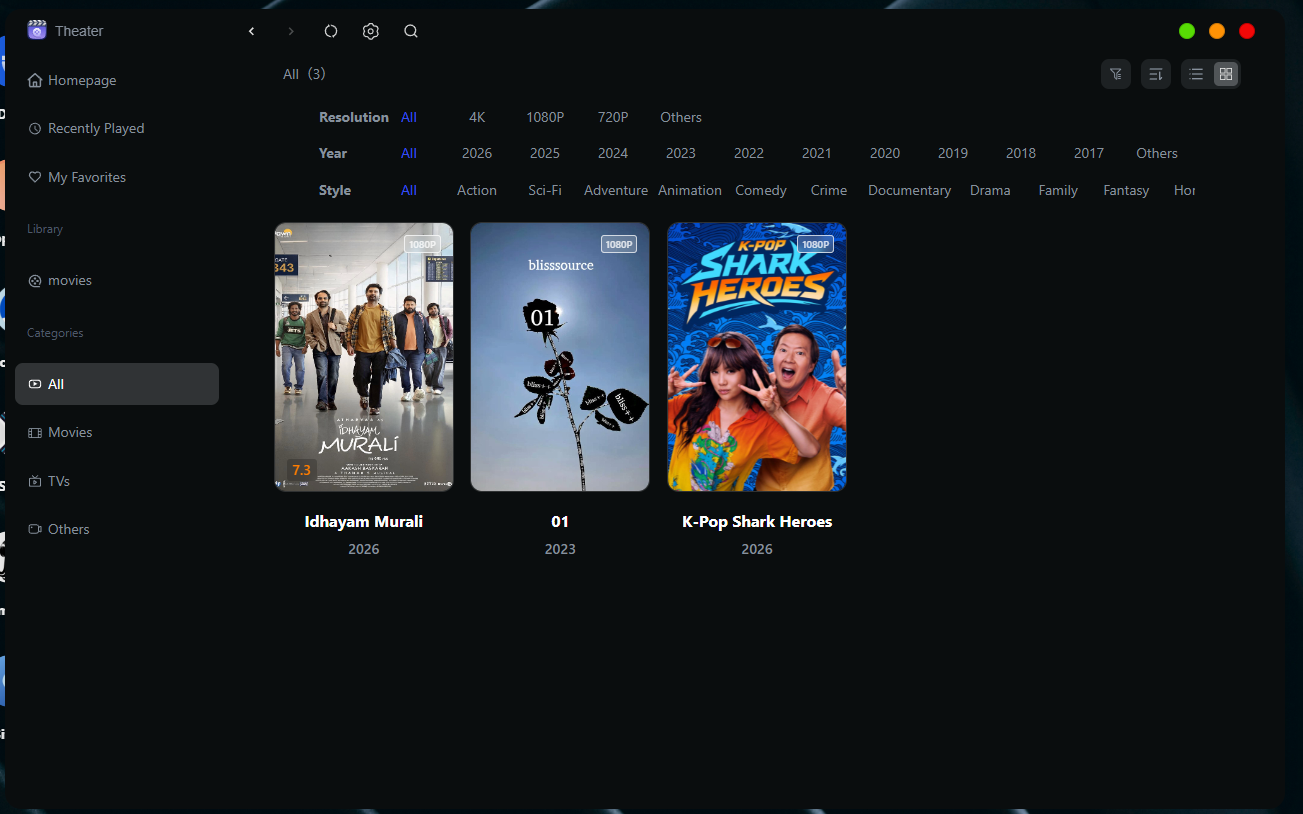
● Filtering: Offers six major categories—Status, Progress, Genre, Region, Year, and Type—allowing users to quickly filter movies based on their needs.
● Sorting: Supports four sorting options—Title, Date Added, Release Date, and Rating—with the option to sort in ascending or descending order for personalized management.
Movie Details Page
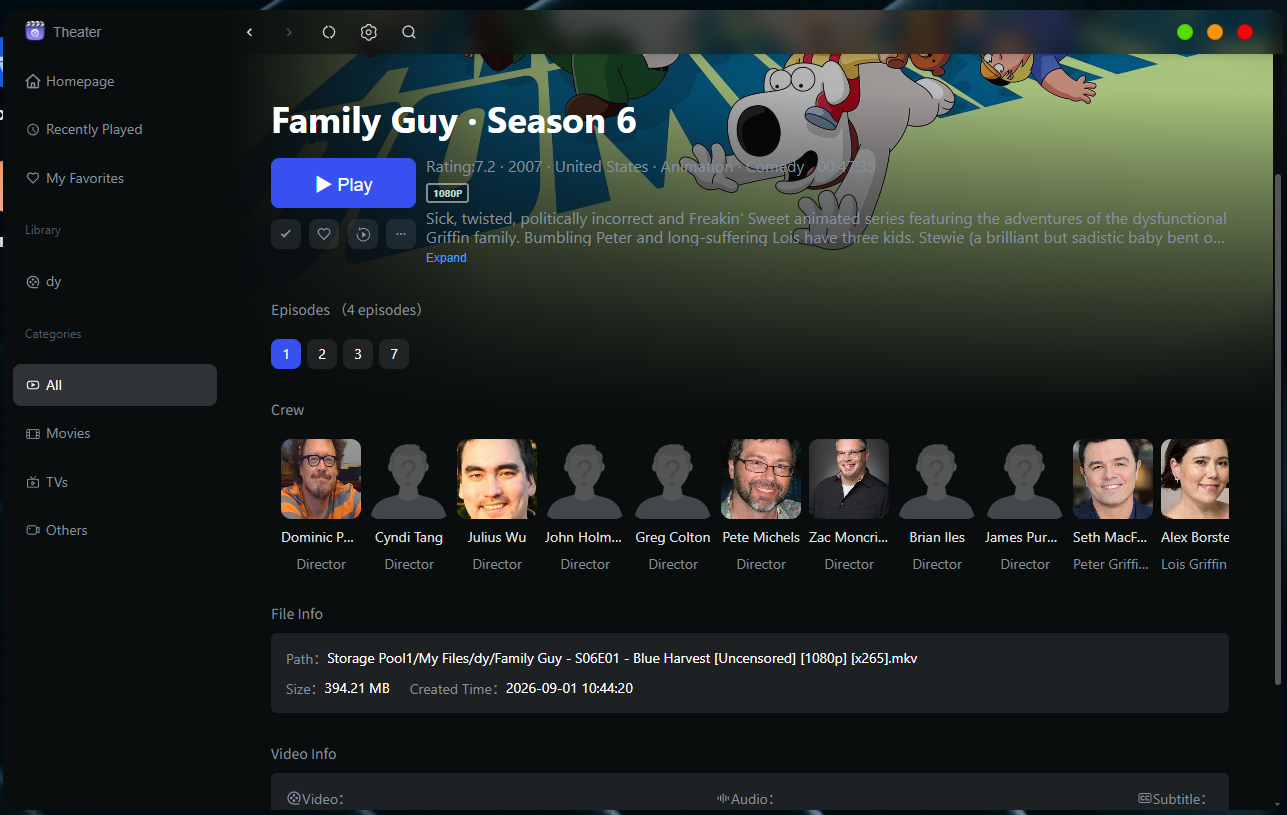
● Basic Information: Displays the title, rating, year, genre, region, runtime, synopsis, cast, video resolution, video metadata, audio information, and more.
Edit Poster Information
If the movie details are incorrectly matched, you can re-match or manually identify them on the poster details page.
Steps for Manual Identification
-
Tap the “...” button and select “Manual Identification.”
-
Enter the correct movie title (e.g., Civil War), then tap “Search” to trigger smart recognition.
-
Select the correct movie from the search results, and the system will automatically update the complete movie information.
Download/Delete Source Files
Delete Source Files
● Hover your mouse over an individual poster card, click “...” > “Delete Source File.” Deleted files can be recovered from the Recycle Bin in the “File Manager” app.
Download Videos
● Movies: Hover your mouse over a single movie’s poster card, click the “...” button, and select “Download” from the pop-up menu to download the video to your device.
● TV Episodes: To download TV episodes to your device, use the “File Manager” app.