Video Library - App
"Movie Library" is a feature-rich and user-friendly media app that provides users with a high-quality audio-visual experience. It allows you to build your own personal media library and supports playback across multiple devices. You can stream high-definition audio and video content anytime, anywhere via a browser or client app, sharing the joy of high-definition viewing with family and friends.
With Movie Library, you can easily:
●** Centrally store and categorize your media files**: This helps you easily organize and enjoy the media files stored on your UGREEN NAS.
● Build your personal media library: It supports retrieving movie and TV show information from multiple data sources and organizing content by category. For example, TV series, movies, and TV shows—simply enter keywords or apply filters in the search bar to quickly find the content you want.
● Seamless playback across multiple devices: Supports playback on a variety of devices, providing a unified viewing experience for you, your family, and friends. Whether you’re using Windows/macOS, Android/iPhone, iPad/Android tablet, or Apple TV/Android TV, the Movie Library syncs your playback history to ensure you can seamlessly continue watching when switching devices.
Installation and Access
-
First-time use: Go to the “App Center” to install the Movie Library app.
-
Access path: In the app, tap “All” > “Movie Library” to access the mobile Movie Library.
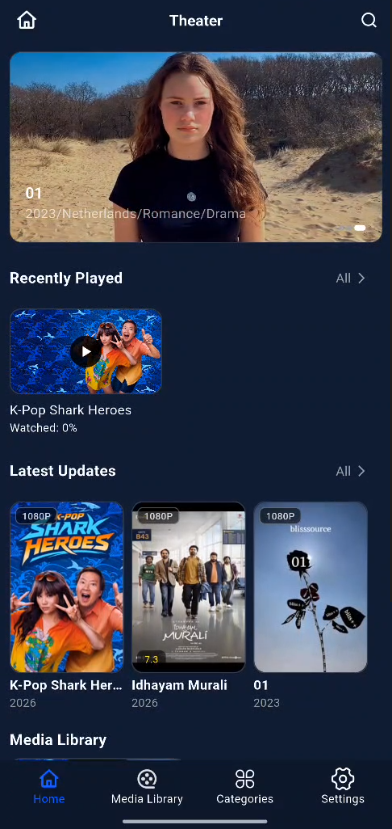
Home Page Featuress
The Video Library homepage includes the following three main sections:
Recently Watched:
● Displays recently watched videos in card format. Tap a card to resume playback from where you left off.
● Tap the “All” button to view your entire viewing history, sorted by the most recent playback time. Here, you can check your viewing progress; for TV shows, the number of episodes watched is also displayed.
● Tap “Edit” to delete unwanted viewing history entries.
Recent Updates:
● Displays the posters of the most recently added videos in the media library, including movies and TV shows. New episodes added to existing TV shows will also be displayed as updates.
● Tap a video to go to its details page; long-press a video card to bring up the action bar.
● Tap “All” to view the recent update history; you can switch between the update histories of different media libraries in the top menu bar.
My Favorites:
● Displays the movies and TV shows you’ve added to your favorites. To add a title to your favorites, tap the “Favorites” button on the title’s details page.
● Tap the “All” button to view all your favorites. You can view them by category: All, Movies, or TV Shows. You can switch between categories to view your favorites.
● Tap the “Edit” button to remove a title from your favorites.
Toolbar Features
In the action bar, users can access the following features:
-
Favorites: Tap the “Favorites” button to add a video to “My Favorites.” Videos already added to Favorites display a “Remove from Favorites” option; tap “Remove from Favorites” to remove the video from your favorites list.
-
Download: Tap the “Download” button to save a video to your phone. In the “Video Download” window, select the videos you want to download. If the video is a series, tap “Select All” to quickly select all episodes. After selecting, tap “OK” to add the download task. You can view download tasks in “Task Center” > “Save to Phone.”
-
Delete: Deletes the selected content and its media files. After deletion, the media files can be recovered from the Recycle Bin in the corresponding folder in File Manager (available to administrators).
-
Manual Identification: Corrects the movie information for media files. Enter the movie title to search, check the correct movie title, and confirm to update the movie information (available to administrators).