Video Library Settings - App
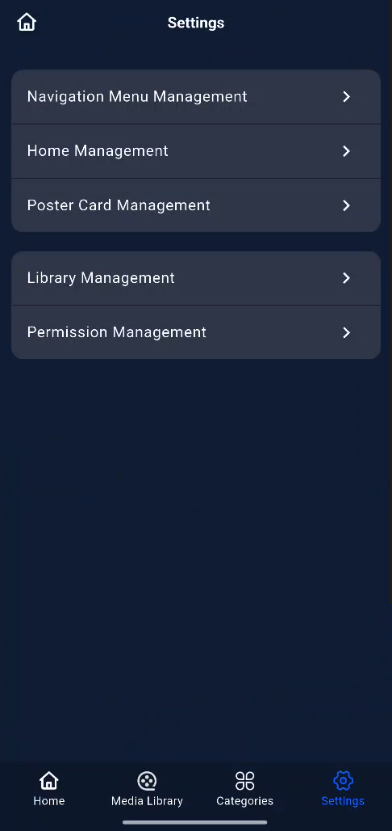
In the "Settings" section of the Movie Library, you can perform the following actions:
● Navigation Menu: Configure the display and order of modules in the left-hand navigation bar.
● Home Page Management: Customize the home page carousel and module layout.
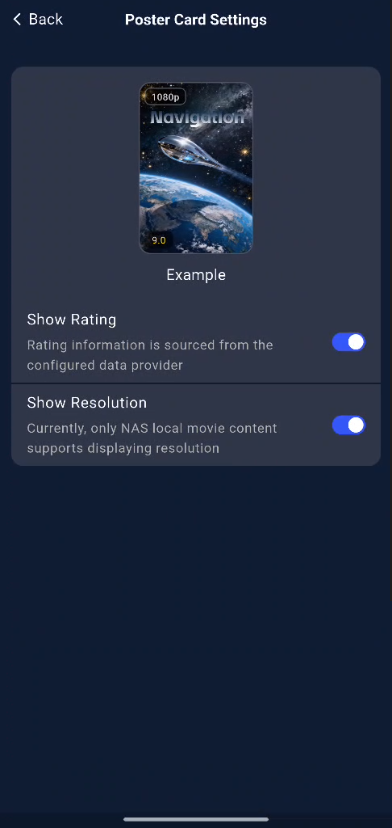
● Movie Card Management: Control the information displayed on movie cards (such as ratings and resolution).
● Media Library Management: Create, edit, and delete media libraries.
● Media Library Permissions Management: Control different users’ access permissions to media libraries.
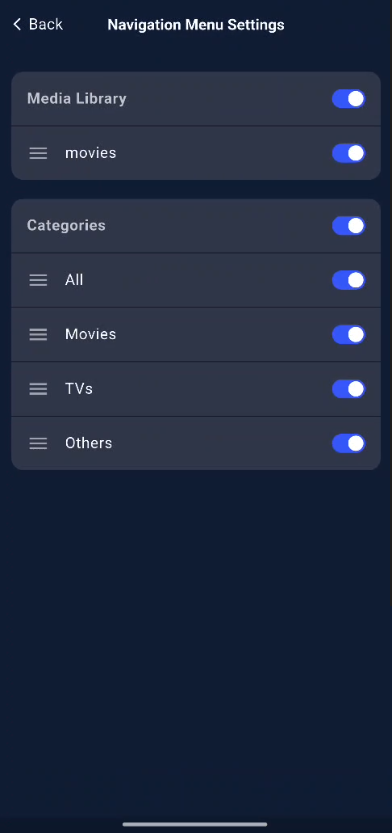
Navigation Menu Management
You can adjust menu display and sorting for the bottom navigation bar of the movie library, as well as content shown within menus, to tailor the interface to your usage preferences.
Adjustable items include:
-
Media Library Display: Toggle whether media‑library categories appear in the bottom navigation bar; select which media libraries are shown inside the media‑library view and set their sort order.
-
Category Management: The movie library automatically identifies files in your media libraries and sorts them into Movies, TV Shows, and Others (files that cannot be recognized fall under “Others”). You may toggle category visibility in the bottom navigation bar and define which content appears inside each category.
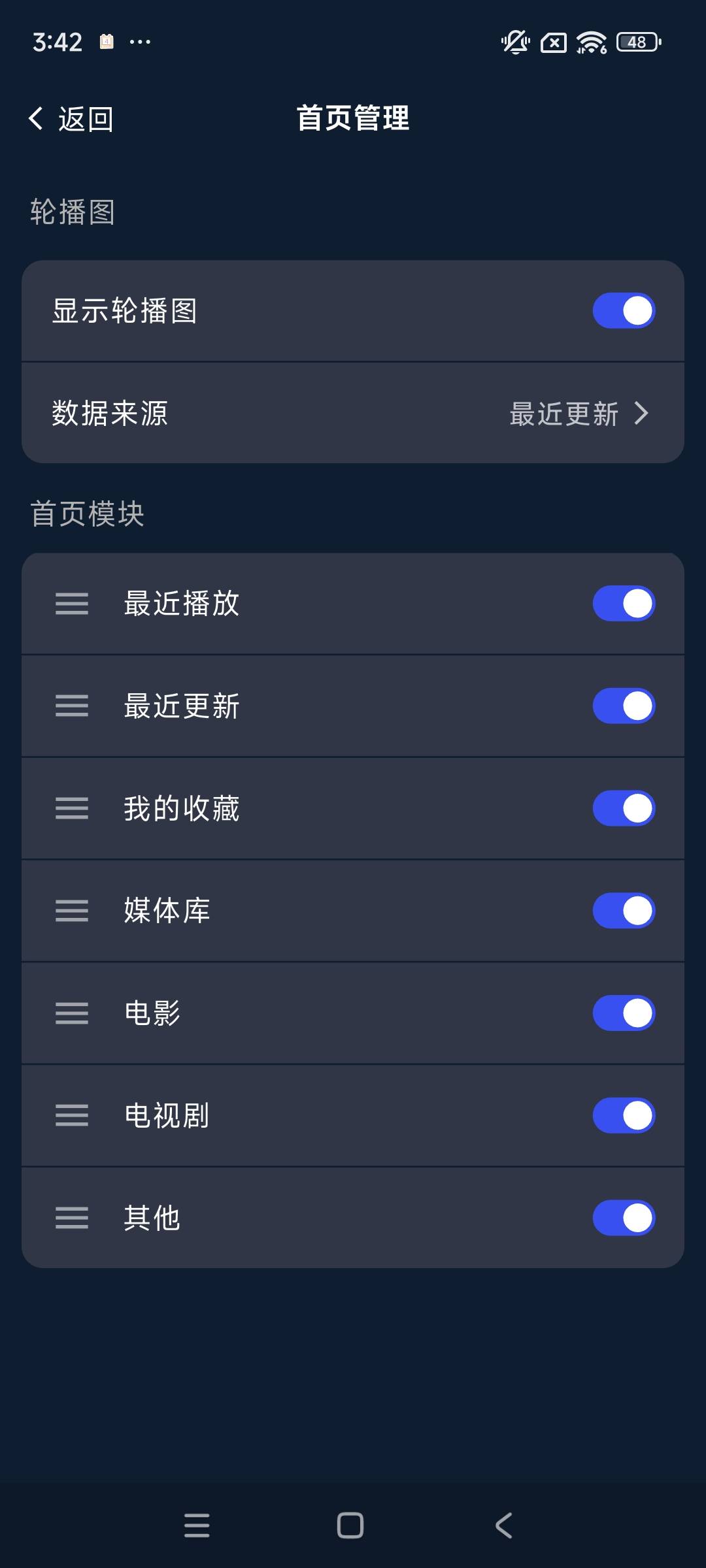
Homepage Management
-
Carousel Settings You can enable or disable the poster carousel on the homepage. Carousels improve personalization and user experience. You may configure carousel sources, such as Recently Updated or My Collection.
-
Homepage Module Settings Customize modules displayed on the homepage. Toggle modules on/off and reorder them to make your homepage simpler or more feature‑rich according to your preferences.
Poster Card Management
-
Rating Display Toggle whether ratings appear on movie cards for quick reference of a title’s popularity.
-
Resolution Display Toggle whether resolution labels appear on movie cards so you can quickly assess video quality.
Media Library Management
Media Library Management shows all existing media libraries in your movie library and the number of items inside each. You can edit media‑library settings and create new libraries.
Note: This feature is only available to administrator users.
Create a Media Library
Add folders from File Management as media libraries. The system will automatically scan video files inside and fetch metadata such as movie information, posters and cast lists from data sources to build a neatly‑organized, visually‑enhanced movie library.
Procedure:
-
Go to Movie Library, tap Settings > Media Library Management to open the media‑library management page.
-
Tap Create to launch the creation wizard.
-
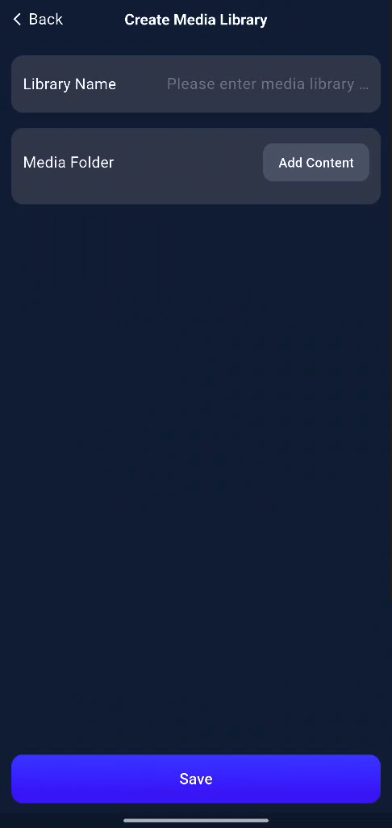
Configure media‑library parameters and rules. After verifying all settings, tap Save to create the library.
The system will begin scanning your selected folder and scrape movie metadata. This may take some time; please wait.
Parameter Descriptions for Library Creation
Fill in the following parameters in the creation wizard according to your needs:
Media Library Name
-
Description: A recognizable name for this library, e.g. “Western Movies”, “Kids’ Animation”.
-
Notes: Maximum length is 20 characters. Avoid special symbols (such as #, $, %, etc.).
Media Library Language
-
Description: Set the default display language for movie metadata (titles, descriptions, etc.). For example, selecting “Simplified Chinese” tells the scraper to prioritize Simplified‑Chinese descriptions and posters.
-
Notes: This only affects UI display language; it does not change audio or subtitle tracks inside your video files.
Media Folder
-
Description: Add folders storing your video files. The movie library will scan them and supports mainstream formats such as MKV and MP4.
-
Notes: You may only add entire folder paths; individual video files cannot be added directly.
Modify Media Library Settings
After creating a media library, you may adjust configurations such as changing the library language, adding new media folders, or switching metadata sources.
Procedure:
-
On the Media Library Management page, click the target media library you wish to edit.
-
On the edit page, you can modify all parameters available during library creation.
-
Tap Save to return to Media Library Management.
-
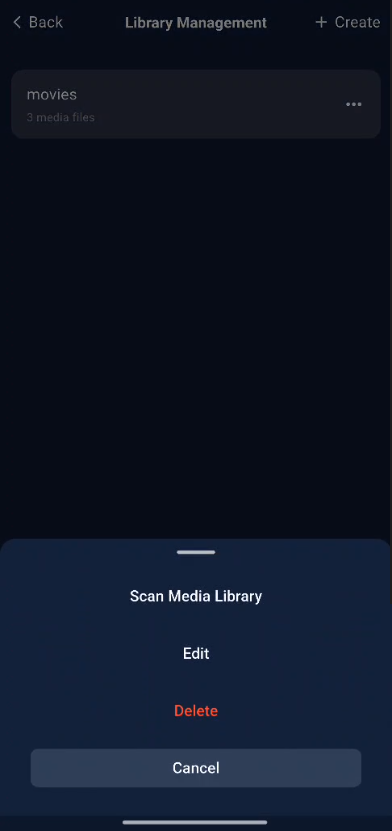
Select the target library, tap “···” > Scan Media Library.
Important: After modifying media‑library settings, you must rescan the library for new configurations to take effect.
Scan Media Library
Rescan a media library when new videos are added to its folder or after you change library settings, to refresh movie metadata.
-
On Media Library Management, select the target media library.
-
Tap “···” > Scan Media Library.
Scan Mode Differences
-
Choose Scan new items and fill missing metadata when you want to keep full data integrity.
-
Choose Scan all and overwrite metadata for a full re‑scan to refresh all movie information.
-
Use Scan all and overwrite metadata when switching metadata data sources.
Delete a Media Library
-
On Media Library Management, select the target media library.
-
Tap “···” > Delete.
-
A confirmation popup will appear; tap Confirm to complete deletion.
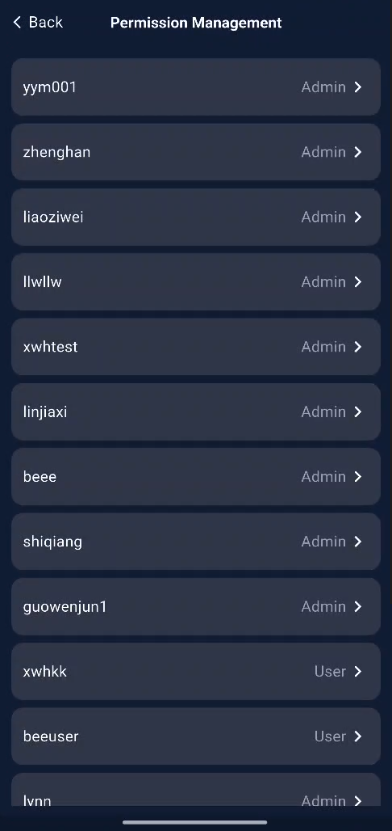
Media Library Permission Management
The movie library supports fine‑grained permission control. As an administrator, you can define which media libraries each device user can access.
Procedure:
-
Go to Movie Library, tap Settings > Media Library Permission Management to open the user‑management page.
-
Select the target user whose permissions you want to set or modify.
-
You will enter that user’s media‑library permission page. For each media library, set either Allow Access or Deny Access.
-
Tap Save after finishing configuration.
Permission changes take effect immediately. The user will see a filtered set of media libraries on their next visit to the movie library.