Video Library Settings - PC
Movie Library Settings offers a wide range of personalization and service‑management features. It lets you customize interfaces and functions according to your preferences and requirements, delivering playback experiences tailored to your workflow.
Accessing the Settings Page: Open the Movie Library app and click the Settings button at the top to enter the settings page.
Feature Overview: Within Movie Library Settings, you can manage the following functions:
-
Navigation Menu: Configure module display and sorting for the left‑hand navigation bar.
-
Homepage Management: Customize homepage carousel banners and module layouts.
-
Poster Card Management: Control information displayed on movie cards (e.g. ratings, resolution).
-
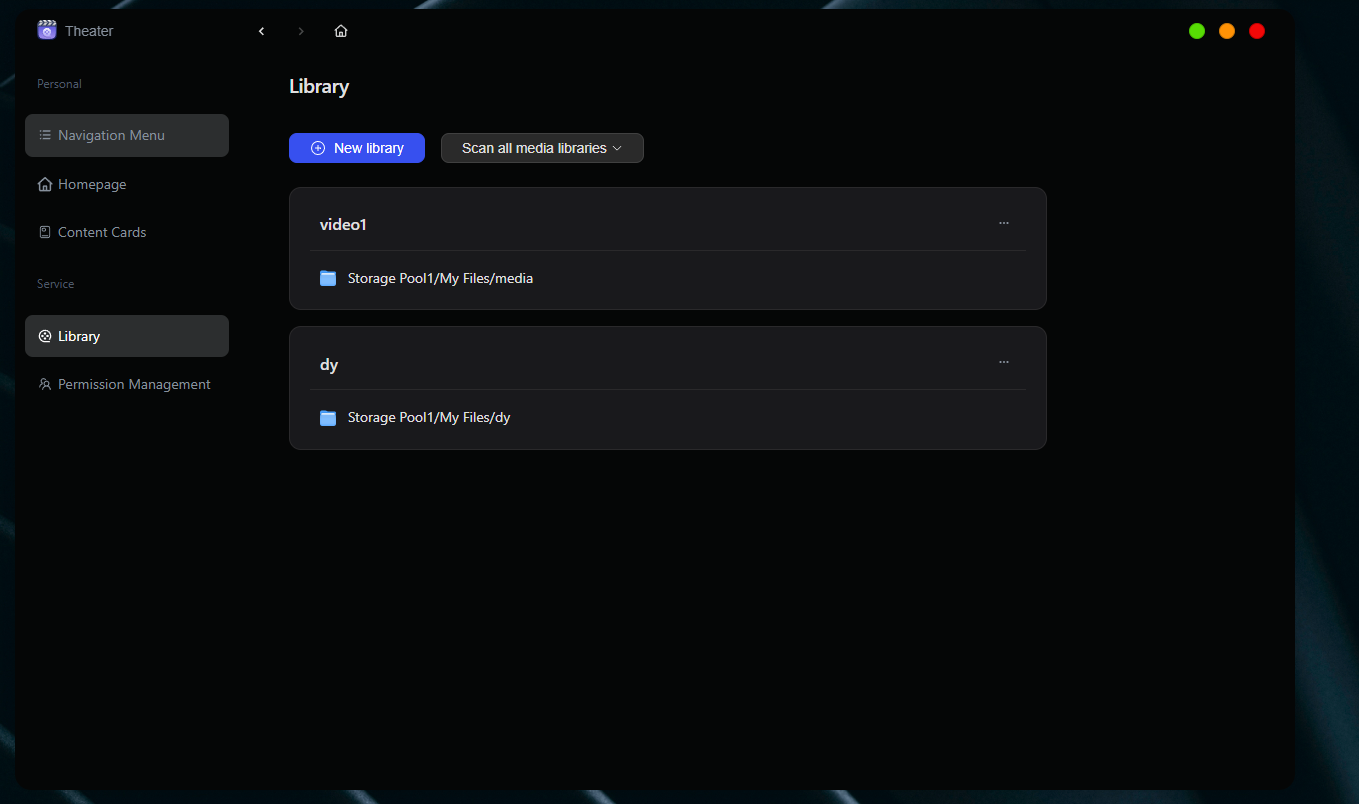
Media Library: Manage classification, display language, file paths, metadata retrieval methods and more for video content.
-
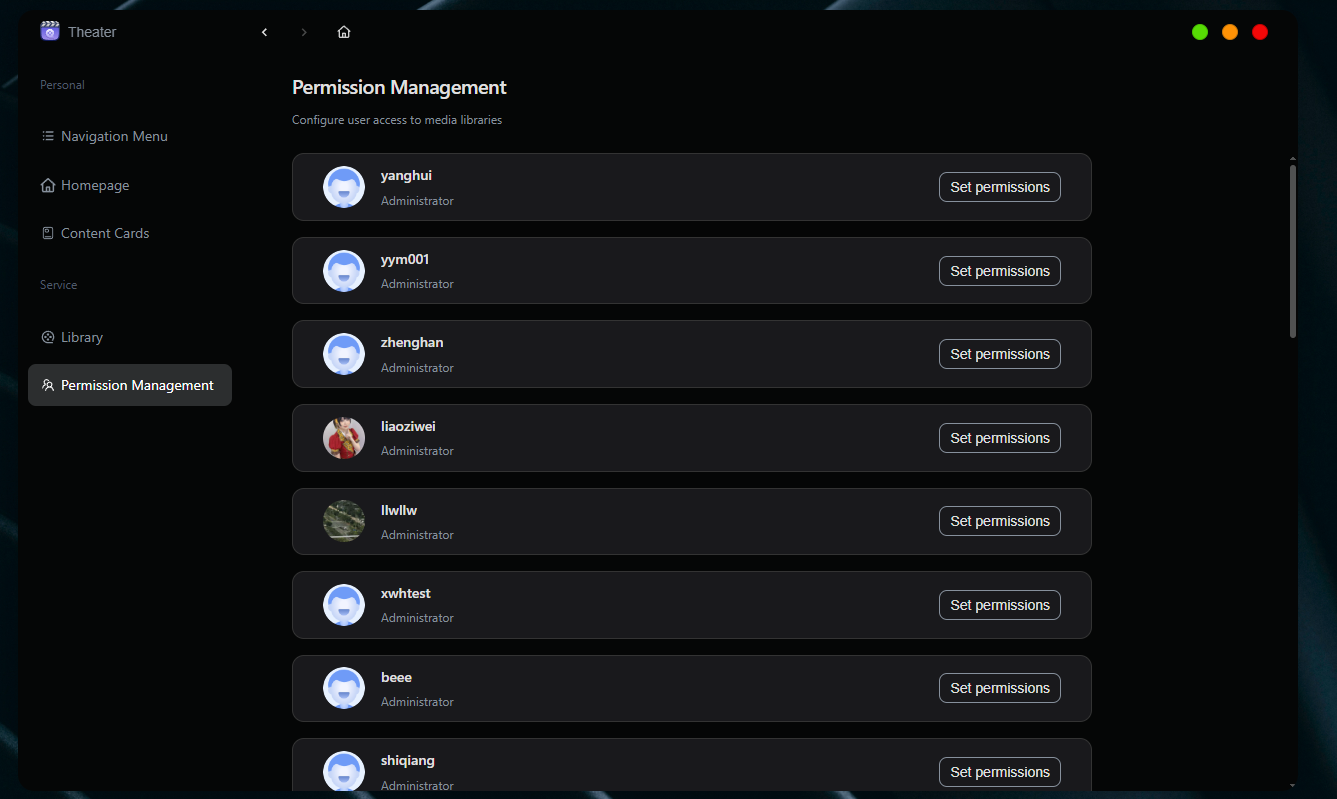
Permission Management: Configure movie‑library access rights for different users.
Navigation Menu
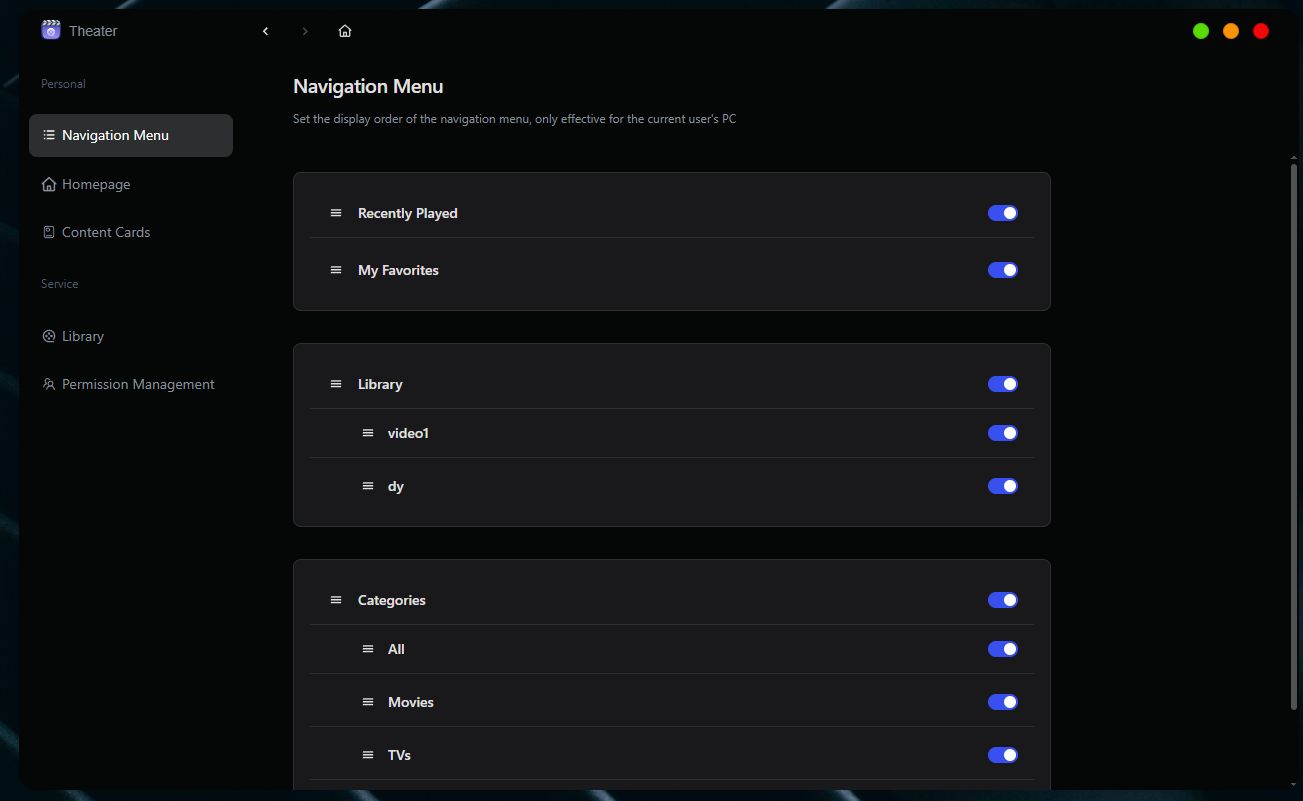
Customize displayed modules and their sort order for the left‑hand homepage navigation bar:
-
Supported modules: Recently Played, My Collections, Folders, Collections, Media Libraries.
-
Sorting: Drag‑and‑drop modules by holding the left‑mouse button.
Homepage Management
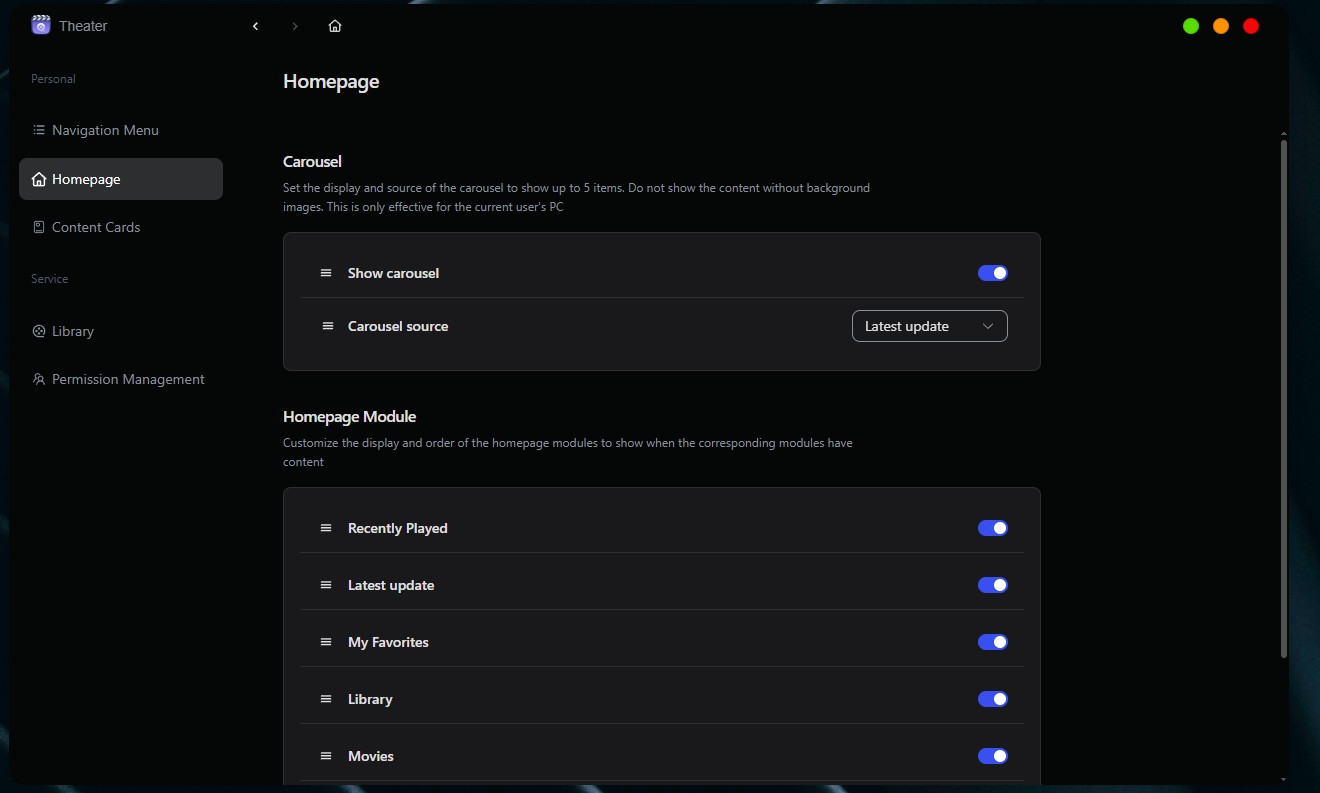
Configure the following items under Homepage Management:
-
Carousel: Toggle the full‑size homepage carousel and select its content source.
-
Homepage Modules: Customize modules shown on the homepage; re‑order modules via drag‑and‑drop.
Poster Card Management
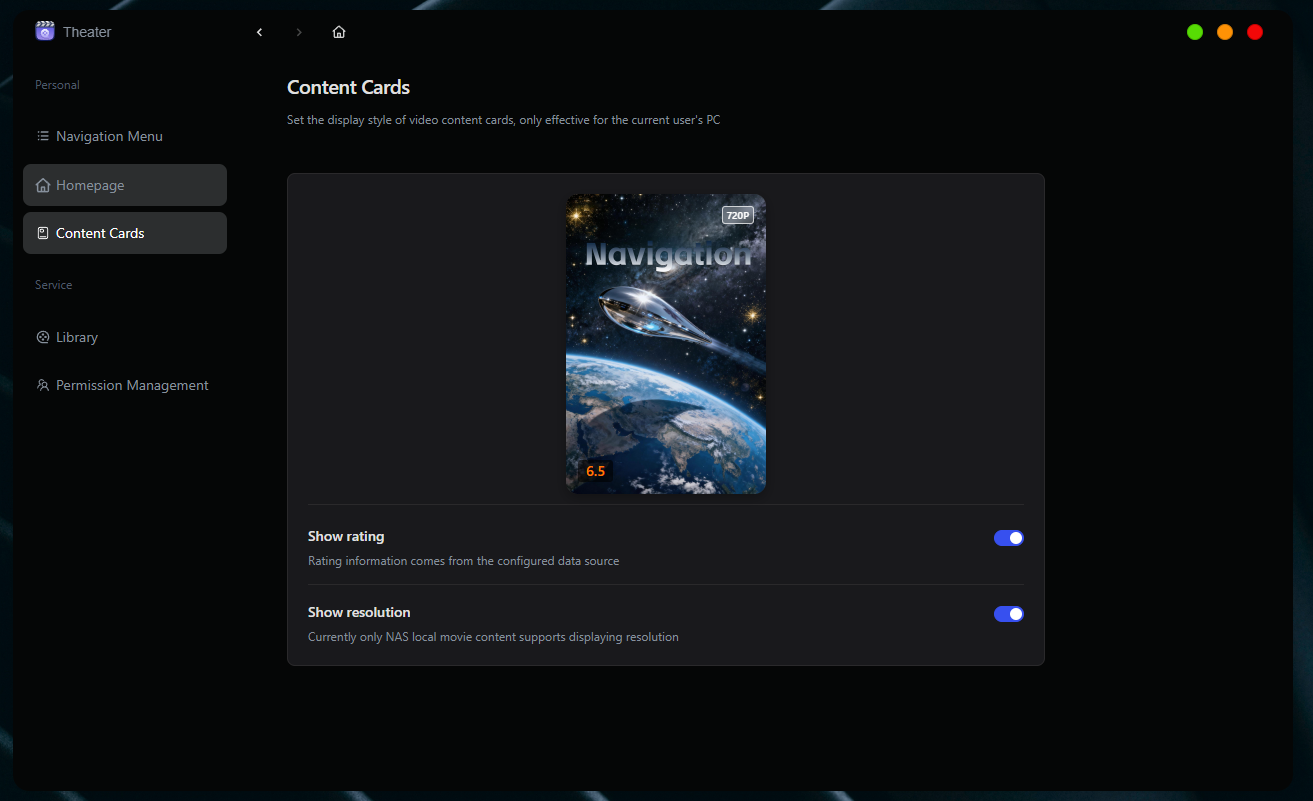
Configure information displayed on movie content cards:
-
Show or hide movie ratings.
-
Show or hide resolution labels.
Media Library
As the core module of Movie Library, Media Library organizes and recognizes your stored video assets. With it, you can systematically categorize movies, configure metadata scraping, control access permissions, and manage library import and identification workflows to improve home‑media management and user experience.
Core Media‑Library Functions
-
Create multiple media libraries to partition content by category or purpose.
-
Configure library name, language, associated folders, metadata sources and filter rules.
-
Edit, scan or remove media libraries.
-
Set media‑library access permissions to control content visibility for different users.
Create a New Media Library
Procedure:
- On the Settings page of Movie Library, click Media Library > New Media Library to open the configuration window.
- Fill in the following parameters:
Media Library Name: Custom name, maximum 20 characters; avoid special symbols (#, $, %, etc.).
Media Library Language: UI display language (affects only titles, descriptions, etc. and does not alter language tracks inside video files).
Media Folders: Select NAS folders storing your movies (multiple folders may be added).
- Click Apply to save and create the library.
Description of Media‑Library Configuration Items:
-
Prioritize reading metadata from matching‑name NFO files: NFO files are plain‑text or XML files containing movie metadata (descriptions, actors, directors, etc.) for richer, custom‑defined library display. If a
.nfofile sharing the same name exists in a video directory, its data will take priority. -
Automatically identify video series and add to collections: Automatically group related videos into collections (e.g. TV seasons, director anthologies).
-
Filter files smaller than the specified size: Set a size threshold (e.g. 100 MB) to exclude invalid files.
Manage Media Libraries
After creating a media library, you can perform these operations:
-
Edit Media Library: Right‑click the media library, or click the top‑right “···” > Edit.
-
Scan Media Library: Right‑click the media library, or click the top‑right “···” > Scan. Use this to re‑identify content or manually match metadata. Two scan modes are available: Scan new items and fill missing metadata, and Scan all and overwrite content.
-
Remove Media Library: Removal only deletes the media‑library configuration; actual video files remain untouched. If you remove a library that is currently playing, playback will stop. Removing a media library also clears collection records and playback progress.
Notes:
-
Normally, Movie Library automatically monitors changes in associated media‑library folders and imports new content. Run manual scans to speed‑up identification or force content refreshes.
-
Scanning consumes system resources. Larger file sets require longer scan times.
-
If metadata scraping fails after a full‑overwrite scan, the system will use screenshots as temporary posters or show blank covers.
-
Explanation of the three scan modes:
-
Scan only new and modified items: Processes only newly‑added or changed files for higher efficiency.
-
Scan new items and fill missing metadata: Iterates over all content and completes only blank metadata fields.
-
Scan all and overwrite content: Fully re‑identifies every file and replaces existing metadata. Recommended only for initial library creation or major configuration changes to avoid overwriting correct existing metadata.
Permission Management
Within User Management, administrators can centrally configure movie‑library access permissions for individual users.
Procedure:
-
From Movie Library Settings, open User Management, select the target user and click Set Permissions. In the pop‑up permission‑configuration window, choose which media libraries the user may access and define access rights.
-
Click Apply to save your settings.