Video Player - App
Screenshots and options shown in this document are for reference only. Actual displays may vary depending on system version, app version or device model. Please refer to the real‑world interface.
Feature Introduction
The NAS mobile‑app comes with a powerful built‑in video player. It supports both portrait and landscape display modes and provides convenient gesture controls.
Playback Interface and Display Modes
-
Default Landscape Playback: Videos start playing in landscape mode by default.
-
Switch to Landscape Mode: Tap the screen‑rotation icon at the bottom‑right corner of the player interface to switch to full‑screen landscape playback for a more immersive viewing experience.
Quick Gesture Controls
The mobile‑player supports intuitive touch gestures for fast adjustments during playback:
-
Adjust Brightness: Swipe up or down on the left side of the playback view to modify screen brightness.
-
Adjust Volume: Swipe up or down on the right side of the playback view to change audio volume.
Basic Controls (Available in both Portrait and Landscape)
-
Screen Lock: Tap the padlock icon on the left side of the screen. Once locked, all touch inputs are disabled to prevent accidental taps. Tap again to unlock.
-
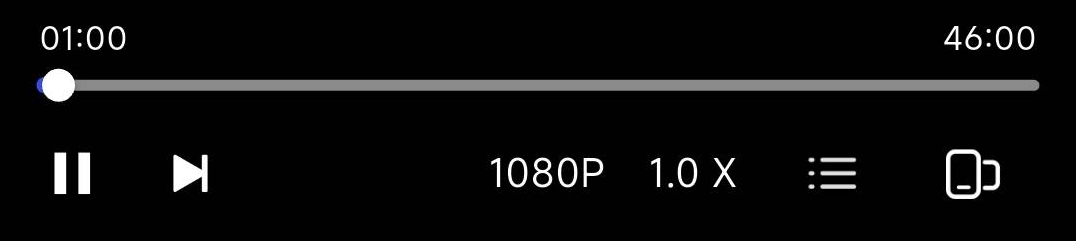
Play / Pause: Double‑tap the center of the screen or tap the Play/Pause button on the bottom control bar to toggle playback state.
-
Next Episode: Tap the Next icon to jump quickly to the next video in the playlist.
-
Quality Selection: Tap Original or a resolution value (e.g. 4K) to switch video definition according to your network conditions.
-
Playback Speed: Tap the 1.0X icon to adjust playback speed (range: 0.5×‑3.0×).
-
Episode List: Tap the list icon in the bottom‑right corner to open the episode list and select episodes quickly.

Advanced Features (Landscape‑Mode Only)
When in landscape mode, extra advanced‑function icons appear on the bottom toolbar:
-
Subtitle Settings: Tap the CC icon to select embedded subtitles.
-
Audio‑Track Switching: Tap the sound‑wave icon to switch among different languages or audio channels for multi‑audio‑track videos.