User Center - App
The “Settings” app provides comprehensive user management features. Here is a detailed user guide:
Edit User
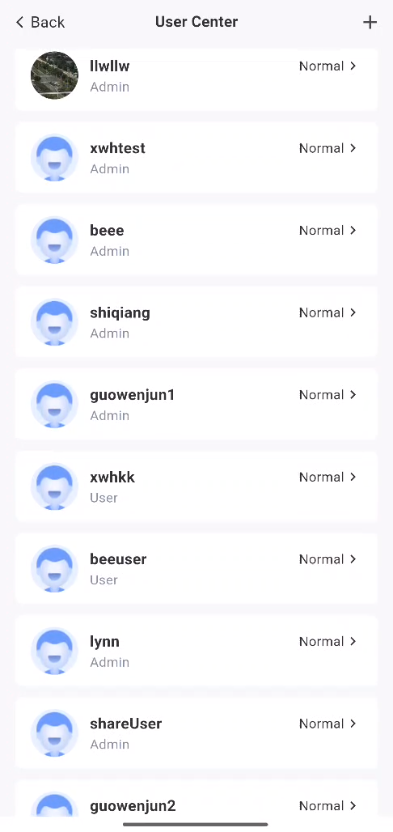
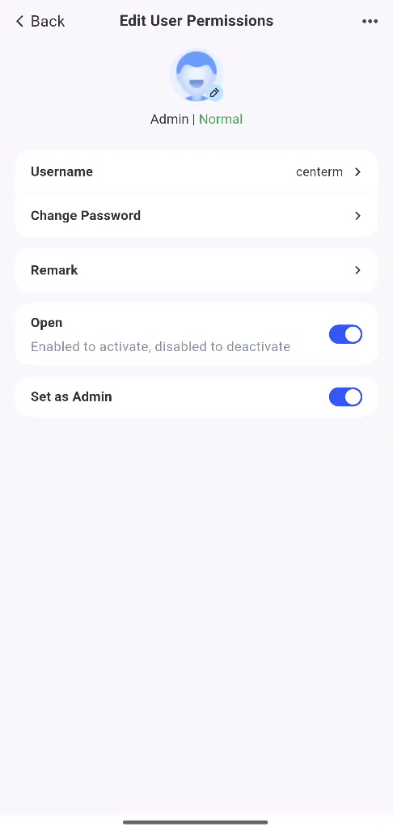
On the "User Center" page, click to the right of the user you want to edit to display that user's details. You can perform the following actions:
● Change the user's profile picture: Click the profile picture to change it.
● Edit user information: Select “Edit” to modify the username and notes.
● Deactivate account: Click the “...” button next to the user you want to edit, check “Deactivate this account”, and then select “Immediately” to deactivate the selected account. To reactivate the account, uncheck the “Deactivate this account” option on the same page.
● Set/Remove Administrator: Tap the “...” button next to the user you want to edit, check “Set/Remove Administrator”, and then set that user as an administrator.
● Change Password: Change the user’s password. The password must be 8–20 characters long and include at least three of the following: lowercase letters, uppercase letters, numbers, and special characters.
New Users
In the "Control Panel" app, tap "User Management" to choose from several methods for adding new users. Here are the detailed steps and instructions:
Create User
-
Log in to the system using an administrator account.
-
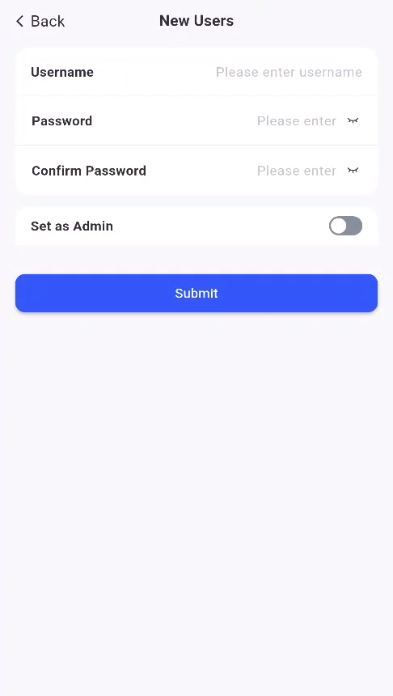
Open the “System Settings” app, locate and click “User Center” > “Add User.” In the pop-up window, select “Confirm” to manually enter the new user’s information.
-
Fill in the user information:
● Username: Enter the new user’s username; ensure it is unique.
● Password: Enter the new user’s password and confirm it.
● User Type: Select the user’s role—Regular User or Administrator.