User Center - PC
" **System Settings **" app provides comprehensive user management functions. Below is the detailed user guide:
Edit User
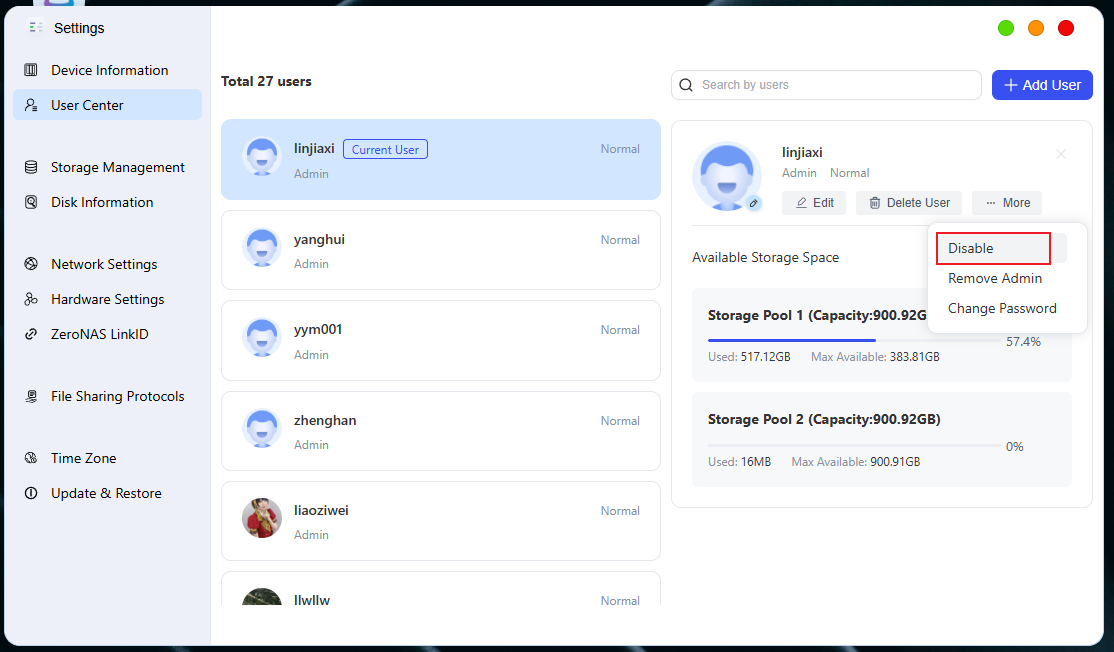
On the **User Management **page, click on the target user to be edited, and the detailed information of this user will pop up on the right, where you can perform the following operations:
● Change user avatar: Click the avatar to perform the avatar replacement operation.
● Modify user information: This operation can be performed after selecting " **Edit **", and users can modify the username and remarks.
● Deactivate account: Tap the " **··· **" button next to the user to be edited, check the " **Deactivate this account **" option, then you can select " **Immediately **" to deactivate the selected account. If you need to reactivate the account, you can turn off the " **Deactivate this account **" option on the same page.
● Set/Remove Admin: Tap the " **··· **" button next to the user to be edited, check the option " **Set/Remove Admin **", then the user will be set as an admin account.
● Change Password: Modify the password for this user. The password must be 8-20 characters long and contain at least 3 of the following: lowercase letters, uppercase letters, digits, and special symbols.
New Users
In the **Control Panel **application, click **User Management **to select from multiple methods for adding new users. The detailed steps and instructions are as follows:
Create User
-
Log in to the system with the administrator account.
-
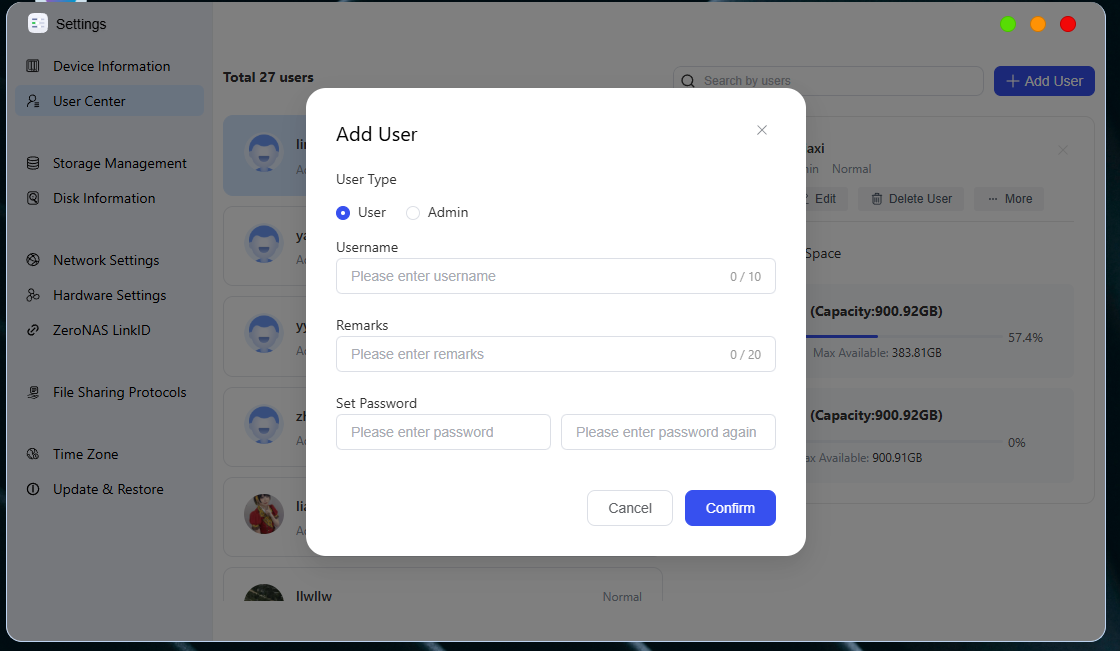
Open **the "System Settings" **app, locate and tap " **User Center **", then " **Add User **". In the pop-up window, select the " **Confirm **" option to manually enter the new user's information.
-
Fill in user information:
● Username: Enter the username for the new user and ensure it is unique.
● Password: Enter the password for the new user and confirm it again.
● User Type: Select the role of the user, either a regular user or an administrator.